

Would like to hear some comments from fellow developers.
I am designing the UI for a mobile site/app. Essentially, the data I need to present in the main interface is a list of items arranged vertically if assuming portrait orientation. Let's just imagine it is a simple ordered list of products for sale similar to the below.

Each of these item can be categorised with a single category, e.g. Books, Apps, or Movies etc.
Now I want to let the user easily and quickly filter by category. There are several ways to do so.
Which sounds like a better or more standardized choice that most users would find intuitive?

Method 1: Drop down list. When selected, the navigation bar title will reflect the selected category.

Method 2: dialog/action sheet from a navigation bar Filter button

(Left) Method 3 segmented buttons and (right) method 2 dialog/action sheet method

Method 3: Segmented buttons/bar
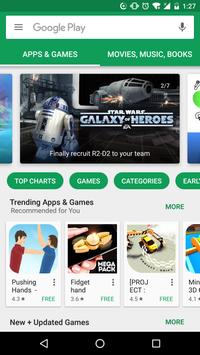
Method 4: Use chips (rounded labels) to toggle like Google Play

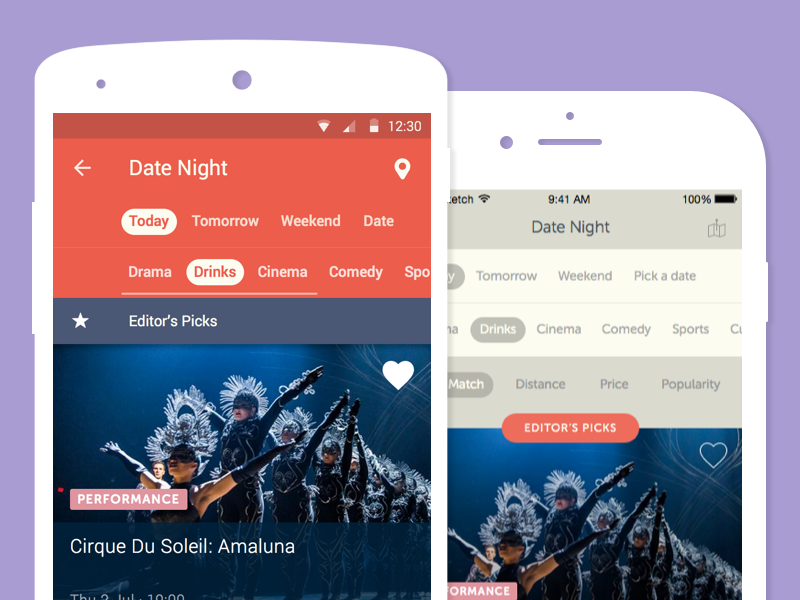
(Left) Method 5 Tabs and (right) method 6 sidebar/drawer
I am designing the UI for a mobile site/app. Essentially, the data I need to present in the main interface is a list of items arranged vertically if assuming portrait orientation. Let's just imagine it is a simple ordered list of products for sale similar to the below.
Each of these item can be categorised with a single category, e.g. Books, Apps, or Movies etc.
Now I want to let the user easily and quickly filter by category. There are several ways to do so.
- Have a drop down list in the navigation bar at the top of the page (similar to a search box)
- Have a icon/button at the navigation bar at the top right that opens up a dialog/action sheet to choose the category
- Use segmented buttons or a button row
- Use chips (rounded text labels) to toggle categories on/off
- Use tabs
- Use a sidebar/drawer panel that slides in from the left/right when needed
Which sounds like a better or more standardized choice that most users would find intuitive?
Method 1: Drop down list. When selected, the navigation bar title will reflect the selected category.
Method 2: dialog/action sheet from a navigation bar Filter button
(Left) Method 3 segmented buttons and (right) method 2 dialog/action sheet method
Method 3: Segmented buttons/bar
Method 4: Use chips (rounded labels) to toggle like Google Play
(Left) Method 5 Tabs and (right) method 6 sidebar/drawer


