Google / Android Apps New Features, Tips & Tricks

limmk

High Supremacy Member
Joined
Jul 5, 2001
Messages
39,514
Reaction score
7,995


A couple of months back, Google released a pretty major update for its Pixel Camera app. Not only did it get a major redesign thanks to Material 3 Expressive, but it delivered a simpler interface that made some subtle but notable changes as well.

And while, at a glance, everything felt pretty familiar, there was a small adjustment that flipped around the shadow and exposure settings that could be found on the live view screen when taking a picture.

Putting things back to how they were​


Naturally, this wasn't a huge deal, but for those that were used to the previous settings, it did take some time to adjust. If you weren't a fan of the change, there's luckily some good news. You'll be happy to hear that Google has now reverted the shadow and exposure settings back to its previous configuration.
The change was spotted by the folks at 9to5Google, and is available in the latest Pixel Camera 10.2 update. So going forward, the shadow adjustment will be at the top, while the exposure setting will be located at the bottom when making adjustments in the live view. You can check out the change shown in the image above.

Not a big change, but it's something to be aware of​

As you can tell, it's quite subtle. It's also important to note that the temperature adjustment will remain in the same space, occupying the left-hand area. For the most part, there's nothing really major going on here, but it's something to be aware of the next time you head into the settings to take some photos and make some adjustments.

Things will feel different, and it could be confusing if you're not paying attention to what's going on. If you've never messed with the exposure and shadow settings, it's worth taking a look, as these are small adjustments that can end up making a huge difference. Google's posted a nice refresher to give you an idea of how each of these settings work in the Pixel Camera app.

This BRILLIANT Pixel now makes a lot more sense. [Video]


This is especially critical if you're someone that's going to be taking a ton of photos over the holidays. We know how some scenarios might not have the best lighting, so it's critical to be able to make these types of adjustments on the fly without having to think too much. However, we know that the Pixel Camera is already pretty good at getting the shot right.

So, if you feel like leaving things alone, that's an option too. Just in case you're curious about this change, you can head to the Play Store to check for this update. However, 9to5Google notes that it may not be widely available yet. So, if you don't see it, don't be alarmed and check back again at a later time.
 

limmk

High Supremacy Member
Joined
Jul 5, 2001
Messages
39,514
Reaction score
7,995
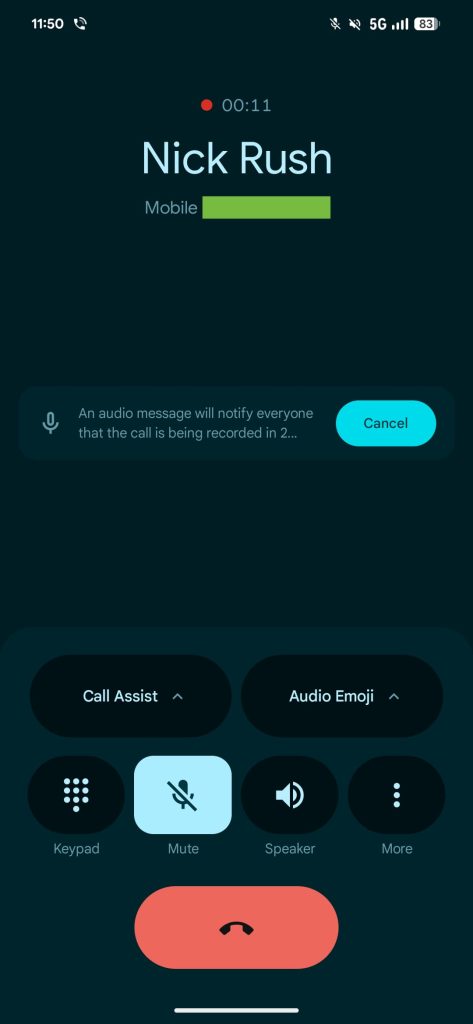
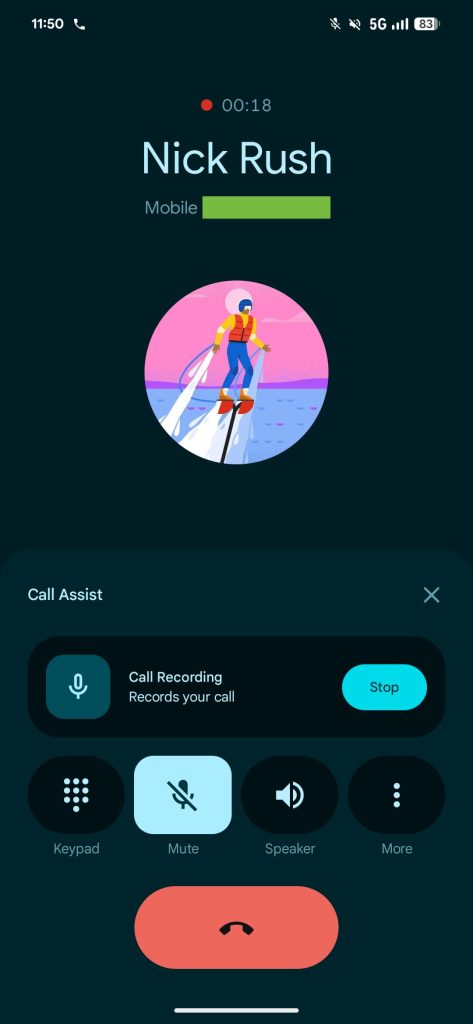
Call Recording now available. you can find the feature in the Phone app under Settings > Call Assist > Call Recording

Fz2knjU.png
4BWBckv.png
 

limmk

High Supremacy Member
Joined
Jul 5, 2001
Messages
39,514
Reaction score
7,995


In November, Call Recording for the Pixel Phone app began rolling out broadly, and it’s now getting international availability.

This is different from Gemini Nano-powered Call Notes available on the Pixel 9 (except A-Series) and later. Call Recording is for all other devices and does not offer transcription or summaries.

Once available, go to Phone app > Settings > Call Recording for a setup/download process. Afterwards, open the Call Assist menu during a conversation to activate. You can also “Automatically record calls with non-contacts” and specify numbers that always record.

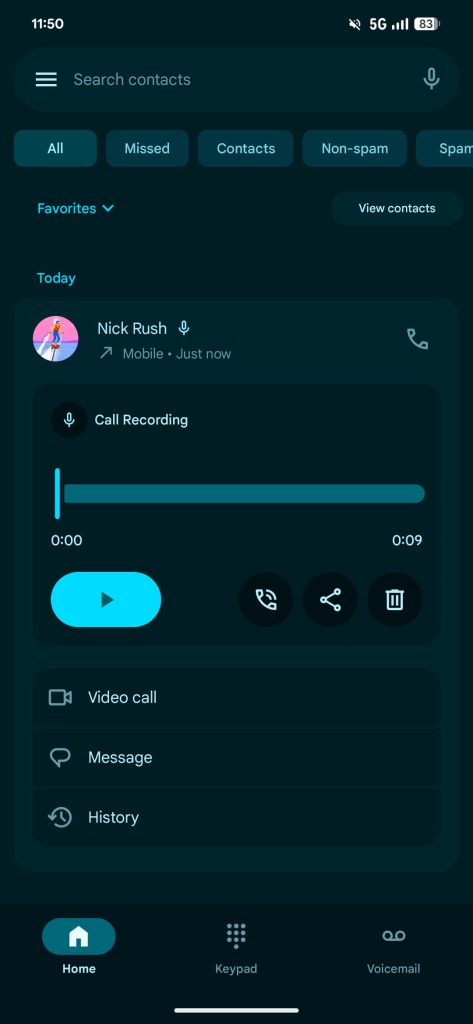
There’s a countdown before the spoken message that notifies everyone on the line that you’re recording. You can tap “Stop” mid-call to end. Recordings appear in the Home tab with a microphone icon and inline player.

Pixel-Phone-Call-Recording-1.jpg

Pixel-Phone-Call-Recording-2.jpg

Pixel-Phone-Call-Recording-3.jpg


You can have recordings automatically delete after 7, 14, 30 days, or Never, with “Delete all” available in settings.

Call Recording is available on “Pixel 6 and up with Android 14 and up.” Officially:

You must be in a country or region where call recording is supported. Call recording is widely available, but not in all countries or regions. Features vary based on your country or region.

This wider Call Recording availability was announced in September, with Google noting how the “expansion to new countries will roll out through the rest of the year.” In November, we saw broad US availability, but people reported not getting it in Europe.

Over the past few days, we’ve seen more reports from European countries about Call Recording going live.

Additionally, with the Pixel 10a launch, Google told us that “all markets” and languages would get Call Recording in the Phone app by the end of February, or before the new device hits store shelves.

Pixel-Phone-Call-Recording-4.jpg

Pixel-Phone-Call-Recording-5.jpg
 

limmk

High Supremacy Member
Joined
Jul 5, 2001
Messages
39,514
Reaction score
7,995


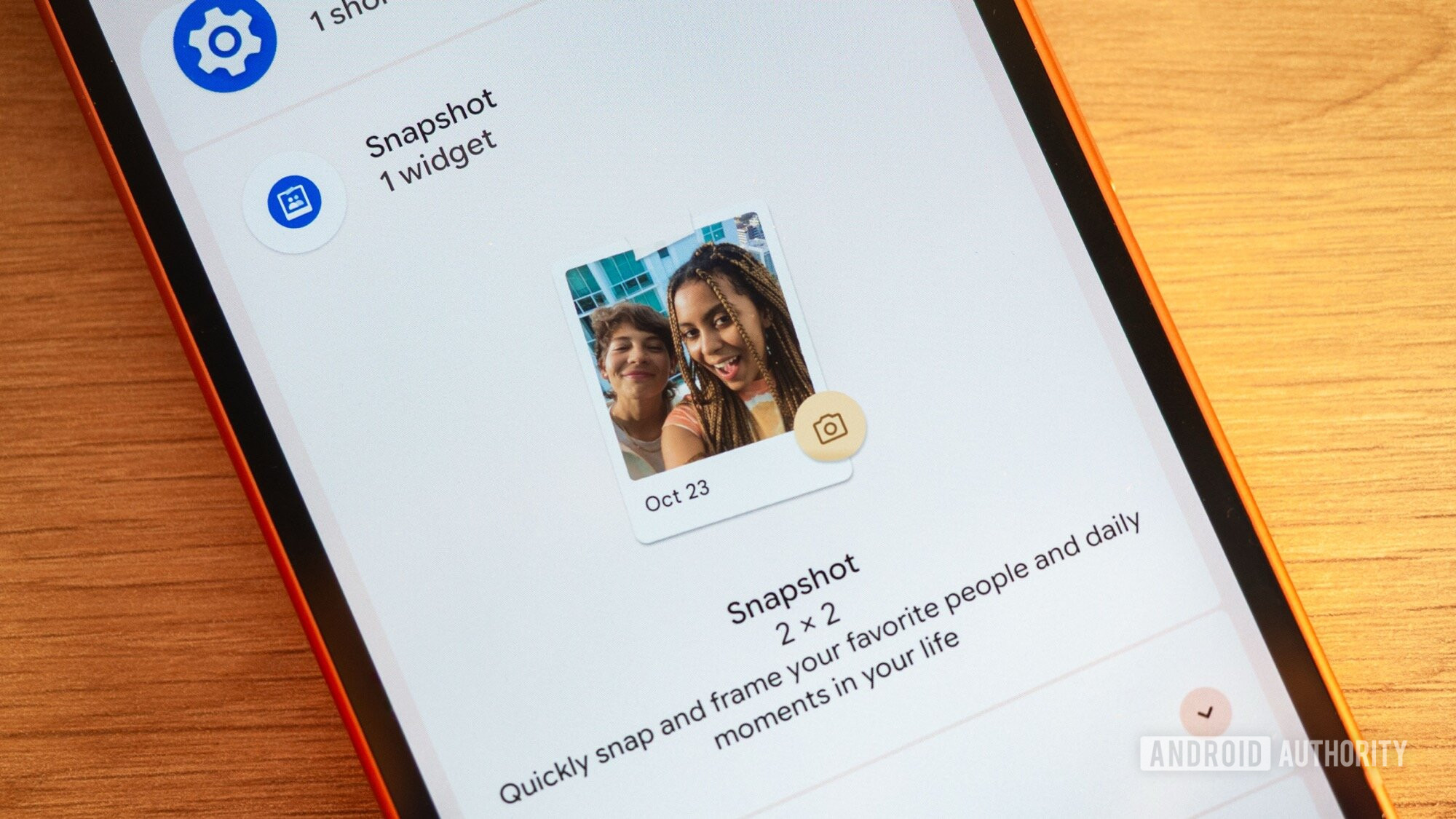
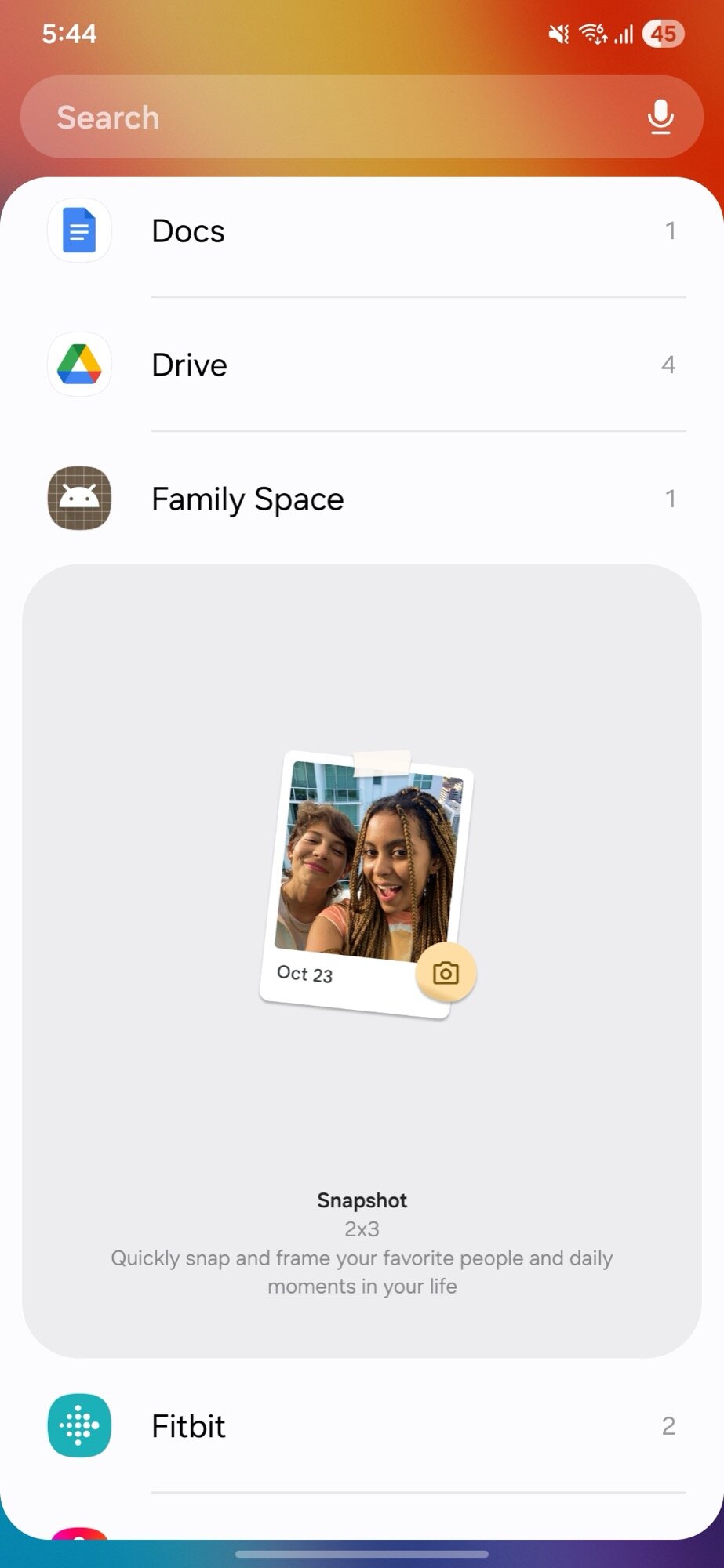
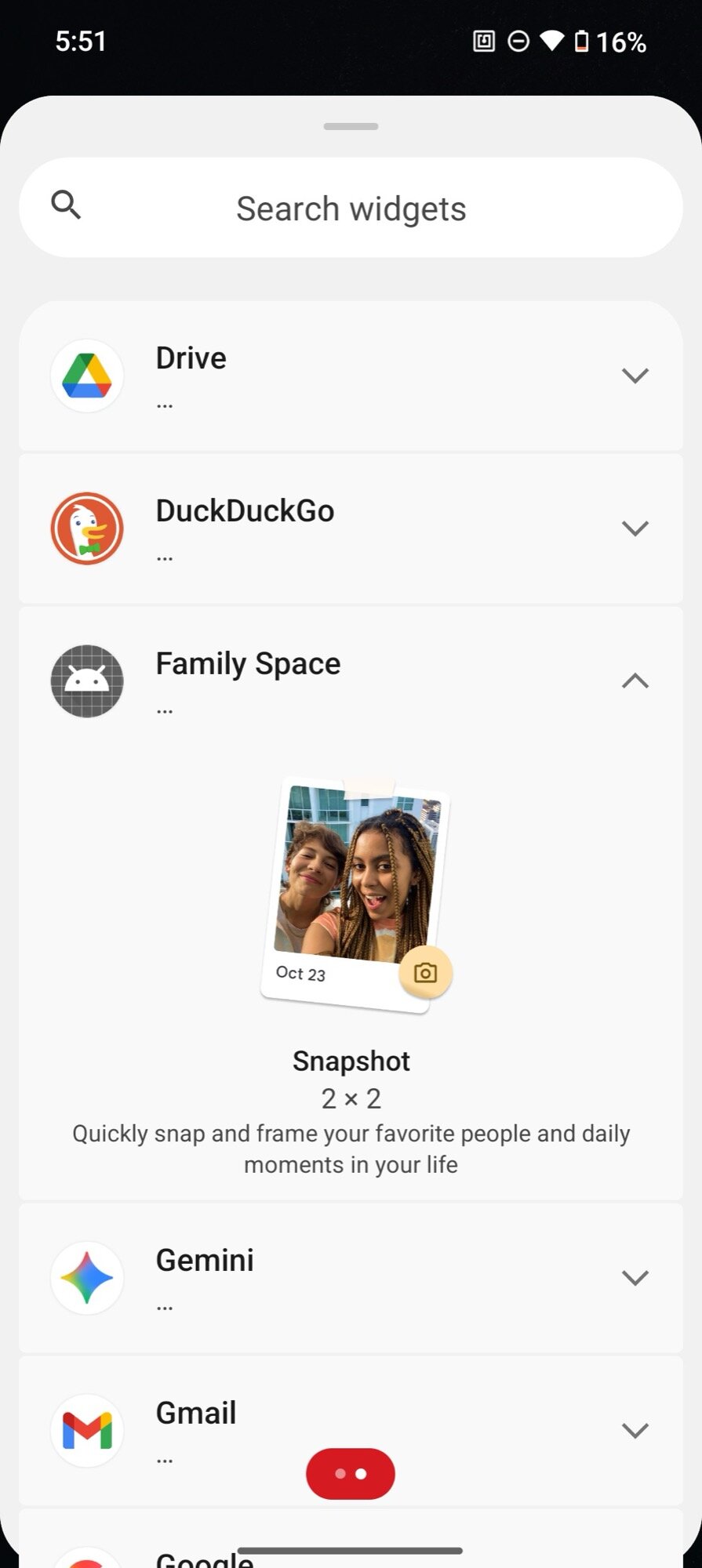
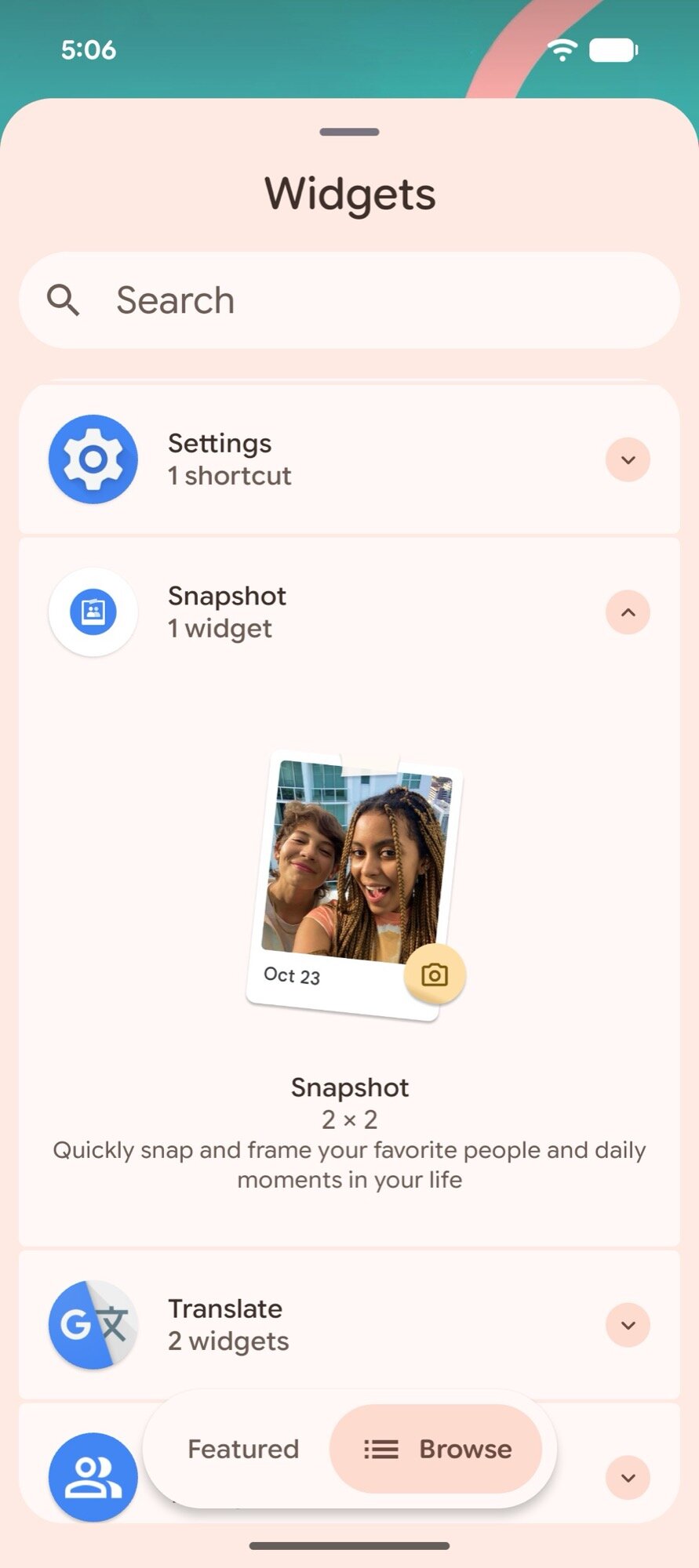
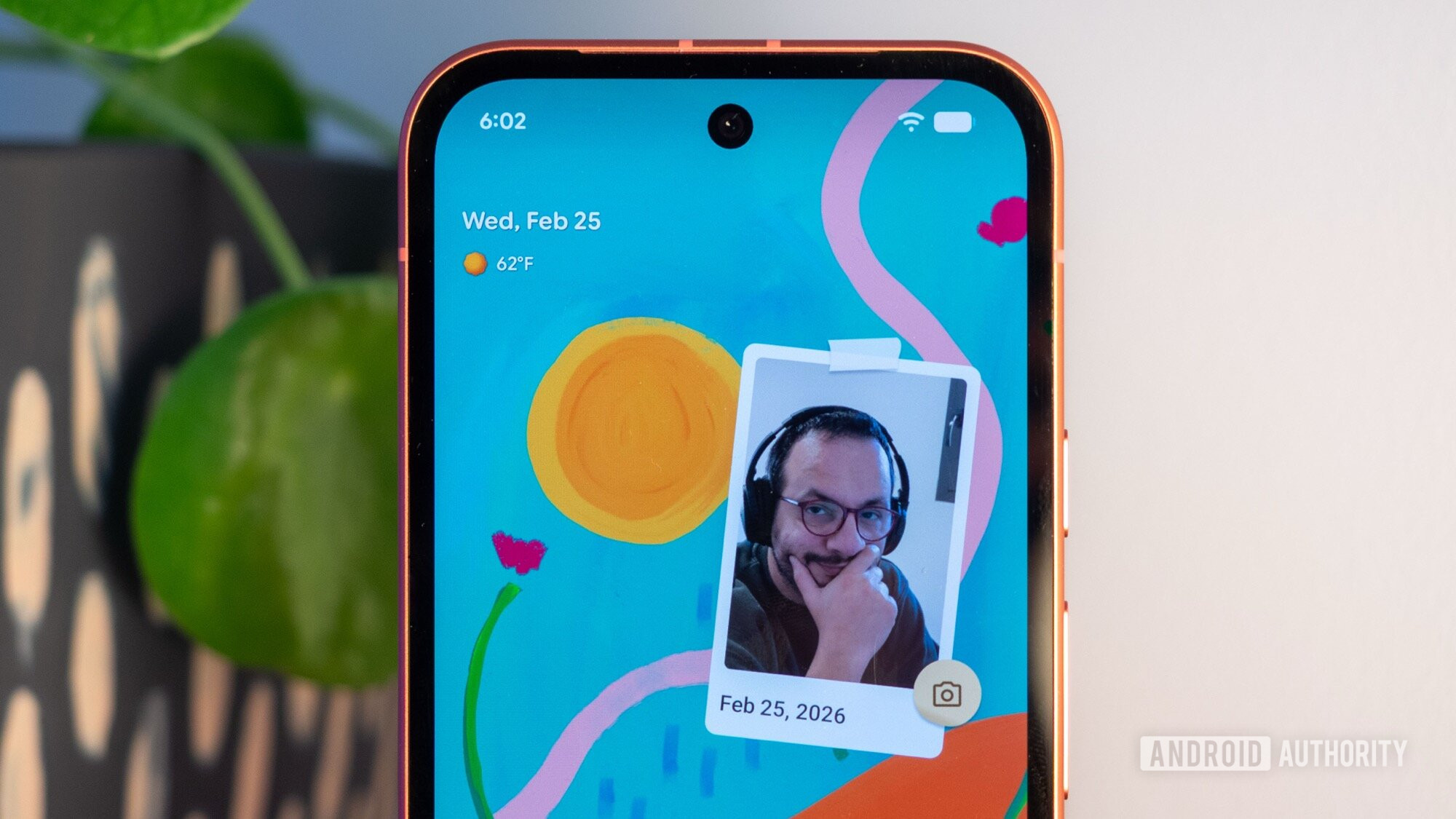
Did you know that Google has a secret home screen widget for your camera app? When the Pixel 8a shipped in 2024, it came with this new “Snapshot” widget that lets you snap an instant photo with your camera and immediately pin it to your home screen. The widget remained under the radar, even though it showed up again on the Pixel 9a in 2025, but it never made it to any other phones beyond these two.

I just stumbled across the widget while digging through my Pixel 9a and realized it was tied to a standalone APK from Google called “Family Space.” After extracting the APK, I sent it to my other phones — Pixels, Samsung, Nothing, and OnePlus — and it worked there too. Here’s how to get it on your phone’s home screen.

How to get Google’s Snapshot widget​

google family share camera snapshot widget menu pixel 9a


As far as I can tell, the Snapshot widget is only pre-installed on the Pixel 8a and 9a. There, you’ll find it under the full widget menu under Snapshot. Easy peasy.

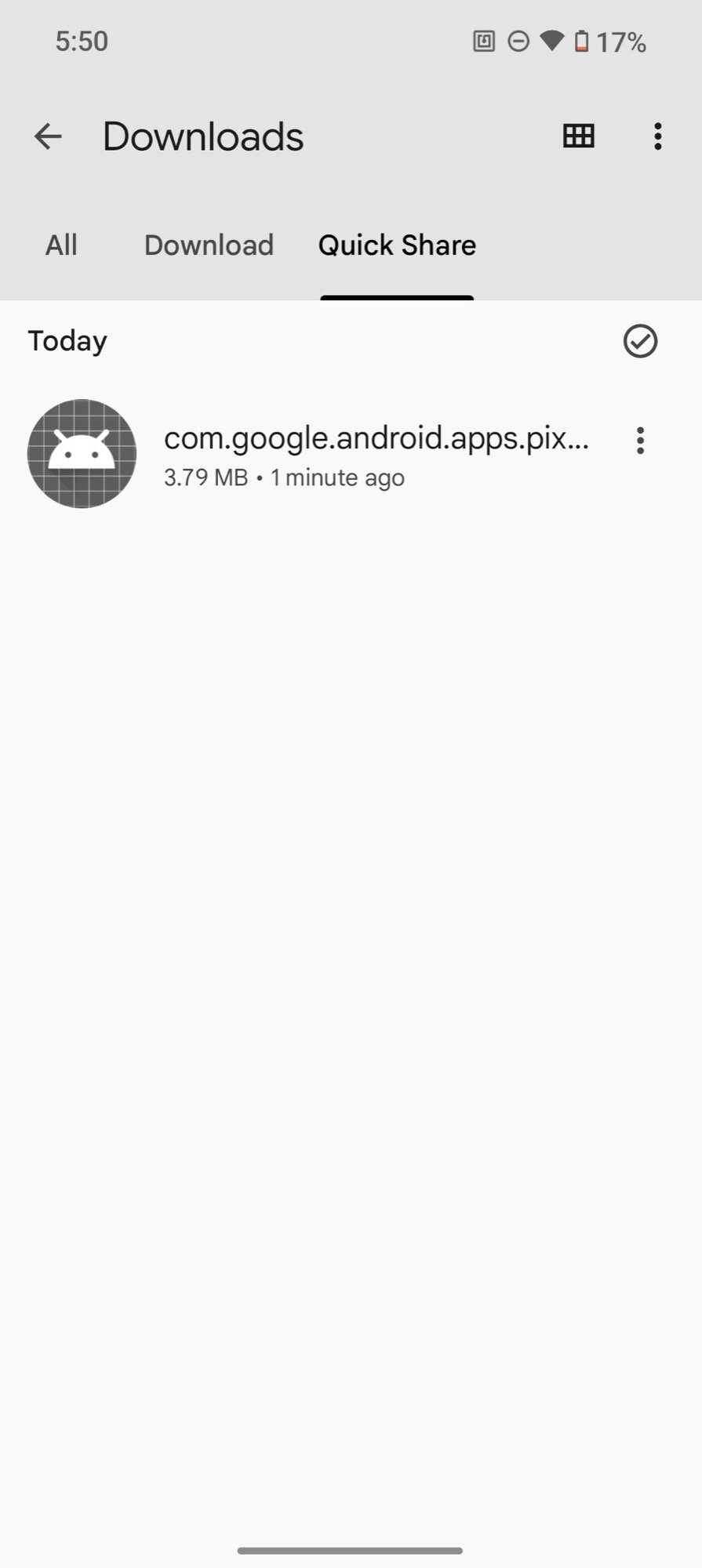
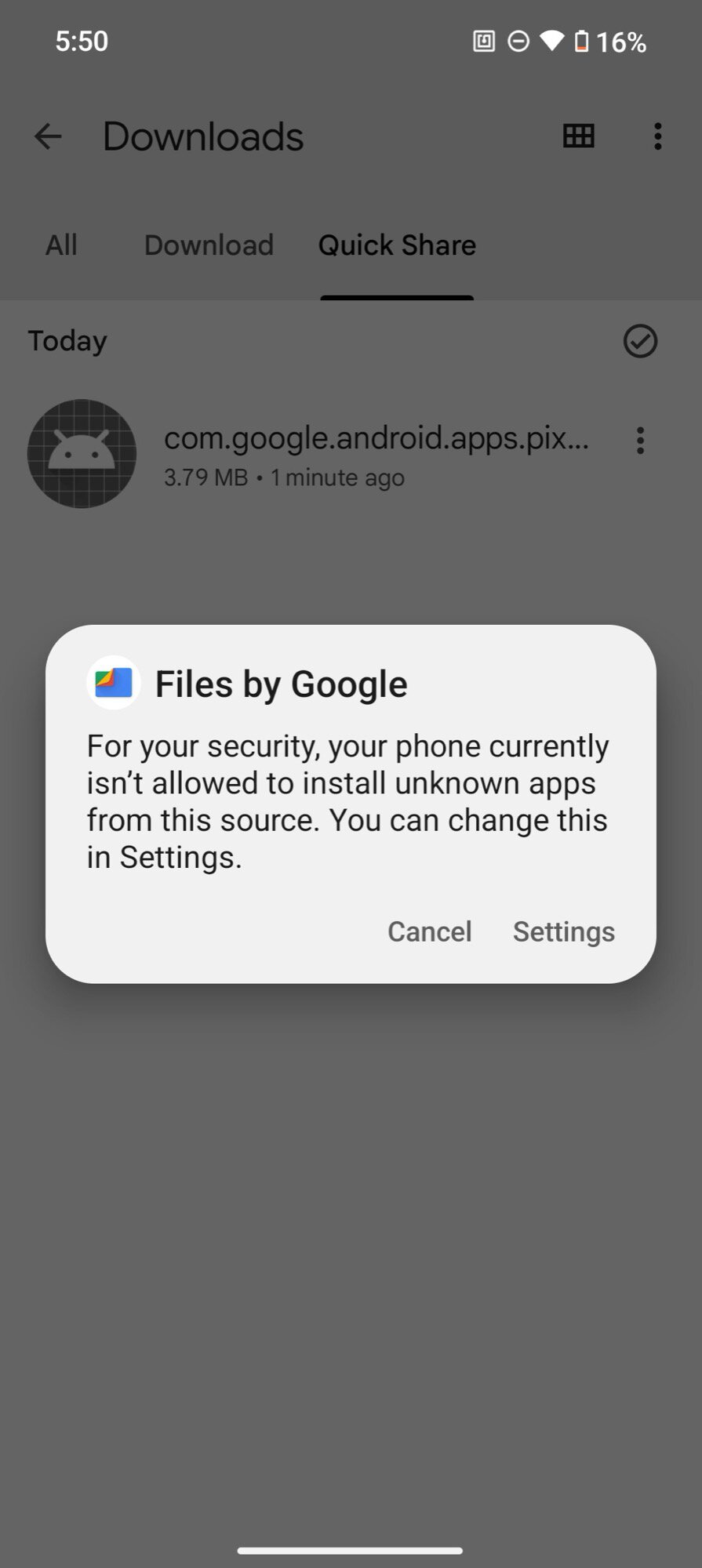
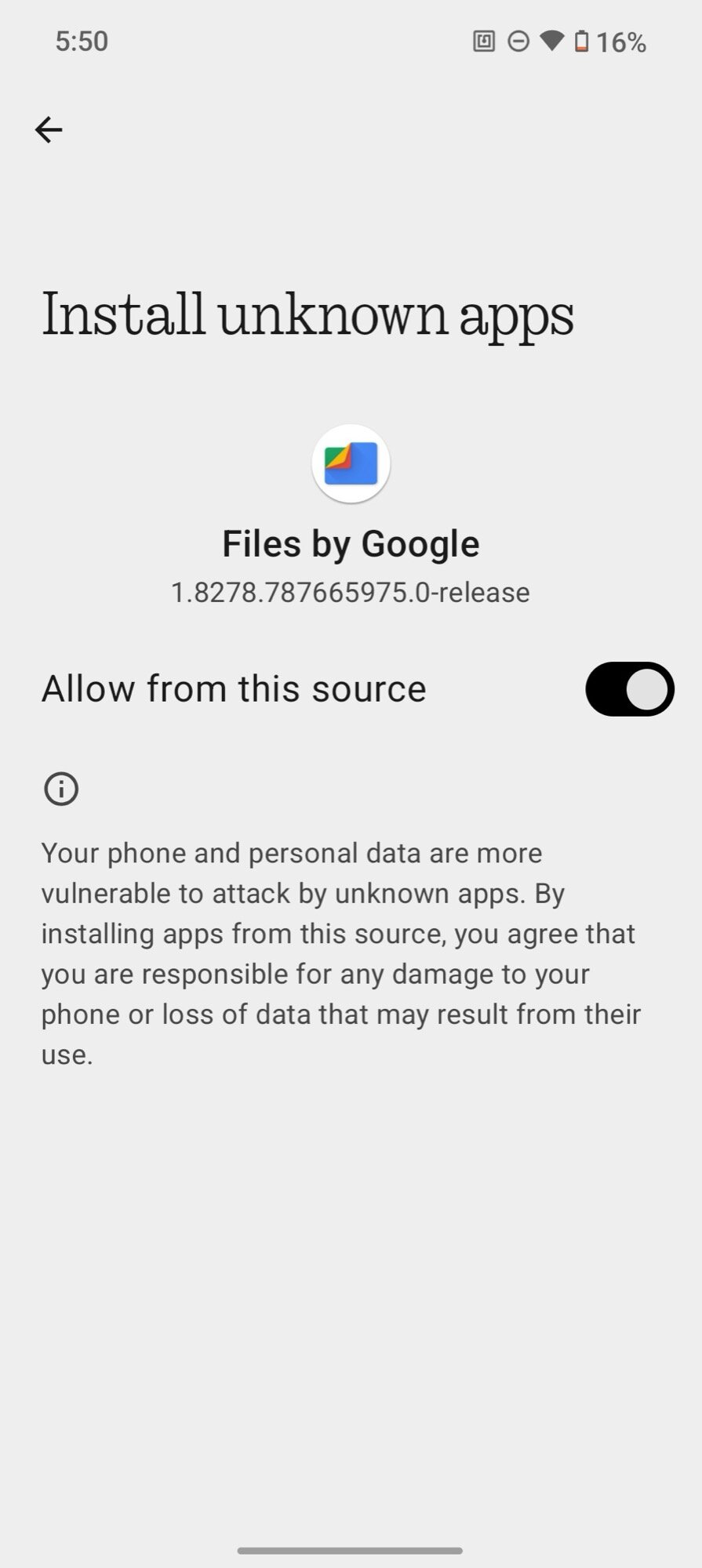
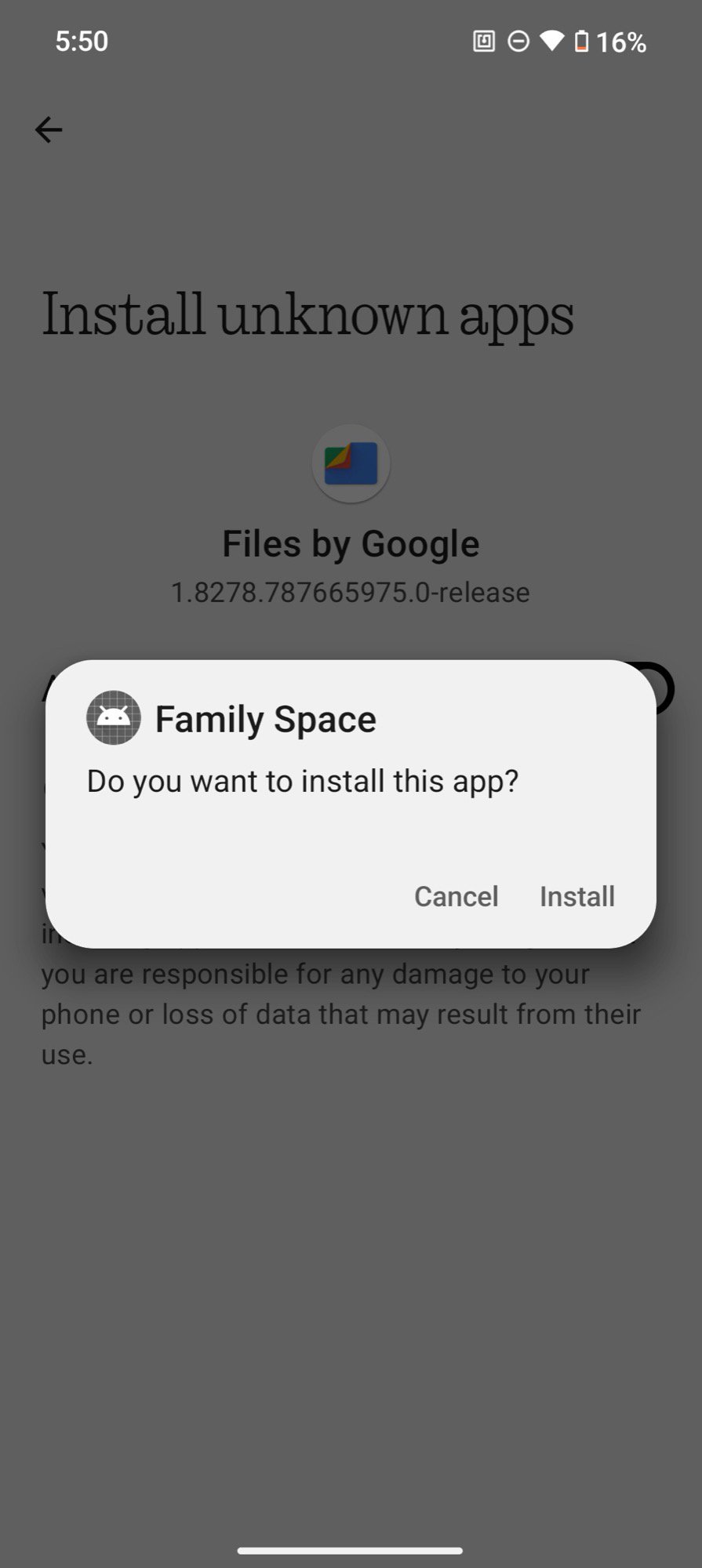
Any other device will have to sideload it first. The package name is “com.google.android.apps.pixel.familyspace”. You can grab the file I extracted from my Pixel 9a from this Google Drive link. (It should soon be available on APK Mirror, too.) Download it to your phone and install it. You might run into a hiccup where Google says you need permission to install this file — that’s normal. Just give it permission, and you can always take it away later.

screenshot google family share camera snapshot widget install 1

1. Find the file on your phone

screenshot google family share camera snapshot widget install 2

2. If you get this warning, choose "Settings"

screenshot google family share camera snapshot widget install 3

3. Toggle "Allow from this source"

screenshot google family share camera snapshot widget install 4

4. And install the file

When it’s installed, go to your home screen and try to add a new widget. You’ll find the new widget either under Snapshot (Pixels) or Family Space (other phones). Add it to your home screen and resize it to fit as much or as little space as you want.

screenshot google family share camera snapshot widget galaxy s24 ultra add to home screen

Find the widget on your Galaxy

screenshot google family share camera snapshot widget nothing phone 2 add to home screen

...or your Nothing Phone

screenshot google family share camera snapshot widget pixel 9a add to home screen

...or your Pixel

I’ve tried this on my Pixel 10 Pro XL, Samsung Galaxy S24 Ultra, Nothing Phone 2, and my colleague tried it on a OnePlus 13R. It worked on all of them. It’ll probably work with other Android skins and brands, too.

What Google’s Snapshot camera widget does​

google family share camera snapshot widget pixel 9a home screen


The Snapshot widget is extremely simple and pretty barebones. At first, it shows up like a printed placeholder photo taped to your home screen. Tap the camera icon to open the default camera app on your phone, take a picture, approve it, and it will show up inside the widget.

It’s as simple as that, really. The photo will be saved like any normal pic on your phone. Tapping the widget opens the pic to let you edit it, but any edits you make won’t affect how the photo is displayed on your home screen. You can’t pin a previously-shot photo to the Snapshot widget; you can only take a new photo and set it immediately.

Just think of this Snapshot widget as an instant camera addition to your phone’s camera. It shoots a pic in the moment and pins it to your home screen the same way you’d grab a pic with an instant cam, print it, and pin it to your fridge or the board in your living room.

I’m not sure why Google has chosen to keep this particular feature as a Pixel A series-exclusive, without ever talking about it or marketing it. But hey, at least now you know how to get it on your phone, in spite of Google.
 

limmk

High Supremacy Member
Joined
Jul 5, 2001
Messages
39,514
Reaction score
7,995


Google is rolling out the first update to Pixel Camera of 2026, though version 10.3 is a minor release.

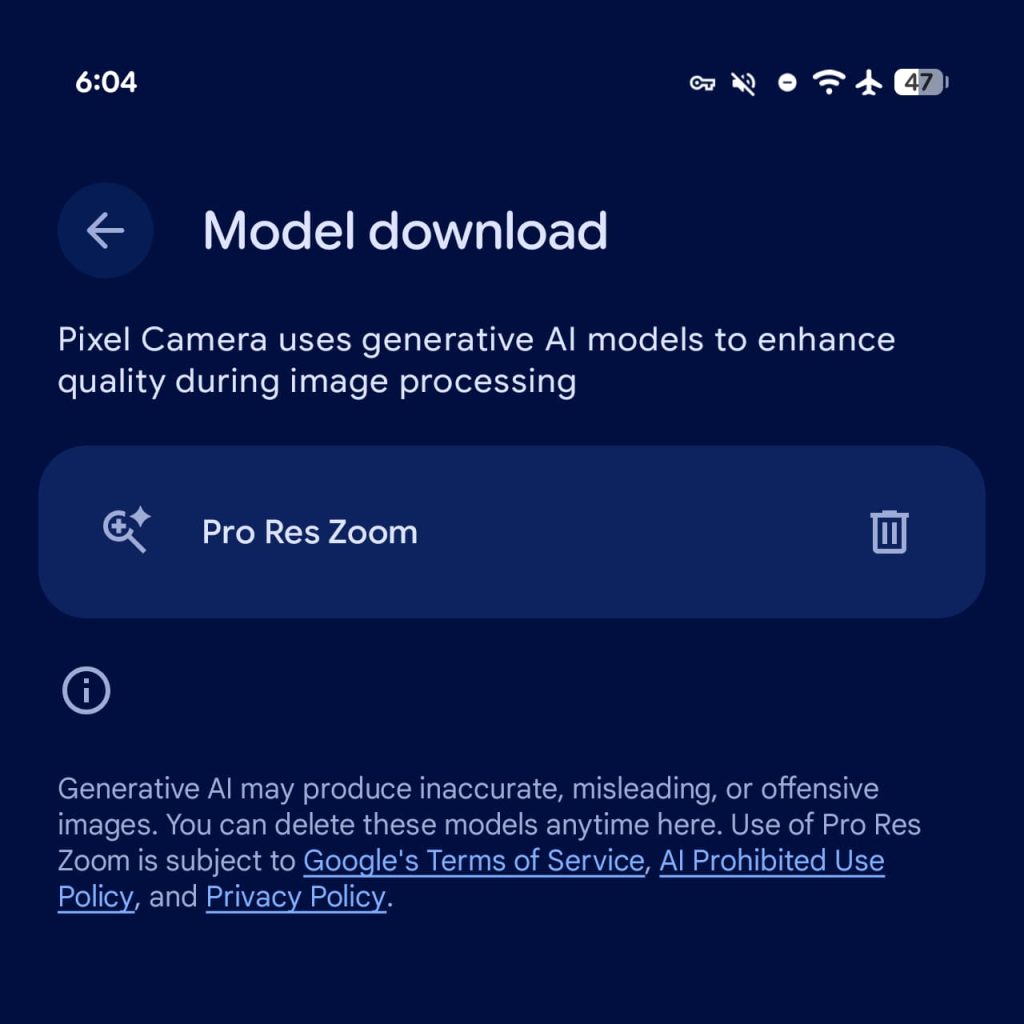
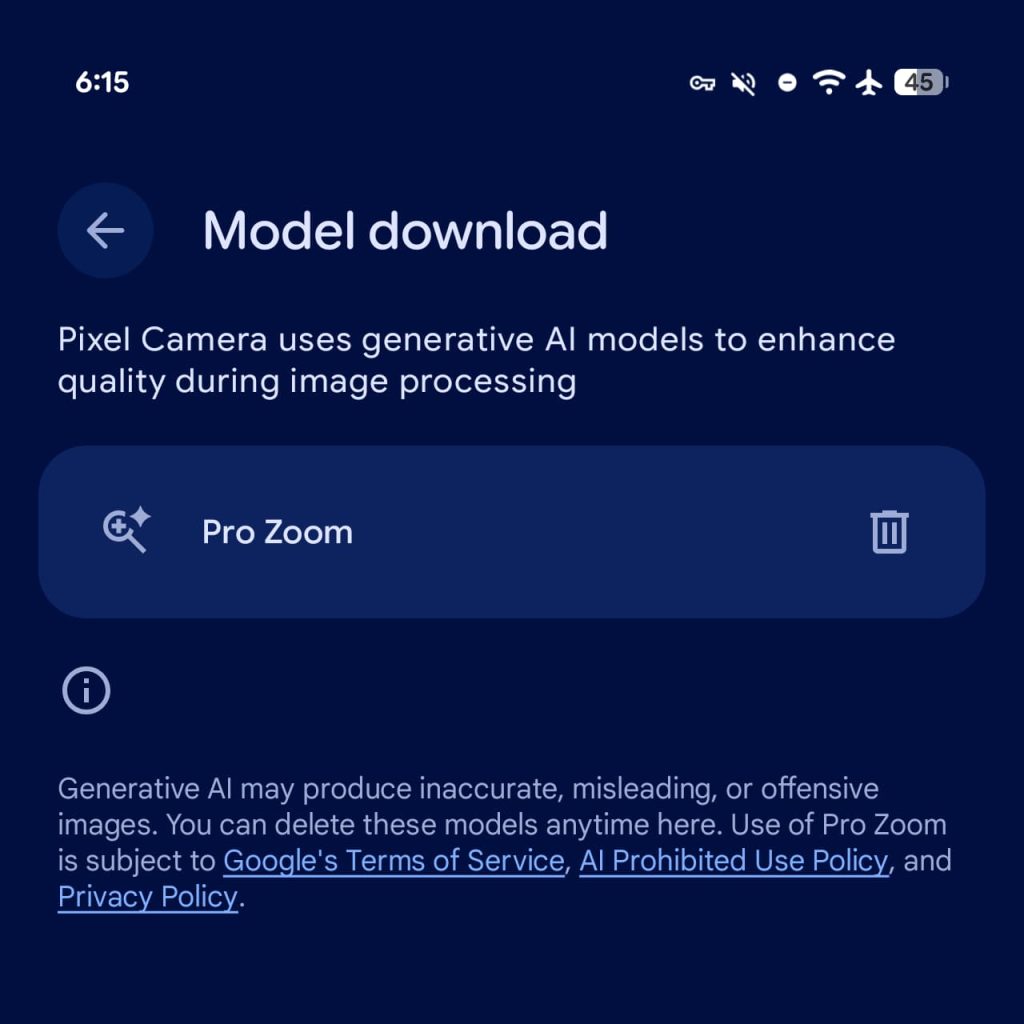
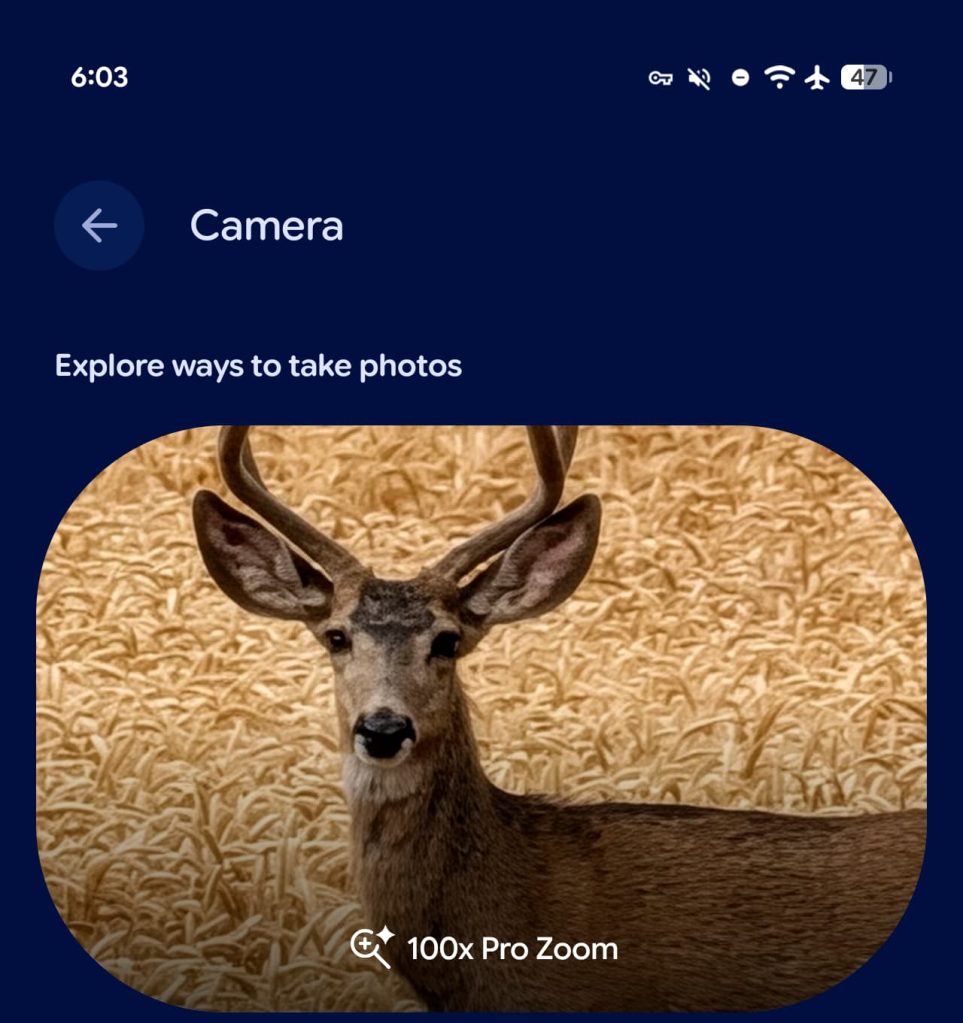
The only user-facing change we’ve noticed so far is that “Pro Res Zoom” on the Pixel 10 Pro and Pixel 10 Pro XL has been renamed to just “Pro Zoom.” This is reflected in the Settings > Model download page, as well as the Camera Help page.

10.2 vs. 10.3

Pixel-Camera-10.2-Pro-Res-Zoom.jpg

Pixel-Camera-10.3-Pro-Zoom.jpg


You should also see the new name reflected in “Processing” prompts and other descriptions. The Pixel 10 Pro product listing has also been renamed.


Pixel-Camera-Pro-Zoom.jpg


This update was first available for the Pixel 10a, and it’s now rolling out to all other devices via the Play Store.

The Android 16 QPR3 March 2026 update fixed an issue that “caused the camera service to crash, improving overall camera stability” for the Pixel 9+.

Meanwhile, the Connected Cameras feature now supports external devices like a “webcam, DSLR camera, or other Pixel phone camera via USB.” This is available on the Pixel 6+ over USB with compatible cameras that support the USB Video Class specification. However, there’s a curious device restriction for other Pixel cameras support:

  • For Pixel 6 and later (except Pixel 10 and Pixel A-series devices), you can connect to other Pixel phones (except Pixel 10 and Pixel A-series devices), GoPro cameras, and USB cameras.
  • For Pixel 10 and Pixel A-series devices from Pixel 6a and later, you can only connect to GoPro cameras and USB cameras.
 

limmk

High Supremacy Member
Joined
Jul 5, 2001
Messages
39,514
Reaction score
7,995


Google is rolling out the first update to Pixel Camera of 2026, though version 10.3 is a minor release.

The only user-facing change we’ve noticed so far is that “Pro Res Zoom” on the Pixel 10 Pro and Pixel 10 Pro XL has been renamed to just “Pro Zoom.” This is reflected in the Settings > Model download page, as well as the Camera Help page.

10.2 vs. 10.3

Pixel-Camera-10.2-Pro-Res-Zoom.jpg

Pixel-Camera-10.3-Pro-Zoom.jpg


You should also see the new name reflected in “Processing” prompts and other descriptions. The Pixel 10 Pro product listing has also been renamed.


Pixel-Camera-Pro-Zoom.jpg


This update was first available for the Pixel 10a, and it’s now rolling out to all other devices via the Play Store.

The Android 16 QPR3 March 2026 update fixed an issue that “caused the camera service to crash, improving overall camera stability” for the Pixel 9+.

Meanwhile, the Connected Cameras feature now supports external devices like a “webcam, DSLR camera, or other Pixel phone camera via USB.” This is available on the Pixel 6+ over USB with compatible cameras that support the USB Video Class specification. However, there’s a curious device restriction for other Pixel cameras support:

  • For Pixel 6 and later (except Pixel 10 and Pixel A-series devices), you can connect to other Pixel phones (except Pixel 10 and Pixel A-series devices), GoPro cameras, and USB cameras.
  • For Pixel 10 and Pixel A-series devices from Pixel 6a and later, you can only connect to GoPro cameras and USB cameras.

JkLk8FC.png
iJl9UYP.png


Pixel camera 10.3 available now!
 

limmk

High Supremacy Member
Joined
Jul 5, 2001
Messages
39,514
Reaction score
7,995


TL;DR
  • Google is introducing a new sideloading flow on Android that includes a mandatory 24-hour lock and multiple steps when installing apps from unverified developers.
  • The change is aimed at preventing scams and coercion, forcing users to slow down and think before installing potentially harmful apps.
  • While sideloading is still possible, the added friction and new developer verification requirements could raise concerns that Android is becoming less open.

When Google execs previously said sideloading would become a high-friction process on Android, they really weren’t kidding.
The company is finally sharing what Android’s new sideloading flow will look like in practice, and if you’re someone who installs apps outside the Play Store, you’re going to feel it immediately, and you’re going to feel it deeply.

This isn’t a subtle tweak or another warning screen you can quickly tap past. Google is fundamentally changing how sideloading works on Android for apps that come from unverified developers.

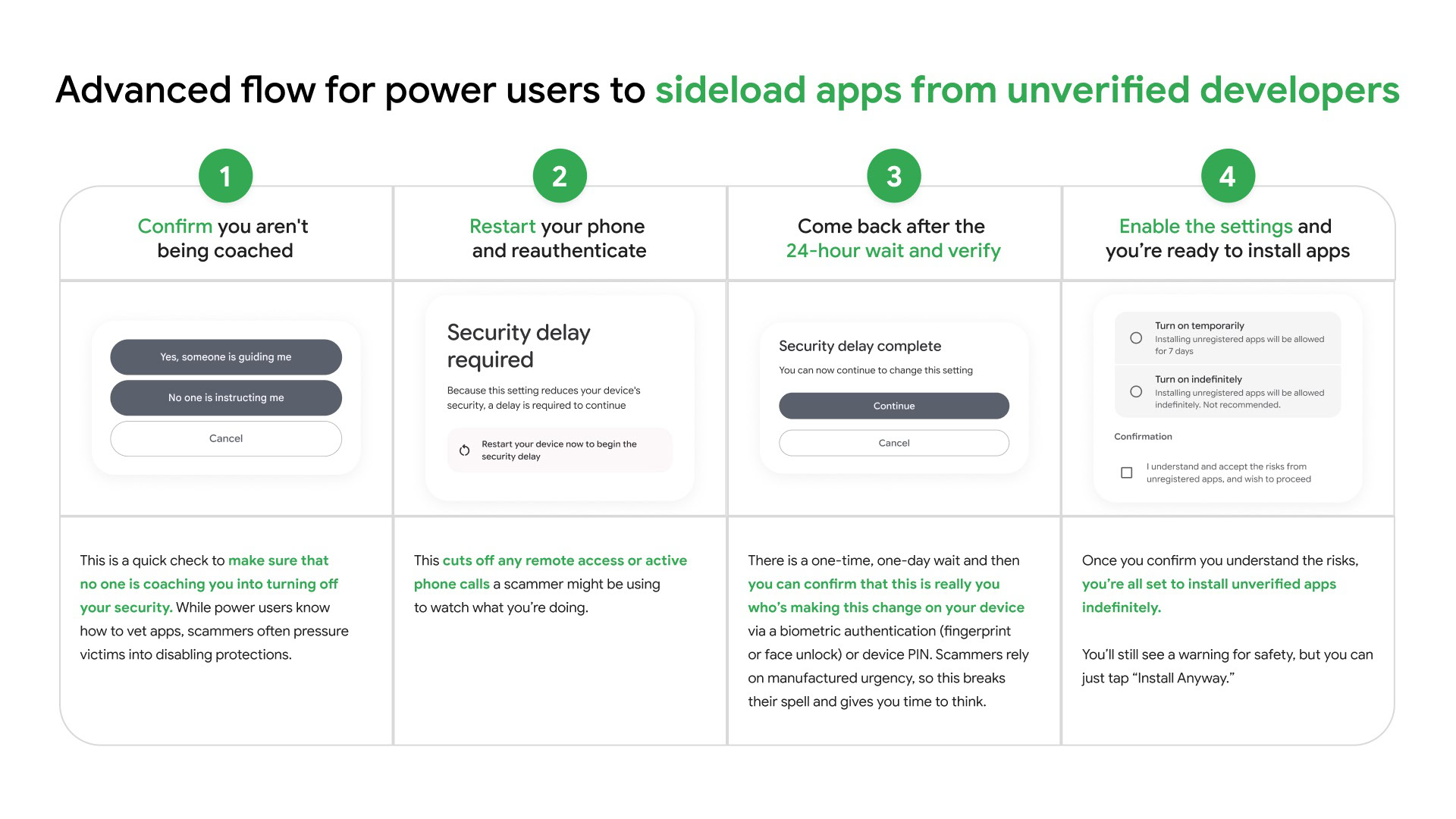
Google’s brand-new “advanced flow” for sideloading is designed specifically for what the company calls power users. It’s a deliberately slow and almost impossible-to-rush-through process that will allow advanced Android users to sideload apps from unverified developers, while giving them plenty of caution to keep them safe from malicious apps and bad actors. At the same time, the new process is designed to protect unassuming Android users who might be tricked or coerced into downloading unverified apps.

The new sideloading flow: what you actually have to do​

android developer verifirication sideload 3


When Android’s new sideloading rules come into force, installing apps from developers without Google verification (more on that later) will become extremely tedious by design and require a 24-hour lock before users can install them. Here’s what the new flow will look like:

  • Step 1: Enable Developer Mode
    No more quick toggles. You’ll need to manually enable developer options first, adding an intentional layer of friction.
  • Step 2: Confirm you’re not being coerced
    Android will explicitly ask if someone is guiding you through disabling protections on your device as a direct response to scam tactics.
  • Step 3: Restart your phone
    This cuts off active calls, remote access, or screen-sharing sessions, which scammers often rely on.
  • Step 4: Wait 24 hours
    Yes, really. There’s a mandatory one-time, one-day waiting period before you can proceed and sideload an app from an unverified developer. Google calls it a “protective waiting period.”
  • Step 5: Re-authenticate
    After the one-day wait, you’ll need biometric authentication or your PIN to confirm it’s really you. “Scammers rely on manufactured urgency, so this breaks their spell and gives you time to think,” Google notes in its blog.
  • Step 6: Finally, install the app
    Only then can you sideload, with the option to allow installs for seven days or indefinitely. Even within that seven-day time frame, once sideloading is enabled you can install as many different APKs from as many different unverified developers as you like.
Even after all this, Android will still show a warning that the app is from an unverified developer, but at that point, you can tap “Install anyway.”

Essentially, Google is making sure that sideloading apps from unverified sources is no longer something you can do on impulse.

Why is Google doing this?​

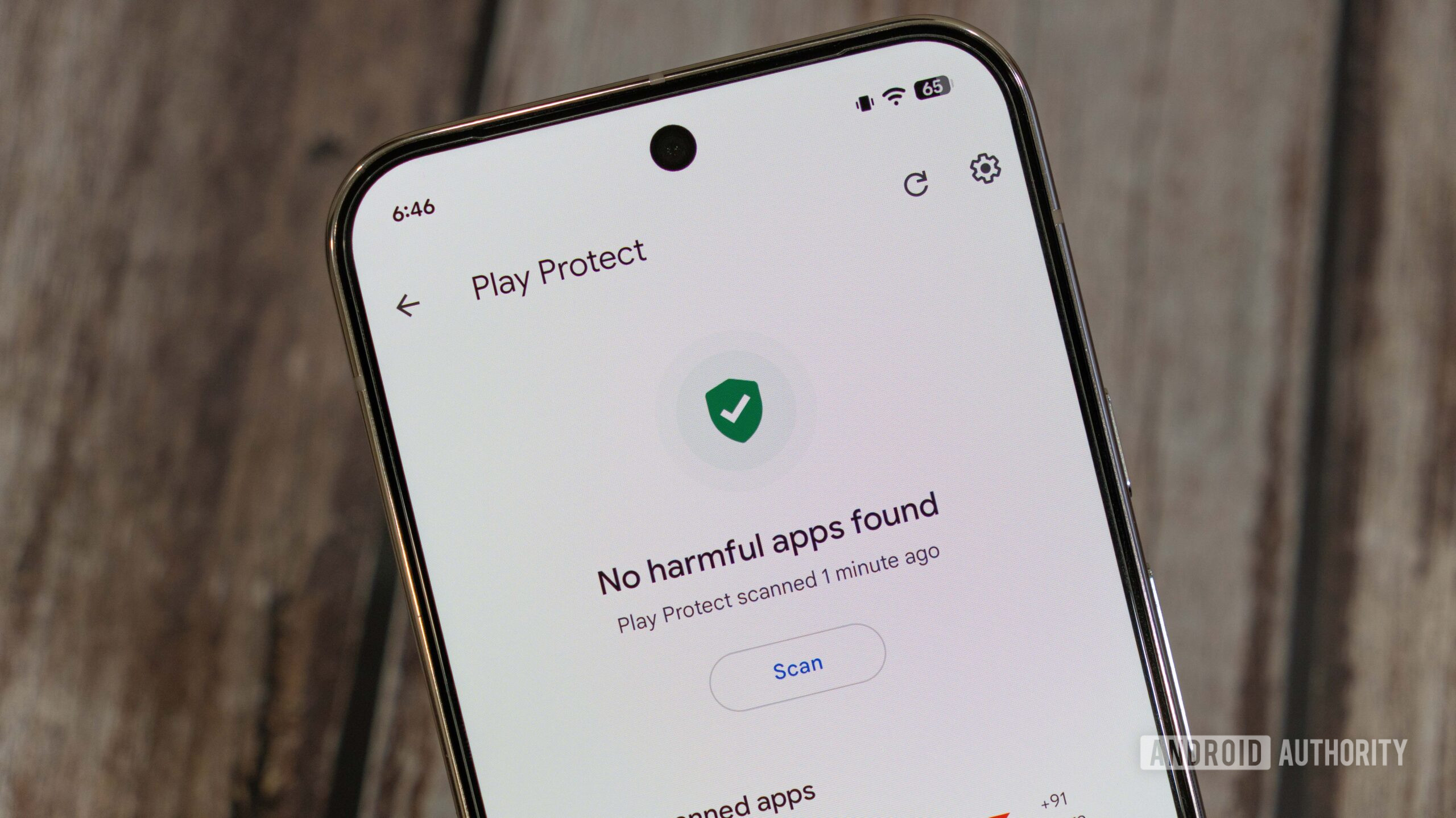
Google Play Protect Apps scanned


Google’s reasoning is pretty clear, and something the company has been saying for a long time now. Android today isn’t the scrappy, enthusiast platform it once was, it’s the primary computing device for billions of people.

Speaking about the new rules in an interview with Android Authority, Google’s President of the Android Ecosystem, Sameer Samat, said,
“You want a platform to be open, but you need a platform to be safe.”

In Google’s view, safety is increasingly at odds with how sideloading has traditionally worked. Attackers frequently use social engineering and panic-inducing phone calls about legal trouble or a family emergency to walk victims through disabling protections and installing malicious apps.

The problem isn’t that Android’s warnings don’t work. It’s that they are insufficient, and in high-pressure situations, people often ignore them. Google says the new system is designed to break that cycle.

Google acknowledges that the 24-hour wait isn't just about stopping scams, it's also about what users will tolerate.

The restart step will cut off scammers watching or guiding victims through installations. The 24-hour delay will kill the urgency that scams depend on, and the extra confirmation will give users time to pause and consider their actions.

Internally, Google even acknowledged that the 24-hour wait isn’t just about stopping scams, it’s also about what users will tolerate. Google told us that they worked with power users to land on a delay that’s annoying, but not deal-breaking.

What does Google mean by apps from unverified developers?​

Photo of Android Developer Verifier app on an Android phone


The new sideloading flow is part of Google’s broader push that will require Android app developers to verify their identity with the company. Google wants to tie apps to verified developers in hopes of reducing the number of bad actors slipping through the cracks.

“We would like to be able to tell the user this app is from this source. Now, that doesn’t mean that the app is safe. The user still has to make decisions. But at least you know who it’s from, and you can decide better — Do I trust this person, or do I not? That’s very important,” Samat previously told Android Authority in a recent interview.

There are some exceptions to Google’s developer verification rules, though.

Limited distribution apps, such as student or hobby projects, can still be shared with up to 20 devices without full verification.

When will the new sideloading rules come into effect, and what does this mean for you?​

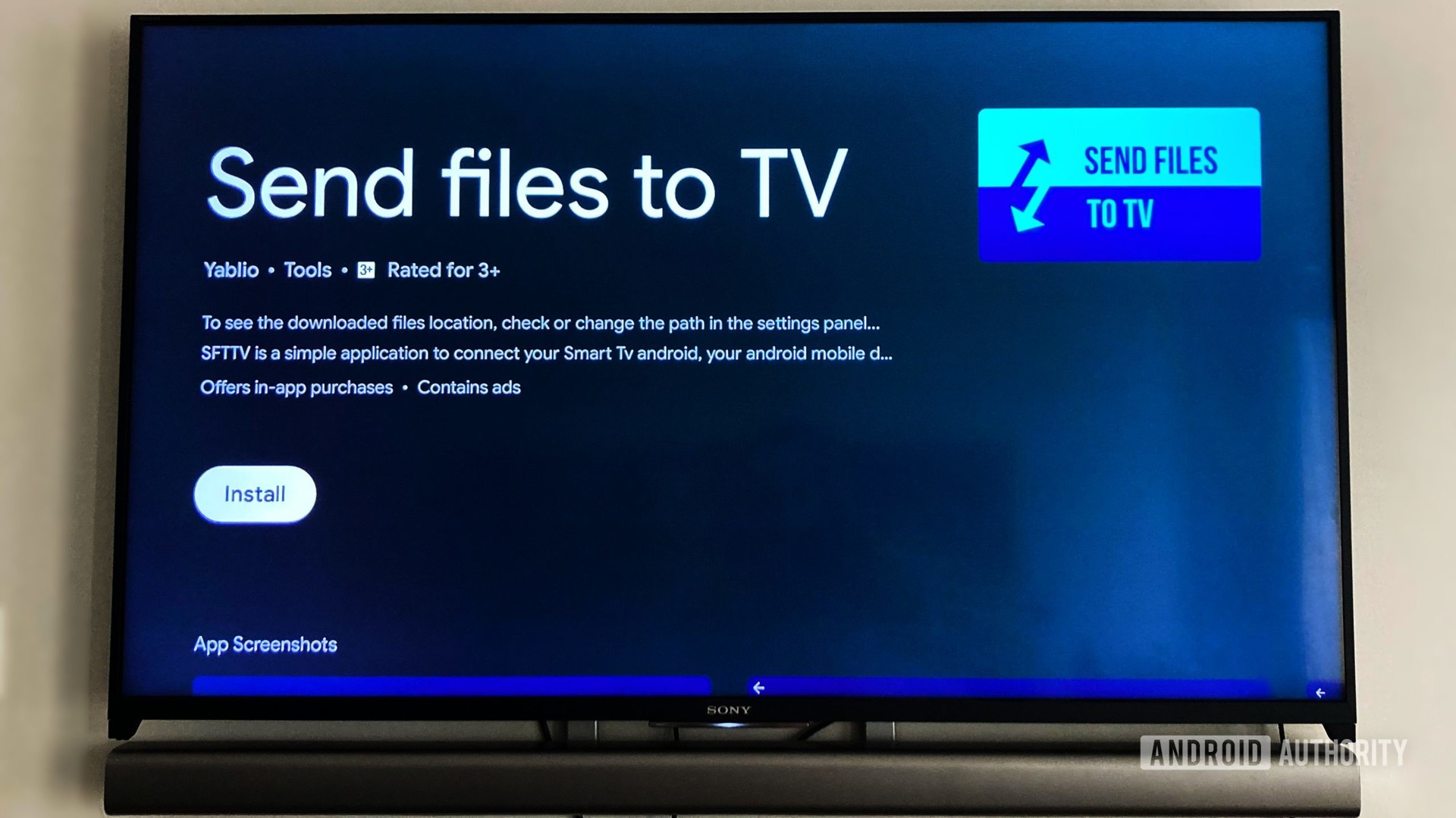
Send Files To TV app for Sideloading apps on Android TV


According to Google, “Limited distribution accounts and advanced flow for users will be available in August before the new developer verification requirements take effect.”

The new advanced sideloading flow for users will be available in August.

The company said it will be sharing more details and technical documentation regarding these updates in the coming days and weeks.

Executives emphasized to us that this rollout has always been meant to evolve with feedback and that the company is listening. Still, for developers who rely on sideloading or alternative distribution, this marks a significant shift in how open Android really feels.

For everyday users, nothing changes as long as you stick to the Play Store. But if you use third-party app stores or install APKs manually, you’re now in for a much more restrictive process.

It remains to be seen how the developer community reacts to these changes and if they will encourage developers to sign up for Google’s new verification system. If your favorite developer decides to remain unverified, you’re going to have to go through the new process for any app you install from them.

 
Last edited:

foo9883

Arch-Supremacy Member
Joined
Mar 28, 2009
Messages
22,612
Reaction score
19,942
Android users, does your phone always have bugs and things that acts weirdly?

apps not working / freezing, battery charges weirdly etc
 
Important Forum Advisory Note
This forum is moderated by volunteer moderators who will react only to members' feedback on posts. Moderators are not employees or representatives of HWZ Forums. Forum members and moderators are responsible for their own posts. Please refer to our Community Guidelines and Standards and Terms and Conditions for more information.
Top