
You are using an out of date browser. It may not display this or other websites correctly.
You should upgrade or use an alternative browser.
You should upgrade or use an alternative browser.
Google Pixel 9 series
- Thread starter limmk
- Start date
More options
Who Replied?

skyline72
Honorary Member
- Joined
- Oct 9, 2007
- Messages
- 106,738
- Reaction score
- 15,164
Mine at 95.One year with the phone, battery health 94%...


xonix
Arch-Supremacy Member
- Joined
- Mar 24, 2001
- Messages
- 17,586
- Reaction score
- 1,689
i bought my p9p non xl from litemobile few months ago. You can whatsapp them to check stock availability first.Where can I buy google pixel 9 pro xl brand new?

- Joined
- Jul 5, 2001
- Messages
- 44,814
- Reaction score
- 8,514
Mine still lying to me say it's brand new 100%.


brownkai
Arch-Supremacy Member
- Joined
- Jun 9, 2004
- Messages
- 11,734
- Reaction score
- 1,747
Ok bought from mister mobile... Slightly cheaper and nearer to my place for collection...i bought my p9p non xl from litemobile few months ago. You can whatsapp them to check stock availability first.
Thx u

xonix
Arch-Supremacy Member
- Joined
- Mar 24, 2001
- Messages
- 17,586
- Reaction score
- 1,689
I actually wanted to buy from mister mobile too but they didn't have the colour I wantedOk bought from mister mobile... Slightly cheaper and nearer to my place for collection...
Thx u
brownkai
Arch-Supremacy Member
- Joined
- Jun 9, 2004
- Messages
- 11,734
- Reaction score
- 1,747
U go to their website and chose the color that not available... There will be a selection for back order... Means once have stock they will notify you via WhatsAppI actually wanted to buy from mister mobile too but they didn't have the colour I wanted
xonix
Arch-Supremacy Member
- Joined
- Mar 24, 2001
- Messages
- 17,586
- Reaction score
- 1,689
Heh heh... didn't want to wait, wanted to get phone ready for overseas tripU go to their website and chose the color that not available... There will be a selection for back order... Means once have stock they will notify you via WhatsApp

- Joined
- Jul 5, 2001
- Messages
- 44,814
- Reaction score
- 8,514
- Joined
- Jul 5, 2001
- Messages
- 44,814
- Reaction score
- 8,514
TL;DR
Google has announced a new Extended Repair Program for the Pixel 9 Pro and Pixel 9 Pro XL after confirming that a “limited number” of units are affected by display-related issues. The company has also opened up the program for the Pixel 9 Pro Fold, but it hasn’t specified what’s actually wrong with the foldable, citing issues affecting the “functionality of the device.”
According to Google, if your Pixel 9 Pro or Pro XL’s screen develops a vertical line running from the bottom to the top or if it flickers, you may be eligible for free repairs under the new Extended Repair Program.
For the Pixel 9 Pro Fold, Google doesn’t mention any display faults, but says it’ll repair units with functionality issues for free.
Google is offering free display replacements for eligible Pixel 9 Pro and Pro XL units for up to three years from the original retail purchase date. All repairs under the new program, including for the Pixel 9 Pro Fold, apply only after a repair center has inspected and verified the issues.
It’s also important to note that not every Pixel 9 Pro, Pro XL, or Pro Fold will qualify for the Extended Repair Program. Google says that phones with cracked screens, damaged cover glass, or signs of liquid intrusion will not be considered for screen replacements under the new program. However, if your unit doesn’t qualify, you can always opt for standard warranty coverage (if applicable) or pay for out-of-warranty repairs.
Google’s Extended Repair Program for the Pixel 9 Pro, 9 Pro XL, and 9 Pro Fold is now live. Users can access repairs through Google walk-in centers, authorized service partners, or online repair options. Any repairs completed under the extended program will be covered by a 90-day warranty.
Google also clarifies that this repair extension does not expand its coverage for other unrelated issues outside of the limited warranty. You can check your Pixel 9 Pro and Pro XL repair options here.
- Google has kicked off a new Extended Repair Program for the Pixel 9 Pro and 9 Pro XL.
- The program covers a limited number of Pixel 9 Pro and Pro XL devices with vertical lines on the display or a screen flickering problem.
- Google is offering free display replacements for these phones for up to three years from the original retail purchase date.
Google has announced a new Extended Repair Program for the Pixel 9 Pro and Pixel 9 Pro XL after confirming that a “limited number” of units are affected by display-related issues. The company has also opened up the program for the Pixel 9 Pro Fold, but it hasn’t specified what’s actually wrong with the foldable, citing issues affecting the “functionality of the device.”
According to Google, if your Pixel 9 Pro or Pro XL’s screen develops a vertical line running from the bottom to the top or if it flickers, you may be eligible for free repairs under the new Extended Repair Program.
For the Pixel 9 Pro Fold, Google doesn’t mention any display faults, but says it’ll repair units with functionality issues for free.
Google is offering free display replacements for eligible Pixel 9 Pro and Pro XL units for up to three years from the original retail purchase date. All repairs under the new program, including for the Pixel 9 Pro Fold, apply only after a repair center has inspected and verified the issues.
It’s also important to note that not every Pixel 9 Pro, Pro XL, or Pro Fold will qualify for the Extended Repair Program. Google says that phones with cracked screens, damaged cover glass, or signs of liquid intrusion will not be considered for screen replacements under the new program. However, if your unit doesn’t qualify, you can always opt for standard warranty coverage (if applicable) or pay for out-of-warranty repairs.
Google’s Extended Repair Program for the Pixel 9 Pro, 9 Pro XL, and 9 Pro Fold is now live. Users can access repairs through Google walk-in centers, authorized service partners, or online repair options. Any repairs completed under the extended program will be covered by a 90-day warranty.
Google also clarifies that this repair extension does not expand its coverage for other unrelated issues outside of the limited warranty. You can check your Pixel 9 Pro and Pro XL repair options here.
- Joined
- Jul 5, 2001
- Messages
- 44,814
- Reaction score
- 8,514
When I got my Pixel 10 Pro XL, I thought I would never look again at my “older” Pixel 9 Pro XL. I realize how privileged and braggy this sounds, but it’s the reality of my job: New Pixel lands at my desk, ergo last year’s Pixel, which I was perfectly happy with until two seconds earlier, instantly feels antiquated. But this hasn’t been the case this year, and the reason is Android 16. Specifically, all the major updates to Android 16 that have appeared on my Pixel 9 Pro XL, with the most recent one being the Android 16 QPR2 update.
More elaborate Material 3 Expressive

One of the biggest changes of Android 16 QPR1 was the introduction of Material 3 Expressive, Google’s improved, more colorful, more playful, and more shape-shifting design language for Android. That came with new blur everywhere, a more customizable Quick Settings panel, and a new Settings app, and it already felt like a huge change on my Pixel 9 Pro XL. But with QPR2, this new design feels more polished all around.
Material 3 Expressive feels more polished and more finished on QPR2.
It’s true that there aren’t major changes here, but the finishing touches bring Material 3 Expressive together on my phone. Icon shapes are back with a choice of four new shapes on top of the existing circle. I really missed having the square with rounded corners option from pre-Android 12, and I’m glad it’s now back on my Pixel. Google has also pushed themed icons to the next level, forcing them to apply even on apps that don’t support them. Lazy developers are no longer an obstacle to a homogenous home screen, and I love that everything now looks in harmony on my phone.
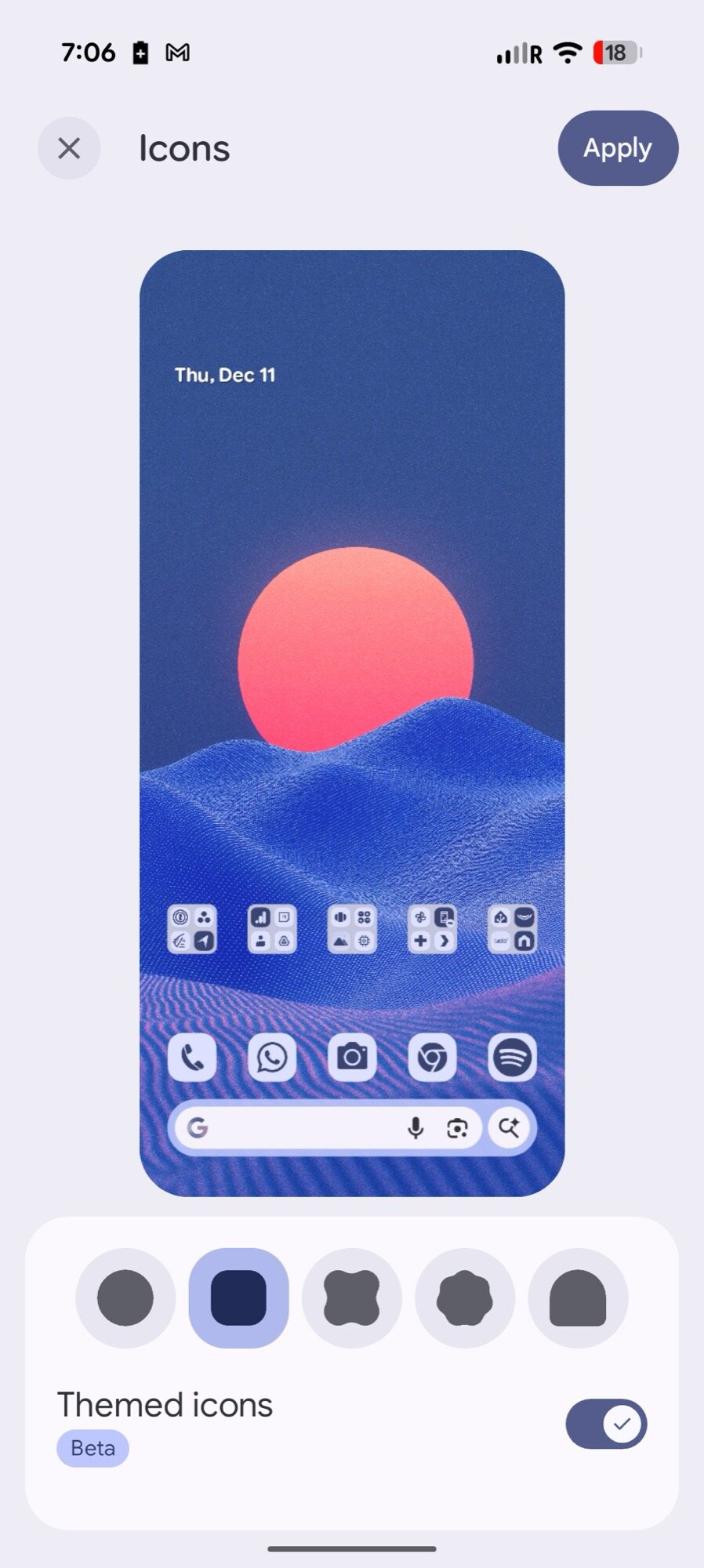
Icon themes and shapes settings
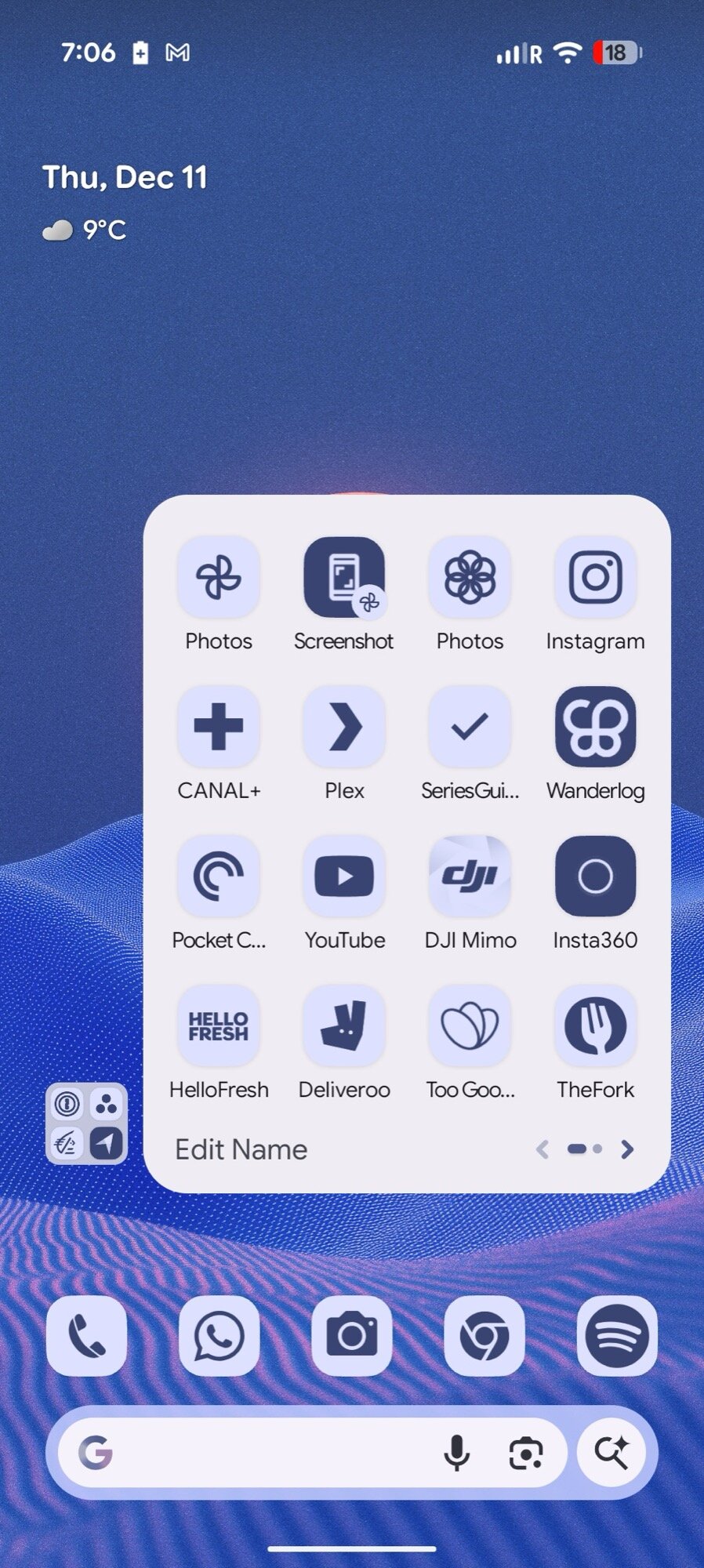
Force-applied icon theming
There’s a way to turn off background blur now, too, though I’m not using it. I got used to the blur, and going back to a flat background feels like a regression. Google has also added a new Expanded dark mode that forces apps into dark mode, even the ones with no dark mode out of the box. It doesn’t work everywhere well, but it’s saving me from burning my eyes when checking my upcoming holiday trip with Transavia at night.
More notification management helpers
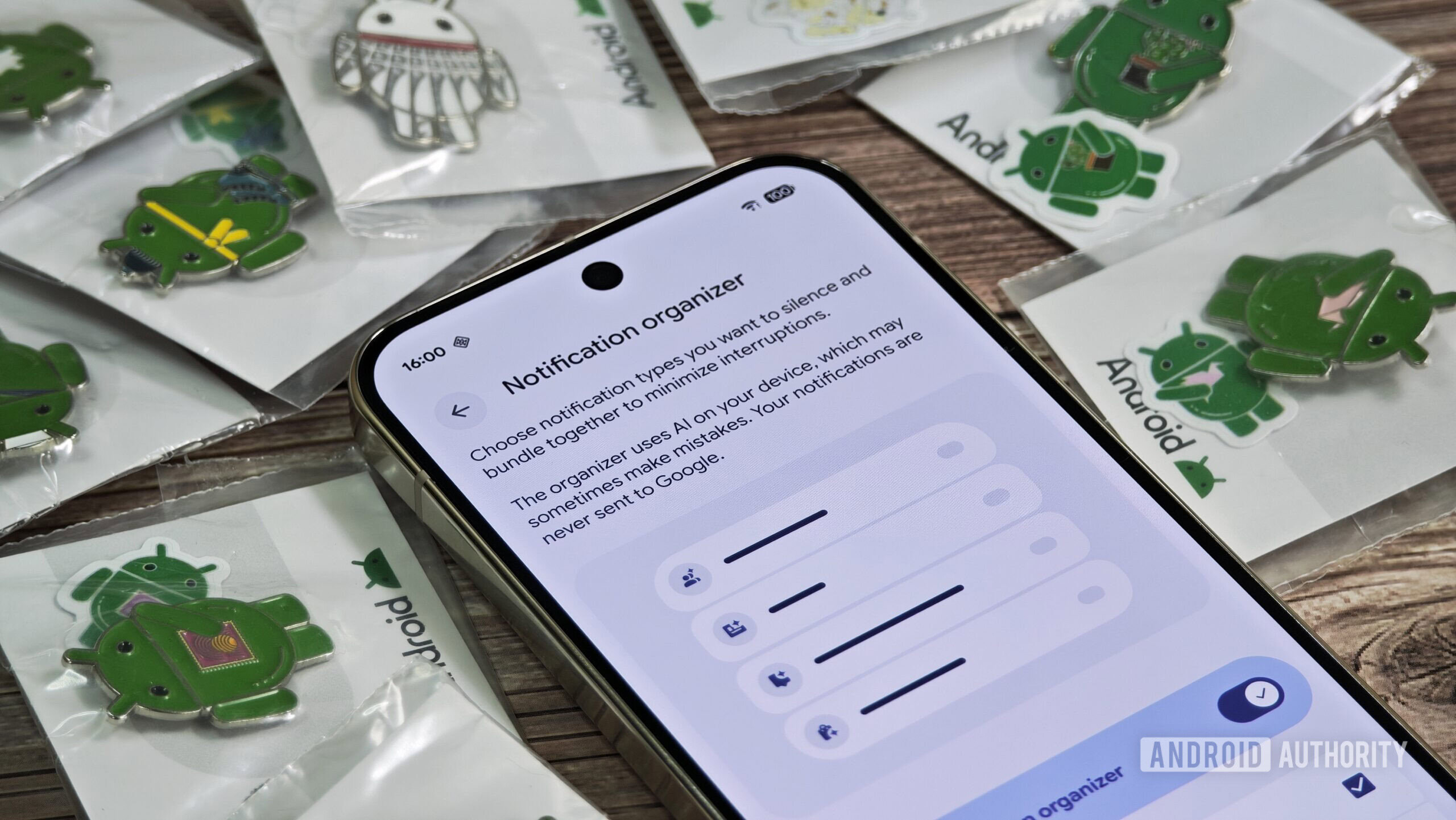
Google’s fight against notification overload has brought us three important features since the first Android 16 launch: notification cooldown, notification summaries, and now notification organizer with QPR2. Since my Pixel 9 Pro XL is my secondary device, I used to hate the first few seconds when I unlocked it because of the deluge of pending notifications waiting for me.
Now, when I unlock my Pixel 9 Pro XL after a few hours or more of idling, I’m greeted with a more manageable notification load. Many app notifications are grouped together in four categories: News, Social, Promotions, and Suggested. I can instantly check News and ignore most of the rest. That already saves my blood from boiling over the fact that syncing notification dismissal is enabled between my devices, but it doesn’t seem to do a thing.
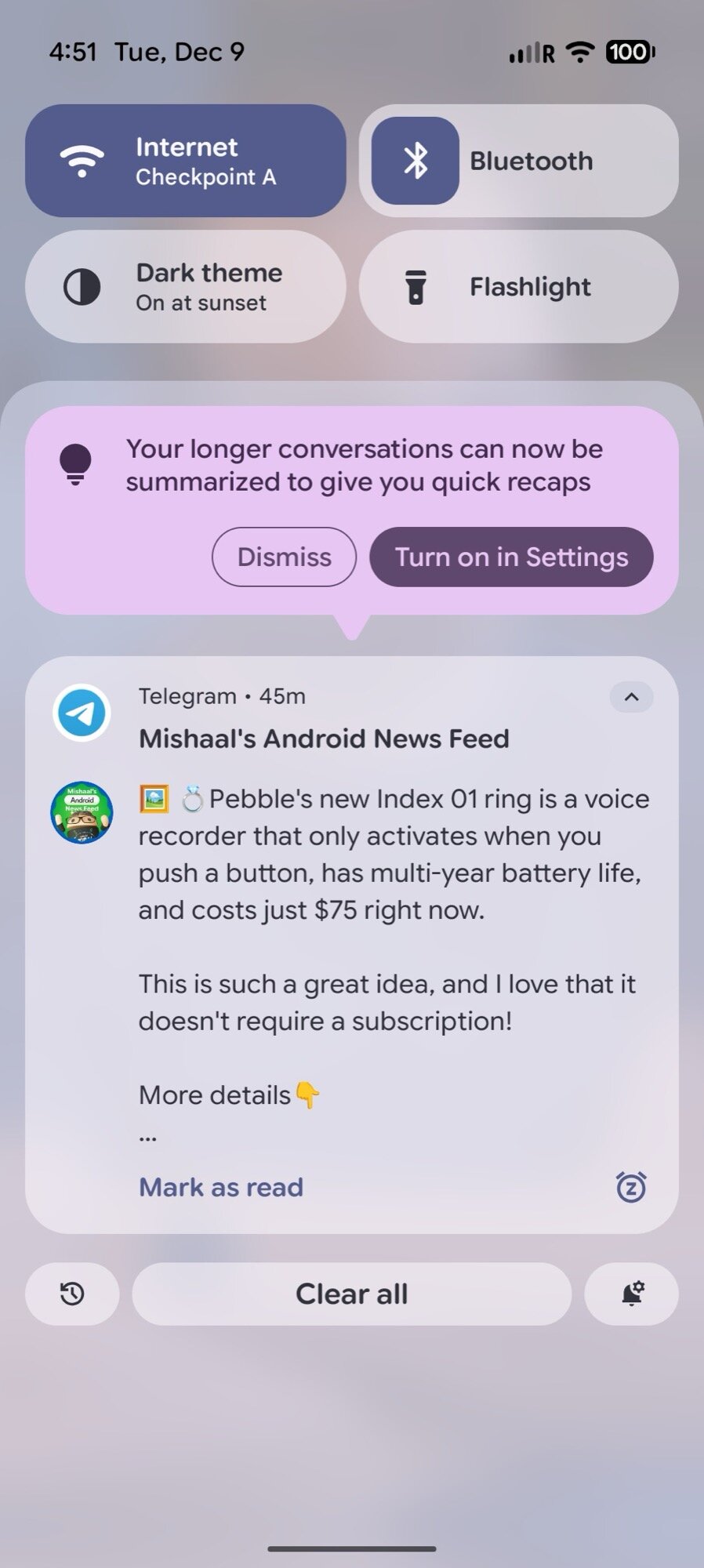
Notification summaries pop-up
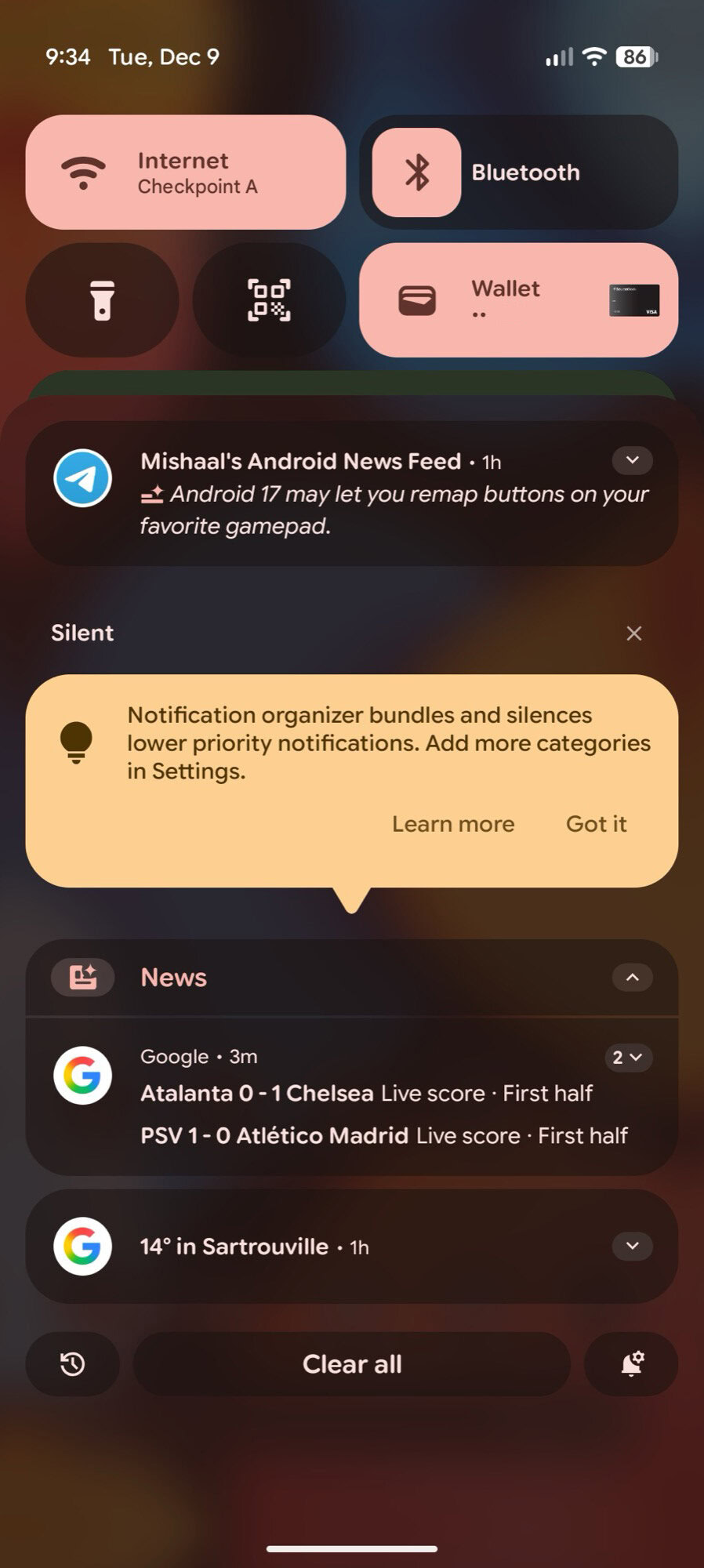
Notification organizer pop-up
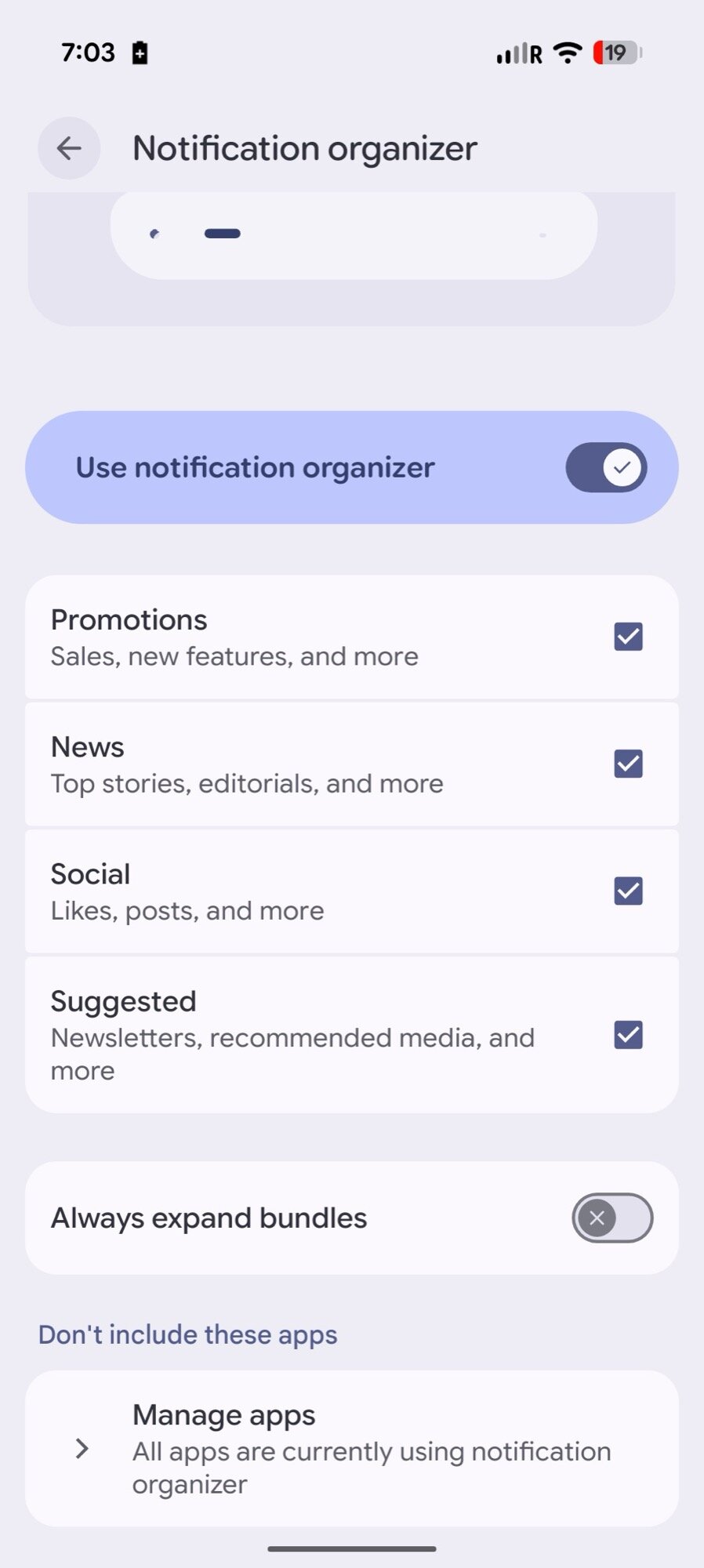
Notification organizer settings
So far, I’ve mostly seen the News and Promotions categories at play, since I disable most of my social notifications by default, and I don’t get that many newsletters to trigger the Suggested category. Google still has a bit of refining to do here, but I love that I can opt out apps I don’t want to group. I just wish I could teach the AI where some notifications go, especially all my Gmail emails.
Lock screen widgets and so much more
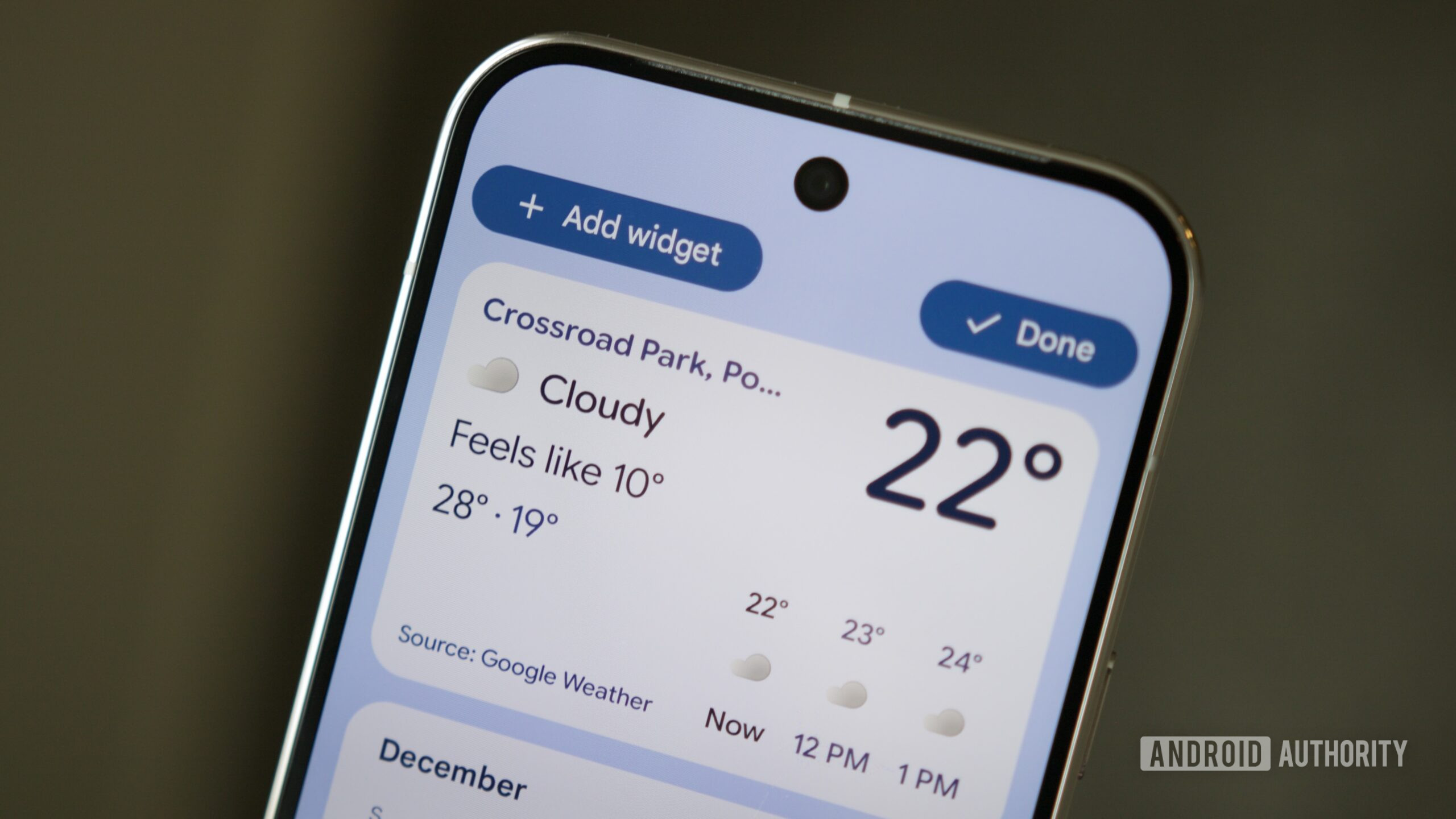
Between the redesigned lock screen, clock designs and weather effects, Magic Portrait, and new screen saver options, Android 16 has been changing a lot in the way my Pixel 9 Pro XL behaves when idling. I can now leave it on the charger and use it as a photo frame or a smart home control center. And when I pick it up, the new lock screen shows up with any ongoing live updates, my favorite clock design, and a pic of my husband. It’s all too adorable.
Last edited:
- Joined
- Jul 5, 2001
- Messages
- 44,814
- Reaction score
- 8,514
Android 16 QPR2 managed to add a few more things to all of this. For one, there are lock screen widgets now, which let me perform actions on my Pixel 9 Pro XL before even unlocking it or picking it up. I just wish the “Hub mode” worked so I could set the widgets to show up by default when the phone is charging, but I’ll take the manual trigger for now.
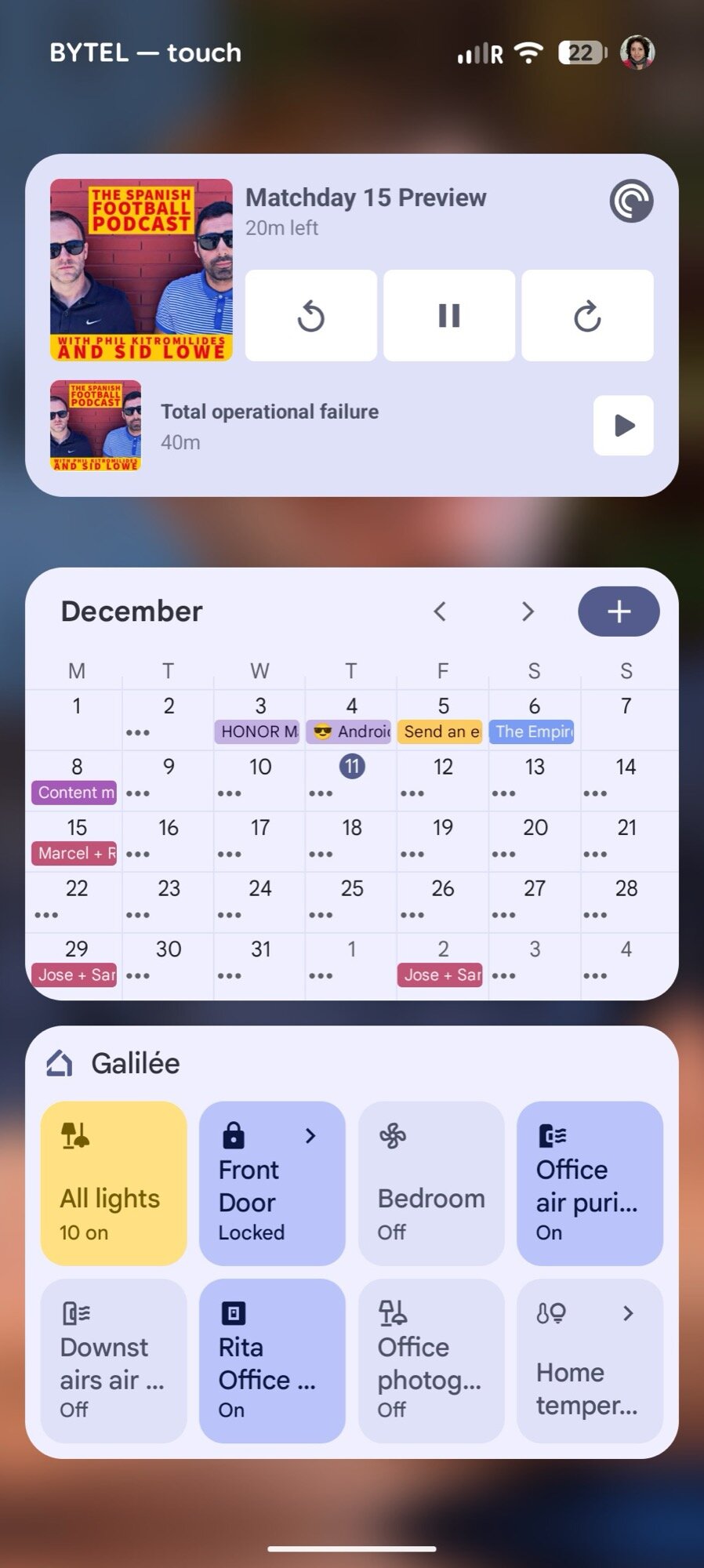
Lock screen widgets
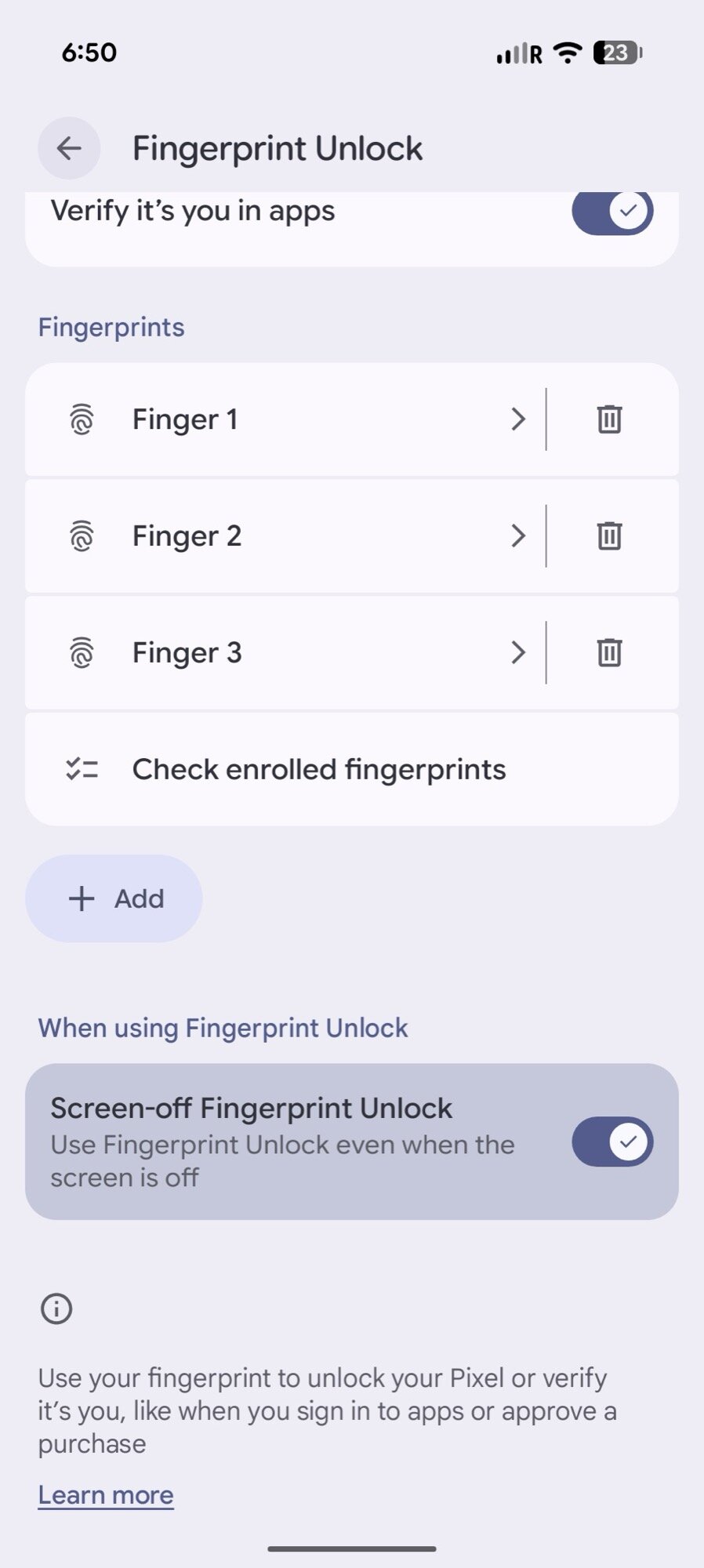
Screen-off fingerprint unlock
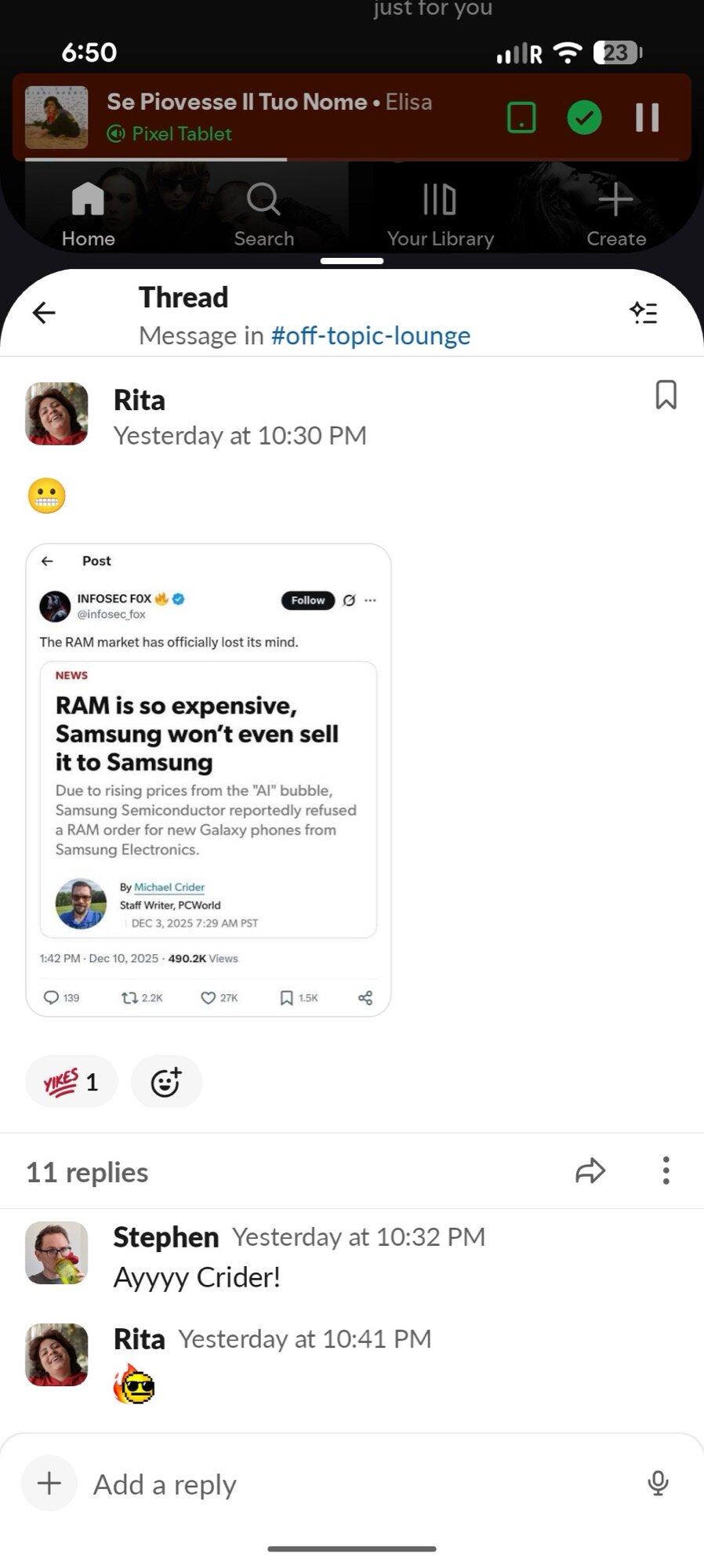
90:10 split-screen multitasking
The second improvement is in Google bringing back the option to unlock the phone even if its screen is off. I don’t need to pick the Pixel 9 Pro XL or tap the screen first, just put my thumb on the fingerprint sensor and I’m in. Once again, for a phone that I thought I’d be using less now that I have the Pixel 10 Pro XL, this change has made me want to use it more.
And finally, once I’m actually using the phone, the new 90:10 split-screen mode makes multitasking and using this as a secondary display so much more fluid. I can keep Spotify as the top tiny app, Slack as the bottom large app, and quickly switch between the two with a tap.
My colleague Joe has already stated that Android QPR1 made his Pixel 9 Pro feel like a Pixel 10 Pro, and I think this rings even more true with the newest QPR2 update. My “old” Pixel 9 Pro XL feels new again. Almost everything about it now is so different from when I first set it up in 2024, and I hope this continues with further updates. Seeing new life come to phones that are still perfectly capable makes the old habit of yearly upgrades so unnecessary. Well, for anyone who doesn’t work in tech journalism, I suppose — I still have to justify my need to try new phones every year!
Lock screen widgets
Screen-off fingerprint unlock
90:10 split-screen multitasking
The second improvement is in Google bringing back the option to unlock the phone even if its screen is off. I don’t need to pick the Pixel 9 Pro XL or tap the screen first, just put my thumb on the fingerprint sensor and I’m in. Once again, for a phone that I thought I’d be using less now that I have the Pixel 10 Pro XL, this change has made me want to use it more.
And finally, once I’m actually using the phone, the new 90:10 split-screen mode makes multitasking and using this as a secondary display so much more fluid. I can keep Spotify as the top tiny app, Slack as the bottom large app, and quickly switch between the two with a tap.
Seeing new life come to phones that are still perfectly capable makes yearly upgrades so unnecessary.
My colleague Joe has already stated that Android QPR1 made his Pixel 9 Pro feel like a Pixel 10 Pro, and I think this rings even more true with the newest QPR2 update. My “old” Pixel 9 Pro XL feels new again. Almost everything about it now is so different from when I first set it up in 2024, and I hope this continues with further updates. Seeing new life come to phones that are still perfectly capable makes the old habit of yearly upgrades so unnecessary. Well, for anyone who doesn’t work in tech journalism, I suppose — I still have to justify my need to try new phones every year!
- Joined
- Jul 5, 2001
- Messages
- 44,814
- Reaction score
- 8,514
Important Forum Advisory Note
This forum is moderated by volunteer moderators who will react only to members' feedback on posts. Moderators are not employees or representatives of HWZ Forums. Forum members and moderators are responsible for their own posts.
Please refer to our Community Guidelines and Standards and Terms and Conditions for more information.
