

Hi,
I believe many home will require additional routers to either increase their WIFI range or to extend to another computer...etc
This guide is based on my experience and should able to help you give a basic understanding and guide line to help you setup.
A Typical Fibre Connection:
TP ---> ONT ---> ISP Router ---> Your Devices/pc/tv/phone..etc
TP = is the wall point on which opennet has installed
ONT = Optical Network Terminal; to Translate light into electrical for RJ45/Ethernet LAN Cable
ISP Router = is the router or modem given free/bundle with your plan
A Typical Broadband Connection:
TP ----> ISP Modem/Router ---> your devices/pc/tv/phone...etc
TP = Point from the wall
Ok, Now before you buy, you must understand what type of device will suit your need.
These are the 3 main devices you will need to extend your network:
1. Unmanaged Switch (Think of it as adding additional ports when your router ports are all used up)
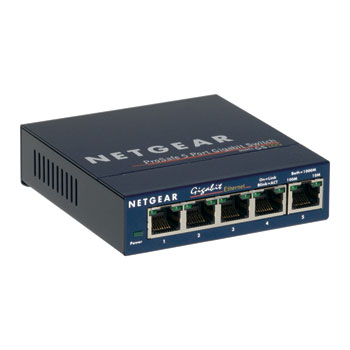
2. Access Point (Usually used for just increasing WIFI coverage)

3. Router (Switch + Access Point)

Unmanaged Switches are plug in and play, meaning all you have to do is just plug in the network cable and your done.
Some Access Point connect via wirelessly so you have to configure it before you can use. eg: go to the Access Point web interface, Find and connect to your wireless. Then setup your Wireless. Please do not use the same channel as your current router.
Note: Some Router are able to switch into an Access Point via button or in web interface settings. They are also plug in and play if you connect via wired.
Setting up Additional Router for your Network:
Some of you may have bought a router or have an extra one to use. Router are a bit more tricky in setting up.
1): Set a static IP For your Router so it doesn't change when the power is out or when you reset either routers.
First, enter your Main router web interface(usually 192.168.1.1 or could be 192.168.1.254[singtel] or possibly 192.168.0.1). Then find a menu to reserve IP.
It's usually near DHCP or LAN section on most routers.
If my main router is 192.168.1.1 then I would usually give my secondary router 192.168.1.2
note: only the last octet(xxx.xxx.xxx.xxx --> xxx are octets) due to subnet mask.
2): Turn off DHCP on your secondary router: this is to prevent IP Conflict on your network.
3): Setting up wireless
Sometimes its better to have a different name(SSID) from your current WIFI as it helps identify which gives better signal or to troubleshoot if there's any technical problems.
Example: Main router SSID: Hamster1, Channel: 3. Secondary router SSID: Hamster2, Channel: 8.
However, some prefer a cleaner and single SSID which is still possible but requires you to set a static channel(1-11) otherwise it will cause connection problems. Security type(eg:WPA2, AES, TKIP...etc), SSID Name must be the same.
Example: Main router SSID: Hamster, Channel: 3. Secondary router SSID Hamster, Channel: 8.
If there's any questions you would like to ask please post below and i'll try to help
I believe many home will require additional routers to either increase their WIFI range or to extend to another computer...etc
This guide is based on my experience and should able to help you give a basic understanding and guide line to help you setup.
A Typical Fibre Connection:
TP ---> ONT ---> ISP Router ---> Your Devices/pc/tv/phone..etc
TP = is the wall point on which opennet has installed
ONT = Optical Network Terminal; to Translate light into electrical for RJ45/Ethernet LAN Cable
ISP Router = is the router or modem given free/bundle with your plan
A Typical Broadband Connection:
TP ----> ISP Modem/Router ---> your devices/pc/tv/phone...etc
TP = Point from the wall
Ok, Now before you buy, you must understand what type of device will suit your need.
These are the 3 main devices you will need to extend your network:
1. Unmanaged Switch (Think of it as adding additional ports when your router ports are all used up)
2. Access Point (Usually used for just increasing WIFI coverage)
3. Router (Switch + Access Point)
Unmanaged Switches are plug in and play, meaning all you have to do is just plug in the network cable and your done.
Some Access Point connect via wirelessly so you have to configure it before you can use. eg: go to the Access Point web interface, Find and connect to your wireless. Then setup your Wireless. Please do not use the same channel as your current router.
Note: Some Router are able to switch into an Access Point via button or in web interface settings. They are also plug in and play if you connect via wired.
Setting up Additional Router for your Network:
Some of you may have bought a router or have an extra one to use. Router are a bit more tricky in setting up.
1): Set a static IP For your Router so it doesn't change when the power is out or when you reset either routers.
First, enter your Main router web interface(usually 192.168.1.1 or could be 192.168.1.254[singtel] or possibly 192.168.0.1). Then find a menu to reserve IP.
It's usually near DHCP or LAN section on most routers.
If my main router is 192.168.1.1 then I would usually give my secondary router 192.168.1.2
note: only the last octet(xxx.xxx.xxx.xxx --> xxx are octets) due to subnet mask.
2): Turn off DHCP on your secondary router: this is to prevent IP Conflict on your network.
3): Setting up wireless
Sometimes its better to have a different name(SSID) from your current WIFI as it helps identify which gives better signal or to troubleshoot if there's any technical problems.
Example: Main router SSID: Hamster1, Channel: 3. Secondary router SSID: Hamster2, Channel: 8.
However, some prefer a cleaner and single SSID which is still possible but requires you to set a static channel(1-11) otherwise it will cause connection problems. Security type(eg:WPA2, AES, TKIP...etc), SSID Name must be the same.
Example: Main router SSID: Hamster, Channel: 3. Secondary router SSID Hamster, Channel: 8.
If there's any questions you would like to ask please post below and i'll try to help
Last edited:


