@chocointed
IMHO.
I am a newbie. These are AI assisted. Not sure if it is helpful.
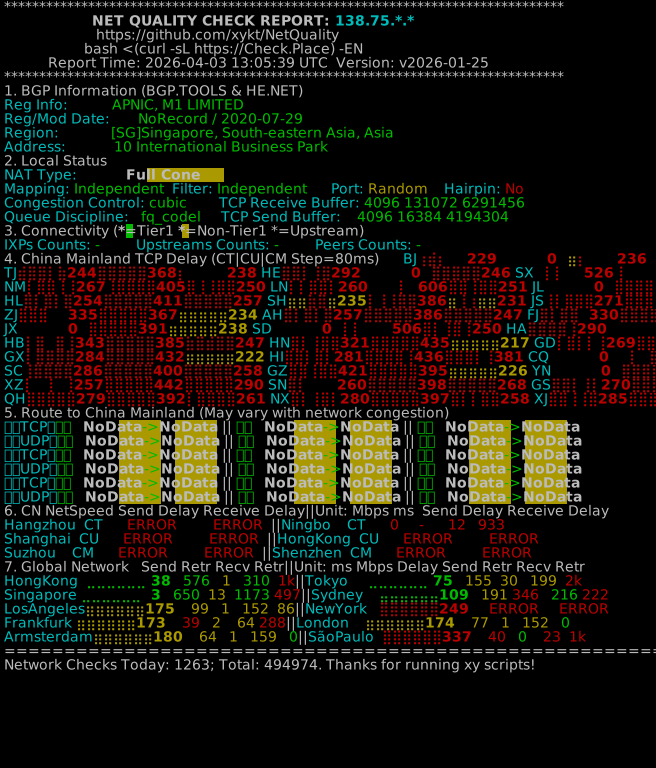
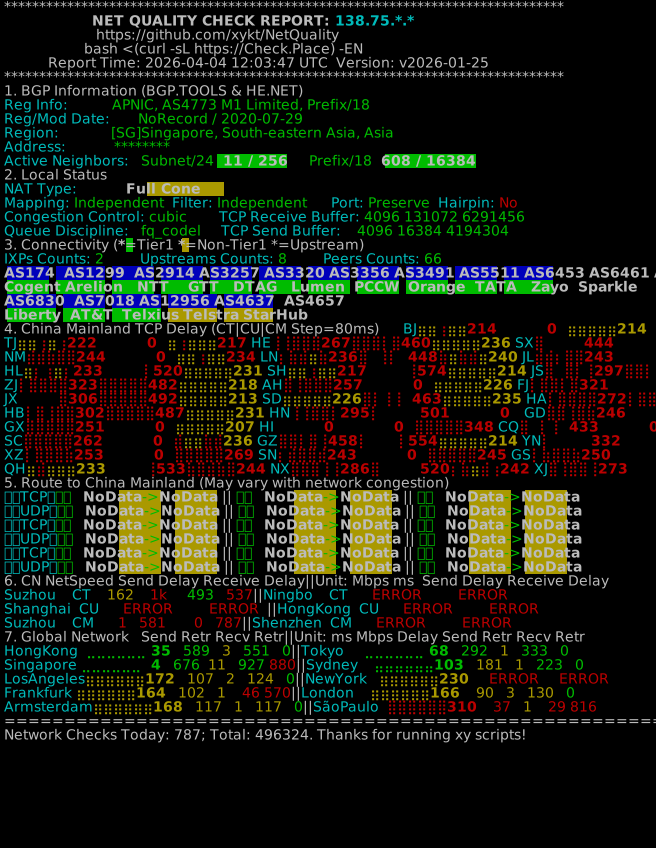
Apparently it seems that the routing by SIngtel is not optimal - went out and come back in again causing the high pings.
You can try paid Windscribe Pro VPN which has local SG servers at 17ms.
Alternatively, for risk free, probably ProtoVPN which seems to have SG servers and 30-days money back. Cheers !
1. The "False" Block (Routing Failure)
When you use Singtel, your connection is trying to reach the server by going to
Palo Alto, California and then back to Singapore. This creates two major problems that look like a "block":
- Timed Out Packets: Minecraft servers have a "timeout" threshold. If your connection takes 280+ ms to respond (as seen in your second trace), the server or your game client may simply give up and drop the connection, giving you a "Timed Out" or "Connection Refused" error.
- The "Black Hole" at Hop 15: In your Singtel trace, hops 15, 16, and 18 show * * * Request timed out. This means somewhere in the US-to-Singapore return path, a router is dropping your Minecraft data packets entirely.
Starhub works because it keeps the data in Singapore (2ms latency), so it never hits these international "black holes."
2. Potential "Broadband Protect" or DNS Filtering
Singtel often includes a feature called
Broadband Protect (or similar security suites) by default.
- The Issue: These filters sometimes flag gaming traffic or specific IP ranges (like the one your server uses: 45.139.226.x) as "untrusted" or "malicious" because they originate from smaller VPS hosting providers.
- Why Starhub is different: Starhub’s default filtering is typically less aggressive, or your plan there might not have the "security" add-on active
How to Fix It (On Singtel)
If you have to stay on Singtel, try these steps in order:
Step 1: Change your DNS
Singtel's default DNS can sometimes point you toward these bad "international" routes.
- Go to your Windows Network Settings.
- Change your IPv4 DNS servers to Cloudflare (1.1.1.1) or Google (8.8.8.8).
- Open Command Prompt and type ipconfig /flushdns.
Step 2: Disable Singtel Security Features
Log in to your Singtel account portal (or the Singtel App). Look for
"Broadband Protect" or
"Security Suite." If it is on, try disabling it temporarily to see if the server unblocks. Many users have reported that this "protection" incorrectly blocks game servers.
Step 3: Use a VPN (Temporary Fix)
If you use a VPN and set your location to
Singapore, it will force your data to stay within the country (tunneling through Singtel's bad routing). This usually drops the latency back down to ~10-20ms and bypasses the "block."
Step 4: Contact the Server Host
Since the server is hosted on speedyvps.uk (but located in SG), you can send them your Singtel traceroute. They can contact their "upstream" provider (Tata Communications/AS6453) to ask why Singtel traffic is being routed through Palo Alto instead of staying local.
Summary: You aren't actually being "banned" or "blocked" by the server itself; your Singtel connection is just taking a "scenic route" to America that is so long and broken that the game can't stay connected.