Google / Android Apps New Features, Tips & Tricks

limmk

High Supremacy Member
Joined
Jul 5, 2001
Messages
39,522
Reaction score
7,998


There are a lot of Android features that go unused because they’re difficult to access, but there are often handy shortcuts that you simply don’t know about. One of those on Google Pixel devices is a shortcut for notification history that’s quickly become my favorite trick.

Notification by accident? Saw something that was deleted by the time you opened it? Notification history makes it easy to get back to these things.

Sadly, some Android manufacturers, namely Samsung and OnePlus, unnecessarily bury this feature from users, but Google keeps it pretty readily available with a shortcut for “history” visible at the bottom of your notifications when the feature is turned on and when you have unread notifications.

But what about when they’re all read?

A clever, hidden touch within Google’s software on Pixel phones is that if you tap “No notifications” you’ll quickly be able to access history. There’s nothing in the software that tells you this, making it hidden to the vast majority of people, but when my colleague Kyle told me about it, it was a game-changer. So many times in the past I’ve had to dig into the settings menu after accidentally clearing notifications, so this little shortcut is just such a welcome addition that genuinely saves me time and effort.

fdEnneG.gif


What’s your favorite shortcut in Android?
 

limmk

High Supremacy Member
Joined
Jul 5, 2001
Messages
39,522
Reaction score
7,998
TL;DR
  • Pixel phones have a default flashlight brightness of 50%, and unlike many Android devices, they lack a built-in way to adjust brightness directly from Quick Settings.
  • Users can increase the flashlight brightness to 100% by using Google’s Magnifier app.
  • Alternatively, third-party apps are available that allow Pixel phone users to adjust flashlight brightness.


Samsung and many other Android phones let you adjust the brightness levels of the flashlight from the same place where you turn on the torch. But I’ve always felt a lack of this feature on Pixel phones. When you swipe down to access the Quick Settings menu on a Pixel phone, you can turn the flashlight on and off; there’s no way to adjust its intensity.

Google sets the default flashlight brightness on Pixel phones to 50%, but I recently discovered a trick to boost it to 100% without relying on third-party apps. I might be late to the game, but it’s likely that many Pixel users are unaware of this, just like I was.

Until Google provides a more intuitive and straightforward method for adjusting flashlight brightness on Pixel phones, a handy Google app can help. If you’re not already familiar with the Magnifier app, it’s packed with features, particularly for Pixel users, offering a range of functionalities that can enhance your experience.

I’m not going to go into everything Magnifier can do on a Pixel, but I’ll tell you how to get the flashlight on your phone to light all the way up. It’s pretty simple, really. Once you download the Magnifier app on your phone, you can follow the steps below to increase the flashlight level on your Pixel phone fully.

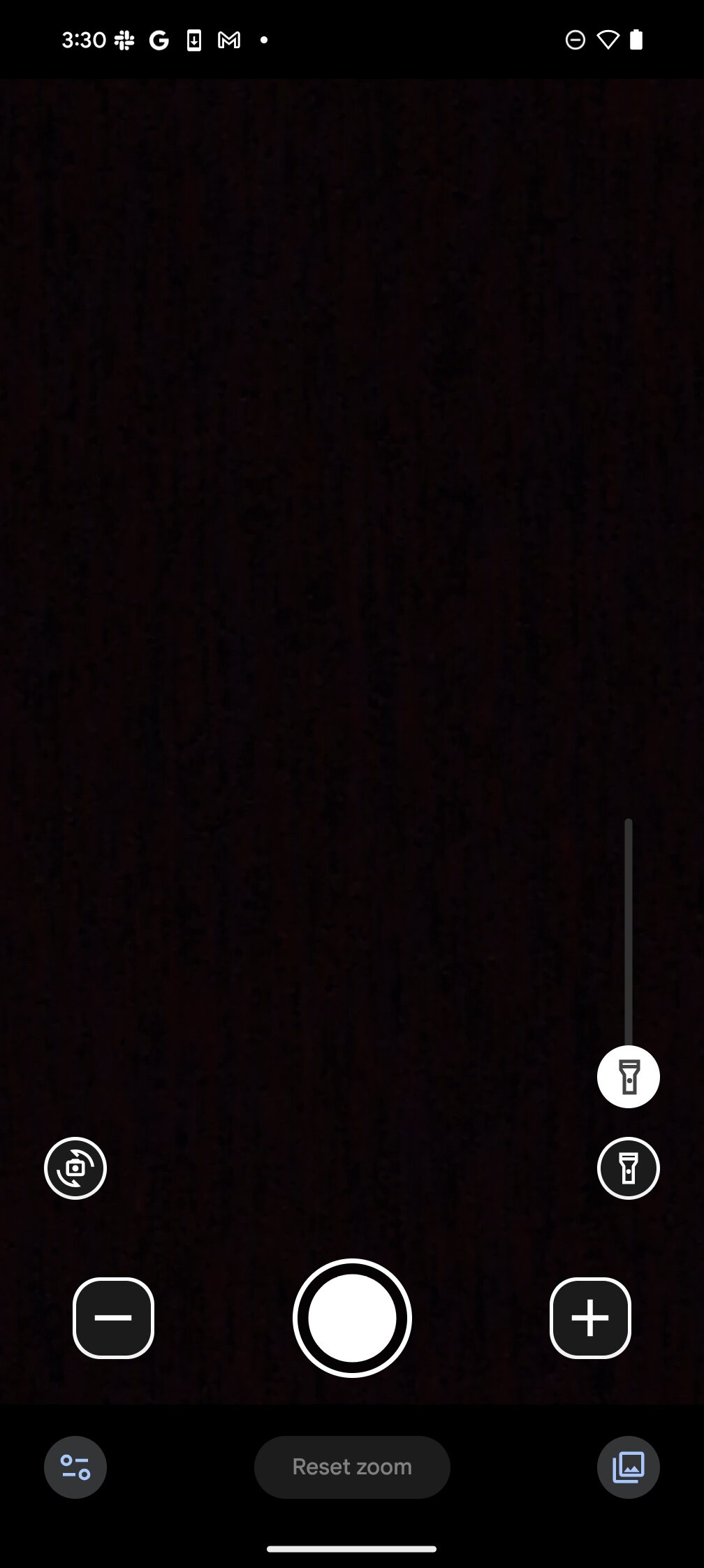
Pixel Magnifier app 1
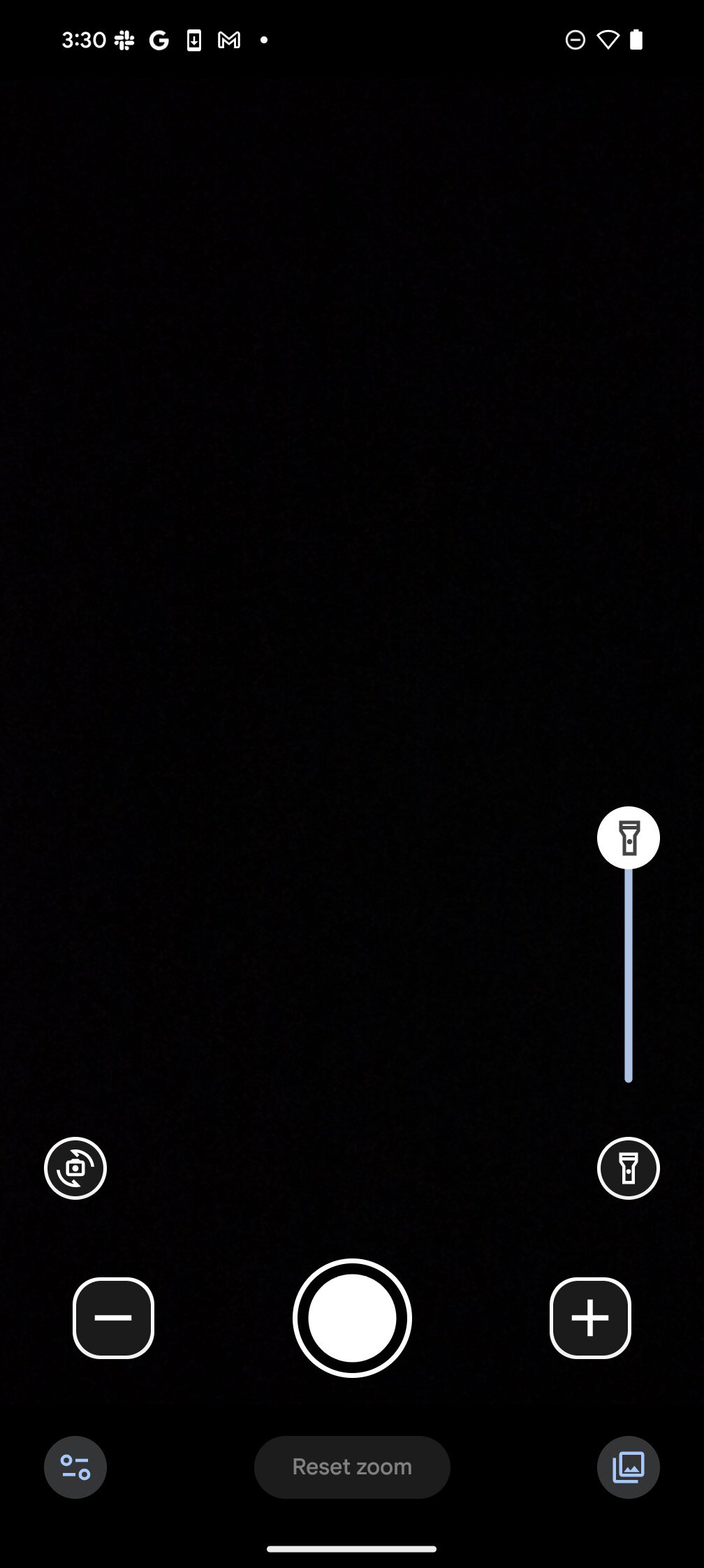
Pixel Magnifier app 2

  • Find the flashlight icon in the Magnifier app on the right of the screen.
  • Tap the flashlight on.
  • Use the slider to increase its brightness level to 100%.
When you turn on the flashlight for the first time in Magnifier, it comes on at its dimmest setting for discreet use. But being able to go to max brightness through the slider is really helpful when you need to hunt for something in dark corners or low-light situations.

The app also lets you take a picture of something in the dark with the flashlight switched on. Once you snap the picture, Magnifier will automatically create a clearer one.
If you don’t want to use Magnifier, there are also some third-party apps that let you control the brightness level of the flashlight on Pixel phones.
 

limmk

High Supremacy Member
Joined
Jul 5, 2001
Messages
39,522
Reaction score
7,998

Google to pilot new Android anti-scam features in Singapore​

Android users can choose to block messages from unknown international numbers on Google Messages.

SINGAPORE: Two new Android anti-scam features designed to combat mobile scams will be piloted in Singapore, Google announced on Wednesday (Oct 16).

Users will be able to block messages from unknown international numbers on Google Messages, and they will not be able to disable Google Play Protect during calls.

The features will be rolled out to Android devices in Singapore in the next few months.

BLOCKING MESSAGES​

Android users will soon be able to opt-in to a feature to block SMS messages from unknown international numbers.

"In Singapore, text/SMS is among the most common ways scammers contact victims, with more than 700 reported SMS scam cases in the first half of 2024, most of which were a result of scammers operating from overseas," Google said.

Android users will be able to enable this feature under the Protection and Safety settings in Messages.

The blocking message feature was made in partnership with the Singapore Police Force and Infocomm Media Development Authority.


DISABLING GOOGLE PLAY PROTECT​

Google Play Protect will also no longer be able to be disabled during active audio and voice calls.

"Scammers often try to trick victims into disabling GPP during calls to bypass security measures and install malicious apps," said Google.

"This safeguard helps protect users from falling victim to this common scam tactic."

More than S$34 million (US$26 million) was lost to malware scams in 2023, with about 1,900 cases reported.

Earlier this year, Google rolled out a new security feature that automatically blocked Android users in Singapore from installing apps from unverified sources.

When users try to install a potentially risky app from sources such as web browsers or messaging platforms, the security feature will automatically block the app if it demands suspicious permissions such as access to restricted data like SMSes and phone notifications.

Director of Android security strategy Eugene Liderman said: "We've made significant strides in protecting people from scams, and we will continue introducing new features and mitigations to stay ahead of bad actors as they continuously evolve their tactics.

"These two new features empower users to defend themselves and are critical steps in our ongoing commitment to enhancing security in the mobile ecosystem."

// CNA

 

limmk

High Supremacy Member
Joined
Jul 5, 2001
Messages
39,522
Reaction score
7,998


Ahead of Halloween on Thursday, seasonal Audio Emoji has arrived for Pixel users in the Google Phone app.


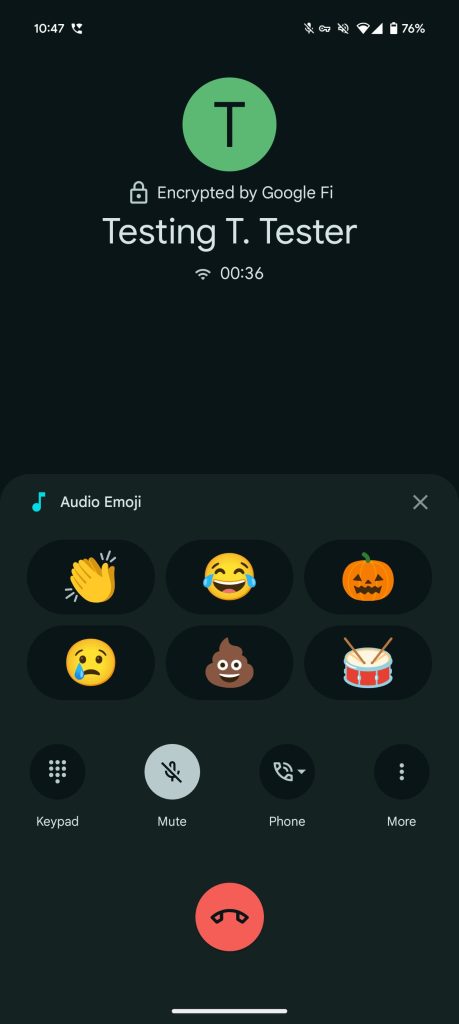
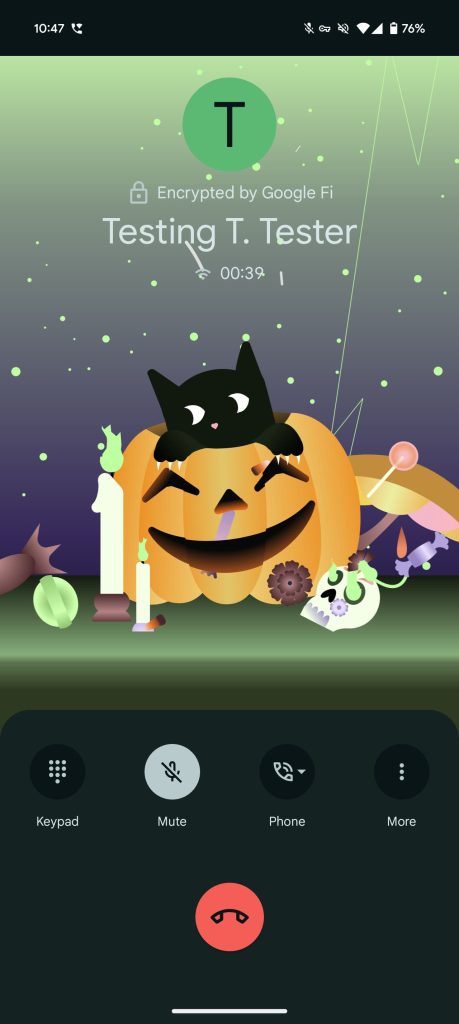
A Pumpkin emoji replaces Party Popper until Halloween with spooky laughter (from the aforementioned pumpkin), lightning (very, very frightening), and even a black cat meowing. You both hear and see this on your call/screen.

There are no changes to Clapping Hands, Face with Tears of Joy, Crying Face, Pile of Poo, or Drum, though Google is teasing more seasonal Audio Emoji: “keep an ear out for more festive sounds coming to your Pixel later this year!”

Google-Pixel-Phone-seasonal-Audio-Emoji-1.jpg
Google-Pixel-Phone-seasonal-Audio-Emoji-2.jpg


Version 150 of Phone by Google is widely rolled out to the stable channel. Audio Emoji was announced with the Pixel 8a in May and then became available on all Google phones. It’s a small touch of whimsy that you can disable entirely in Phone by Google Settings > General. That removes the two — rather prominent — Audio Emoji shortcuts from the calling screen.

This joins a “Halloween” Screen Effect in Google Messages and the traditional Nest Doorbell sounds.


limmk

High Supremacy Member
Joined
Jul 5, 2001
Messages
39,522
Reaction score
7,998


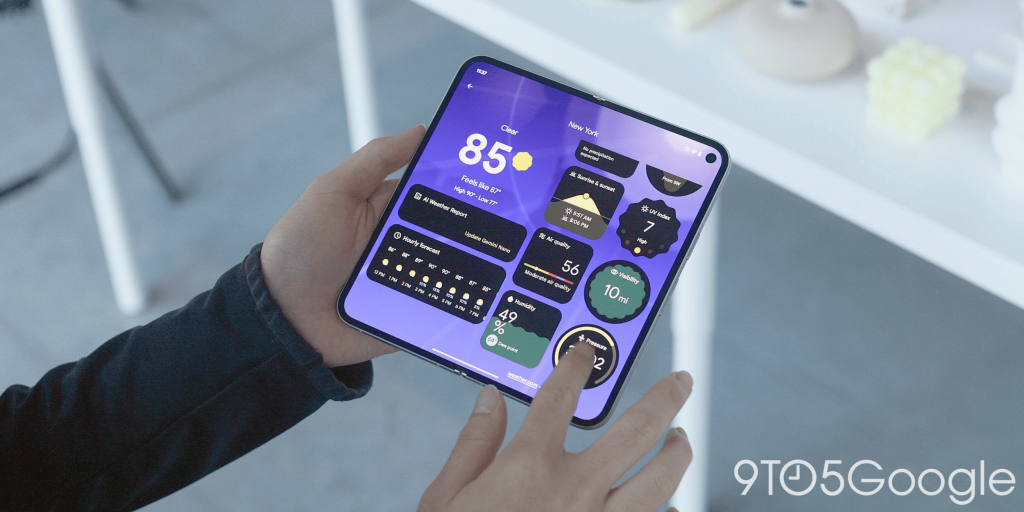
As announced with the October 2024 (Feature) Drop two weeks ago, Pixel Weather is now available for the Pixel 6 and newer, including the Tablet.

Pixel Weather is rolling out as a new version of the com.google.android.apps.weather background service that’s already on your device and powers the existing city temperatures in Google Clock. Just tap “Update” in the Google Play Store.

After installing version 1.0.20240910.x, you’ll get a “Weather” icon in the app grid. Here are some things you should do as part of the set-up process:

  • Allow app notifications and precise location.
  • Tap your profile avatar in the top-right corner > Pixel Weather settings to “Make Pixel Weather your primary source for notifications.” You have to turn off the “Weather forecasts” notification from the Google app.
  • For good measure, restart your device so that existing widgets and At a Glance open Pixel Weather and not the previous Google Weather experience.
If you sign-in with your Google Account, saved locations will sync across devices. Selecting a city shows a local background that reflects the current condition.

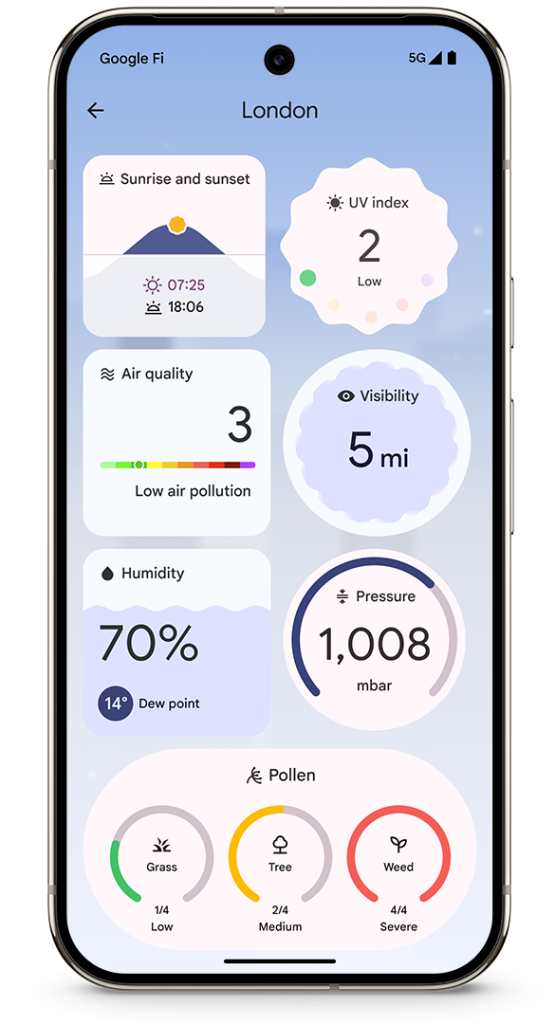
Hold down on a card to move the weather block, with everything except for Hourly forecast rearrangeable. Customizations are unique to each saved city, while there’s a two-column layout on tablets and foldables. Available data includes: Precipitation, Wind, Sunrise & sunset, UV index, Air quality, Visibility, Humidity, and Pressure.

Pixel Weather
Pixel Weather

Pixel-Weather-pollen-count.png

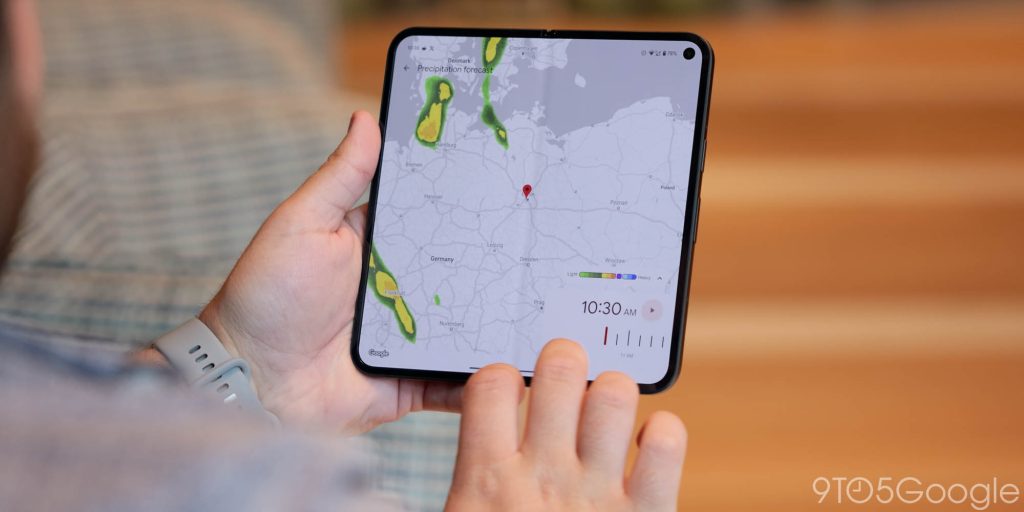
The Weather map shows a 6-hour precipitation forecast and is available in the US, UK and most European countries, except Italy and Luxembourg. It’s powered by Google nowcasting.

Tap your avatar in the top-right corner to change Weather units, Theme, and access Settings. You can have tomorrow’s weather forecast for your current location delivered every evening and set precipitation notifications by city.
 
Important Forum Advisory Note
This forum is moderated by volunteer moderators who will react only to members' feedback on posts. Moderators are not employees or representatives of HWZ Forums. Forum members and moderators are responsible for their own posts. Please refer to our Community Guidelines and Standards and Terms and Conditions for more information.
Top