Google / Android Apps New Features, Tips & Tricks

limmk

High Supremacy Member
Joined
Jul 5, 2001
Messages
39,358
Reaction score
7,972
TL;DR
  • The latest Gboard beta includes references to features such as “flick keys to enter symbols,” which could mimic the iPad’s quick symbol access method.
  • The “Password number row” feature could allow for dynamically displaying the number key, restricting it to only during password entry to preserve space on compact devices.
  • Google could also be upgrading the upcoming Writing Tools feature to let users generate text within the keyboard app itself.


Google offers an excellent keyboard app in the form of Gboard, available to all Android devices. It’s an app that does the job, so most users don’t think much about it, even though they may use it daily. Thankfully, Google does think about Gboard and what improvements it could make to the keyboard app. We’ve spotted references to several new features in the latest Gboard beta, like optional rounded keys, flicking keys to enter symbols, and more.

Gboard v15.3.02 beta includes references to several new features. We managed to activate the settings toggle for these features, letting us give you an early preview of what could be coming to the keyboard app in the future.

Flick keys to enter symbols​

Currently, Gboard lets users long-press a key to select the visible symbol. Users can set the duration for activating the long-press action, or even choose to disable the feature entirely. It’s an intuitive gesture, but some users may be looking for more ways to access the symbol.
In the future, Gboard could allow users to “flick keys to enter symbols.” When enabled, users can touch a key and pull downwards to access the hinted symbol, similar to what we see on the on-screen keyboard on iPads.
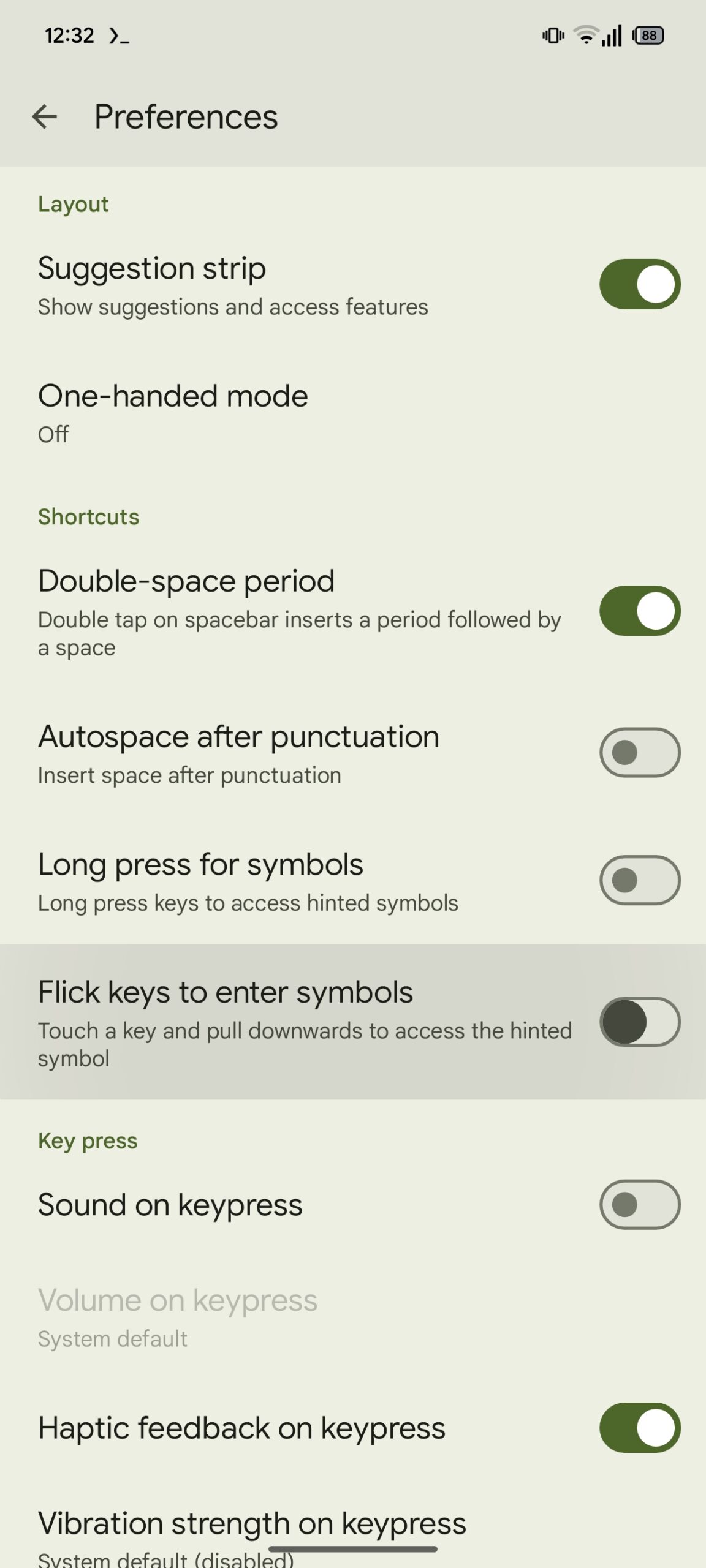
Gboard Flick keys to enter symbols


From my experience on the iPad, the flick gesture takes a bit to get used to, but once you are accustomed to it, it is marginally easier to use than a long press.

Password number row​

Gboard currently lets you set whether you want to always show the number row in certain layouts. This is very helpful for the current generation of Android flagships since you have plenty of screen real estate to work with. However, we’re seeing a resurgence of smaller-sized “compact” Android phones, and the rather permanent number row may feel like a waste. Of course, users can also switch off the option and access the number row through the number switcher icon on the bottom left. But what if you could show the number row in instances where you’d usually be entering them?

Gboard is working on one such option, where the number row is shown in certain layouts, but only restricted to the password layout.
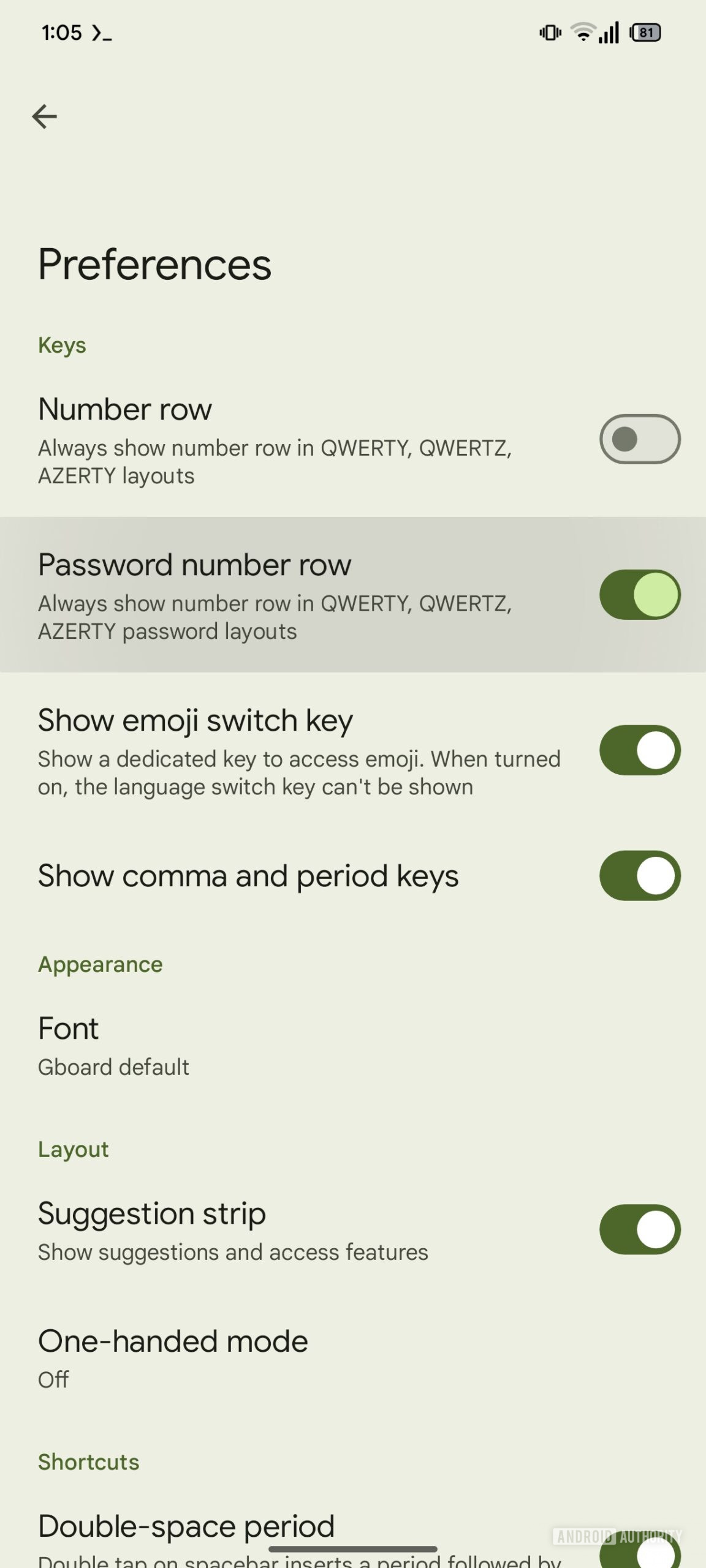
Gboard password number row


This could give you easy access to numbers without needing to switch back and forth between the alphabet and numeral layouts, while still giving you a roomy experience on a smaller screen device. The number row will appear only when it’s most likely needed, and be out of the way when it’s mostly not.

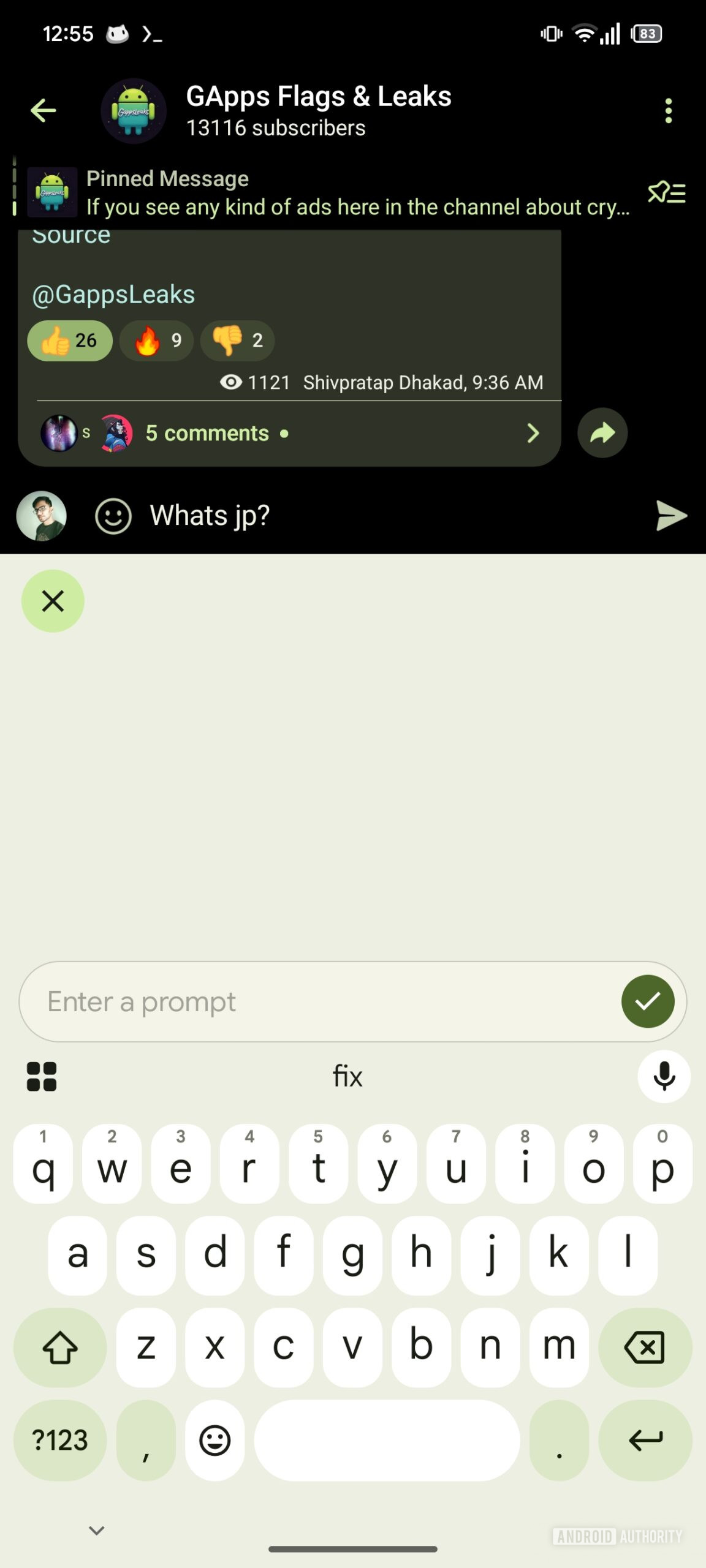
Writing tools: Enter a prompt​

Gboard has long been working on a handy Writing Tools feature that would let users use AI to proofread and rephrase their typed text. Google has now been spotted adding the ability to allow users to enter their own prompt to guide the AI in making requisite changes. Theoretically, it can also be used to generate new text entirely since the prompt could be anything.

Gboard Writing Tools Enter a prompt (2)
Gboard Writing Tools Enter a prompt (1)

Optional rounded keys​

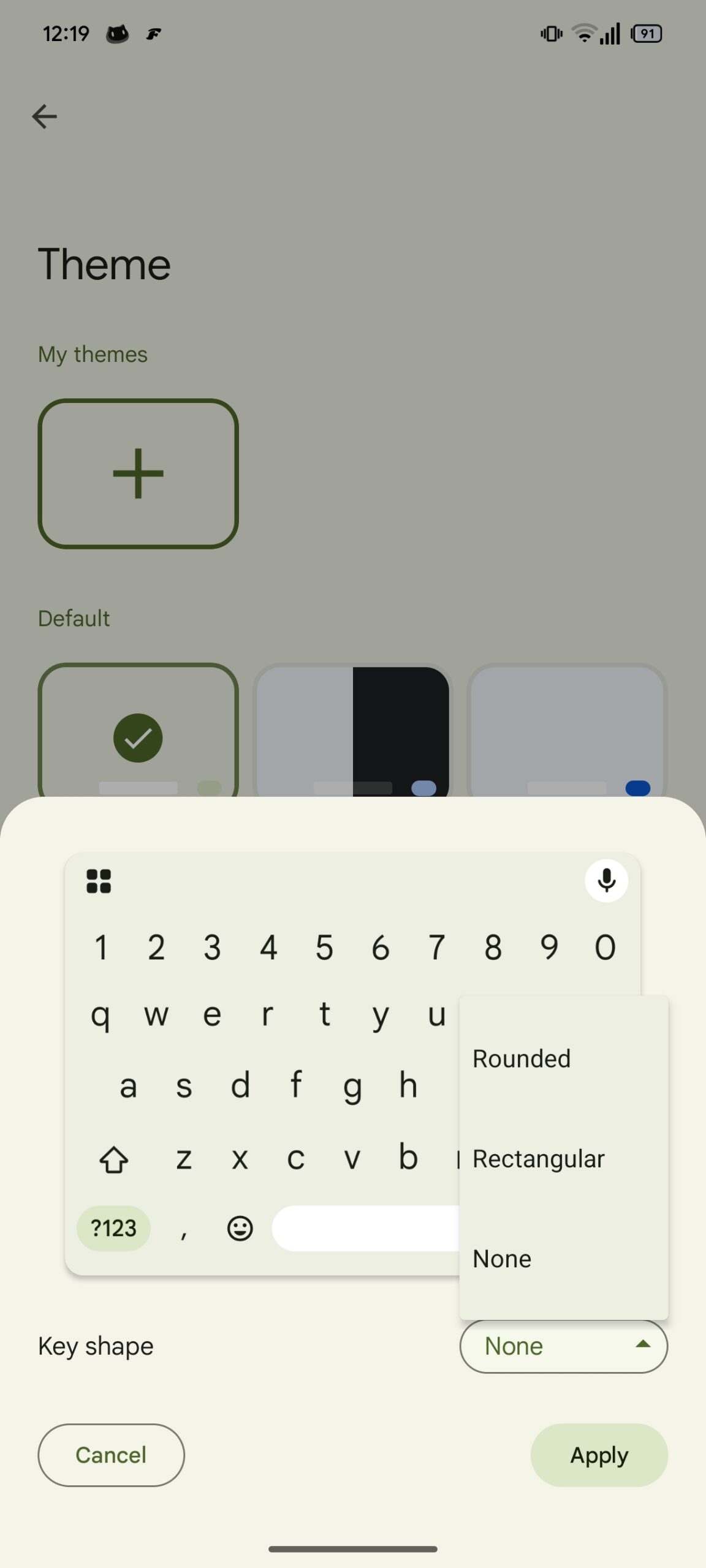
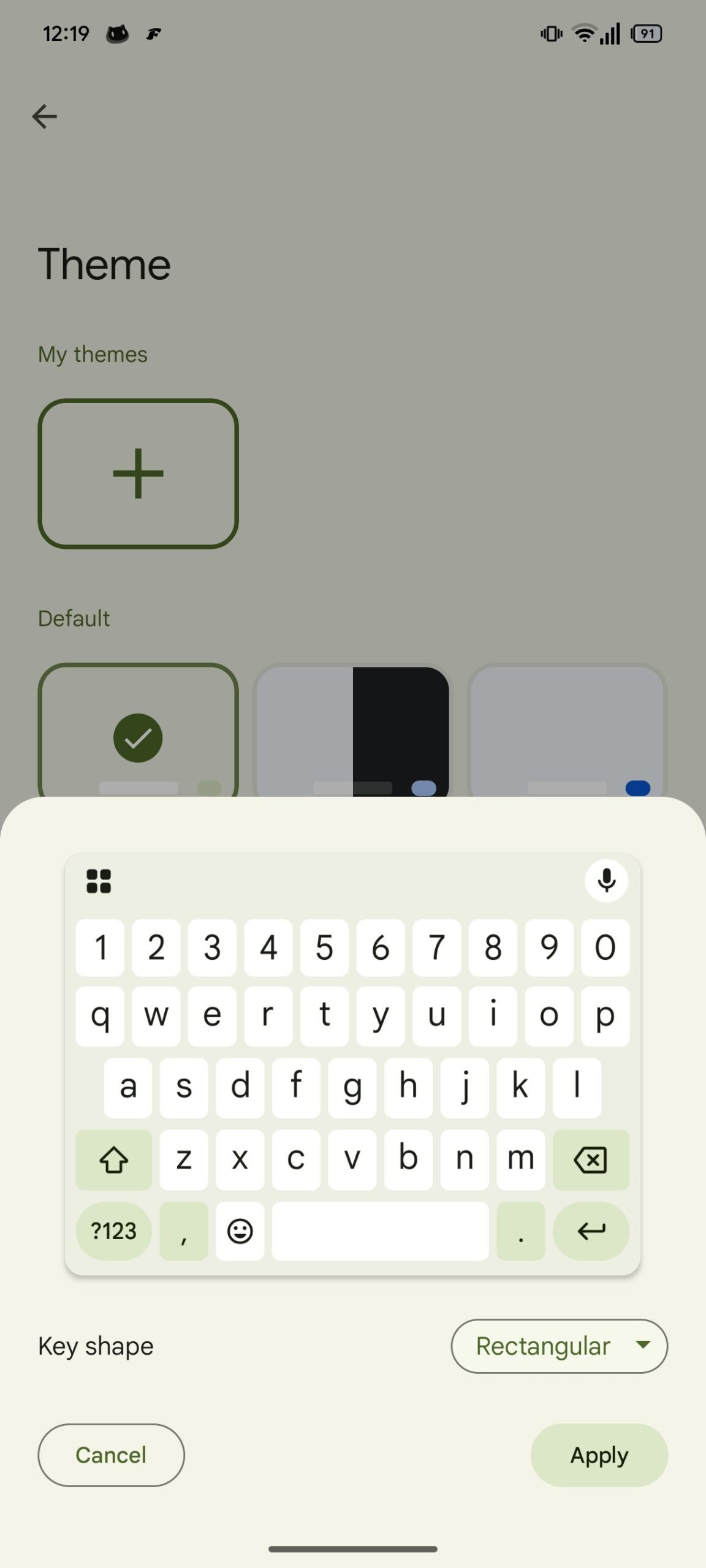
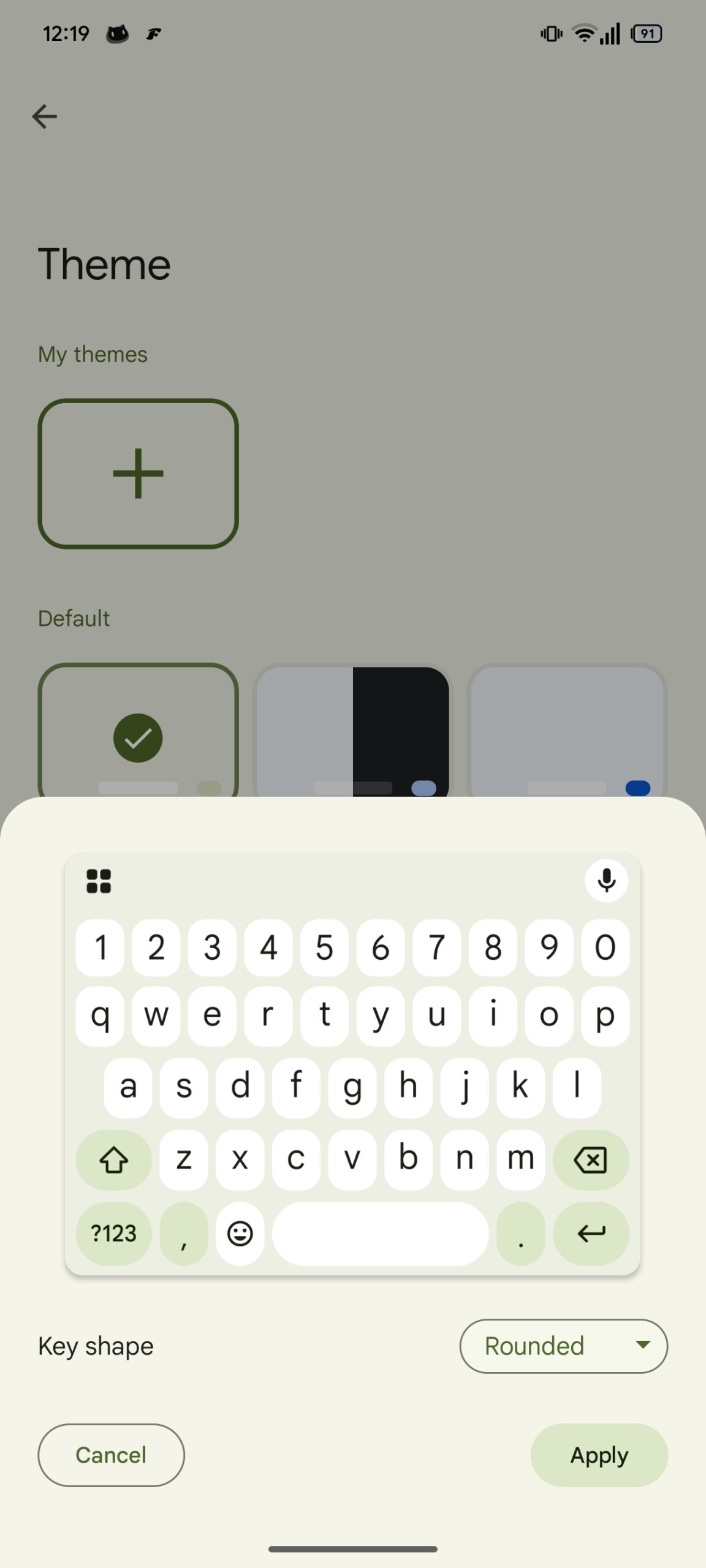
Last month, Google was spotted testing rounded keys in Gboard. The test had evoked a strong response from the beta testers, with many users disliking the change. Thankfully, Google has listened to the feedback, and in this version of Gboard beta, the rounded keys feature is optional, as users will be able to choose the shape of the key background.

Gboard Optional rounded keys (2)
Gboard Optional rounded keys (3)
Gboard Optional rounded keys (1)


All these features are still in development and not yet available to users. They may or may not roll out in the future. We’ll keep you updated when we learn more.
 

limmk

High Supremacy Member
Joined
Jul 5, 2001
Messages
39,358
Reaction score
7,972
TL;DR
  • Google is working on a lock screen shortcut for the Pixel Thermometer app, aiming to make temperature readings quicker on supported Pixel phones.
  • Found in Android 16 Beta 4 code, this optional shortcut aims to reduce the steps currently needed to open the app via the launcher after unlocking.
  • The Temperature shortcut isn’t live yet and could potentially roll out with the Pixel 10 or a later update.


Of all the many amazing Pixel-only features, the Pixel Thermometer app is perhaps one of the most polarizing. For many users, it serves little to no purpose, but for some, it’s an invaluable tool. The app uses an infrared sensor available on select Pixel Pro phones to measure the temperature of objects and the human body. Simply open the app, select the mode, and point the sensor at the object or person whose temperature you want to measure.

Pixel Thermometer offers simple, contactless temperature readings without needing a dedicated infrared thermometer. However, launching the app could be simpler. Currently, you have to unlock your phone before you can open the app from the launcher. If Google offered a shortcut to launch the Pixel Thermometer app from the lock screen, that would reduce the time needed to take a reading. Fortunately, Google is working on doing just that.

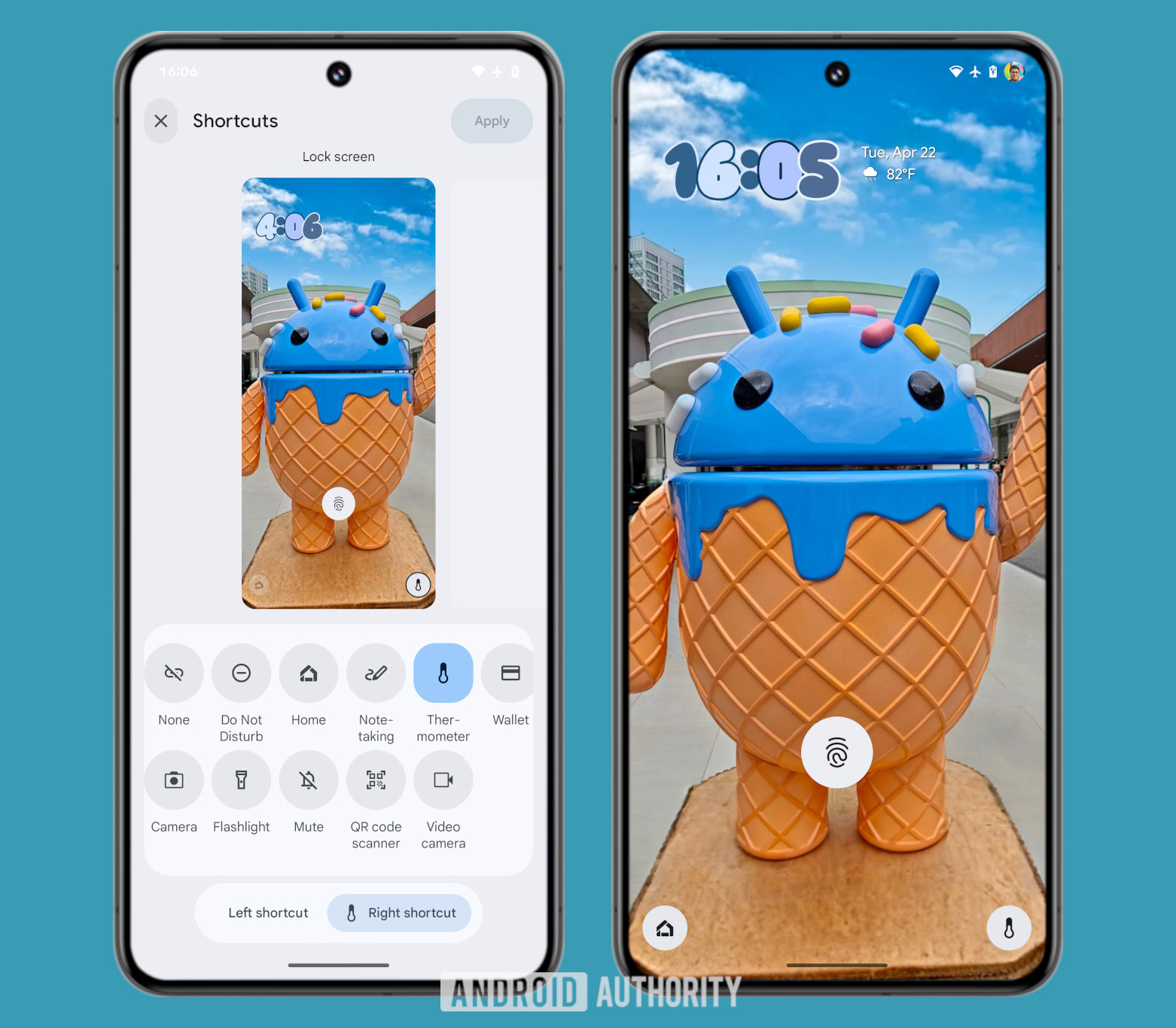
While digging through the latest Android 16 beta release, I discovered code in the SystemUI app suggesting Google will add a new ‘Thermometer’ option to Android’s lock screen shortcut customization page. With some effort, I enabled the ‘Thermometer’ option, allowing me to add the new shortcut to the lock screen.

Pixel Thermometer lock screen shortcut


Pressing down on the ‘Thermometer’ shortcut launches the app as expected, but it doesn’t launch on top of the lock screen. Instead, you must first unlock the device before the app appears, which is likely to protect your recent temperature readings from prying eyes. This step adds some friction, but it’s still faster than unlocking the device and then opening the app from the launcher, especially since you currently have to unlock the device anyways. However, this isn’t an issue if you use face unlock without the “skip lock screen” option on your Pixel phone. In that scenario, the device will likely unlock before you even press the ‘Thermometer’ shortcut.

The new ‘Thermometer’ shortcut isn’t live yet in Android 16 Beta 4, and I don’t know when it’ll roll out. Leaked renders of the Pixel 10 Pro and Pro XL suggest Google’s next phones will retain the infrared sensor, so it’s possible Google will hold this shortcut for the Pixel 10 launch or a Pixel Drop update shortly after. In any case, we’re glad Google is expanding the list of available lock screen shortcuts on Pixel phones; we just wish they would give us a customizable shortcut to launch any app of our choosing.
 

limmk

High Supremacy Member
Joined
Jul 5, 2001
Messages
39,358
Reaction score
7,972

Summary​

  • Google Photos is testing a new feature to share albums and memories via QR codes.
  • This new QR code sharing is accessed through the share sheet within an album or memory, distinct from the existing Quick Share option for individual photos.
  • The feature is currently in internal testing, with no details as to when it'll be available for users.


Google Photos is considered one of the best photo-editing apps on Android because its editing tools can transform your smartphone's pics. You can also show your editing skills on social media or by sharing those photos with your friends and family via Quick Share. On top of this, Google seems to be gearing up to introduce another sharing feature to Google Photos.

As per details revealed in Android Authority's APK teardown of Google Photos, version 7.26, the new sharing capability will allow users to share their albums and memories via QR codes. This is specifically designed to allow you to share albums and memories and doesn't work with individual photos, for which you have the Quick Share option.

The Quick Share feature also allows users to quickly share their photos with nearby devices via QR codes, but the feature in question is different from that in the sense that it'll be available separately when you share albums and moments.

How does Google Photos' QR code sharing feature work?​

The way the feature works is pretty simple. It requires users to open the album and then tap the plus icon. This will display the "Show QR code" option on the share sheet. Now, scan the code with the device you want to share the album with. Folks over at Android Authority managed to get it working on their devices and published a hands-on video. You can watch it below if you want more clarity on how it works.


While the hands-on video helps understand how it works, it doesn't answer questions like whether sharing via the QR codes feature gives permanent access to albums and moments, and whether the sender can terminate the sharing quickly after scanning the QR code.

Google is currently testing this feature internally, so it isn't available to the general public. However, the fact that it is possible to get it working using hacks suggests that Google might be close to readying it for prime time. In the meantime, the best way to share all your photos, albums, or any type of file with nearby devices is by using Quick Share.
 

limmk

High Supremacy Member
Joined
Jul 5, 2001
Messages
39,358
Reaction score
7,972
TL;DR
  • Google is working on a tweak to the UI for the “Rotate” chip in the Photos app.
  • The new UI shows a bar at the bottom that includes the text “Original” and “Rotated.”
  • It allows you to quickly switch between the two orientations.


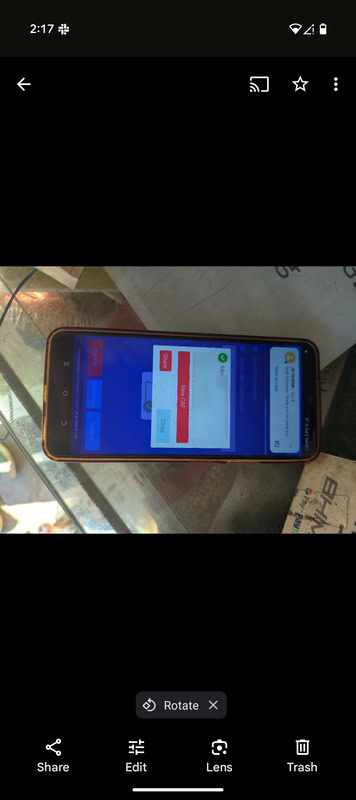
When you tap on an image in your Google Photos library, the app will occasionally provide a suggestion for an action you may want to take. This usually comes in the form of a chip that pops up at the bottom of the screen. For example, it may suggest rotating your picture if the app detects that the image may be in the wrong orientation. Google appears to now be working on a UI change to this particular suggestion.

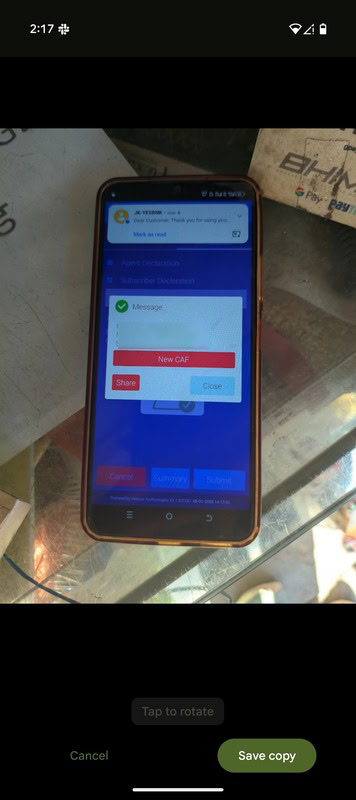
As mentioned earlier, if you tap on an image and the photo appears to be in the wrong orientation, a “Rotate” chip will appear near the bottom of the screen in the current version of Google Photos. Tapping on the button will flip the orientation of the photo, which you can then press on “Save copy” to save it. You can see an example of this in the images below.

Google Photos rotate chip
Google Photos rotated image

Old UI​

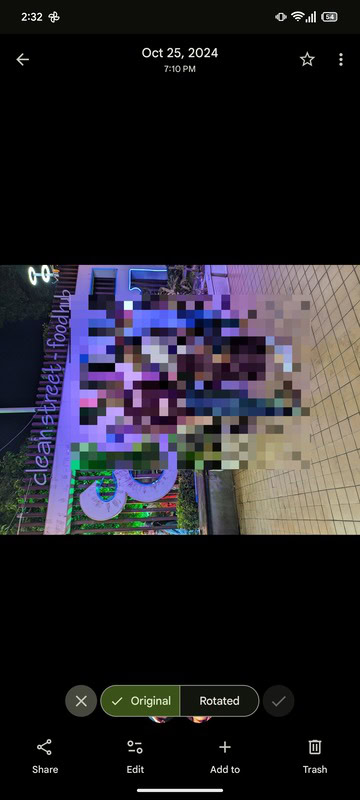
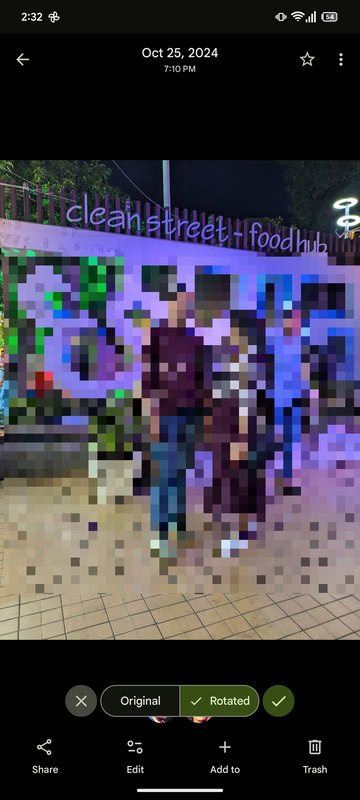
The look of this suggestion could change in the near future. While investigating the Google Photos app (version 7.26), we discovered Google is working on a new UI for the Rotate chip. The new UI replaces the chip with a bar that includes the text “Original” and “Rotated.” Off to the sides, there are circles with an X and a checkmark. We also no longer see the Cancel and Save copy buttons.

Google Photos new rotate ui
Google Photos new rotate ui 2

New UI​

Tapping on Original or Rotated will allow you to quickly switch between the orientations. Meanwhile, the checkmark is the new button you use to save, while the X is how you cancel. You can check out the new UI in the two images immediately above.
 

limmk

High Supremacy Member
Joined
Jul 5, 2001
Messages
39,358
Reaction score
7,972

Summary​

  • Google is adding a swipe-to-confirm step to prevent accidental purchases on the Play Store.
  • This new feature requires users to swipe laterally before making a purchase.
  • In any case, biometric authentication can provide an extra layer of security in addition to the swipe-to-confirm feature.


Google is apparently rolling out a fresh Play Store feature aimed at stopping those accidental buys before they happen. You know how easy it is to tap one thing, and suddenly you’ve paid for an app you didn’t really want? Now, the tech giant is finally doing something about that—because with how smooth the checkout flow is, it’s way too easy to tap the wrong thing and end up with an accidental purchase.

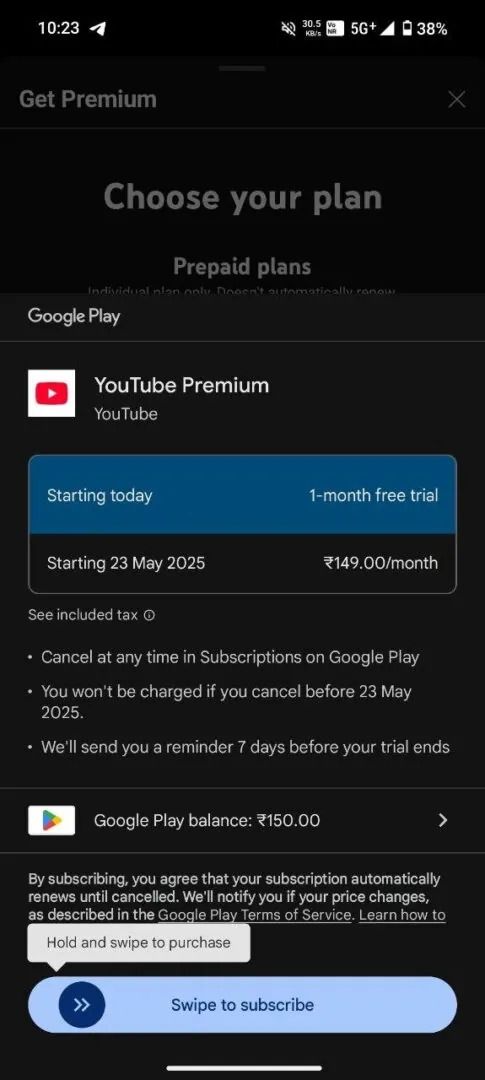
Telegram user @Adamzampahere recently spotted something new in the latest Play Store update (version 45.8.21-31), and Android Authority reported on it. Basically, Google is adding an extra layer of “are you sure?” before you buy anything. Based on the screenshots, you’ll now have to swipe laterally to confirm a purchase even before the usual password or fingerprint check kicks in.

Google Play's new swipe-to-confirm gesture for making purchases


With this new gesture, you’ll need to swipe sideways to seal the deal, replacing the old one-tap “buy” or “subscribe” setup. It looks like this applies to both app purchases and subscriptions made through the Play Store’s built-in billing system.

It's all about cutting down on accidental purchases​

The whole point of this change is to cut down on accidental app buys. Even with this new swipe-to-confirm step, turning on biometric authentication is still a smart move if you want an extra layer of security. You can check if it’s active by heading into your Settings, and if you’re not sure how to set it up, there’s a full guide available to walk you through turning on Google Play’s biometric authentication.

Sadly, we haven’t seen the feature pop up on any of our devices yet, so we couldn’t test it out ourselves. That said, based on early impressions, it looks like it could actually do a solid job of cutting down on unintended app purchases.

While the swipe-to-confirm feature looks like it’s landing with Play Store version 45.8.21-31, Google has already teased it back in version 45.6. Fingers crossed it rolls out globally soon, so you can finally shop on the Play Store without second-guessing every tap.
 

limmk

High Supremacy Member
Joined
Jul 5, 2001
Messages
39,358
Reaction score
7,972
TL;DR
  • Google Drive on mobile is getting rid of the bottom sheet that appears after tapping the FAB.
  • All of the options in the sheet are moving to the FAB.
  • The Gemini icon is now appearing everywhere in the app.


In a recent APK teardown, we discovered that Google Drive could be getting some Gemini-powered features on mobile. Our latest APK teardown not only shows more evidence of this, but also reveals that a change could be coming for the floating action button (FAB).

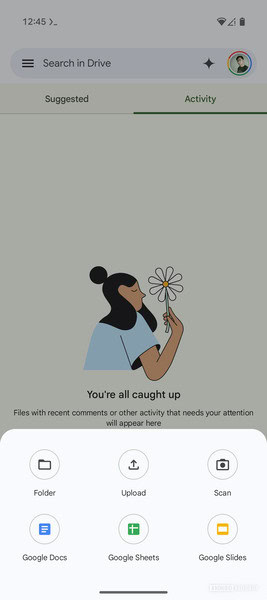
First things first, let’s dive into the change happening to the FAB. In the current version of Drive on Android, tapping on the FAB with the + icon will bring up a sheet with six options to choose from. These options include Folder, Upload, Scan, Google Docs, Google Sheets, and Google Slides. This can be changed in version 2.25.180.0.all.alldpi of the app.

Google Drive sheet

Old

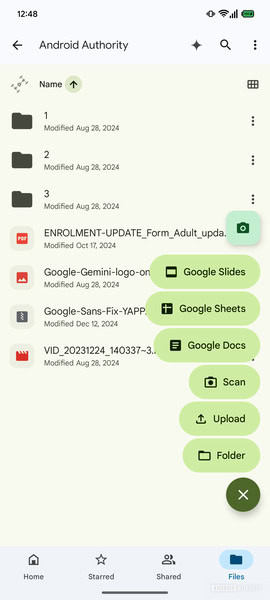
Google Drive FAB

New​

Once enabled, you’ll see all six options have been moved to the FAB. The bottom sheet has now been completely removed. This update makes Drive’s FAB similar to the one found in Google Keep.


In the video above, you can see the change to the FAB in action. Additionally, in the second half of this video, you may have noticed a Gemini symbol. While exploring Drive, we noticed that Gemini is now everywhere in the app. When we first discovered it in April, the AI was only present on the homepage. Here, if you tap on the vertical three dots next to a document, you’ll have the option to have Gemini summarize the file.
 

limmk

High Supremacy Member
Joined
Jul 5, 2001
Messages
39,358
Reaction score
7,972
TL;DR
  • Google is working on a new download progress notification for the Play Store.
  • The updated notification will show up to three recently downloaded apps and games.
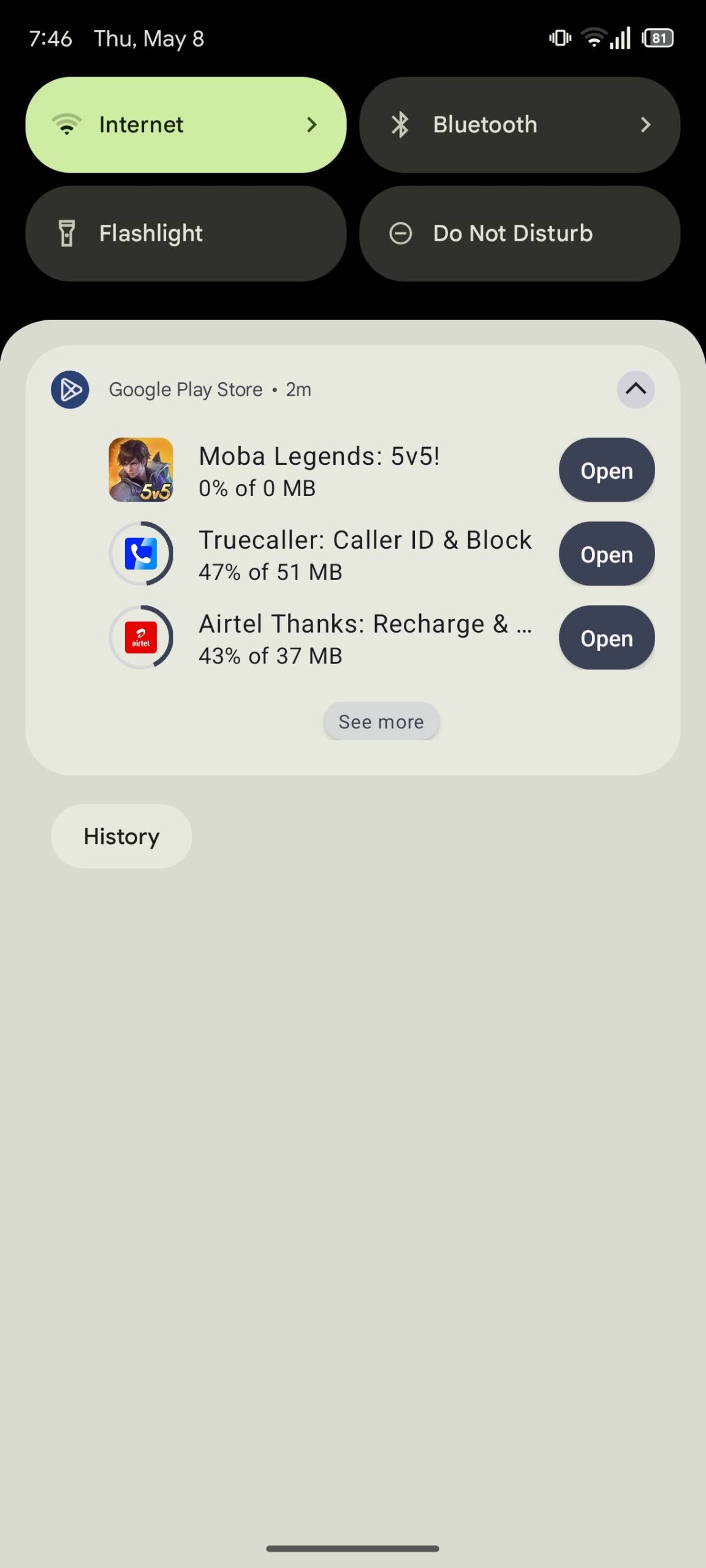
  • It will display the app’s name and icon, a circular progress bar, the package size, the download progress as a percentage, and a button to open the app.


Google started testing a new Download Manager for the Play Store late last year that helps users keep track of recently downloaded apps and games. It has since made its way to most users, giving them an easy way to check the download progress for new apps and open them as soon as they’re installed. Now, Google is working on bringing similar functionality to the download notification that appears in the notification shade when you install new apps and games from the Play Store.

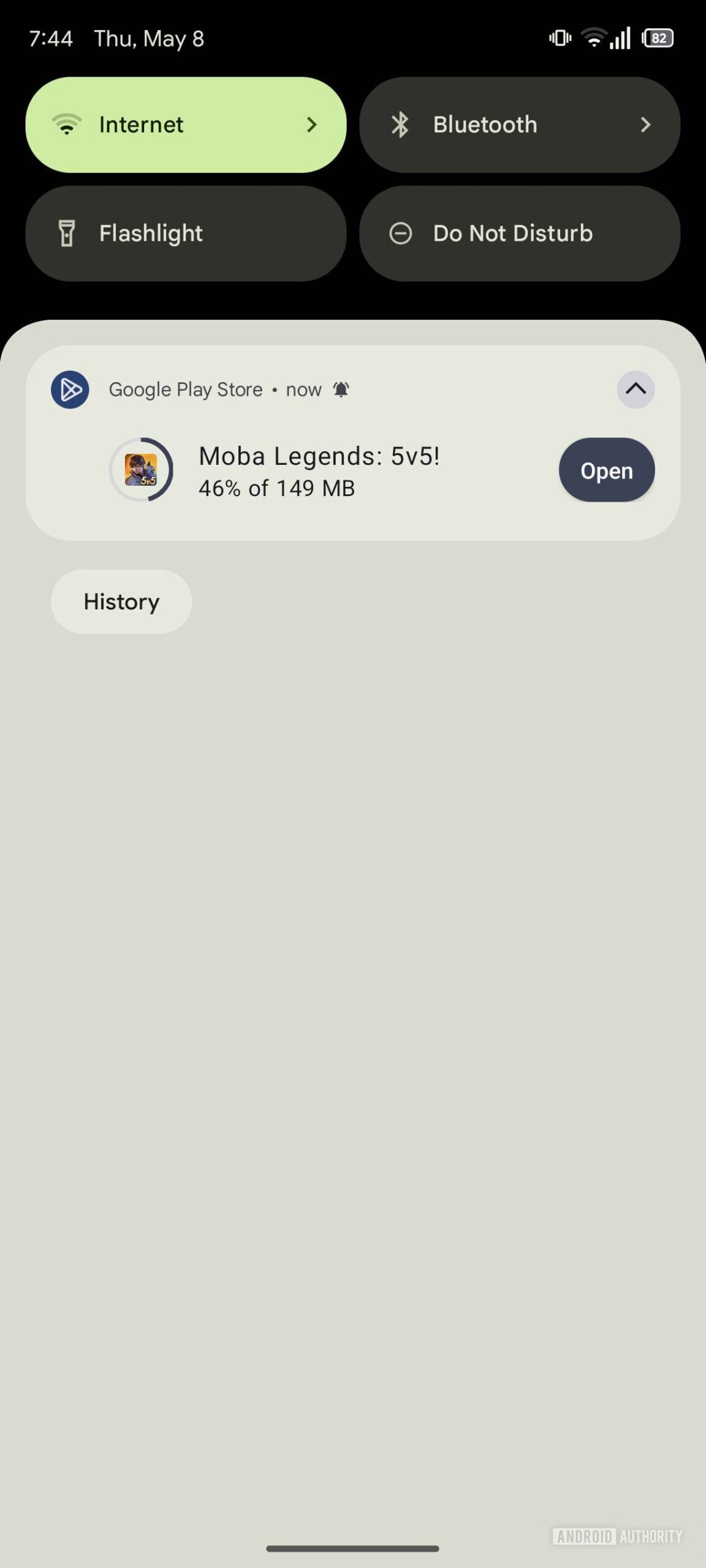
We have spotted the upgraded download notification in the latest Google Play Store build (version 46.1.37-31). Although it’s not live for end users, we have successfully activated it manually to give you an early look. The Play Store’s new download progress notification shows the app or game icon to the left with a circular progress bar around it.

Google Play Store new download progress notification
Google Play Store new download progress notification 2


Next to the app icon, the notification displays the app’s name, its package size, and the download progress as a percentage. To the right, the notification also has a button that lets you open the app as soon as it’s installed. This new download progress notification can show a maximum of three recently downloaded apps and games, including ones that the Play Store has finished installing on your phone.

Furthermore, the notification has a “See more” option that will likely redirect you to the Play Store’s Download Manager. However, we can’t confirm that at the moment, as this option is not functional in the current release. The “Open” button also doesn’t work and shows up even when the app isn’t finished downloading.

In addition, the notification shows “0% of 0MB” when an app is finished downloading, leading us to believe it isn’t quite ready for prime time. We expect Google to share additional details about this new download progress notification closer to release, and we’ll update this post as soon as we have more information.
 

limmk

High Supremacy Member
Joined
Jul 5, 2001
Messages
39,358
Reaction score
7,972
TL;DR
  • Several Pixel users are reporting discrepancies between their camera viewfinder previews and the final processed photos.
  • Most of the complaints focus on over-processed images with inaccurate color balance.
  • The issue could be Google’s HDR processing, which unfortunately cannot be turned off.


Pixels have long been known for being some of the most consistent and safest options for a great camera Android phone. While there are Android flagships from Chinese brands that arguably take better photos and videos these days, recent Pixels like the Pixel 9 series stay right up there towards the top. However, not all users seem happy with Pixel’s image processing, and we’re seeing frequent complaints about over-processed photos.

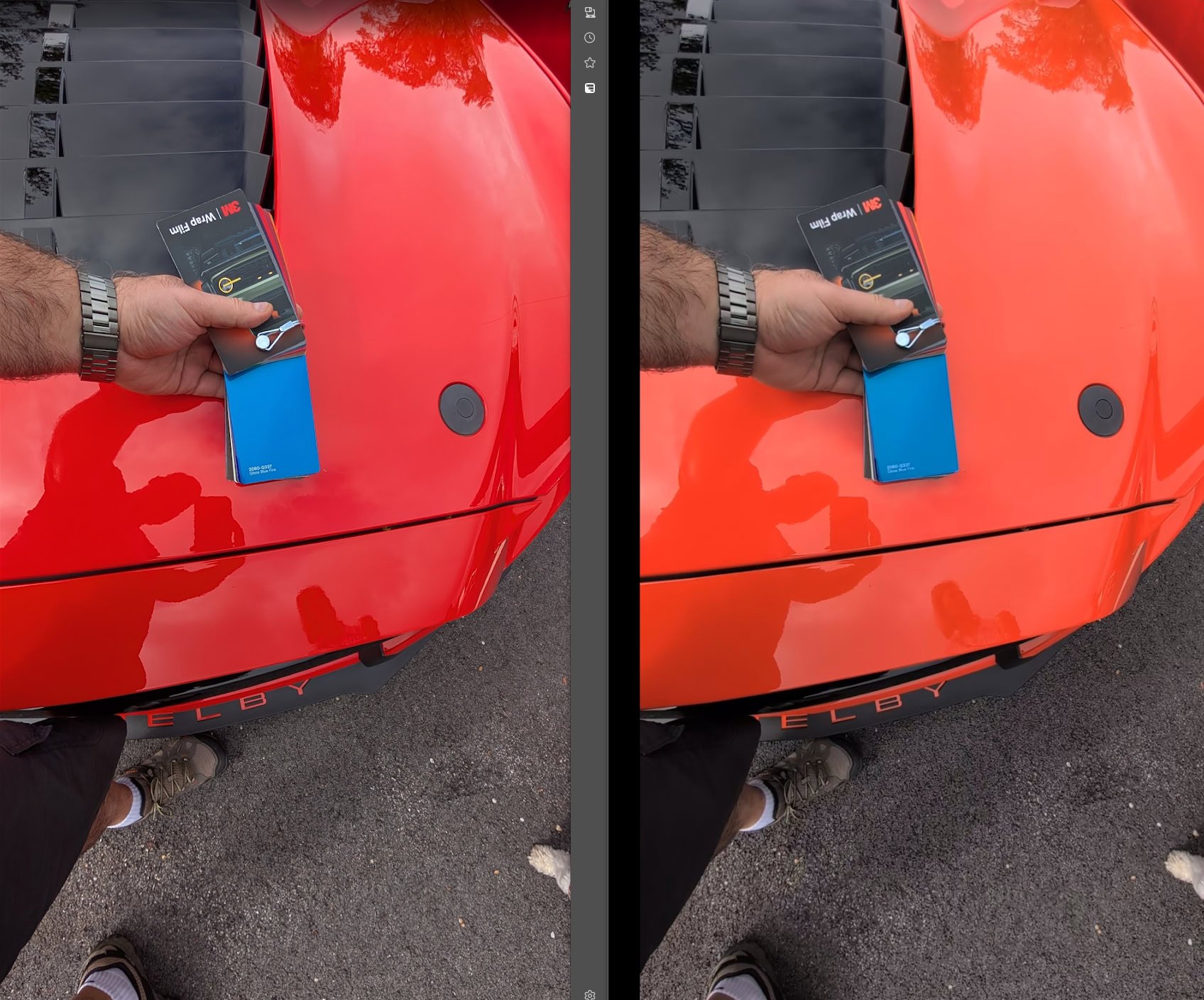
A Reddit user recently went on a rant about their Pixel 9 Pro’s photo processing, complaining that the photo they click often turns out quite different from what they see in their viewfinder. The viewfinder image shows the correct colors, but the processed photo after clicking ends up messing with the color balance to a great degree. The Redditor attached this composite image of their orange Shelby for reference, with the processed image on the left, and the viewfinder image on the right:

Pixel 9 photo processing example

Reddit user abcde__edcba
Final image output (left) vs viewfinder preview screenshot (right)

Several others in the Reddit thread agree.

Yea, it looks good when you snap the picture, you go to the gallery, see the good pic for a split second and then it gets the crazy over processing applied. As a photographer it hurts to see.

The Reddit post mentions that Ultra HDR is turned off on their phone, and changing the image’s resolution between 12MP and 50MP has no effect. Further, even the “Rich color in photos” setting (which uses the Display P3 color format instead of sRGB) is said to have no effect, though the user acknowledges this could be a bug.

The Reddit post mentions that users can sidestep the over-processed images by turning on Top Shot, choosing a different picture, and saving it as a copy. If you don’t turn on Top Shot, there is no way for the user to turn off the HDR processing, and you’d be left with photos with incorrect colors.

Another Reddit user went on a similar rant last month, and there’s even a video this time around to show the difference in the preview vs the final image output:


There are a few things potentially wrong here. The primary culprit could be overzealous HDR processing, which is applied to the top shot image, while the others are left with SDR processing when saved as a copy. There’s no way to turn off HDR on the Google Camera app, which makes the user feel stuck, compounding the issue. There’s also a mismatch between what you see in the viewfinder and the final output, so Google could ‘fix’ the situation by presenting a better preview, giving users a more ‘realistic’ output.

We’ll be testing the issue more thoroughly to determine what has changed with Pixel’s camera processing, if any. Meanwhile, we’re interested in hearing your experiences with your Pixel phone. Are you also facing color balance issues with your Pixel? Are you experiencing aggressive HDR in your images, and what are your opinions on it? Which device and which platform update? Let us know in the comments below!
 

limmk

High Supremacy Member
Joined
Jul 5, 2001
Messages
39,358
Reaction score
7,972


Following the Android widget redesign, the next big Google Keep update adds rich text formatting to the web app.

The Google Keep text editor will add a new underlined A button in the bottom-left corner. Tapping brings up a toolbar with H1, H2, and Aa (regular text). You can also bold, italicize, underline, and remove formatting.

RTF rolled out to Android in October of 2023. Annoyingly, that formatting is not reflected on the web (or iOS app, if you’re a cross-platform user). That will hopefully now sync over, though Google’s short announcement today makes no reference to that.

A%20user%20adds%20bold,%20italic,%20underline,%20heading%201,%20and%20heading%202%20formatting%20to%20a%20note.png


Rich text formatting for Keep on the web is rolling out to “all Google Workspace customers, Workspace Individual Subscribers, and users with personal Google accounts.” It’s not yet live on accounts we checked today, but expect full availability in the coming weeks.

This addition follows the widget redesign and ability to create “text notes by default.” The past few weeks have been busier than usual for Google Keep and hopefully the quality-of-life improvements continue.
 

limmk

High Supremacy Member
Joined
Jul 5, 2001
Messages
39,358
Reaction score
7,972


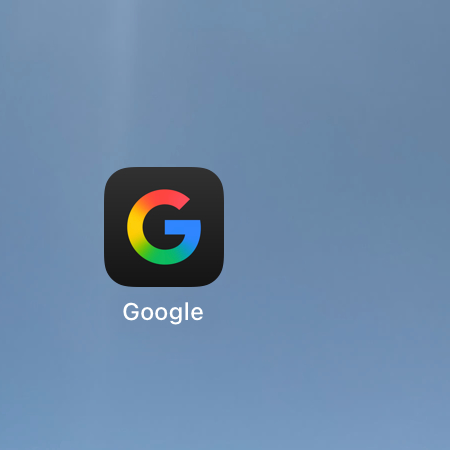
Following the last update nearly 10 years ago, Google is updating its iconic ‘G’ icon.

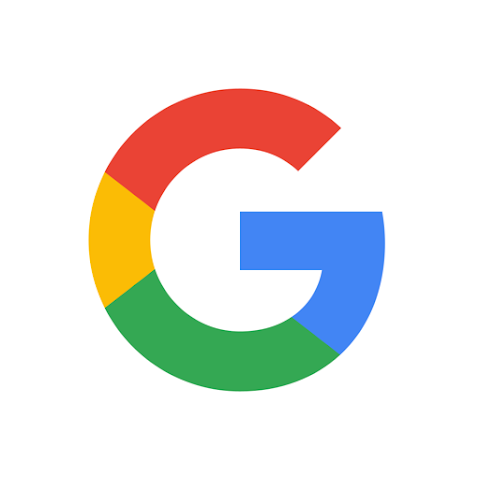
On September 1, 2015, Google significantly updated its logo (‘Google’) to a modern typeface called Product Sans. As part of that, the ‘G’ icon changed from the lowercase white ‘g’ on a blue background to the circular design we’ve now had for the past 10 years.

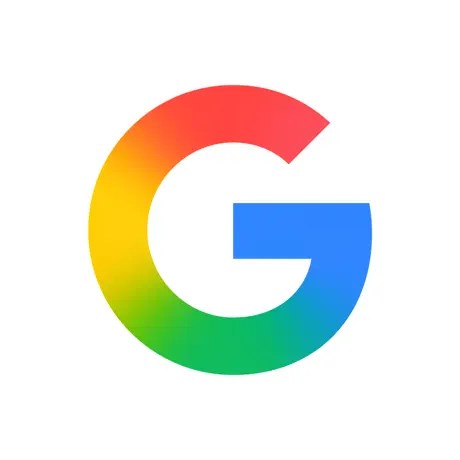
Google is now updating the icon so that there are no longer four solid color sections. Instead, red bleeds into yellow, yellow into green, and green into blue. It looks more vibrant and colorful. This modernization feels inline with the Gemini gradient, while AI Mode in Search uses something similar for a shortcut.

Old vs. new

Google-2015-G-logo.webp

Google icon update


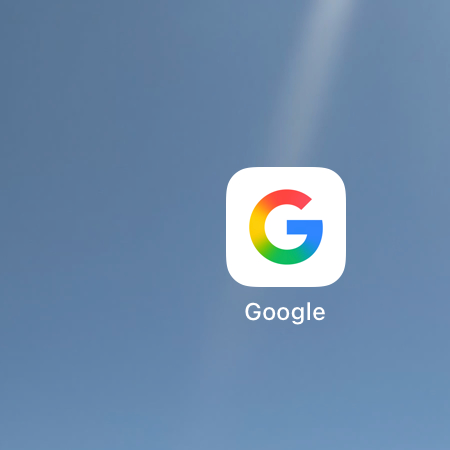
Currently, this new icon is already in use by the Google Search app for iOS as of an update yesterday. We’re not seeing this on Android or the web yet. It’s a subtle change that you might not immediately notice, especially if the main place you see it is on your homescreen. It will be even less noticeable as a tiny browser favicon.

It does not appear that Google is changing its main six-letter logo today, while it’s unclear whether any other product logos are changing. In theory, some of the company’s four-color logos, like Chrome or Maps, could pretty easily start bleeding in their sections.

iOS app

Google icon update

Google icon update
 
Important Forum Advisory Note
This forum is moderated by volunteer moderators who will react only to members' feedback on posts. Moderators are not employees or representatives of HWZ Forums. Forum members and moderators are responsible for their own posts. Please refer to our Community Guidelines and Standards and Terms and Conditions for more information.
Top