Google / Android Apps New Features, Tips & Tricks

limmk

High Supremacy Member
Joined
Jul 5, 2001
Messages
40,965
Reaction score
8,164
TL;DR
  • Google is working on a version of the “Pixie” assistant that was reported on back in 2023 for the Pixel 10.
  • Dubbed “Pixel Sense,” the new app will use data from multiple Google apps and services to provide contextual predictions.
  • All the processing will take place completely on-device.


For the longest time, Google has always dreamt of a truly smart and contextual assistant. Unfortunately, its initial attempts, such as the “new” Google Assistant and the canceled version of “At A Glance,” have failed, but a report from 2023 indicated it was not done trying. The rumored “Pixie” was supposed to be an on-device assistant for Google Pixels, which would use data from other Google services to be truly a smart helper. It was supposed to launch alongside the Pixel 9, however we haven’t heard anything about it since the initial report.

This changes now, as thanks to a source inside Google, Android Authority has learned that Google intends to launch a version of “Pixie” on the Pixel 10, but under a new moniker. Say hello to Pixel Sense.

Enter Pixel Sense​

Pixel Sense illustration


Google has decided to name the new app “Pixel Sense.” It was described by the company in one sentence: “Get the most personalized experience based on the things you do on your Pixel.”

As originally rumored, Pixel Sense will be able to use information from other apps, such as:
  • Calendar
  • Chrome
  • Contacts
  • Docs
  • Files
  • Gmail
  • Keep Notes
  • Maps
  • Messages
  • Phone
  • Photos
  • Aurelius (most likely some currently unreleased app)
  • Recorder
  • Screenshots
  • Wallet
  • YT Music
  • YouTube
Additionally, it will also be able to process media files, including text, images, AI-generated content, and associated metadata. It will also process screenshots, just like Pixel Screenshots: “Pixel Sense processes your screenshots to identify metadata and learn from it. Use the Pixel Sense App to organize and search screenshots.”
While all of this is interesting, it unfortunately does not tell us much as to how it will work. Fortunately, Google has provided a bit of context:
  • “Personal predictive suggestions: Takes notes to suggests personal data like places, products, and names, right when you need them.”
  • “Complete tasks faster: Learns how you use your phone to help you complete tasks and routines faster.”
  • “Adapting to your interests: Learns which topics are important to you and keeps evolving with you.”
As indicated by the original report, the feature will run fully on-device: “Experience fast and intelligent help, no matter if you are online or offline”, “Your data stays private—visible only to you, not even Google can see it.” Presumably, this means it will rely on Gemini Nano.

It will be exciting to see if Google can finally achieve a fully contextual assistant. It’s undoubtedly a difficult task, but maybe with the power of Gemini Nano and the new fully in-house Tensor chips, it will finally be possible. The Pixel 10 series will be released later this year.
 

limmk

High Supremacy Member
Joined
Jul 5, 2001
Messages
40,965
Reaction score
8,164


With the March 2025 Feature Drop, Google is rolling out Pixel Camera 9.8. Like with all releases, the rollout takes some time before arriving for all users.

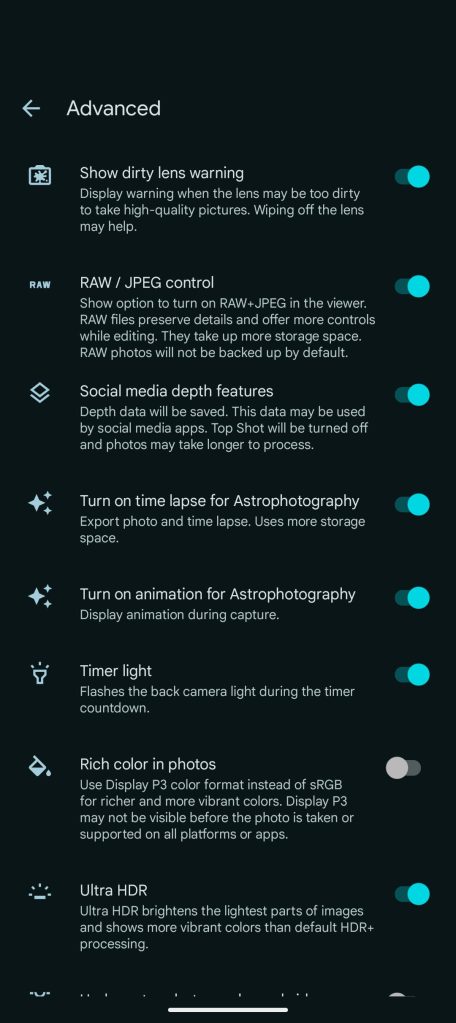
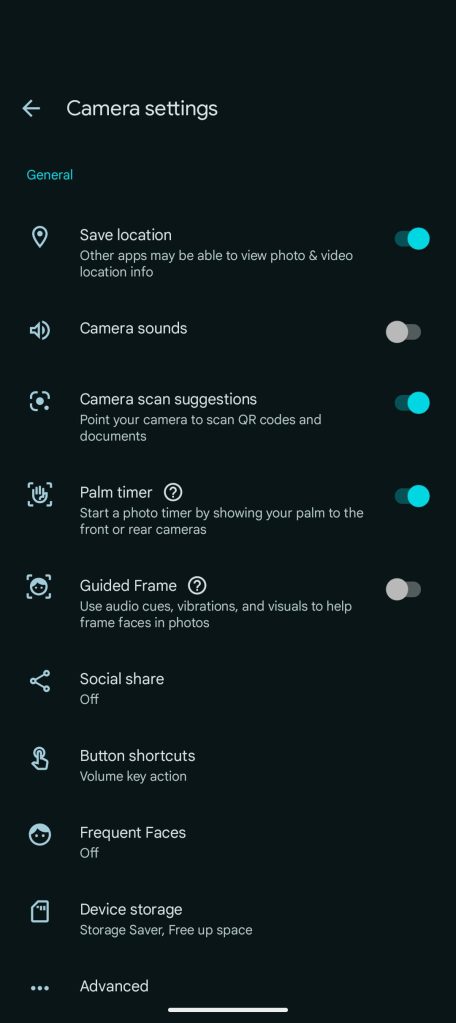
This is a smaller update than the last one in December that added Quick access controls. Pixel Camera 9.8 adds a “Turn on animation for Astrophotography” toggle in Settings > Advanced. It’s enabled by default and the past behavior. Google also clarifies that the Palm timer “raise your hand” feature works with the rear camera.

Pixel Camera 9.8
Pixel Camera 9.8


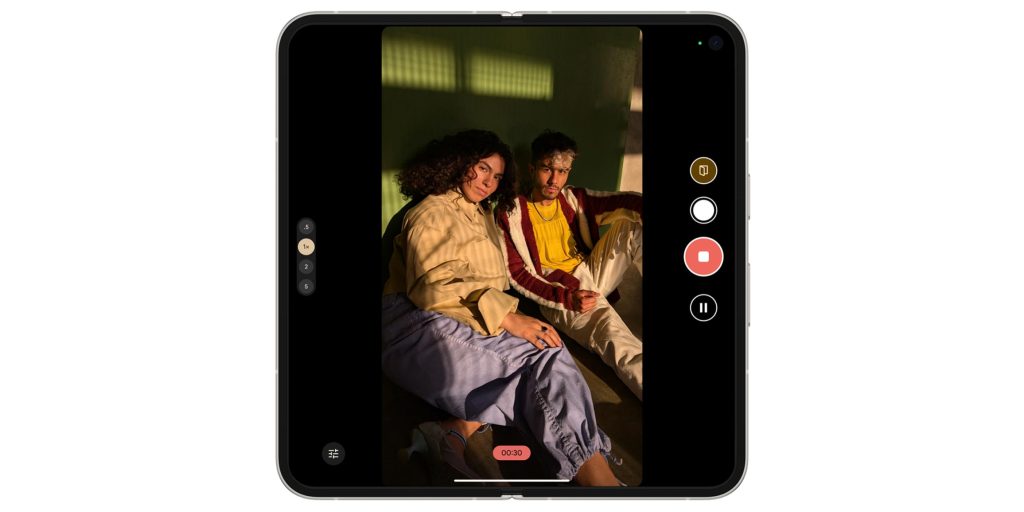
Pixel Fold users can now use Dual Screen Preview when recording video, while Add Me on the 9 Pro Fold can now appear on the external display.

March 2025 Pixel Feature Drop


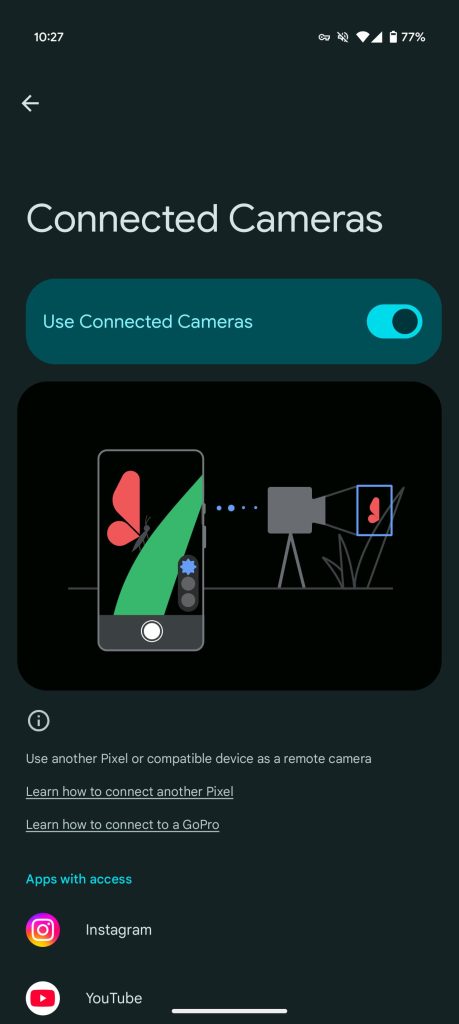
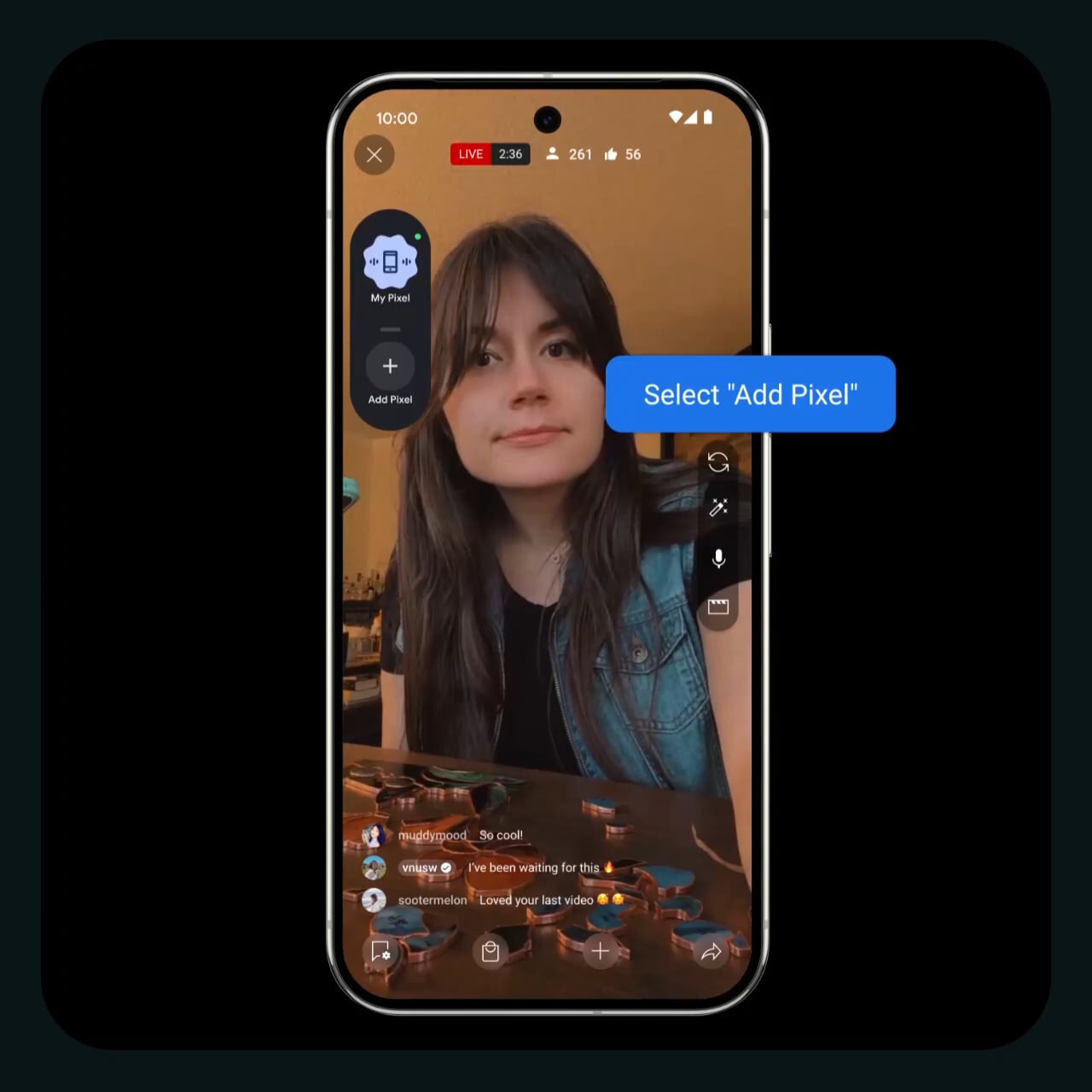
Meanwhile, Pixel 9, Pixel 9 Pro, Pixel 9 Pro XL, and Pixel 9 Pro Fold users can use the remote Connected Cameras capability. This lets you “seamlessly capture or live stream with supported camera applications using remote cameras.”

That includes the Pixel 6+ and “GoPro 10 and later (up to date with the latest software).” YouTube, Facebook, Instagram, Snapchat, and TikTok are the supported apps.

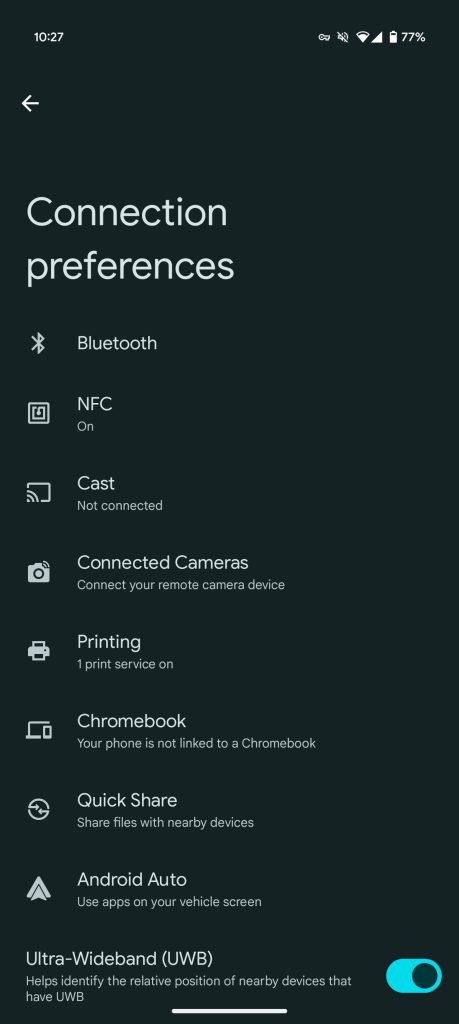
You might also need an update to the Device Connectivity Service app for this to work. Officially, this is part of Cross-devices services alongside Call casting and Internet sharing. Once everything is enabled, go to Setting > Connected devices > Connected preferences > Connected Cameras to enable.

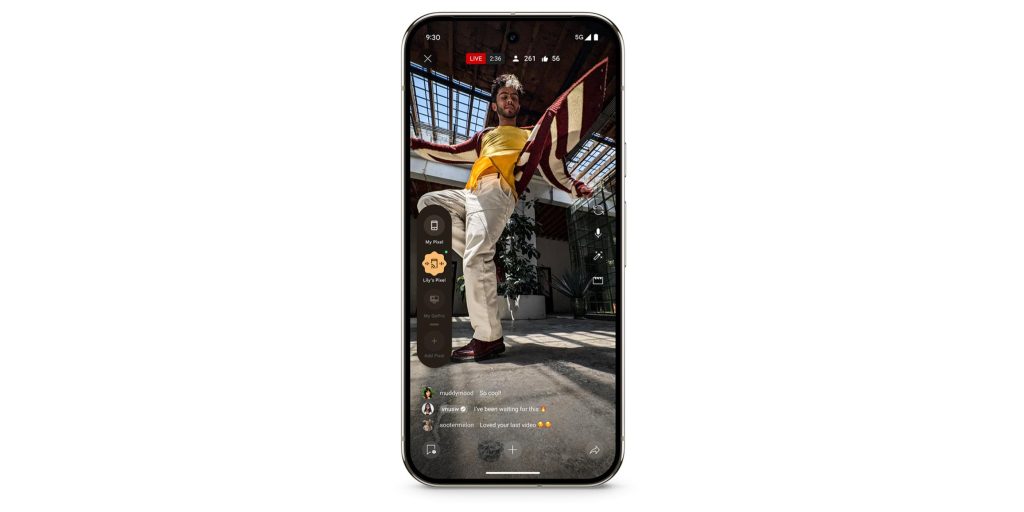
When Connected Cameras is on and you’re using a compatible application, you can find the Camera Picker.

March 2025 Pixel Feature Drop


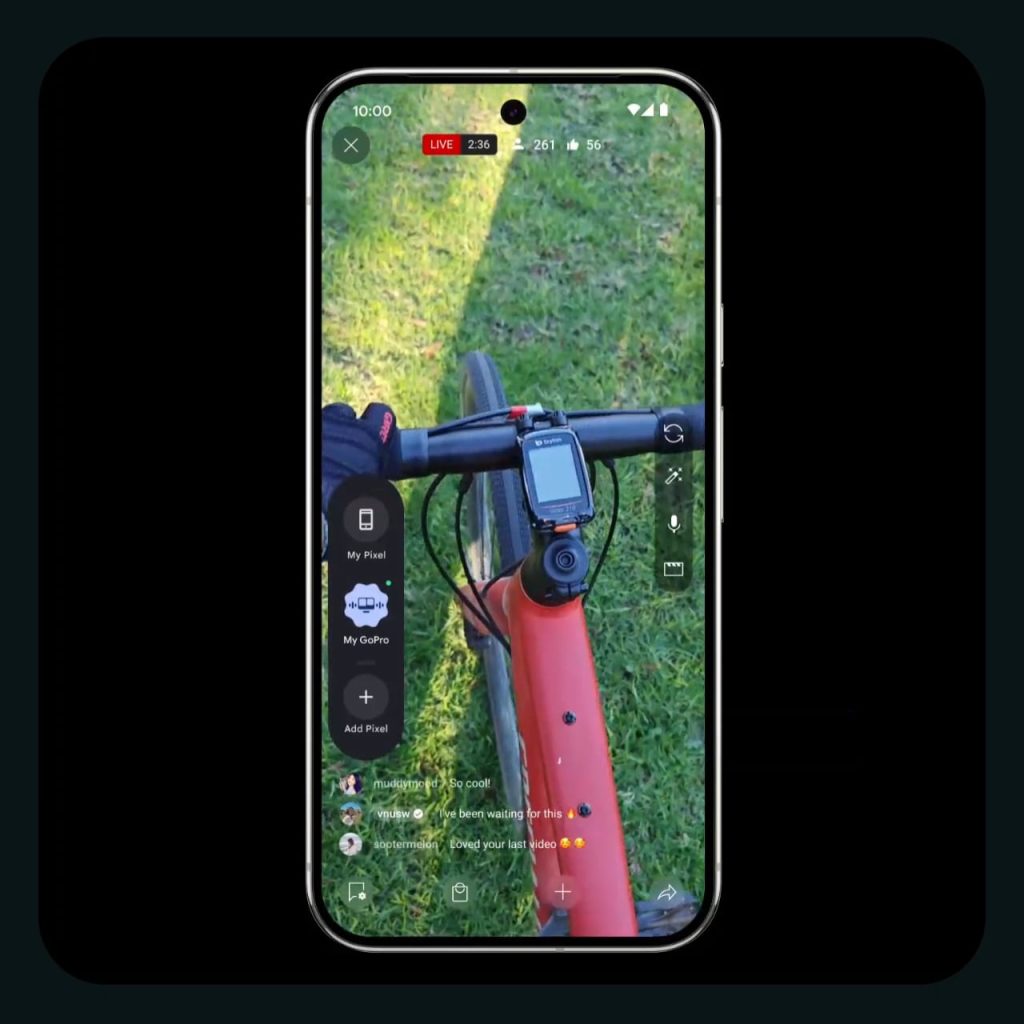
The Camera Picker is a floating pill-shaped container to “add, remove or disconnect a remote camera as well as switch between your device and a remote camera.”

Other things to note, with more details here, include:

  • You can only connect to devices that are signed in with your Google Account.
  • You can only connect to one remote camera at a time. To connect another remote camera, you’ll need to disconnect the first remote camera.
  • Audio is sourced from the camera that is currently in use.
  • Using a Bluetooth audio source may degrade the streaming quality.


Pixel Camera 9.8 is rolling out via the Google Play Store, or you can sideload it here.
 

limmk

High Supremacy Member
Joined
Jul 5, 2001
Messages
40,965
Reaction score
8,164
TL;DR
  • Google Maps appears to be the first app to add support for Android 16’s new Live Updates feature.
  • Live Updates are a special class of notifications that display progress-centric information and can appear in the status bar as chips.
  • Android 16 Beta 2.1 is the first version to add support for Live Updates, but the feature isn’t fully implemented yet.


One of the key features of the upcoming Android 16 release is Live Updates, a feature that allows progress-centric notifications to be displayed prominently in the status bar, notifications panel, lock screen, and always-on display. When Google first announced the feature in January, it wasn’t ready for developers to test. With the most recent Android beta release, however, the Live Updates feature is finally here, and Google Maps is already ready for it.

Late last week, Google released Android 16 Beta 2.1, an incremental, bug-fixing update on top of Android 16 Beta 2. Typically, these minor updates don’t contain any new features, but to our surprise, Beta 2.1 actually brought the new Live Updates feature, at least partially. When I ran the demo app that I used for our first look at the Live Updates feature, I noticed that the app’s notifications were being shown as status bar chips. They were also displayed prominently in the notifications panel above even priority conversations (but below the media panel), making them hard to miss.

Live Updates in notifications panel of Android 16 Beta 2 1
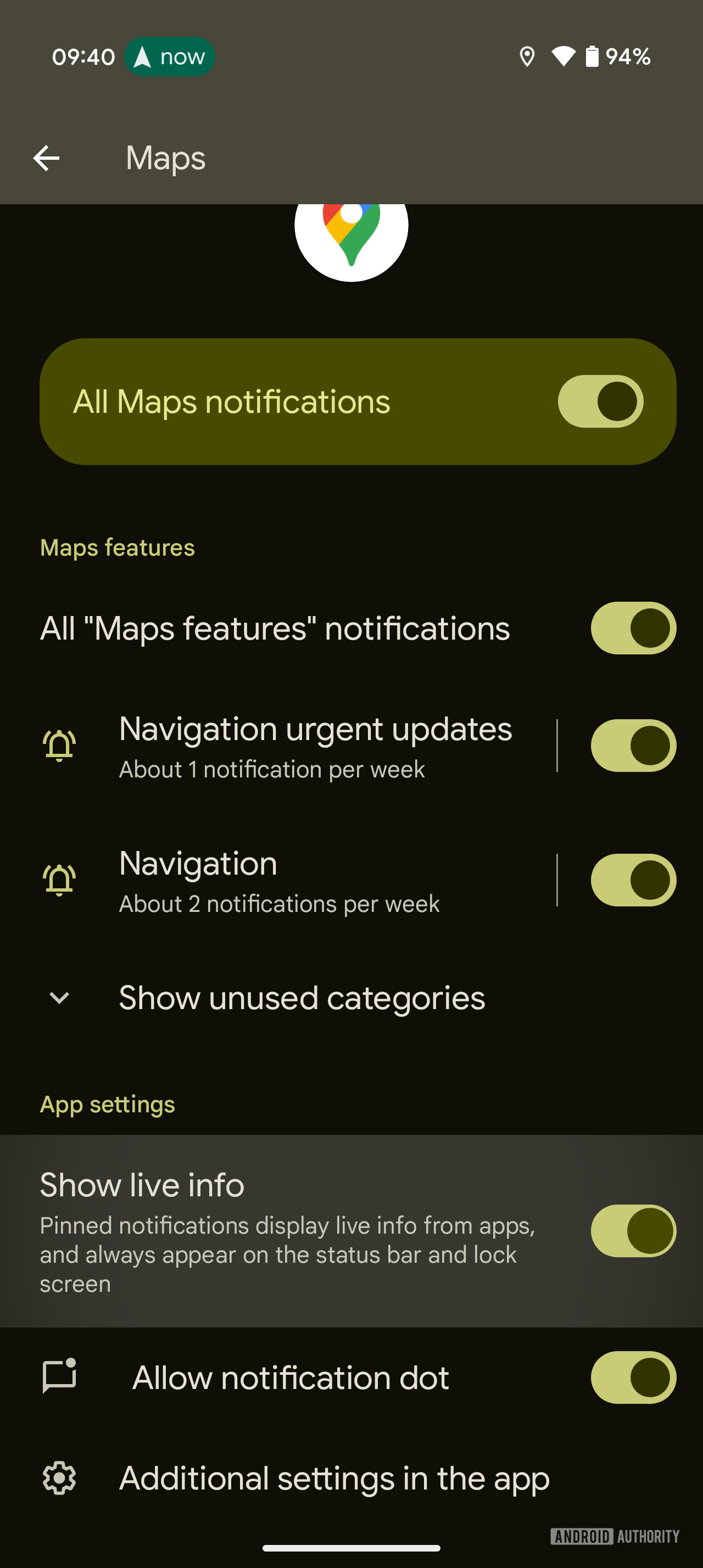
Show live info toggle in Android 16 Beta 2 1

The demo app wasn’t the only one whose notifications were being displayed this way. Several users have told me that the Google Maps app has also started to support Live Updates. I was able to verify this on my own Pixel running Android 16 Beta 2.1 with the latest version of Google Maps.

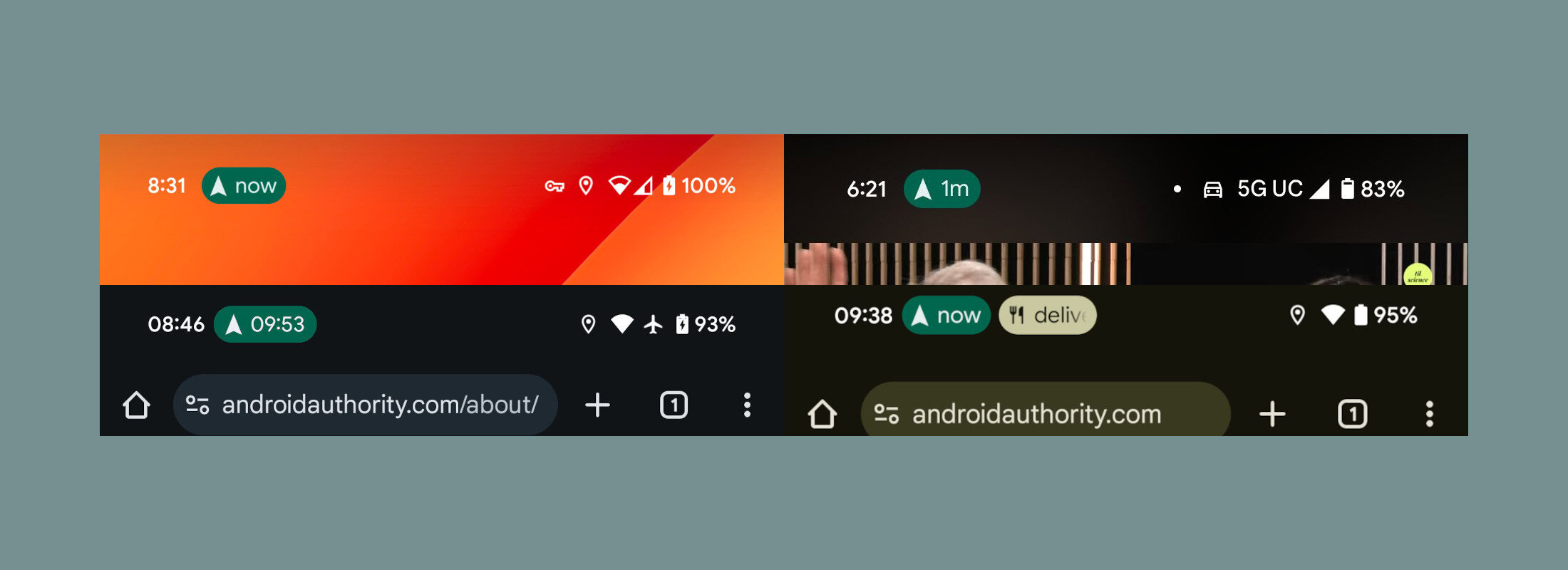
Google Maps Live Updates status bar chips


As you can see in the image shown below, Google Maps can not only show the time until the next turn but also the ETA in its status bar chip. It might also show other turn-by-turn information that I haven’t encountered yet. Keep in mind that Android 16 will cut off the text in status bar chips if it’s too long, so it’s unlikely Maps will show detailed information in the chip. This is more likely to happen if more than one app is displaying a Live Update, as the chip will have to be cut off on many devices with a centered hole-punch cutout.


Google Maps’ status bar chip uses the standard navigation icon and green background color that the app is known for, making it clear to anyone what app it belongs to. Tapping it brings down the notification as a heads-up panel, allowing you to view the notification without pulling down the full panel.

Unfortunately, the notifications from both the demo app and Google Maps were collapsed on the always-on display, which is why I said the feature was only partially available in Android 16 Beta 2.1. When I fully enabled the feature last month, I demonstrated how Live Updates were shown in full as a wireframe on the always-on display, as opposed to other notifications that appeared only as icons. It’s likely this aspect of the feature will go live in the next Android beta, but we don’t know for sure. When it does go live, seeing turn-by-turn navigation info from Google Maps will be easier than ever.

 

limmk

High Supremacy Member
Joined
Jul 5, 2001
Messages
40,965
Reaction score
8,164


As announced with the March 2025 Feature Drop, the Pixel 9 series can now connect to other cameras when live streaming.

The Connected Cameras feature is available on the Pixel 9, Pixel 9 Pro, Pixel 9 Pro XL and Pixel 9 Pro Fold. It’s available in YouTube, Facebook, Instagram, Snapchat, and TikTok.

You can use Pixel 6 and later, or GoPro 10 and later (up to date with the latest software).

Make sure Device Connectivity Service (version 1.0.717416888) and/or Pixel Camera Services (2.2.731017054.10) are up-to-date via the Play Store. You do not need Pixel Camera 9.8 to use this capability, which isn’t widely rolled out.


Pixel-9-Connected-Cameras-1.jpg
Pixel-9-Connected-Cameras-2.jpg


Once rolled out, open Settings > Connected devices > Connection preferences for the new “Connected Cameras” menu. Tap the toggle to enable.

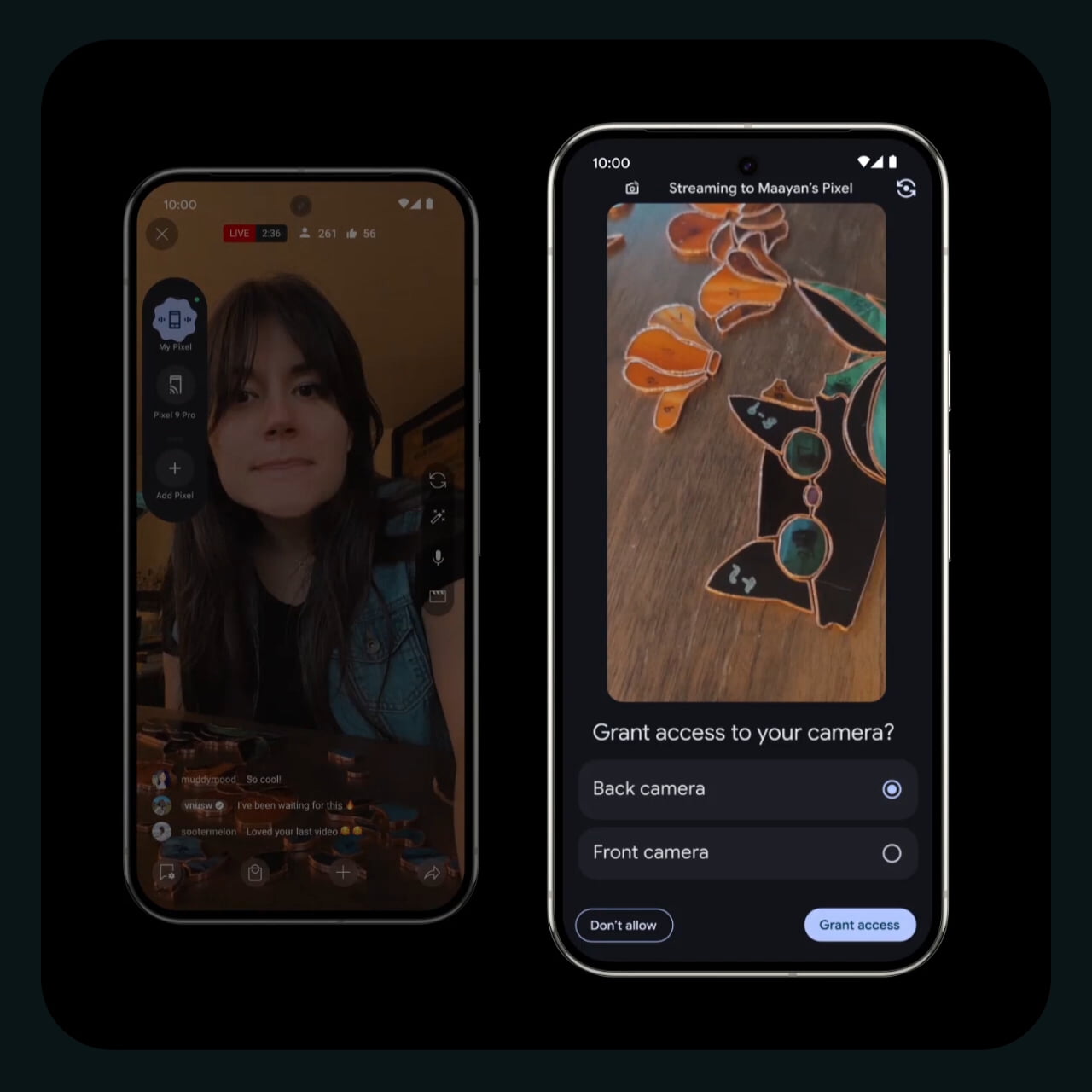
Afterwards, open a compatible app and you’ll see a new floating chat head, with a tap expanding this Camera Picker into a pill. (When not in use, just drag to the bottom of your screen like picture-in-picture.) Tap “Add Pixel” to get a “Share nearby camera” pill that shows phones signed into your Google Account.

On that other device, you’ll be prompted to “Grant access” and pick the back or front camera. On the phone with the livestream app, the Connected Cameras pill will show a countdown before the transfer, which includes audio, takes place.


  • Pixel 9 Connected Cameras
  • Pixel 9 Connected Cameras
  • Pixel 9 Connected Cameras
  • Pixel 9 Connected Cameras
  • Pixel 9 Connected Cameras

Pixel 9 Connected Cameras
To use a GoPro, make sure it’s already paired with your device: Settings > Connected devices > Pair new device. It will automatically appear in the Camera Picker after that. Other things to note include:

  • When you connect a Pixel device to a GoPro camera, it may take some time for your phone to connect the remote camera.
  • You can only connect to one remote camera at a time. To connect another remote camera, you’ll need to disconnect the first remote camera.
  • Using a Bluetooth audio source may degrade the streaming quality.
Pixel-9-Connected-Cameras-8.jpg
 

limmk

High Supremacy Member
Joined
Jul 5, 2001
Messages
40,965
Reaction score
8,164


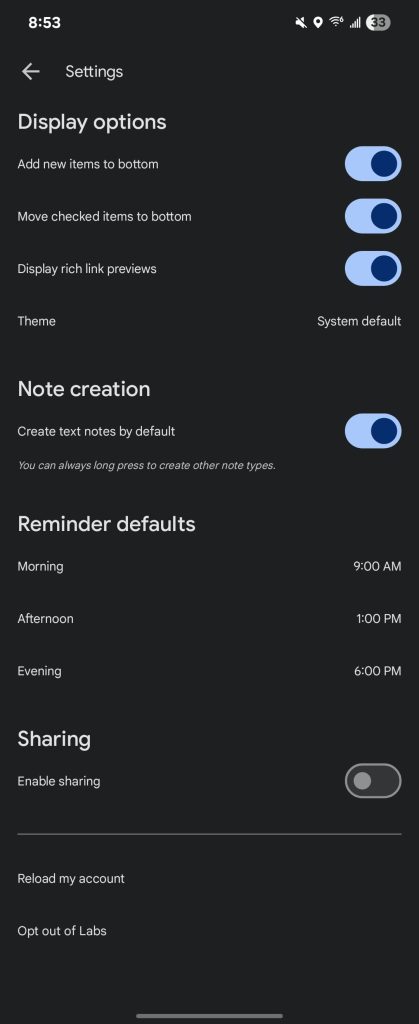
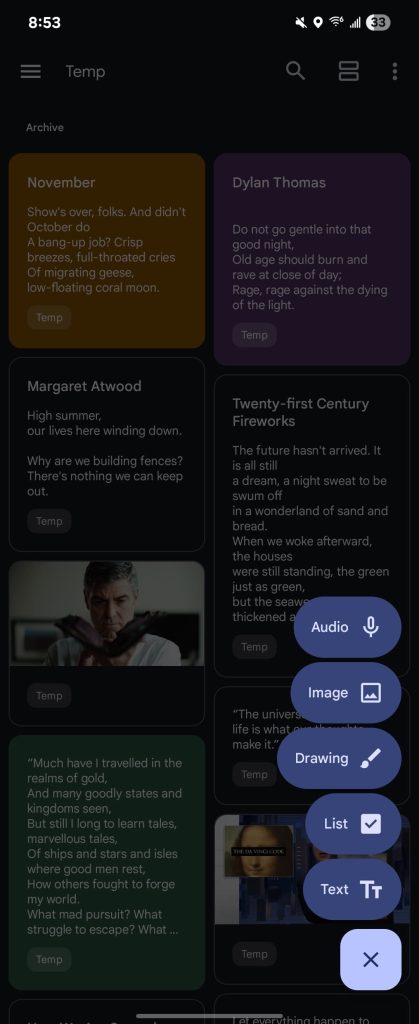
With the redesign in November, Google Keep for Android introduced a floating action button (FAB) menu to make note creation a two-step process. As we previously spotted, Google Keep is now adding a preference to “Create text notes by default.”

In Settings, Google Keep is introducing a “Create text notes by default” toggle. It’s off by default.

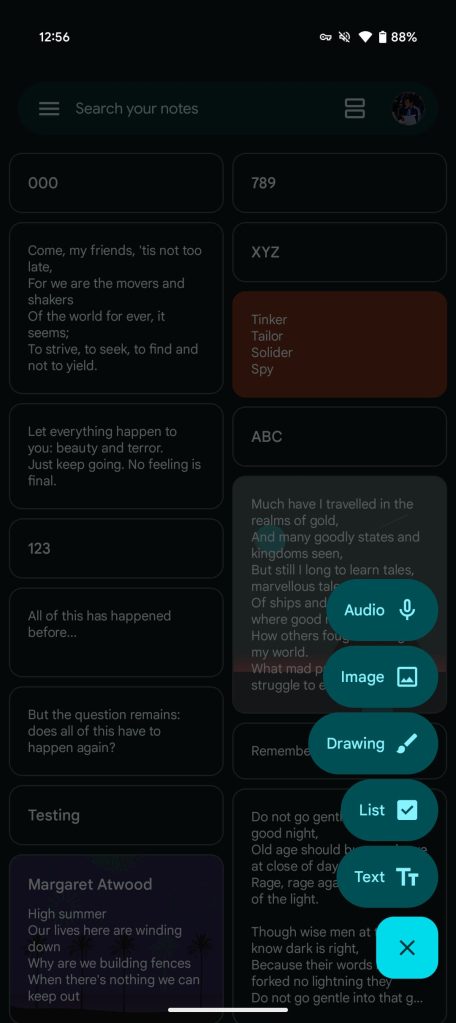
Tapping the corner button will immediately open a new note to let you start typing. To “create other note types,” you can long press on the FAB.

With this update, Google Keep is also restoring the shortcut for creating an Audio note. There are no changes to the underlying Recording text-to-speech capability today. This was removed in the last redesign, with users first needing to create a note to open the ‘plus’ sheet. The five-item FAB menu is a bit on the tall side now.


Google Keep default notes


Google began work on this new behavior setting in January. It’s only now just rolling out via a server-side update. We’re seeing it with version 5.25.102.01.90 of Google Keep, but just on one device so far.

Meanwhile, Google Keep recently gained a “Reload my account” button at the bottom of the Settings page.
 

limmk

High Supremacy Member
Joined
Jul 5, 2001
Messages
40,965
Reaction score
8,164


Google Meet is getting a big update with Dynamic layouts that better frame people and video feeds

First previewed in 2023, Dynamic layouts can “prioritize faces by cropping out excess background video,” with Portrait tiles being the end result.

Of note is how Google Meet Dynamic tiles can take up to three people — if they’re not sitting too close together — in the same room and create individual video tiles for them (as seen in the example above). Others in the meeting “can pin these tiles in their layout as they would any other tile,” while Google will only highlight the “tile of the in-room speaker” thanks to “AI-enabled active-speaker detection” with no special hardware required.

Meanwhile, Google now features “optimized tile placement logic to enable much more efficient layouts that minimize unused space.” If your camera is off and just a profile image is showing, users will now see “color-sampled tile theming.” Google Meet has also increased the pin limit from three to six.


Other updates today include:
  • Larger room tiles in the grid when ‘Dynamic tiles’ is not active
  • More flexibility around how tiles are cropped, including self-view:
    • When you set your self-view preference, it will carry over across meetings.
    • Some users may prefer that their video feed never be cropped by other Meet users. Users can select “Show my full video to others” from the three-dot overflow menu of their self-view tile. This will cause their video to always render as an uncropped tile for other users. We encourage sign-language interpreters especially to consider using this feature to ensure that arms and hands are not unintentionally cropped out.
  • When Dynamic tiles are in use in a room with a Google Meet hardware device, users can associate their name with their face from Companion mode on Web so their tile can be labeled.
  • Users who do not wish to see portrait tiles can still do so by switching from Auto (dynamic) to Tiled (legacy) in the layout options selection menu.
Overall, Google touts a “refreshed, modern feel to the meeting grid.”

…allocates available space based on content being presented, tiles pinned by users, and more to address a core hybrid-work challenge of remote meeting participants not being able to easily see or identify in-room users.

This is rolling out over the coming weeks. In terms of availability:
  • Dynamic layouts are available for all Google Meet meetings on the web and from meeting rooms via hardware devices. They are available for all Google Workspace customers as well as users with personal Google accounts.
  • Dynamic tiles and Face match require a Google Meet hardware device and associated license.
 

limmk

High Supremacy Member
Joined
Jul 5, 2001
Messages
40,965
Reaction score
8,164


In addition to a new version earlier this month, a recent server-side update changes Pixel Weather search so it no longer adds/saves cities by default.

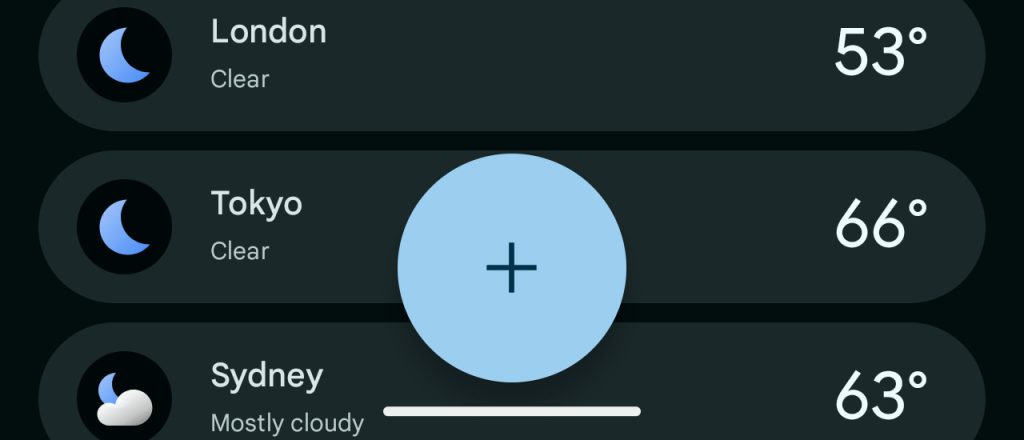
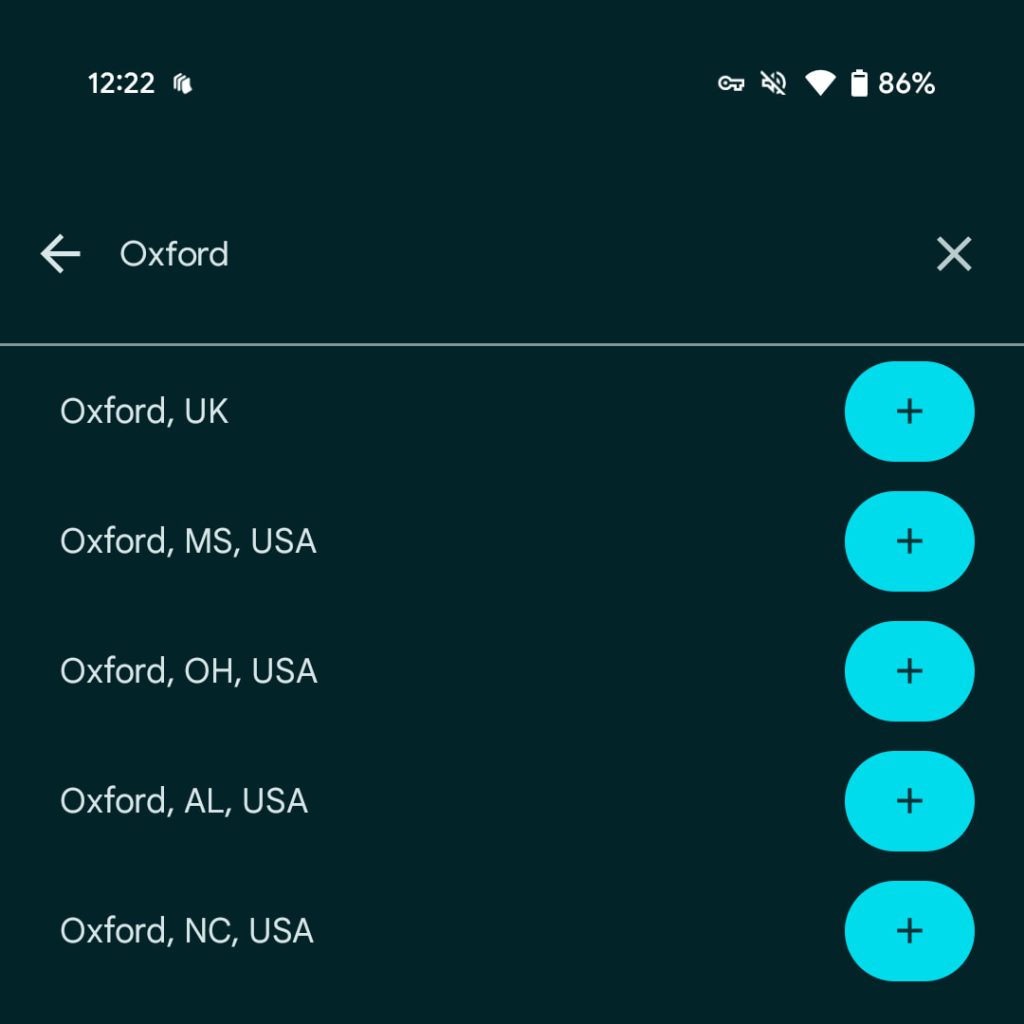
At launch, the large circular FAB (floating action button) on the Pixel Weather homepage was a ‘plus’ sign. Searching for a city and tapping automatically adds it to your list.

This is no longer the case, with the FAB now featuring a magnifying glass icon that signals a new search behavior. Tapping on one of the results now lets you simply view a location instead of also adding it to your list. If you do want to quickly add, tap the new ‘plus’ sign housed in a pill at the right or from the top corner of the city view.

Old vs. new


Pixel-Weather-bottom.jpg

Pixel Weather search


Previously, the auto-add behavior resulted in people saving many one-off places. They would have to swipe to delete, with the more likely outcome being a long list of locations that they’ll never return to.

This new search behavior appears to be a server-side update that rolled out in recent days with Pixel Weather 1.0.20250127.729684887. That version from earlier in March already had the city “Save” button and added dates to the 10-day forecast card.

Pixel Weather search

Pixel-Weather-search-3.jpg
 

limmk

High Supremacy Member
Joined
Jul 5, 2001
Messages
40,965
Reaction score
8,164


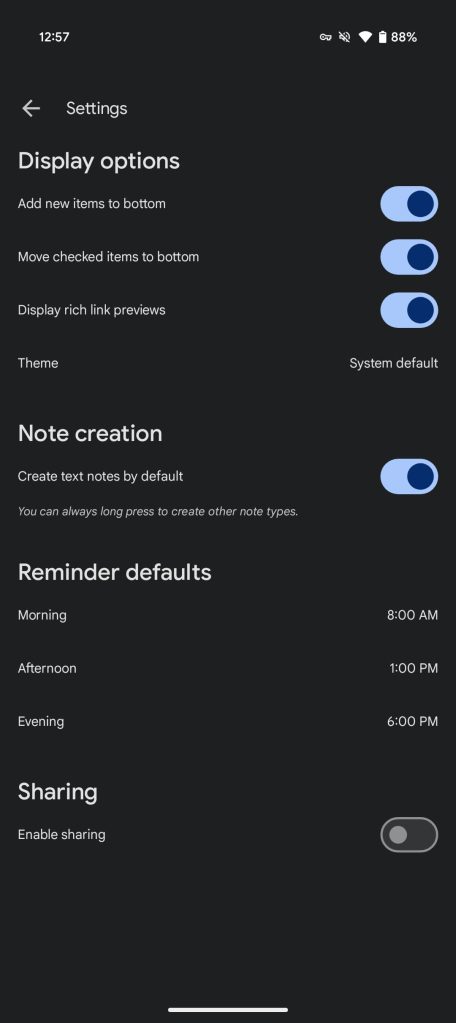
Google is now widely rolling out the ability to “Create text notes by default,” as well as an Audio shortcut, in Keep for Android.

Once enabled, tapping the FAB (floating action button) will immediately launch a new text note with the keyboard open.

This addresses how November’s redesign made note creation a two-step process with a FAB menu for Text, List, Drawing, Image, and now Audio with today’s update.

With the new behavior, you can long-press to access those five items, which is a bit on the tall side. (Alternatively, you can just open a text note and tap the ‘plus’ in the bottom-left corner to attach.)


Google Keep text notes


Go to Settings (in the navigation drawer) and tap the toggle under the new “Note creation” heading joining Display options, Reminder defaults, and Sharing.

After beginning to roll out last week as a server-side update, “Create text notes by default” is now widely available with version 5.25.122.00.90 of Google Keep for Android on phones and tablets.

Meanwhile, Google Keep is also working on a redesigned “Quick capture” widget.
 

limmk

High Supremacy Member
Joined
Jul 5, 2001
Messages
40,965
Reaction score
8,164


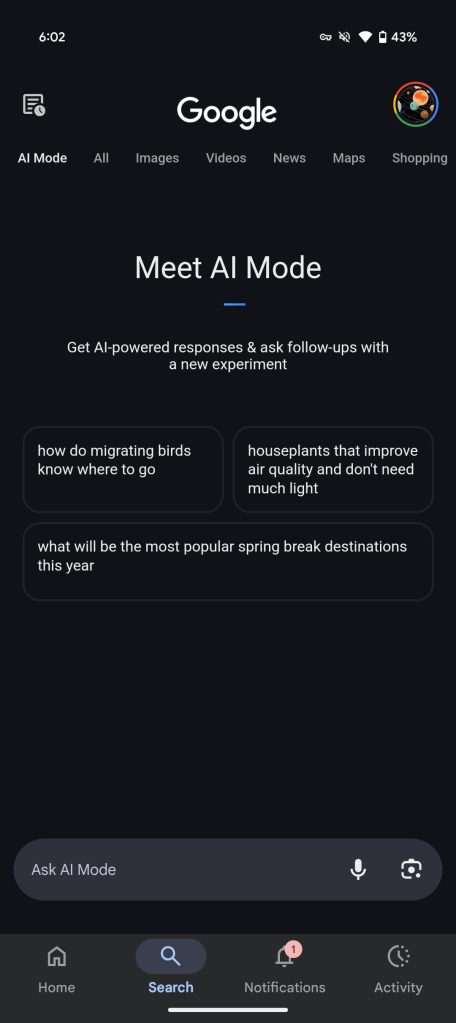
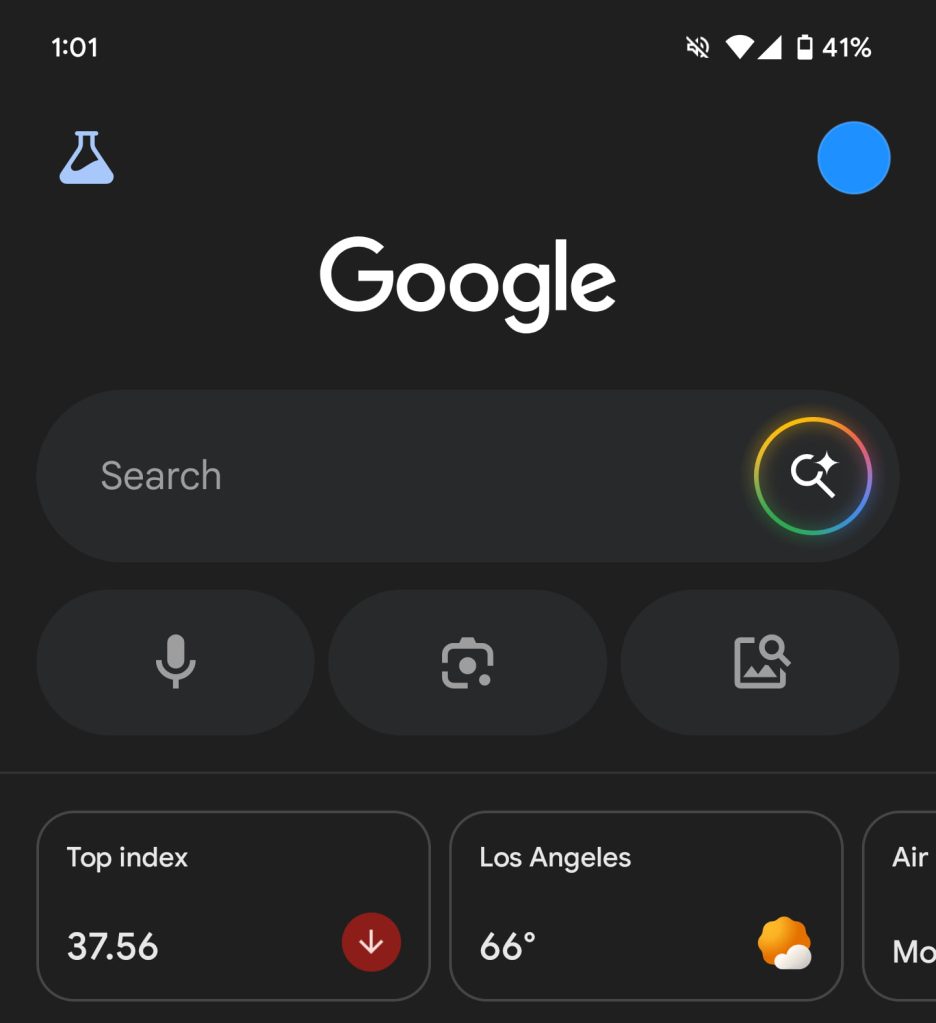
As AI Mode testing continues, Google is trialing a new way to launch the generative experience from the
Search bar on Android.

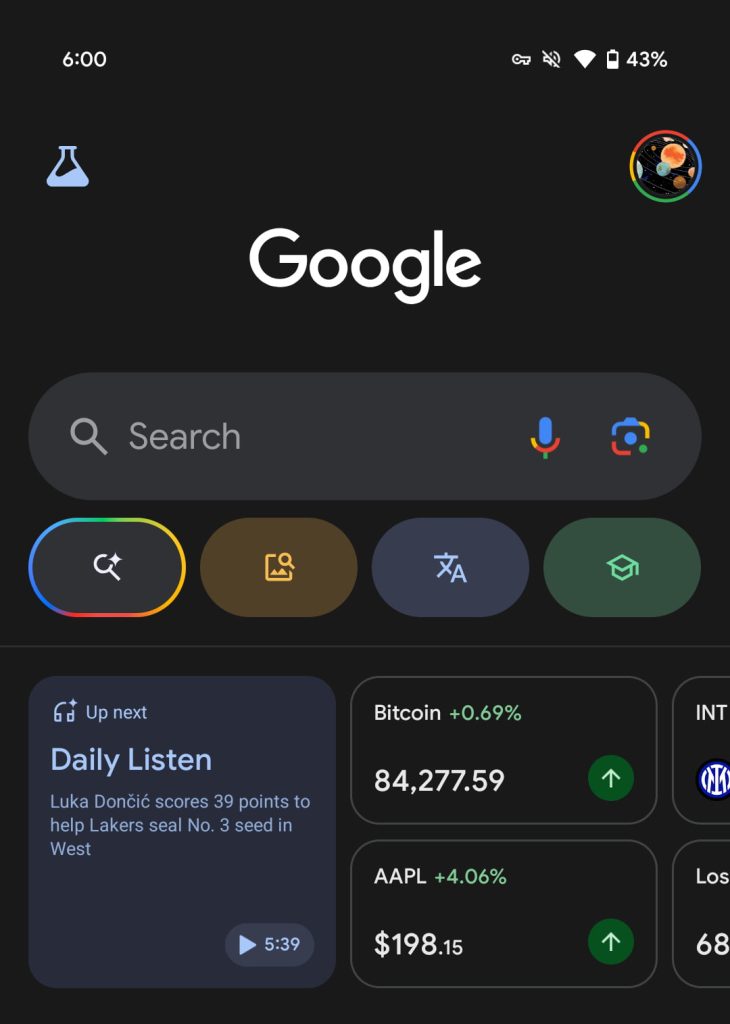
Since launch, you’ve been able to start a new AI Mode chat from the shortcut underneath the Search bar at the top of the Google app. It lives alongside the buttons (Screenshots, Translate, and Homework filters) that launch Google Lens and Song Search.

Google-Search-AI-Mode-Android-launch-1.jpg

Google-Search-AI-Mode-Android-home.jpg
Google-Search-AI-Mode-Lens.jpg


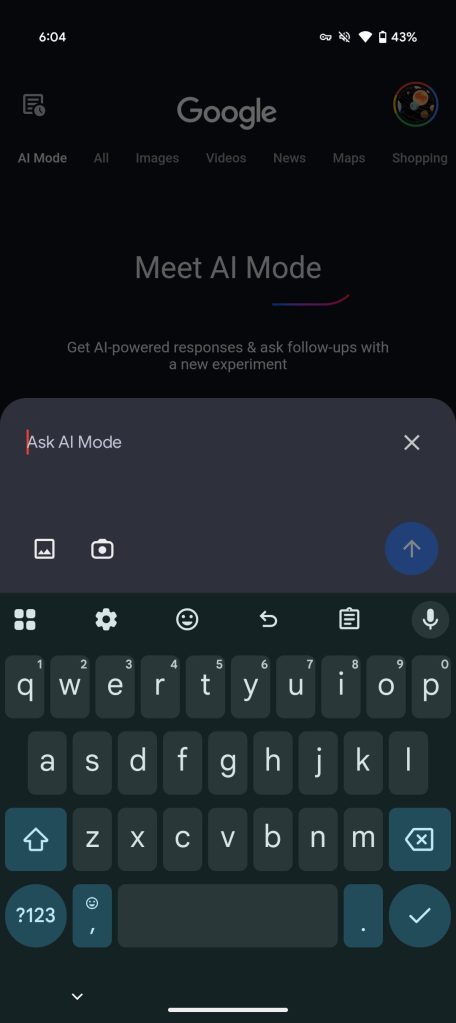
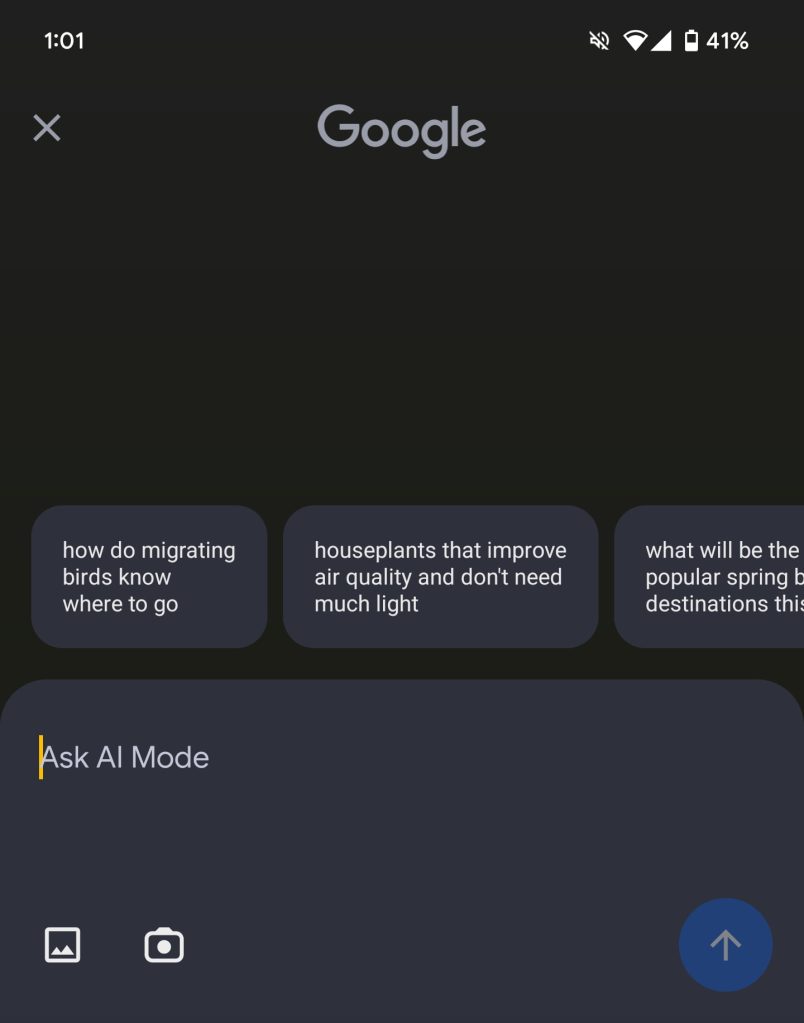
Google is now testing a prominent AI Mode circle directly in the Search field. Replacing the voice and Lens icons at the right, a tap lets you immediately start typing. The “Ask AI Mode” field last week gained Google Lens integration with the ability to upload from your gallery or take a new picture.

Google AI Mode bar

Google AI Mode bar


This design replaces the colorful carousel with three shortcuts to start voice search, launch Google Lens, or jump directly to your gallery for a visual lookup.

Right now, we’re only seeing this design on one device. Free users in the US can now sign-up for AI Mode via Search Labs.

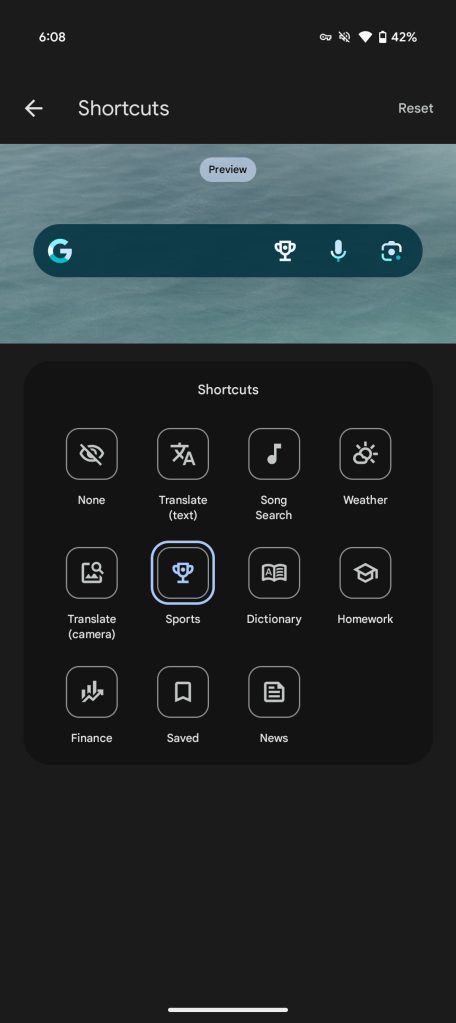
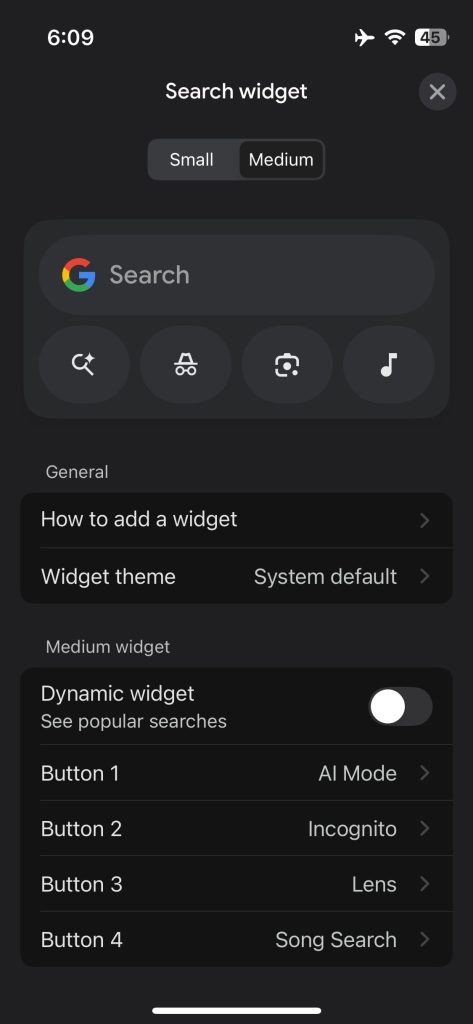
On iOS, you can now launch AI Mode from the customizable homescreen widget. That is presumably coming to the Android version, which recently picked up two new shortcuts for quick access to News and Saved (in light of Activity replacing it as a tab in the bottom bar).

Google-Search-widget-more.jpg
Google-AI-Mode-iOS-widget.jpg
 

limmk

High Supremacy Member
Joined
Jul 5, 2001
Messages
40,965
Reaction score
8,164
TL;DR
  • Google Photos is starting to roll out a new “Ultra HDR” editing option that lets users convert regular photos into Ultra HDR after capture.
  • The feature is reportedly appearing in version 7.24.0.747539053 for some users via a server-side update.
  • Ultra HDR images render richer colors and brightness levels on devices with HDR displays.


Google Photos has been working on an “Ultra HDR” editing feature for a while now. We first spotted signs of the feature in the app last September, but at the time, the option wasn’t functional, and it wasn’t clear what it was supposed to do. Still, we had a hunch it was tied to the Ultra HDR file format Google introduced with Android 14.

Ultra HDR allows for capturing and displaying photos with a wider range of light and color. The result is more vibrant, lifelike images, especially noticeable on devices with high dynamic range (HDR) displays. But Ultra HDR is also backward-compatible, meaning it can still display normally on older, non-HDR devices. It does this by packing both SDR and HDR versions of the image into a single file.

Now it looks like Google Photos is rolling out the ability to convert standard photos into Ultra HDR after they’ve been taken. The feature seems to have started appearing for some users.

Telegram user @greyishere tipped off Android Authority contributor Assemble Debug, confirming that the Ultra HDR option is now available in the Google Photos app, version 7.24.0.747539053. Like us, many of you might already have this version installed on your Android devices, but don’t be surprised if you can’t spot the new option just yet. This appears to be a server-side rollout, so Google has to enable the feature on their end before it appears on your phone.

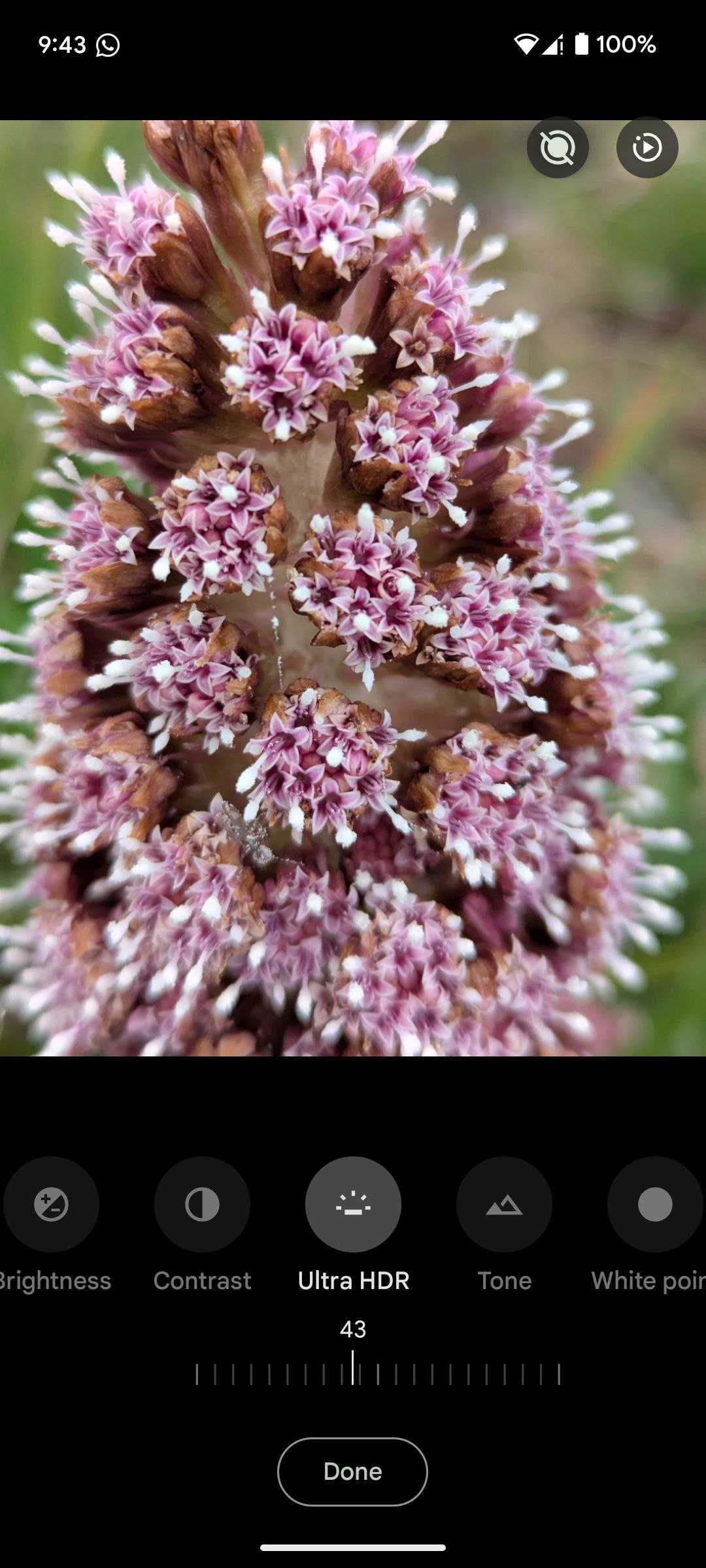
When the feature becomes available, the Ultra HDR option will be in the “Adjust” section of the photo editor. Once it goes live, it will replace the current “HDR Effect” option. You will also be able to tweak the Ultra HDR strength using a slider.
Google Photos Ultra HDR Option

Ultra HDR option in Google Photos

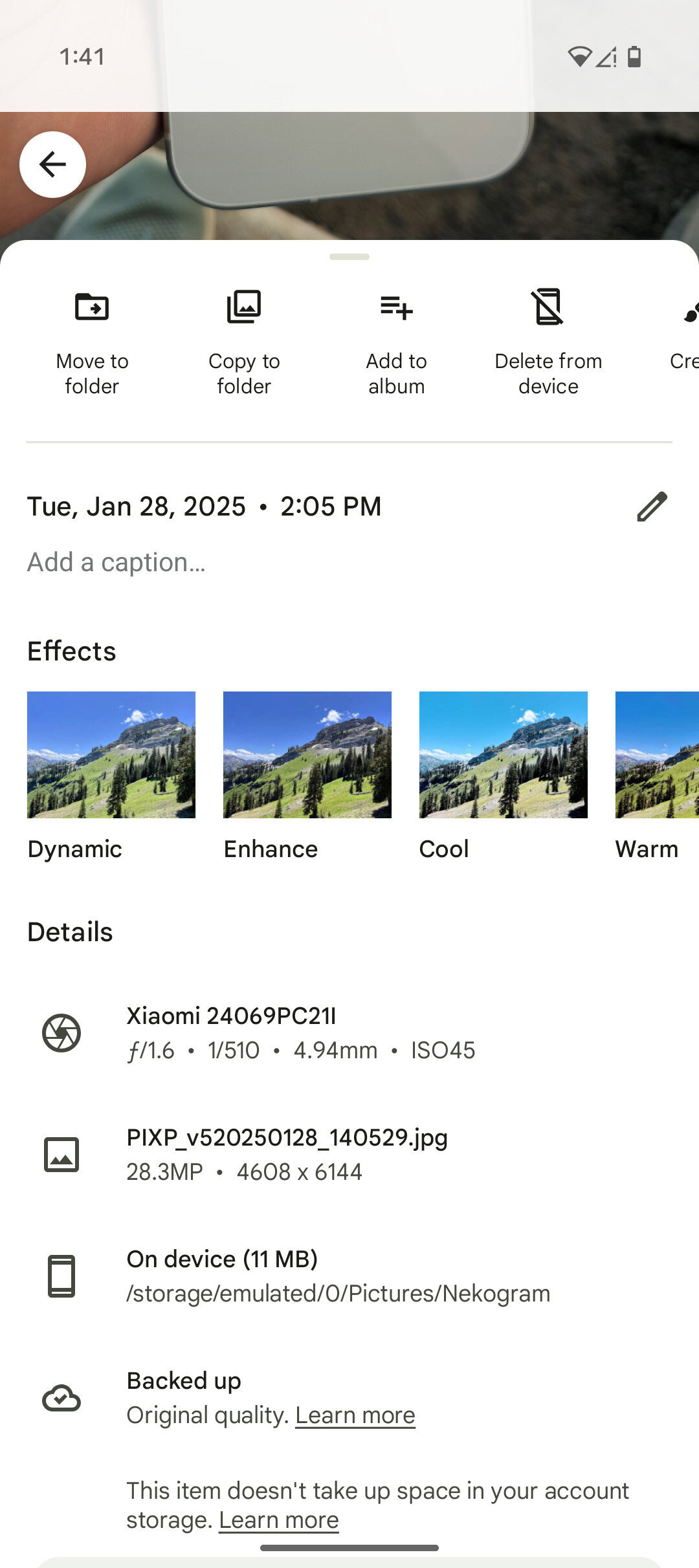
Google Photos standard image

Details of a standard image

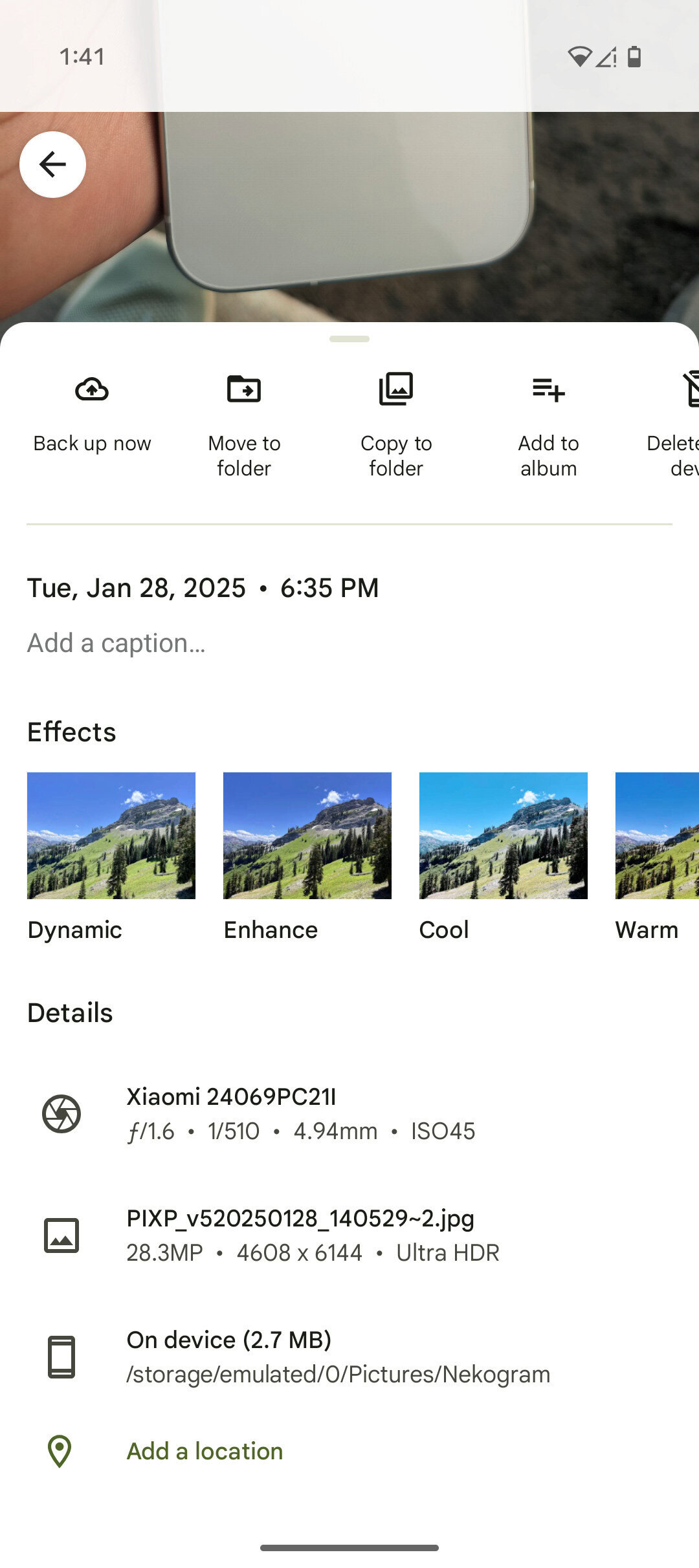
Google Photos ULTRA HDR image

Details of a converted Ultra HDR image​

In the screenshots above, you can clearly see the difference between a standard image and one enhanced with the new Ultra HDR effect in Google Photos. The converted image is labeled “Ultra HDR” in its details, and its file size is noticeably smaller. That’s because Ultra HDR images use a gain map that’s smaller than the main image. This gain map stores luminosity information, allowing devices to render brighter, more colorful images without the need for storing as much data as a full-resolution image.
This GitHub page contains images that show the difference between a converted Ultra HDR image and a standard image. The difference should be clearly noticeable if you’re using a device with an HDR display and an operating system or browser that supports the Ultra HDR format.
Having Ultra HDR as an editing option in Google Photos is a big deal for photo sharing. It means that photos you take every day can now be upgraded to Ultra HDR and look their best on supported displays without needing special hardware or settings.
 

limmk

High Supremacy Member
Joined
Jul 5, 2001
Messages
40,965
Reaction score
8,164


Following last year’s announcement, Google Messages is rolling out Sensitive Content Warnings that blur nude images on Android.
For adults, Sensitive Content Warnings are opt-in and disabled by default. It’s on for those under 18:
  • Supervised users: This feature can’t be turned off but parents can control it through the Family Link app.
  • Unsupervised teens (13–17 years of age): This feature can be turned off in the Google Account settings.
There are two aspects to it, with the first blurring images “that may contain nudity” with the ability to delete before viewing. Your options are:
  • Learn why nude images can be harmful
  • Block this number
  • Next > No, don’t view or Yes, view
You can “blur the image back” by tapping “Remove preview” in the bottom-right corner.

The second reminds “users of the risks of sending nude imagery and preventing accidental shares” before they send or forward something that may contain nudity. They must “confirm to continue.”
  • To send the image, tap Next.
    • To continue, swipe right Yes, send.
    • To cancel, select No, don’t send.
This image classification, which does not currently apply to videos, works on-device and is powered by Android System SafetyCore, which “doesn’t send identifiable data or any of the classified content or results to Google servers.”

As a system service, SafetyCore is only active when an application integrates with SafetyCore and specifically requests that content be classified. Images aren’t classified unless they’re sent through Google Messages with the Sensitive Content Warnings feature turned on.

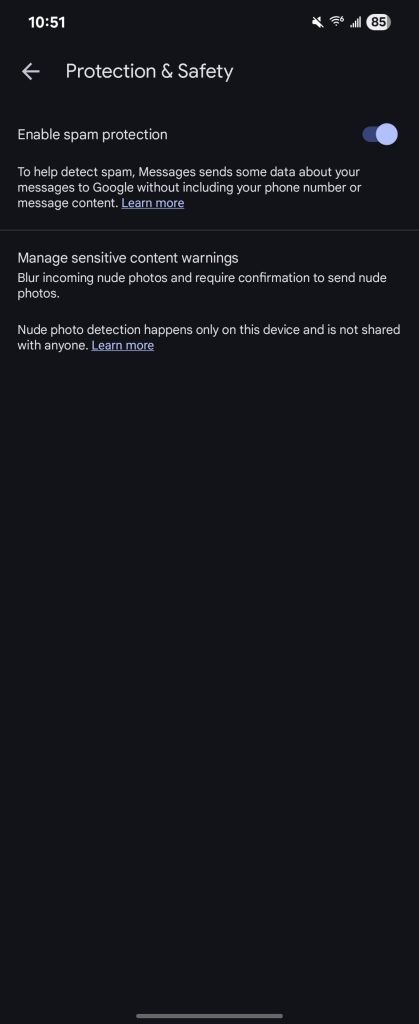
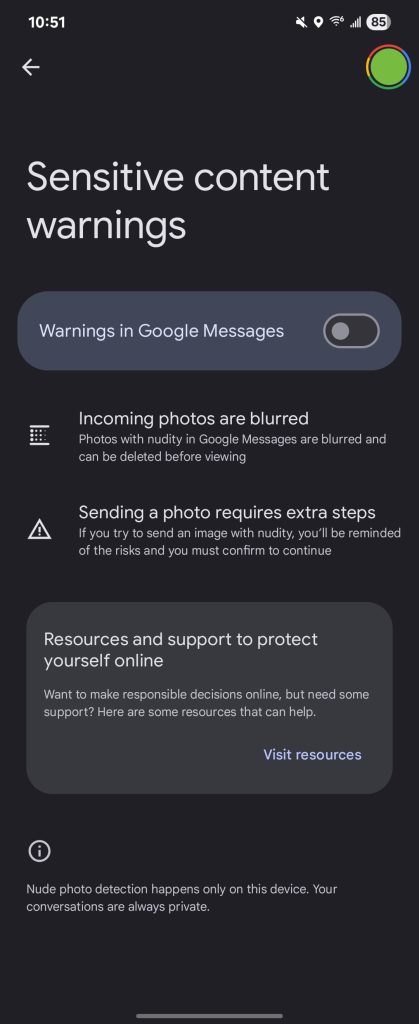
Google announced it in October, and said it was beginning to roll out in February. We’re now seeing it Google Messages Settings > Protection & Safety > Manage sensitive content warnings. This takes you to a new settings page with a “Warnings in Google Messages” toggle.

This is not yet widely rolled out, and currently just appearing on two devices running the Messages beta that we checked today.

Google Messages Sensitive Content Warnings
 
Important Forum Advisory Note
This forum is moderated by volunteer moderators who will react only to members' feedback on posts. Moderators are not employees or representatives of HWZ Forums. Forum members and moderators are responsible for their own posts. Please refer to our Community Guidelines and Standards and Terms and Conditions for more information.
Top