I tested the Pixel 9's excellent new underwater camera mode in the blue Hawaii waters
Pixel phones have a new underwater camera mode, and I put it to the test in Hawaii.
In the latest
Pixel Drop (formerly known as Pixel Feature Drops) from October, Google launched a new underwater camera mode for the most recent phones in
the Pixel 9 series. This feature uses software optimizations to enhance photos and videos captured underwater to make them look as good as possible.
To be clear, Pixels supported underwater enhancements as far back as the Pixel 7 series.
Here’s an official blog post about how Googler José Ricardo Lima used a
Pixel 7 Pro to capture some underwater shots in Maui, Hawaii, for example. The recent Pixel Drop, though, allows the underwater mode to work on the Pixel 9, Pixel 9 Pro, Pixel 9 Pro XL, and Pixel 9 Pro Fold with any underwater case, not just specific cases Google has vetted. This makes the feature much more accessible to people, as you don’t need an expensive diver-quality case to see those optimizations (the one Lima used for that blog post costs many hundreds of dollars).
The big question, though, is how good this new feature is. I was in Maui recently for the launch of the
Qualcomm Snapdragon 8 Elite chipset. I had my Pixel 9 Pro with me, so I decided to slap it into an inexpensive underwater phone case (
$21.59 from Amazon) and see what this new camera mode was all about.
Turning on and using the underwater camera mode
Before you jump into the ocean to test this feature out, know that you need to turn it on. Because this feature no longer requires a specific case to work properly, your Pixel won’t be able to determine if you want to use the underwater mode automatically. This seems like something
Gemini Nano could eventually solve by simply looking through your viewfinder and determining, “Yep, this phone is not on dry land,” but that’s not the case today. For now, before you start shooting, you need to open the Camera app on your Pixel, tap the Settings icon in the lower left, and then visit
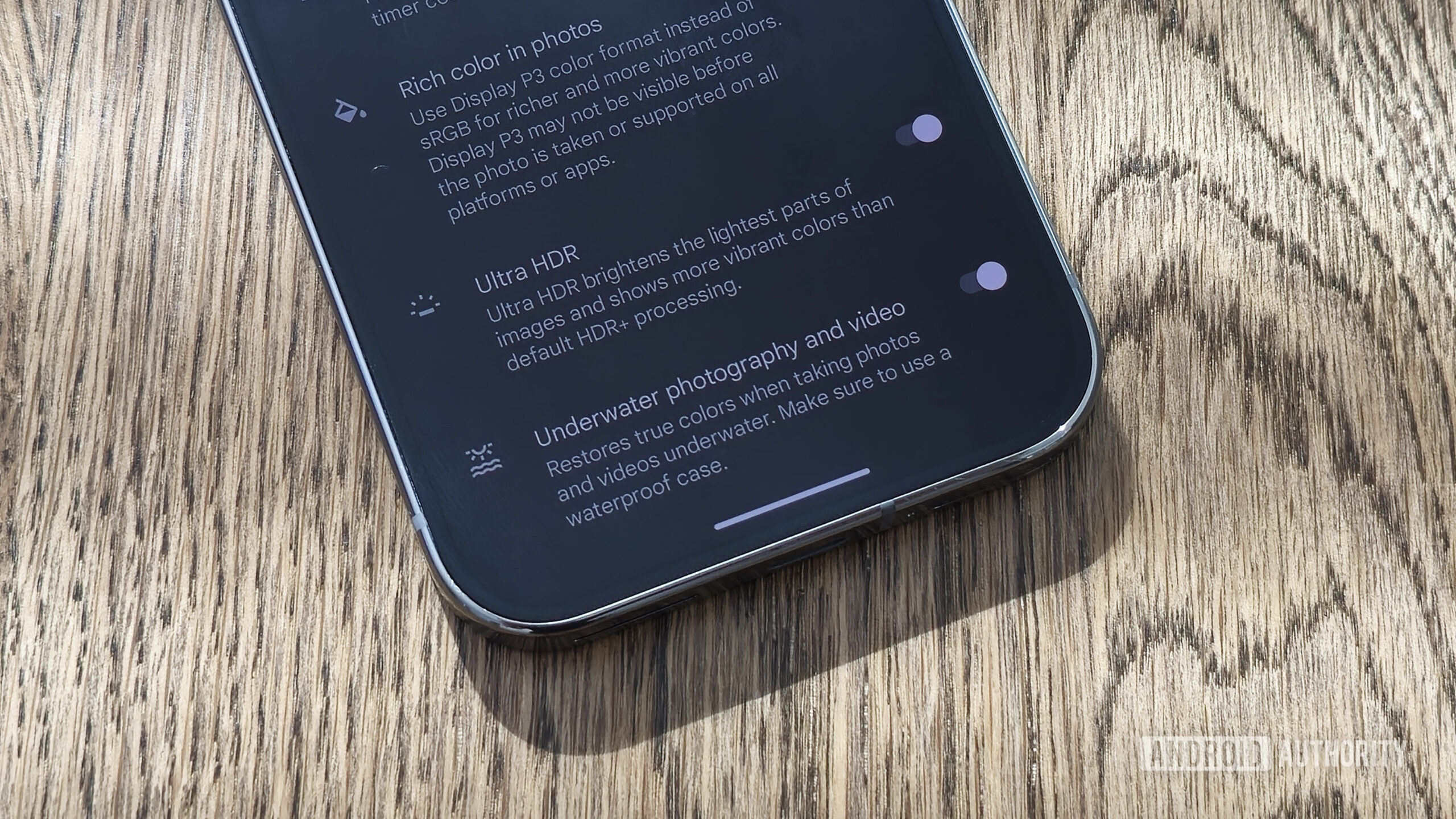
More Settings > Advanced > Underwater photography and video, and toggle it on.
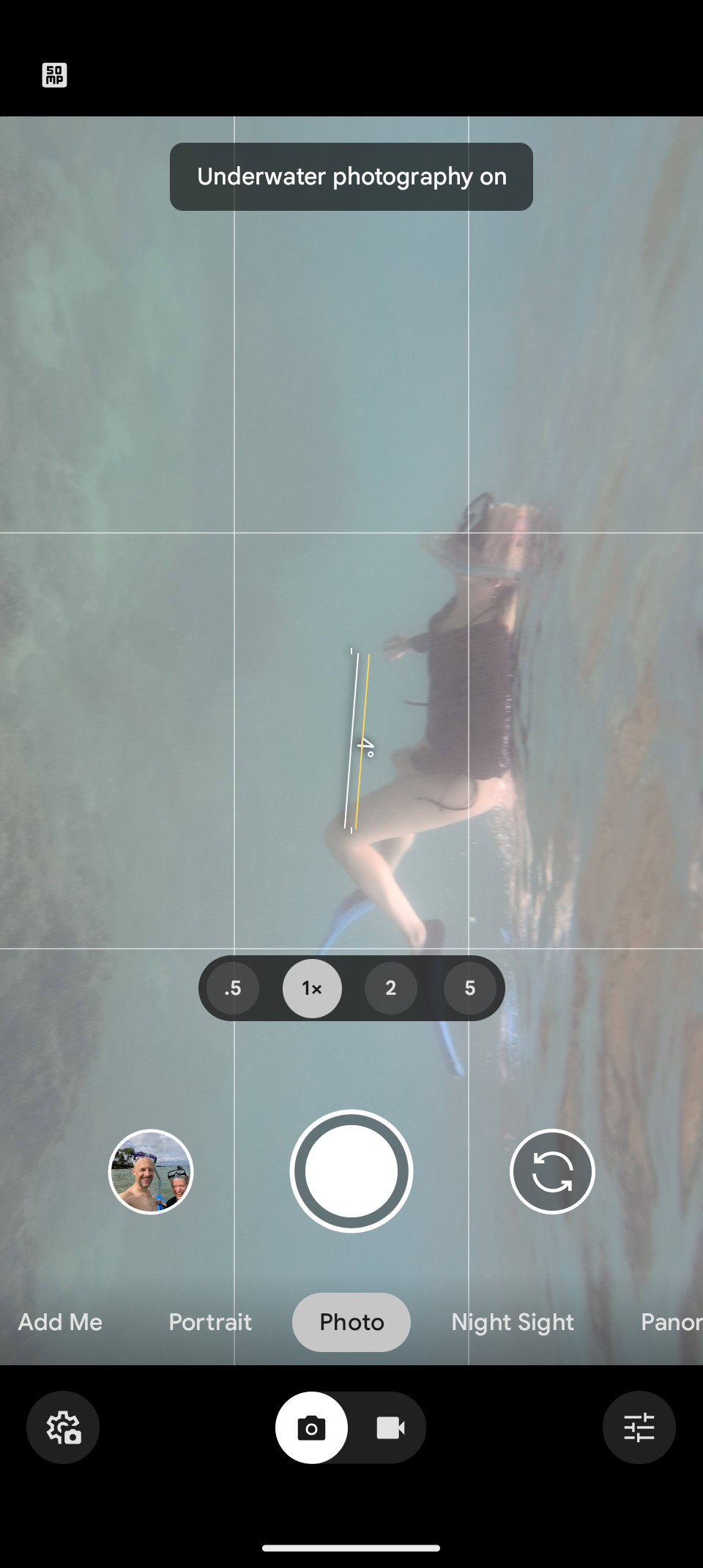
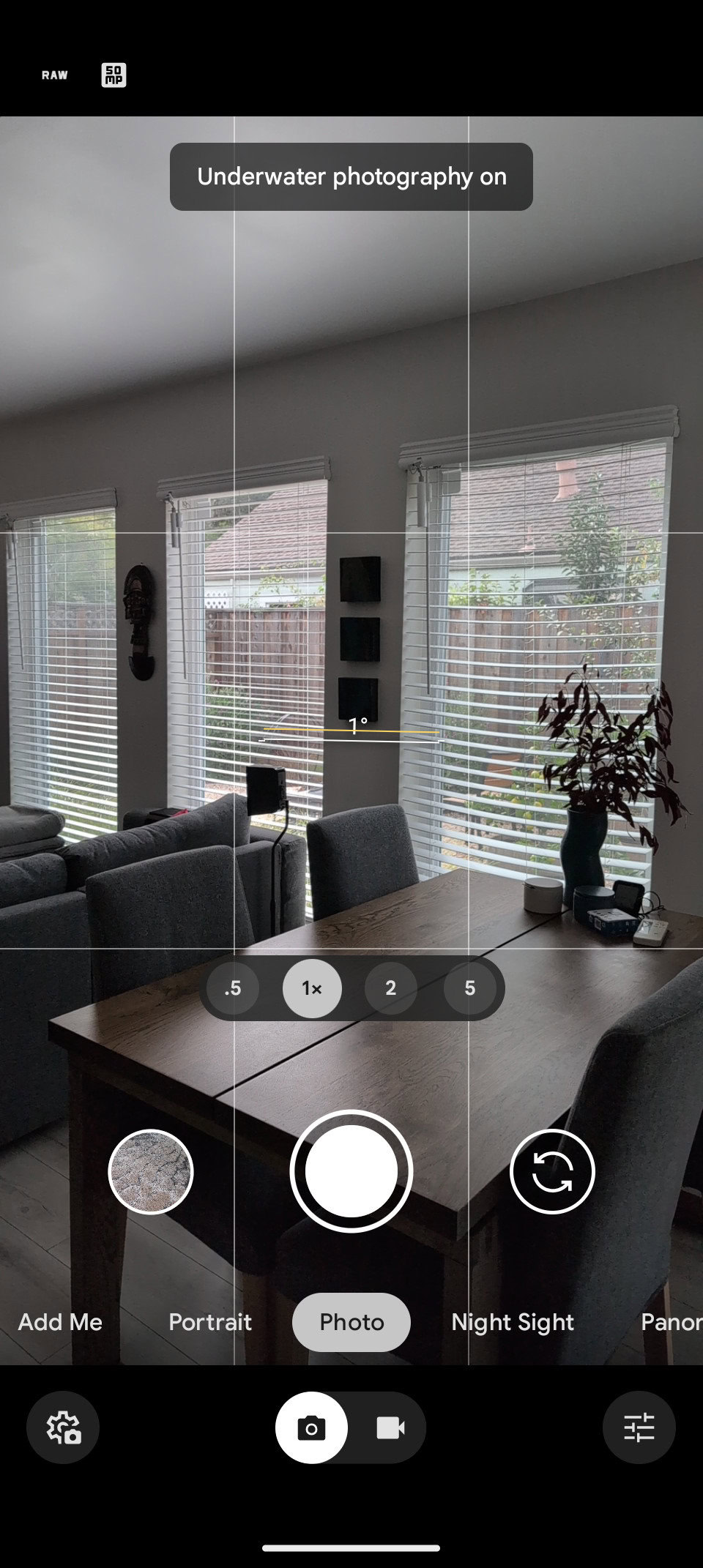
It’s important to note that this activates the feature indefinitely. Thankfully, Google gives you a permanent alert in the viewfinder to remind you it’s on, so you don’t forget to turn it off when your underwater adventure is over.
Mode on, under the water
Mode still on, on solid land
Once you activate the feature and are in a body of water, you can do pretty much anything you would typically do with your Pixel camera. That includes regular photos and videos, Night Sight,
Panorama shots, Cinematic Blur, etc. This is nice as it doesn’t limit your creativity once you’re splashing and diving.
Once you activate the feature and are in a body of water, you can do pretty much anything you would typically do with your Pixel camera. That includes regular photos and videos, Night Sight,
Panorama shots, Cinematic Blur, etc. This is nice as it doesn’t limit your creativity once you’re splashing and diving.
Remember that touchscreens don't work underwater, so you'll need to plan ahead to make sure your camera is in the correct mode.
The trick, though, is that you can’t use the touchscreen when you are submerged. You’ll need to rely on camera shortcuts using the phone’s physical buttons. For reference, this includes launching the camera app (even if the phone is locked) by double-tapping the power button and then using either of the volume keys to activate the shutter. Unfortunately, without using the touchscreen, there’s no way to change modes, zoom in or out, swap lenses, etc.. This means you need to bring the phone out of the water to make these adjustments and then submerge yourself again to get the desired shot. But if you just want to grab quick snaps, you can do what you need while actually in the water.
To my embarrassment, I didn’t work this all out on the beach — I was actually snorkeling while trying to figure it all out. Heed my words: Get this all sorted
before you put on your swimsuit. You’ll have a much better time.
Pixel 9 Pro underwater photos
I tried to get photos with the underwater mode off and on to get a good idea of what it does. Because of the previously discussed touchscreen limitations — and the natural buoyancy of the human body — this was not easy to do. As such, please forgive me for not getting perfectly aligned shots to show side-by-side comparisons.
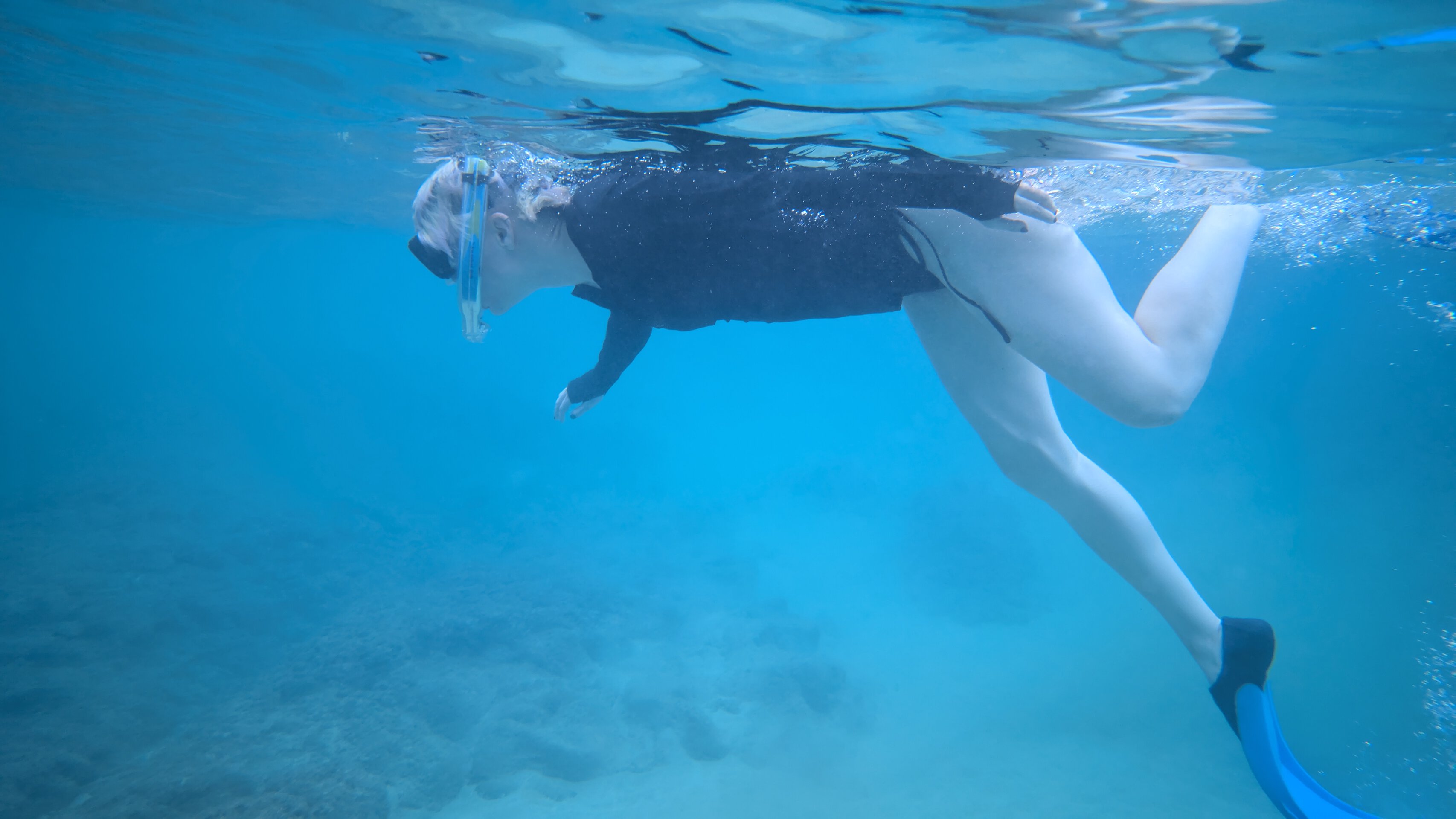
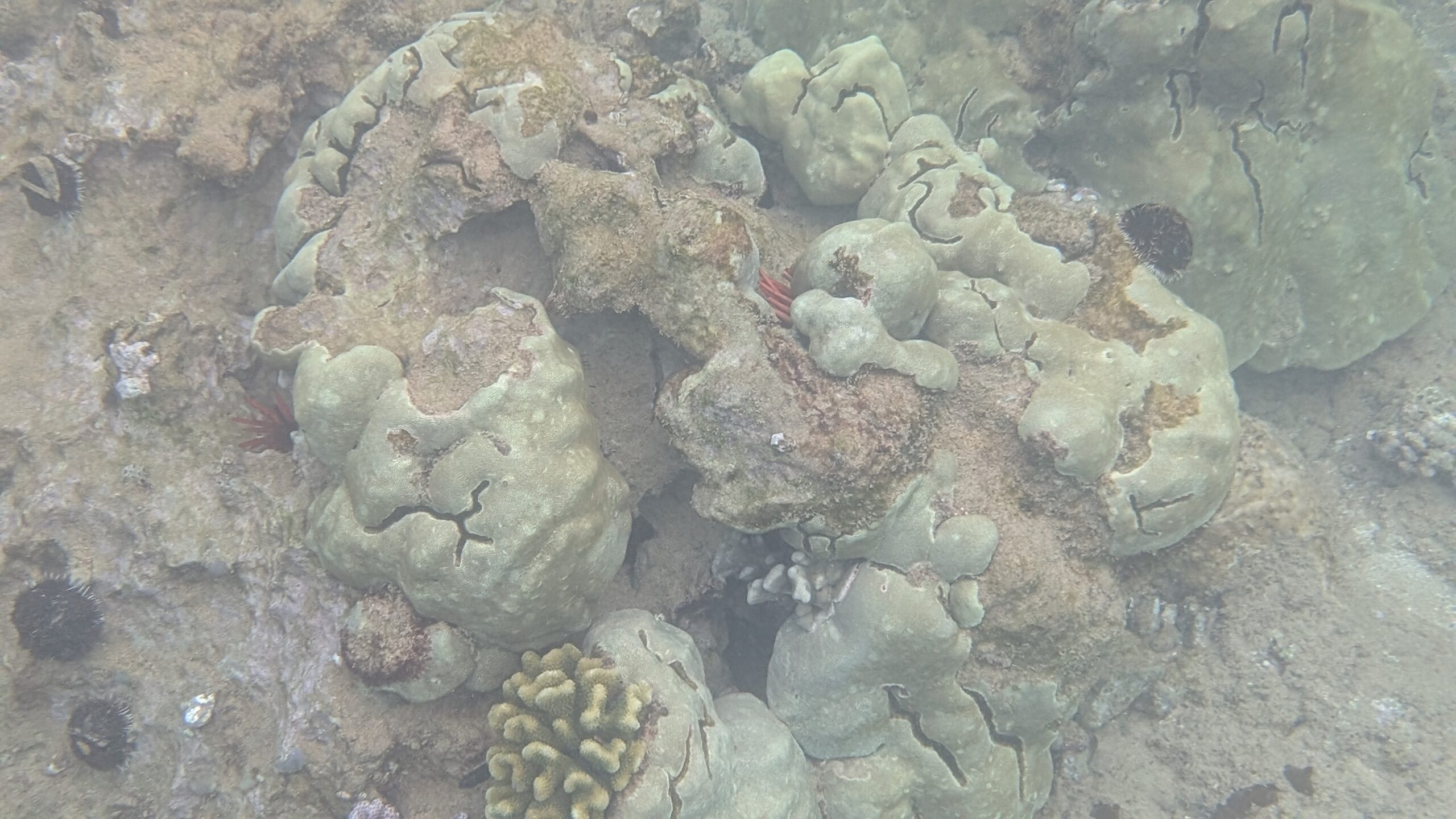
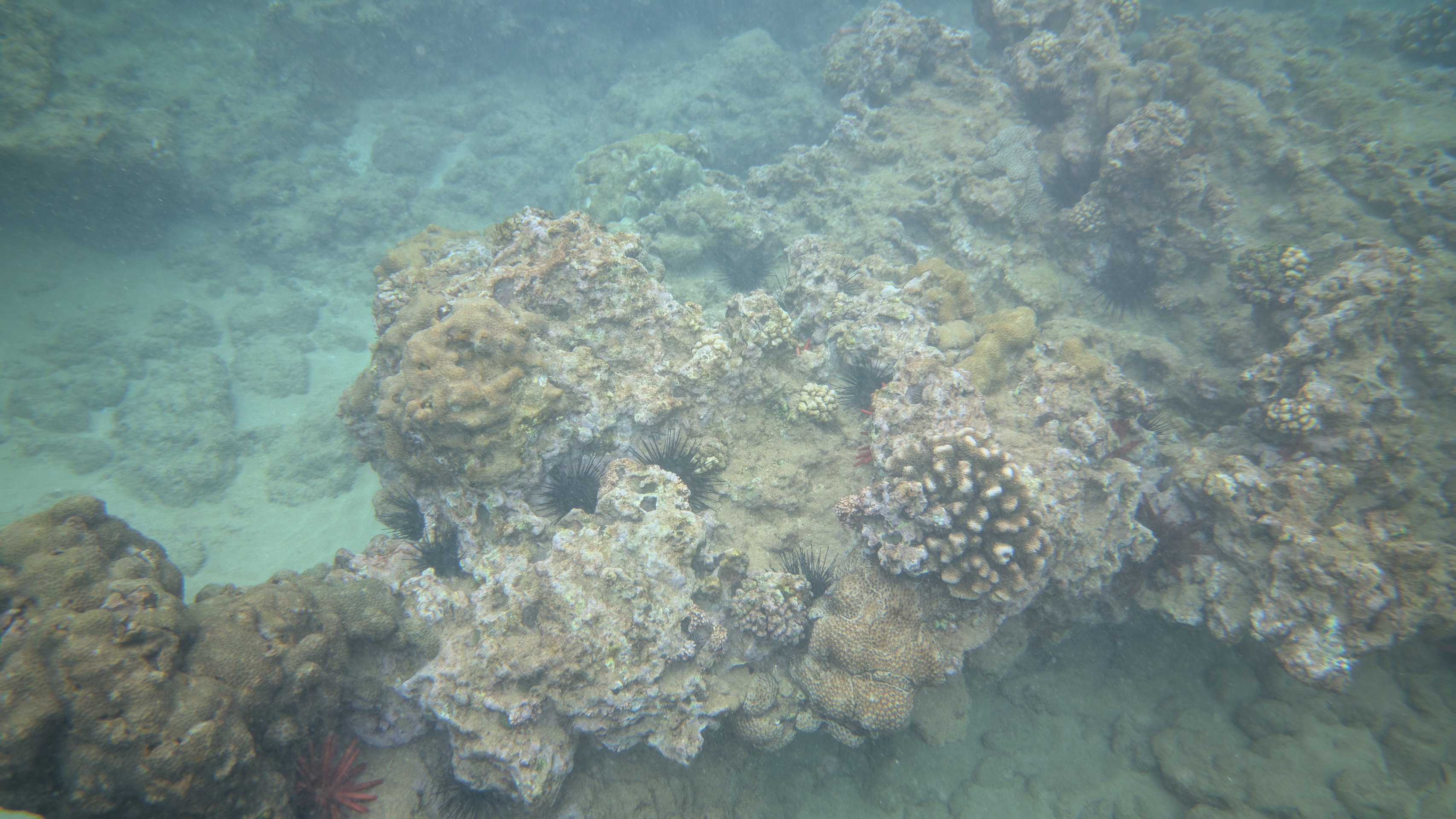
First, check out these two photos to see if you can spot what the underwater camera mode enhances:
Underwater Mode On
Underwater Mode Off
These images are compressed, but by looking at the originals, I see that clarity is slightly higher with the underwater mode activated. The water also looks more blue overall.
//
androidauthority