Google TV Streamer

xiaofan

High Supremacy Member
Joined
Sep 16, 2018
Messages
34,618
Reaction score
11,436
Can Viu app run on this device?

It should be, but you need to be a paid member to watch it on the big screen.
https://help.viu.com/hc/en-sg/articles/360052023232-How-to-watch-Viu-on-Smart-TV

Only Viu Paid members are entitled to Smart TV access. Smart TV viewing experience of Viu is only applicable for selected Smart TV devices:
- Designated Samsung Smart TV and
- Designated Sony Smart TV and
- Designated LG Smart TV and
- Apple TV and
- Smart TV casting via Google Chromecast for Android mobile devices, or via AirPlay exclusively for iOS mobile devices on Apple TV
 

xiaofan

High Supremacy Member
Joined
Sep 16, 2018
Messages
34,618
Reaction score
11,436
Is Starhub TV+ App available in this device?

By right it should be as this is a proper Android TV OS device. Let's wait for the confirmation if you are not convinced.

Reference:

StarHub TV+ Smart TV FAQ​

https://www.starhub.com/personal/support/article.html?id=q4cO03FeAO3lTpZkhhREd8

What devices can I use to stream content on StarHub TV+?

StarHub TV+ is available on compatible internet-enabled devices.

Compatible devices include:

1. Android TV
  • Android TV OS 10 or later
2. StarHub Streaming Box
  • Android TV OS 10 or later
3. iOS devices - Support devices running iOS 11 or later. Jailbroken devices are NOT supported.

4. Android devices - Support devices running Android 5.1 or later. Rooted devices are NOT supported.

5. PC and MAC Internet browsers (latest 3 stable versions)
  • Chrome
  • Firefox
  • Microsoft Edge (Chromium)
  • Safari
6. Samsung TV
  • The models from 2019 onwards with Tizen OS 4.0 or above.
  • Firefox
  • Microsoft Edge (Chromium)
  • Safari
Note: StarHub TV+ is not supported on mobile web browsers and Apple TV.
 

Henry Ng

Arch-Supremacy Member
Joined
Aug 9, 2011
Messages
17,164
Reaction score
1,005


The Google TV Streamer is a major shift of direction from the Chromecast with Google TV but, for the most part, it’s a positive change. While there’s a lot to like about the new streamer, nothing is without faults. Most users will likely never run into any major issues or glitches, but it can happen.
In this guide, we take a look at some of the most common Google TV Streamer problems and how to fix them. To be fair, many of these problems are also common on nearly all Android TV devices, so we’re only focusing on a few of the biggest issues and those specific to the Google TV Streamer. For an even deeper look check out our guide to general Android TV problems.
Editor's note: It's important to remember that not every Google TV Streamer will have these problems. In fact, you might not come across any issues at all.


Audio syncing issues​

If you’ve run into issues where the Google TV Streamer loses sync between video and audio, you aren’t alone. This isn’t a super common issue, but it is significant enough that Google has officially confirmed its existence and that it will be fixed in a future update. Of course, it’s still worth doing a little troubleshooting before you just assume your audio syncing issue is related to this bug.

Potential solutions​

  • Are you using a Bluetooth device like headphones or a Bluetooth soundbar? If so, try testing out other audio sources to see if the problem persists. If you don’t run into issues with a different speaker or audio source, odds are the syncing is related to faulty Bluetooth hardware.
  • If it wasn’t related to speaker issues odds are it’s the problem Google says will be fixed in the future. Before you give up entirely it wouldn’t hurt to perform a restart or even a full factory reset. You’ll find instructions for how to do both toward the bottom of this guide.

The Google TV Streamer remote is not working​

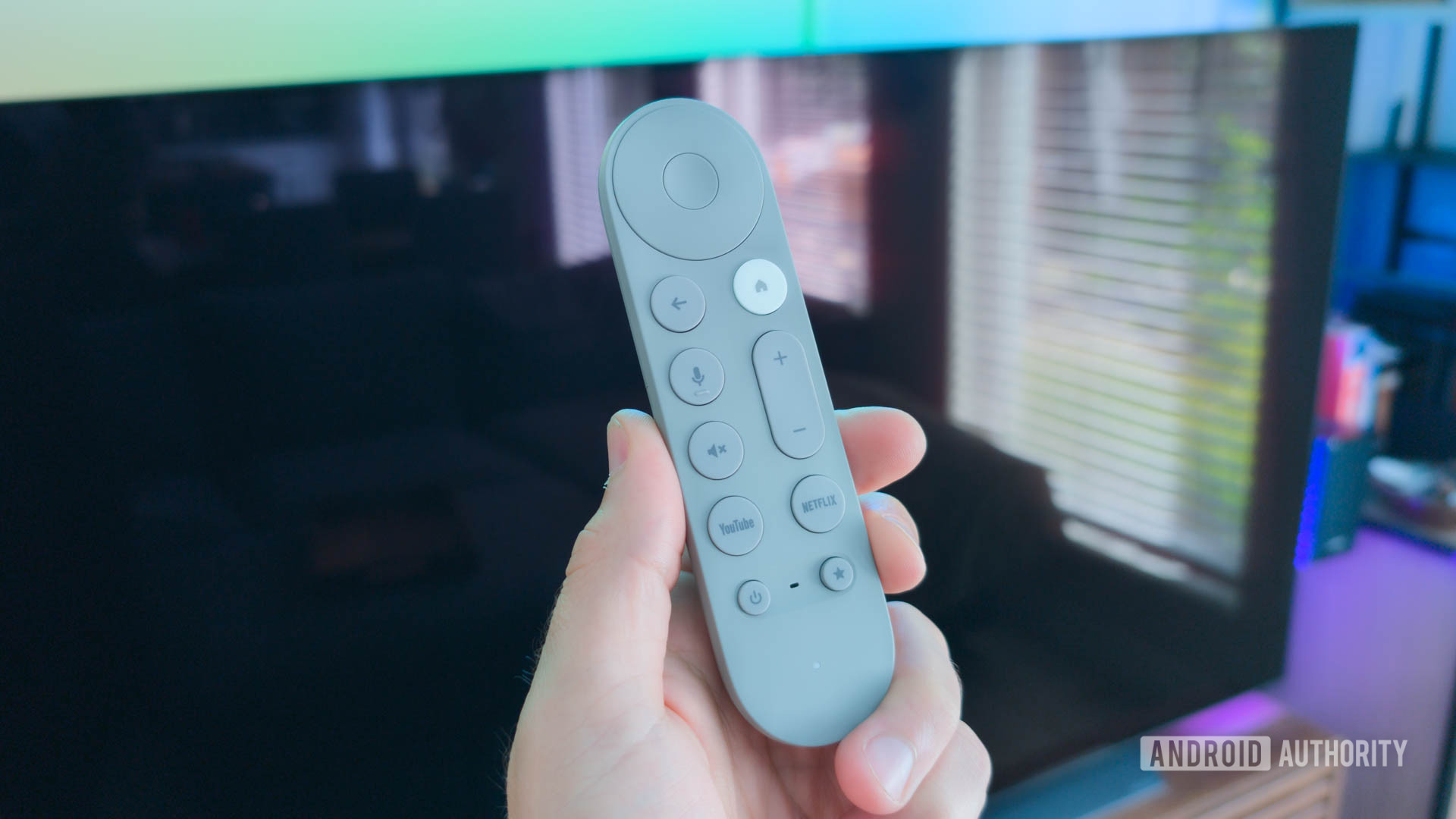
Google TV Streamer remote in hand in front of blank TV

C. Scott Brown / Android Authority
While you can technically get by without a remote by using the Google TV or Google Home app as a virtual remote, no one wants that unless they have no other choice. Unfortunately, remote problems are one of the most common Android TV problems around. The first step is to ensure you have fresh batteries as that is litearl. Odds are you did that before coming here, but you never know. If that wasn’t your problem, we have a few other possible solutions below.

Potential solutions​

  • Try restarting the TV and the remote to re-establish the connection. To do this you’ll need to use an app to control your TV and then you’ll want to go to
  • Settings (gear icon)>Device Preferences>Reboot. While the device reboots you’ll want to remove the batteries and put them back in only once the TV has restarted.
  • Still no go? You could try unpairing and repairing the device (and you’ll need to use your phone as a remote). You’ll want to go to Remote & Accessories and you’ll want to pick the remote that isn’t working and select the remove option. You’ll then go to Remote & Accessories > Pair remote or accessory. Hold the Home and back buttons on the remote and it should show up in the options. Select it and hit Pair. If the remote now works properly the problem is solved.
  • If the remote still isn’t working, it might be a hardware problem. You will need to get a replacement. You can consider a third party remote, but it’s worth noting Google also sells the OEM remote as a replacement as well.

Sluggish app performance or sudden crashes​

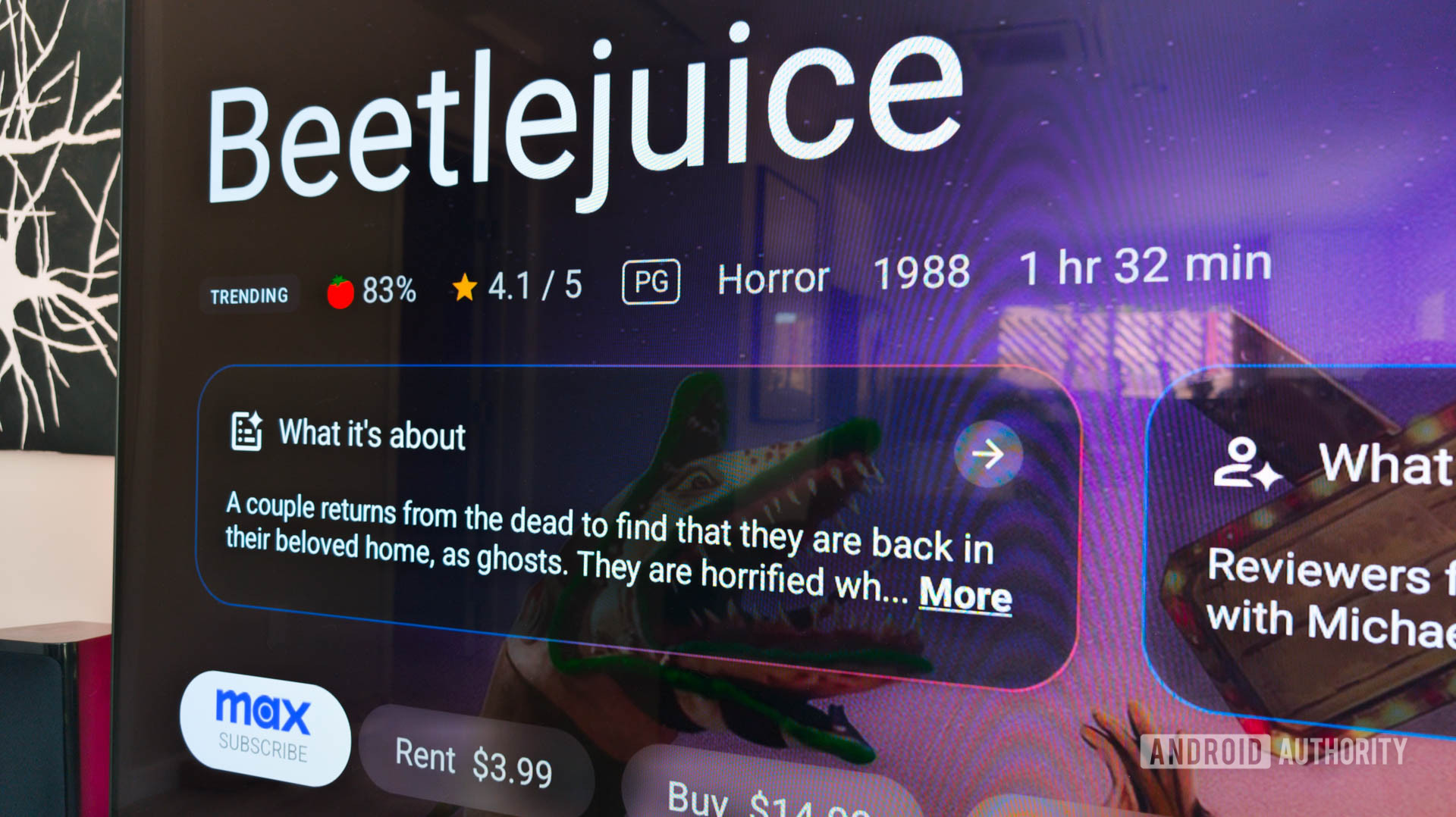
Google TV Streamer AI overview of Beetlejuice


The Google TV Streamer has more processing power, more storage, and more RAM than the Chromecast with Google TV. As you might guess, it typically performs pretty flawlessly. Until it doesn’t. If your favorite apps are slower than usual or end up crashing completely, there are a few potential solutions.

Potential solutions​

  • If an app is failing to load or loads slowly, you’ll first want to make sure you’re not having internet issues. One way to check is to run a speed test on another device on your network. If all works well, it’s likely not your connection that’s behind the slowness. In fact, if you’ve noticed a general sluggishness that’s likely down to an app problem.
  • Is this happening to all your apps, it doesn’t hurt to try restarting your device or running a system update. You’ll find instructions for both below.
  • Only happening to one app or just a few? In that case you’ll want to go into each app that’s having an issue. You’ll go to Settings > Apps. Find the app and select it. From there you’ll select both Clear cache and Clear data. Be aware that while this may fix the problem, you will have to log on and off again.
  • At this stage, you’ll want to ensure you’re not running into issues due to a lack of storage space. To do this you’ll want to go to Settings (gear icon)>Device preferences>Storage. Go to Internal shared storage for a detailed breakdown
  • Still not working? You’ll want to remove the app and reinstall it.
  • If you still aren’t having any luck it’s likely time to do a full factory reset. After that, you are likely out of moves.

Google Play Store “download pending” error​

Google Play Store on smartphone stock photo 2


This is another issue that applies to many Android TV and Google TV devices, as well as phones of course. When it comes to the Google TV Streamer, there’s a few possible solutions for the issue.

Potential solutions​

  • First, let’s try to troubleshoot the app itself. You’ll want to go to Settings > Apps > See All Apps and then Google Play Store > Force Stop.
  • Still have the error? Go back to Settings > Apps > See All Apps > Google Play Store and select Clear Cache and Clear Data.
  • At this stage if the other two steps didn’t help you’ll want to factory reset your Google TV streamer by going to Settings > Device Preferences > About > Factory Reset. From there you’ll select Factory Reset. Once it’s reset you’ll have to set up your device again but hopefully, the problem is gone now that the slate is clean again.

Screen flicker issues​

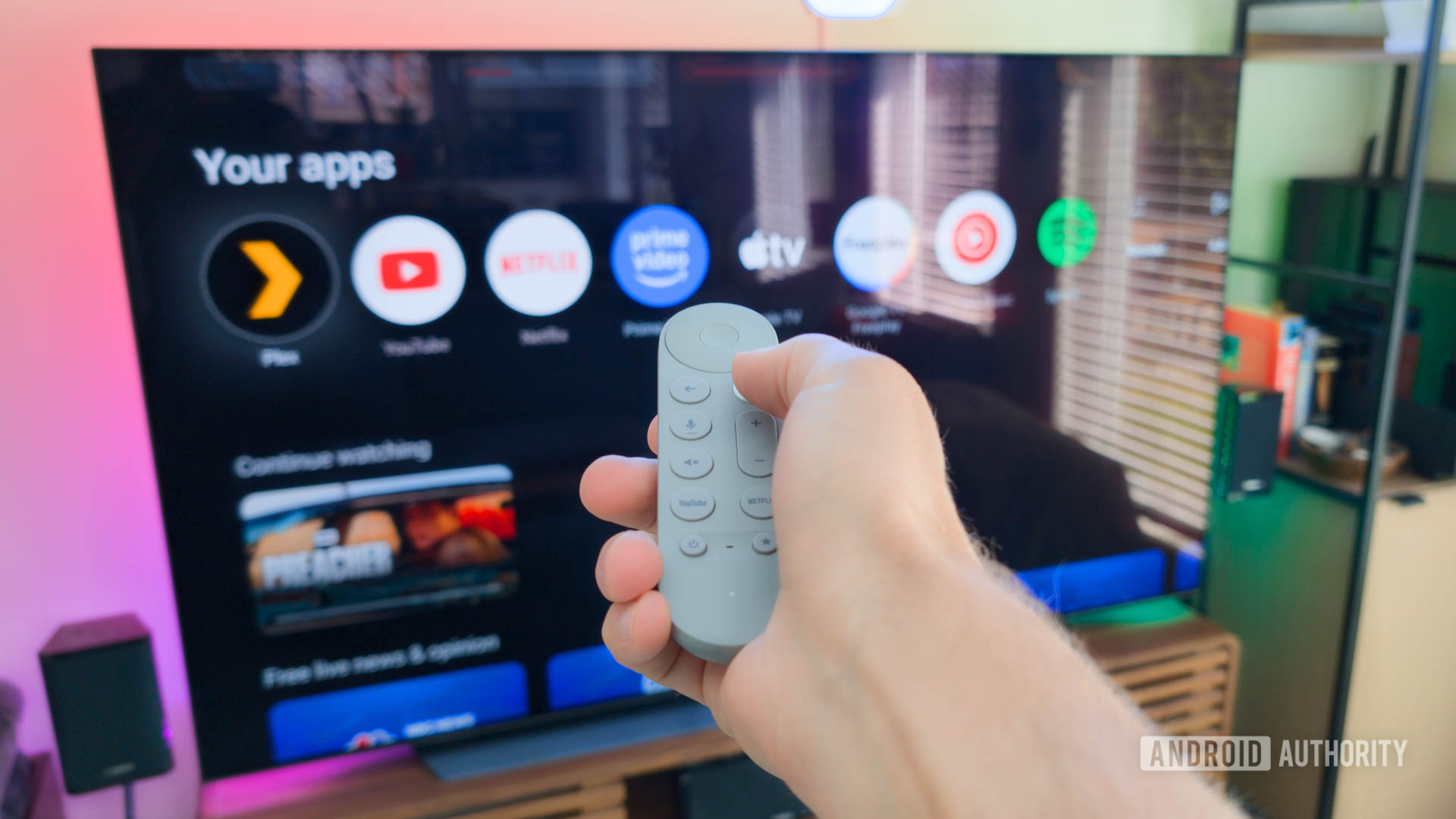
Google TV Streamer remote in hand controlling TV


We’ve seen a few reports of issues with screen flickering on the Google TV Streamer, the good news is the solution seems to be pretty easy, though there are a few possible fixes.

Potential solutions​

  • Check your HDMI cables by swapping them out for another pair. Believe it or not, the problem really can’t sometimes be that simple.
  • It’s also possible the variable refresh rate or the display resolution could be the issue here. One possible fix is to change the display setting from Auto to your TV’s native resolution. Sometimes there’s a small problem that’s preventing it from properly detecting your display.

Quick Guides: How to restart, factory reset, and more​

Below are quick guides for core functions like restarting, factory resetting, and more.

How to restart the Google TV Streamer​

There are three ways to restart the Google TV Streamer. First, you can simply unplug the power cable and leave it unplugged for a minute, and then plug it back in. You can also go to Settings (Gear) > System > Restart with your remote or you can press the power button on your remote for eight seconds to reset it completely.

How to Factory Reset the Google TV Streamer​

There are two methods actually, but let’s start with using the remote.
  • Go to Settings (It’s a gear) and select System > About > Factory reset.
  • Follow the onscreen prompts, if any, and once complete your device will be fully reset.
You can also reset the device directly, such as in situations where it won’t boot into the OS properly by pressing and holding the the button on the back for 10-12 seconds, and then the LED will start blinking yellow. Once the LED turns white you’ll release the button and the factory reset process will begin.

How to update the Google TV Streamer​

To update your Google TV Streamer you’ll want to go to Settings > System > About > System Update. If your device finds an update you can click Install Update and follow the prompt.

Is this running on Android TV OS?
 

Henry Ng

Arch-Supremacy Member
Joined
Aug 9, 2011
Messages
17,164
Reaction score
1,005
HBO Max coming up soon but like everyone not excited here at all. Why? When Netflix first came, everyone so excited.
 
Last edited:

xiaofan

High Supremacy Member
Joined
Sep 16, 2018
Messages
34,618
Reaction score
11,436
Good review (better review than typical Youtubers).
https://androidpctv.com/google-tv-streamer-4k-review/

The CPU is one of the weak point but should still be good enough. 4GB/32GB configuration is nice improvement over the 2GB/8GB configuration of the Google Chromecast 2020 with Google TV. Gigabit Ethernet is quite nice if you can use wired connection.

Reviewer's rating:

PROS
  • Google TV 14 nice
  • Dolby Vision / Atmos compatible
  • 4K streaming
  • BT remote with pager
  • Gigabit Ethernet
  • Attractive design
CONS
  • Wifi 5
  • Improvable SoC
  • Android 32 bit
  • Expensive
Score – 68%
 
Last edited:

Henry Ng

Arch-Supremacy Member
Joined
Aug 9, 2011
Messages
17,164
Reaction score
1,005
Good review (better review than typical Youtubers).
https://androidpctv.com/google-tv-streamer-4k-review/

The CPU is one of the weak point but should still be good enough. 4GB/32GB configuration is nice improvement over the 2GB/8GB configuration of the Google Chromecast 2020 with Google TV. Gigabit Ethernet is quite nice if you can use wired connection.

Reviewer's rating:

PROS
  • Google TV 14 nice
  • Dolby Vision / Atmos compatible
  • 4K streaming
  • BT remote with pager
  • Gigabit Ethernet
  • Attractive design
CONS
  • Wifi 5
  • Improvable SoC
  • Android 32 bit
  • Expensive
Score – 68%
How much is this selling in Singapore?
 

xiaofan

High Supremacy Member
Joined
Sep 16, 2018
Messages
34,618
Reaction score
11,436
How much is this selling in Singapore?

Not officially selling in Singapore. So you may have to get from overseas (US$99.99 official price). I did a quick search within the Shopee app and two shops are selling at very high price (>S$200) and that is not worth buying. It is too new so that the price is high. Later the price will drop.

I will still suggest those who want to have a cheaper box to go with Xiaomi Mi Box S Gen 2 since it is quite a bit cheaper and officially selling in Singapore by Mi physical and online shops.
 

limmk

High Supremacy Member
Joined
Jul 5, 2001
Messages
40,567
Reaction score
8,141


Google has started rolling out the first update to the Google TV Streamer well over a month after the device hit the market.

Out of the box the Google TV Streamer set-top box is running Android TV OS 14, the first device to do so, and ships with the August 2024 security patch with build number UTT3.240625.001.K5. The first update for Google TV Streamer is rolling out now as a 35.35 MB update carrying the version number UTT3.240625.001.K9.

Google has not yet added this new version to its changelog.

Oddly, this update doesn’t deliver a new security patch, or really any significant changes for the Streamer. Google’s changelog doesn’t mention anything besides “bug fixes and performance improvements,” and users who have installed the update haven’t reported any significant fixes either.

Google TV Streamer remains on the August 2024 security patch, older than the September patch that Chromecast with Google TV received in October. If the Streamer follows the same update cadence as the Chromecast, though, another update should be available within the next few weeks.

Despite its mere 35 MB size, the update took quite a while to install on our Streamer, with a two-step installation process followed by a reboot.

  • google-tv-streamer-update-1.jpg
  • google-tv-streamer-update-2.jpg
 

limmk

High Supremacy Member
Joined
Jul 5, 2001
Messages
40,567
Reaction score
8,141


The Google TV Streamer is getting its first update, and one of the new features allows users to manually pick audio output formats such as Dolby formats.

Roughly two months after it launched, Google has started rolling out the first update for the Google TV Streamer. The update, which is very minor, doesn’t carry any changes within its short changelog. However, it does bring one new feature that Google didn’t mention.

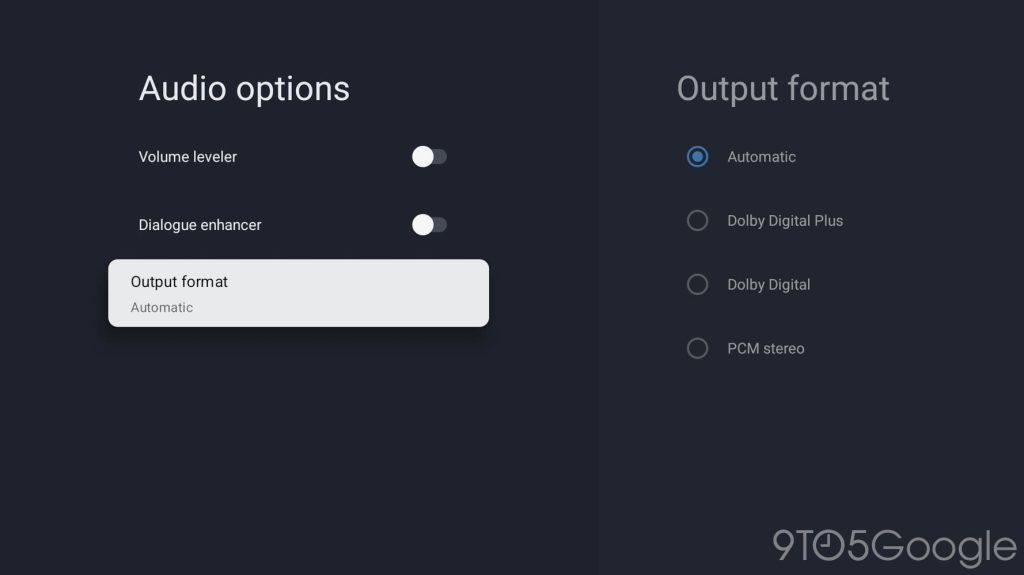
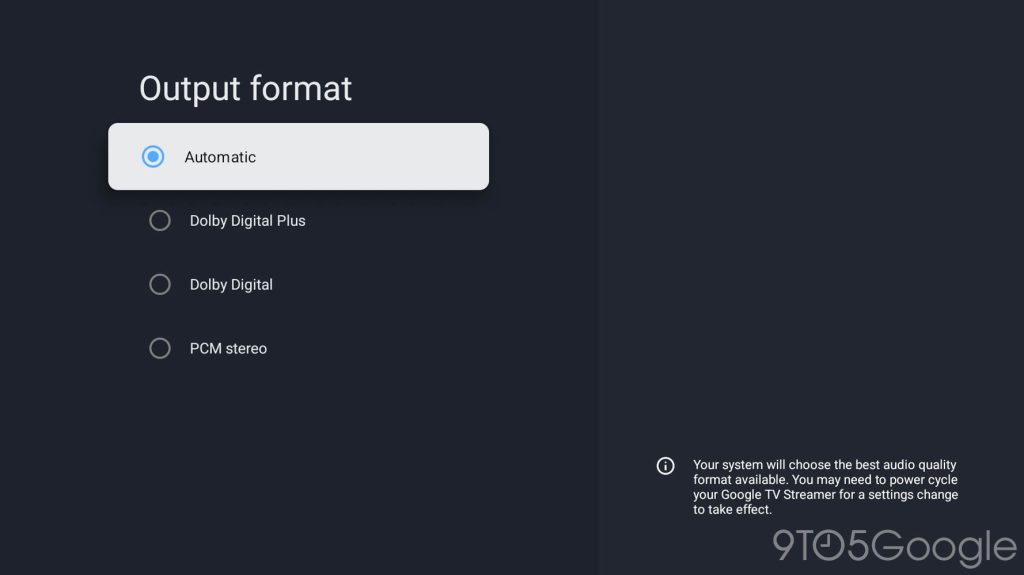
Through the Settings menu, there’s a new “Output format” under “Audio options.”

This new selection page allows users to manually pick the audio output format that’s passed along to your audio hardware. This is set to “Automatic” by default, but can be changed to Dolby Digital Plus, Dolby Digital, or PCM stereo. This specific menu didn’t exist prior to this update.

However, this is not really a complete fix for something that’s been missing. Many users have ben requesting, including those in our comments section, support for audio passthrough on the Streamer. The feature was supported on Chromecast with Google TV, but is lacking on the Streamer. Passthrough is typically used in home theater setups for higher quality audio. The Streamer instead passes audio to your speakers as PCM (or, now, as Dolby Digital formats), which isn’t ideal for all setups, and has caused issues for some users.

The first Google TV Streamer update is now available, and it’s likely more will be on the way in the not-too-distant future. What’s something you’d like to see added in the next update?

  • google-tv-streamer-audio-options-2.jpg
  • google-tv-streamer-audio-options-1.jpg
 
Important Forum Advisory Note
This forum is moderated by volunteer moderators who will react only to members' feedback on posts. Moderators are not employees or representatives of HWZ Forums. Forum members and moderators are responsible for their own posts. Please refer to our Community Guidelines and Standards and Terms and Conditions for more information.
Top