Google Gemini 3.5

limmk

High Supremacy Member
Joined
Jul 5, 2001
Messages
41,206
Reaction score
8,166


In a rather unexpected move, Google announced Saturday that it is rolling out the latest 2.5 Pro (experimental) model to all (free) Gemini app users.

Gemini 2.5 Pro was just announced on Tuesday as Google’s “most intelligent AI model” that integrates thinking capabilities rather than offering it as a separate variant. It is currently in the “experimental” phase, but has support for a number of features, including apps/Extensions, file uploads, and (as of today) Canvas.

At launch, it was only available for Gemini Advanced subscribers, with Google One AI Premium coming in at $19.99 per month (in the US).

On Saturday afternoon, Google announced that it has “decided to roll out Gemini 2.5 Pro (experimental) to all Gemini users, beginning today.”


Gemini-2.5-Pro-free.jpg


It’s already seeing wide availability on gemini.google.com, and coming soon to the Android and iOS apps. Both recently got better at remembering what model you selected.

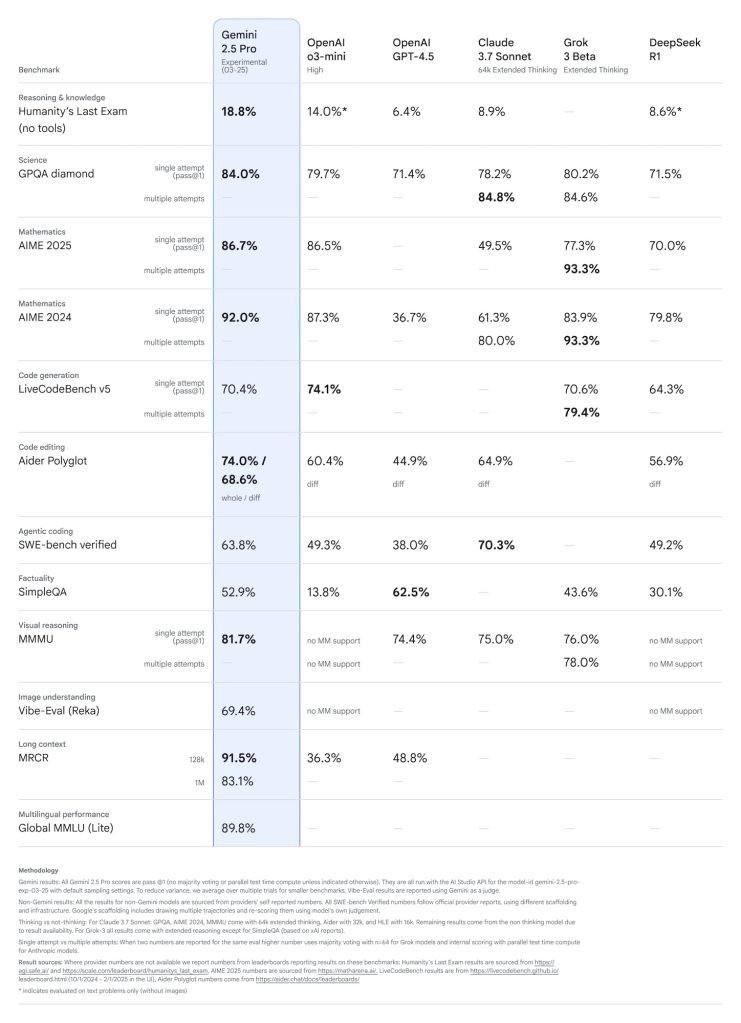
Google says it wants “to get [its] most intelligent model into more people’s hands asap.” Gemini 2.5 Pro (experimental) is currently at the top of the LMArena leaderboard, while leading on math and science benchmarks. Google is also working on improving coding performance.

Gemini 2.5 Pro experimental


Looking ahead, it’s not clear whether Google will make the stable version of 2.5 Pro free to all Gemini users, or whether today’s move is just for the testing phase. Before this, it seemed like 2.0 Flash Thinking and 2.0 Flash were going to be the free offerings.

That said, Google has been making more and more features available for all users in recent months, including Deep Research, Gems, Saved info, document upload/analysis, and generating images of people. The main feature for Advanced subscribers is a 1 million token context window, as well as higher usage limits.
 

limmk

High Supremacy Member
Joined
Jul 5, 2001
Messages
41,206
Reaction score
8,166


Last month, Google renamed Gemini Extensions and previewed an upcoming Google Photos “app,” with more details on how it works now available.


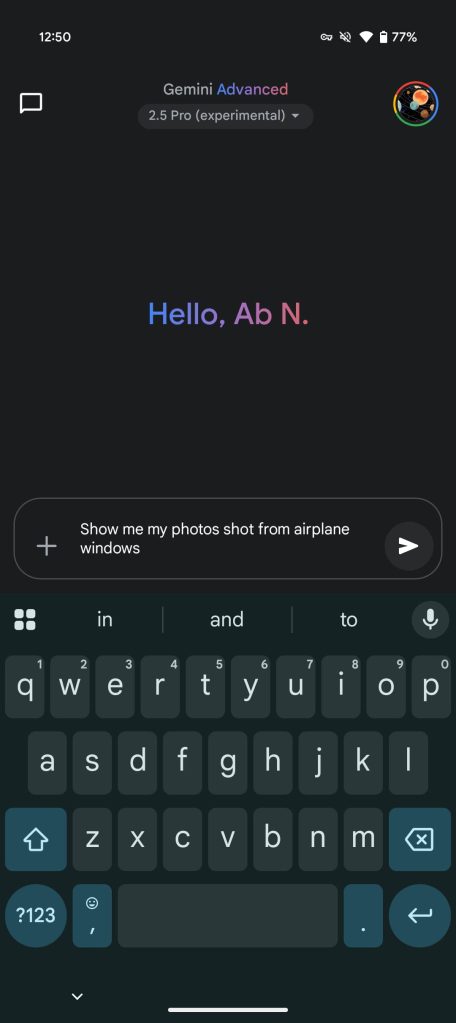
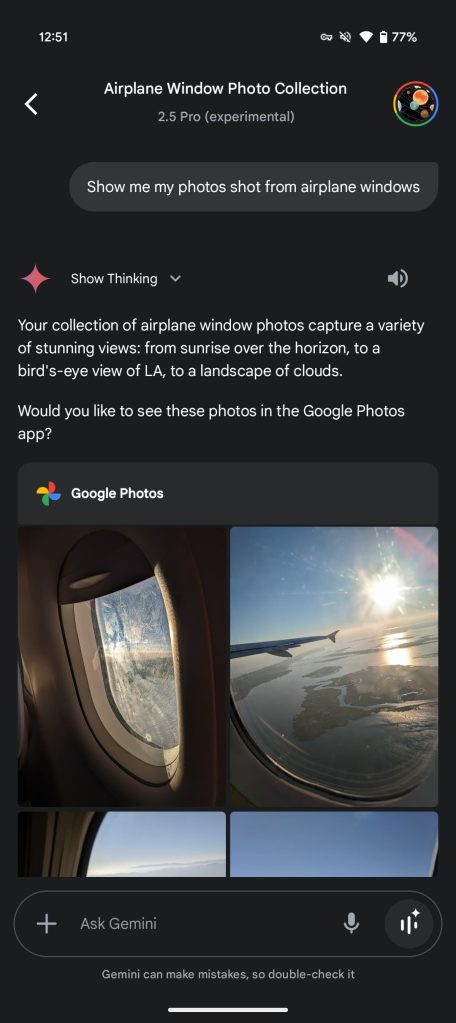
Besides @google Photos, you can include “my photos” in your prompt to invoke the new integration. It lets you “search for a specific memory or recall information directly from your photo gallery with the Google Photos app in the Gemini mobile app” on Android and iOS.

The first aspect lets you find photos and videos based on:

  • Your face groups or relationships you’ve saved in Photos
  • Location or date the photo was taken
  • Description of what’s in the photo
  • Your current conversation with the Gemini mobile app
Example prompts include:

  • Find my photos of Alex
  • Show my photos from last summer
  • Show me recent selfies
  • Show my photos from my most recent trip
  • Find my photos of landscapes
Meanwhile, you can “for important details found in your photos” with prompts like:

  • @google Photos what themes have we had for Lena’s birthday parties?
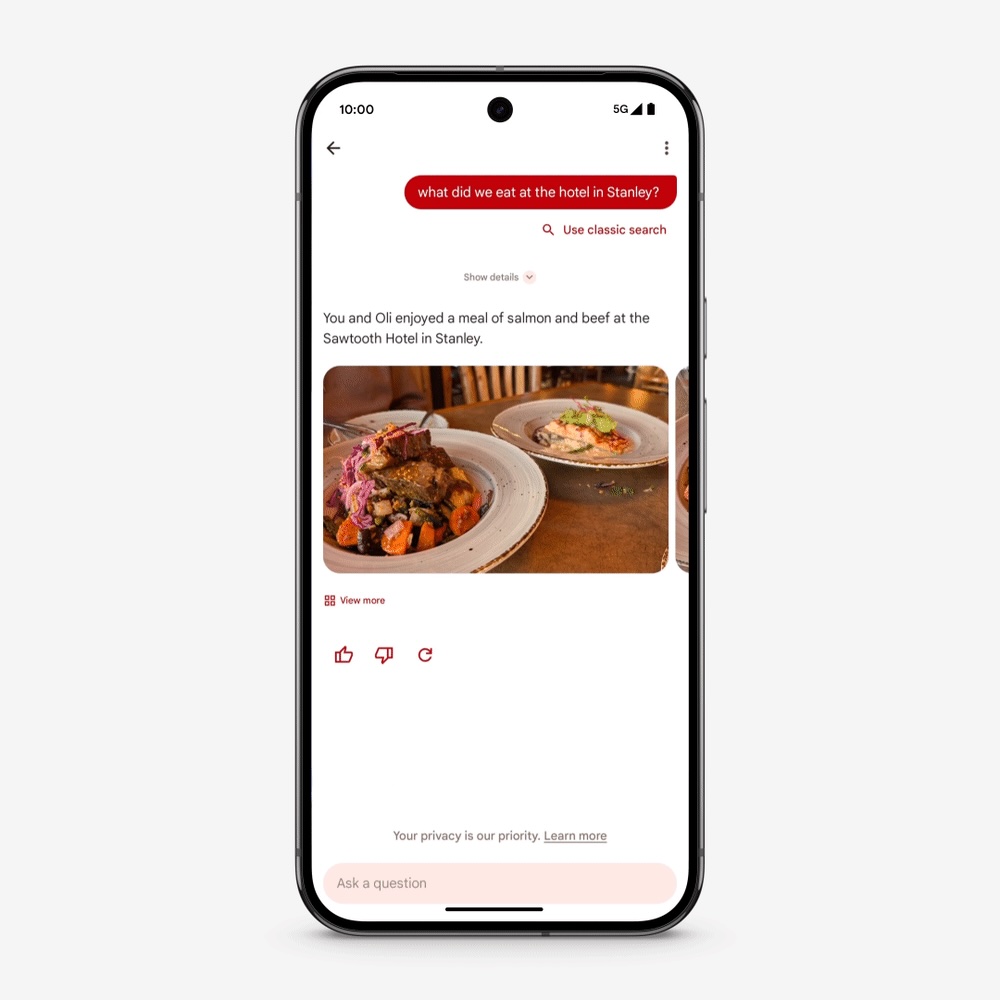
  • @google Photos what did we eat at the hotel in Stanly?
  • @google Photos what were some of the things we ate in Mexico City?
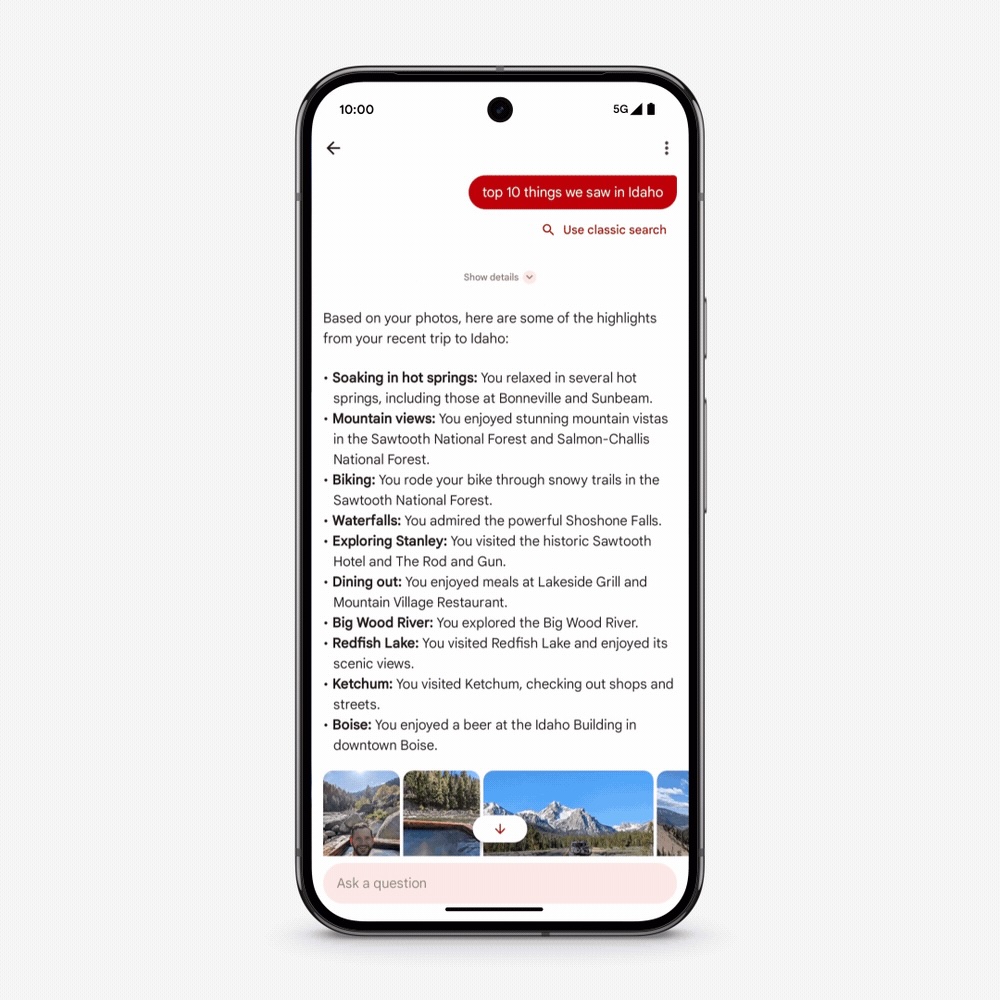
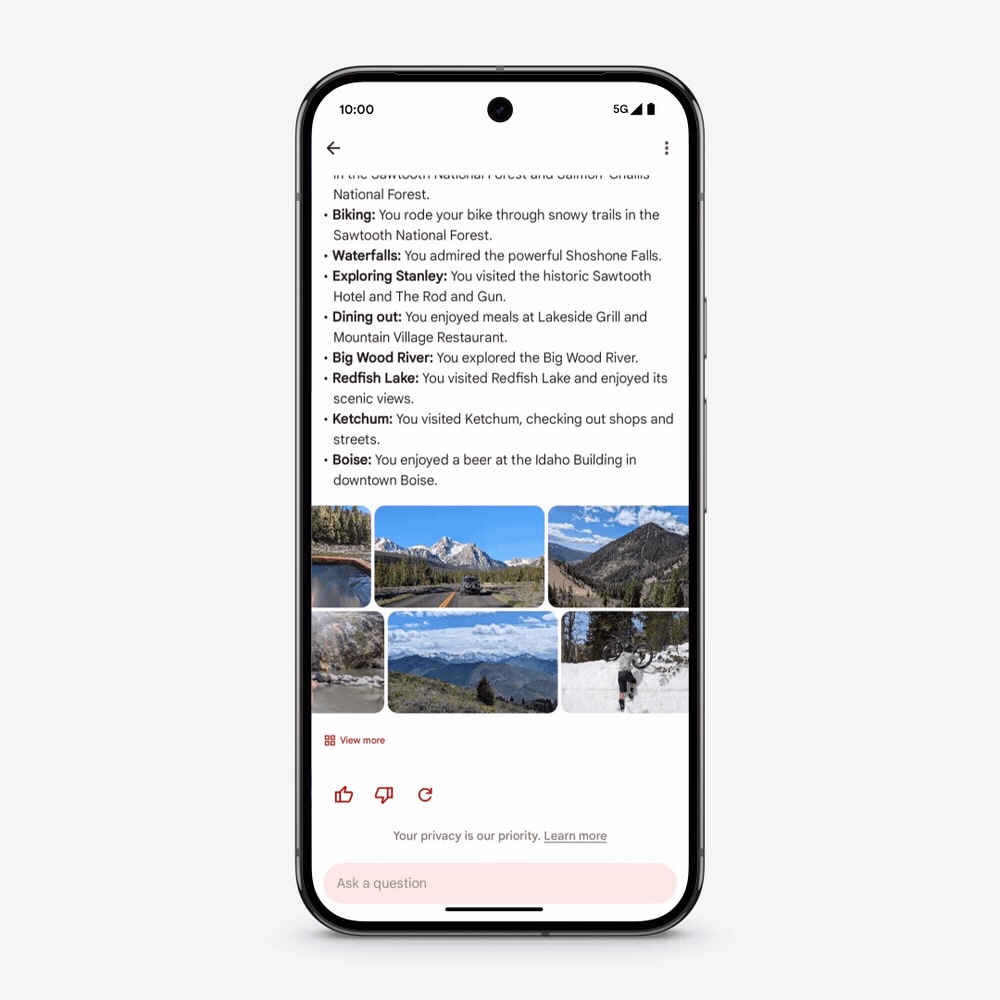
  • @google Photos what are the top 10 things we saw on our last trip?
  • @google Photos what’s my driver’s license number?
This is exactly like the Ask Photos integration that entered testing last year.

  • Google Asks Photos
  • Google Asks Photos
  • Google Asks Photos

Google Asks Photos
Tapping an image or album result opens Google Photos, while you can “drag and drop a photo from the Gemini on-screen overlay into another app” (on Android).

If Gemini’s response includes photos retrieved from Google Photos, the share or export features only work with the text portion of the response and photos aren’t included.

In terms of availability, Google is “releasing this feature gradually to a select group of invited users.” (That invite might refer to the Ask Photos waitlist.) We’re not yet seeing it live on accounts we checked today.
 

limmk

High Supremacy Member
Joined
Jul 5, 2001
Messages
41,206
Reaction score
8,166


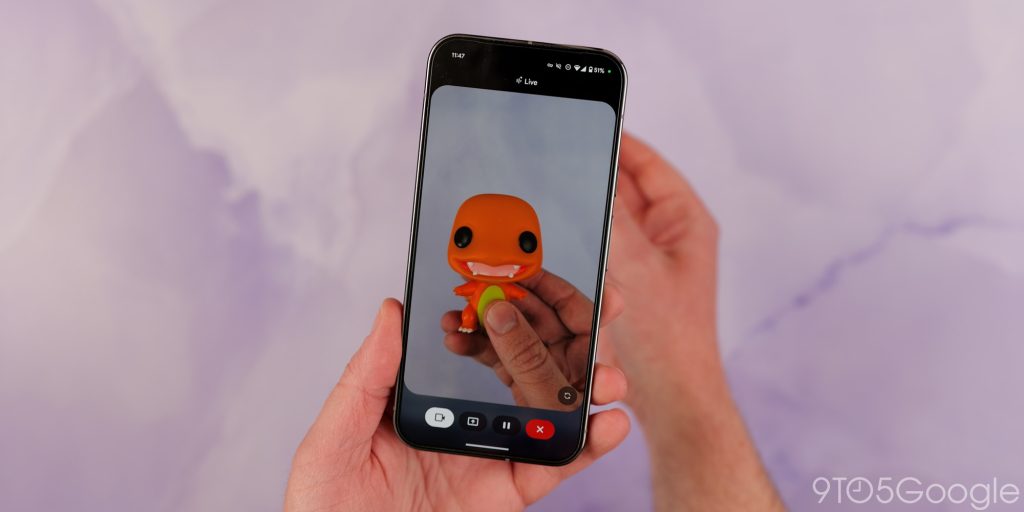
Google has been rolling out Gemini Live’s visual Astra-powered video functions super slowly, but it is starting to expand. Here’s what it’s like to use and what you need to know.

The company is suggesting that the arrival of the camera and screen sharing controls are part of an “April 2025 Pixel Drop” but a non-scheduled set of features feels odd given that the function will work on practically any Android phone.

When you launch the Gemini app on your Android phone, a pop-up will indicate that Gemini Live’s Astra-powered features are ready to test. The mini pop-up says you can “talk through ideas, learn about your environment” or “get help with what’s on your screen.” The latter refers to the screen-sharing function, which is like a souped-up version of Circle to Search.


Gemini Live Astra: How to access​

To access any of the new visual modes, you will need a Google One AI Advanced subscription plan. If you have a Pixel 9 Pro, Pro XL, Pro Fold, or some Galaxy S25 models, you will have received a substantial free trial of this paid tier. The trial is 12 months on Pixel 9 Pro models and 6 months on S25 devices.

Google has given us a couple of ways to access the new controls. The easiest is via the dedicated Gemini app. When you launch Gemini Live, the usual call-style UI will gain an extra couple of buttons. There is a camera button and a presentation icon.

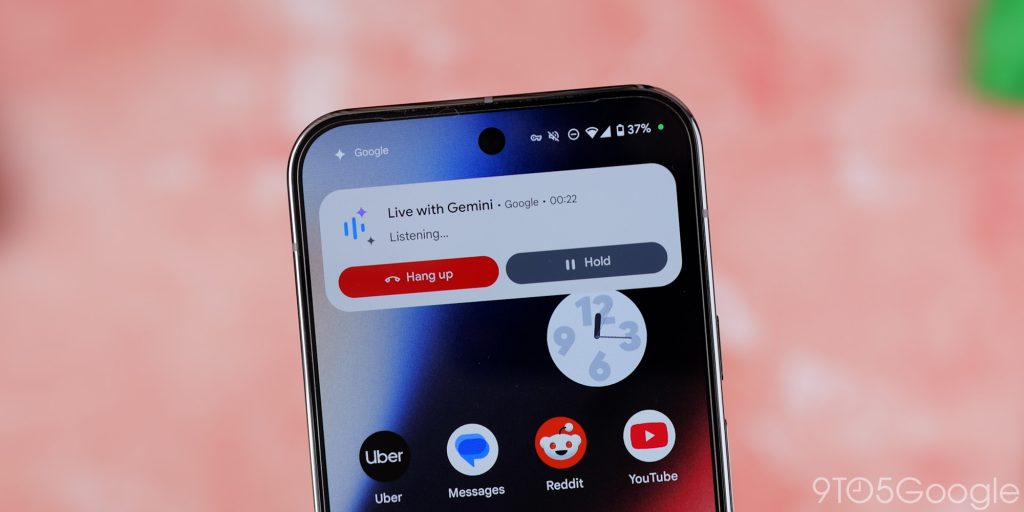
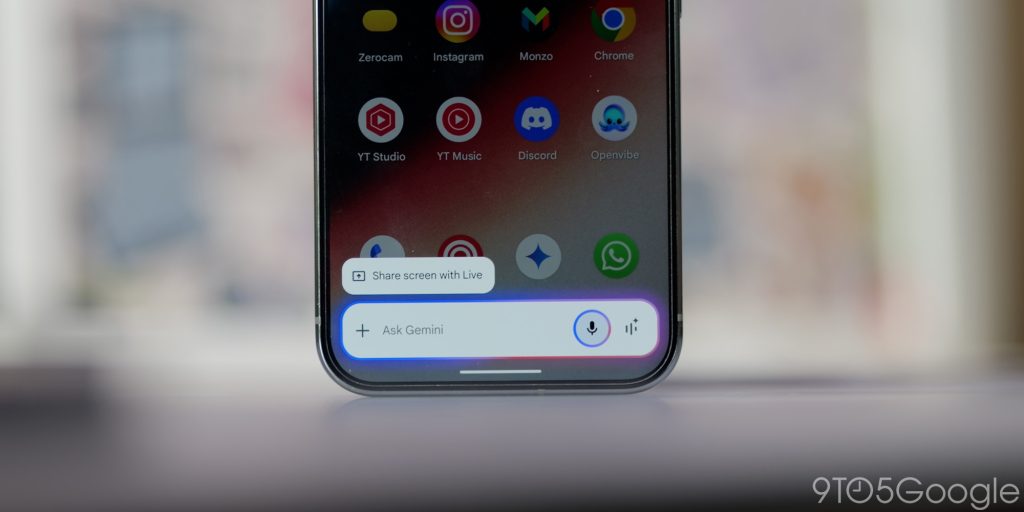
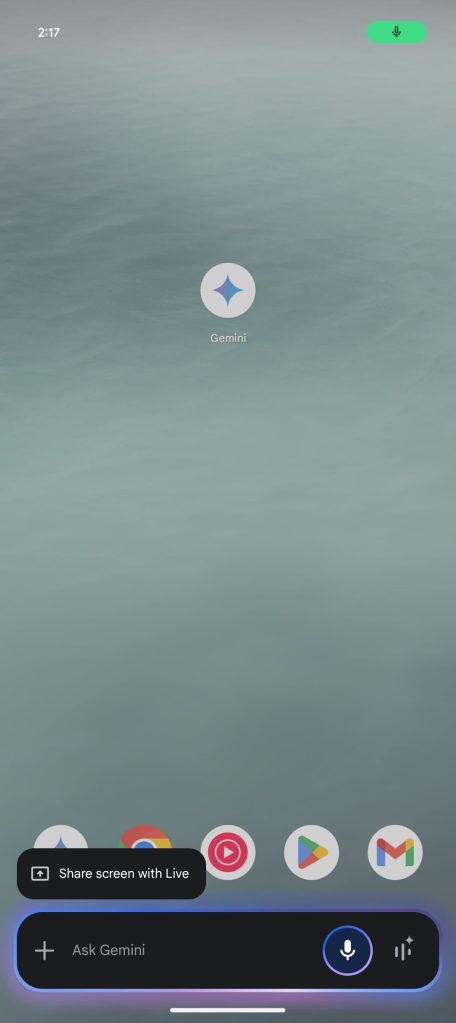
You can use your voice with the “Hey, Google” wake phrase. Above the compact Gemini pop-up bar you’ll see a “Share screen with Live” tappable button that will start AI-powered screen sharing. You are not able to select a single app yet. Instead, you have to share your entire screen. This might be intrusive for some people. A status bar chip will indicate that this is active. Tapping allows you to close or end your session quickly.

What’s it like to use?​

Live-with-Gemini-call-UI.jpg
gemini live astra

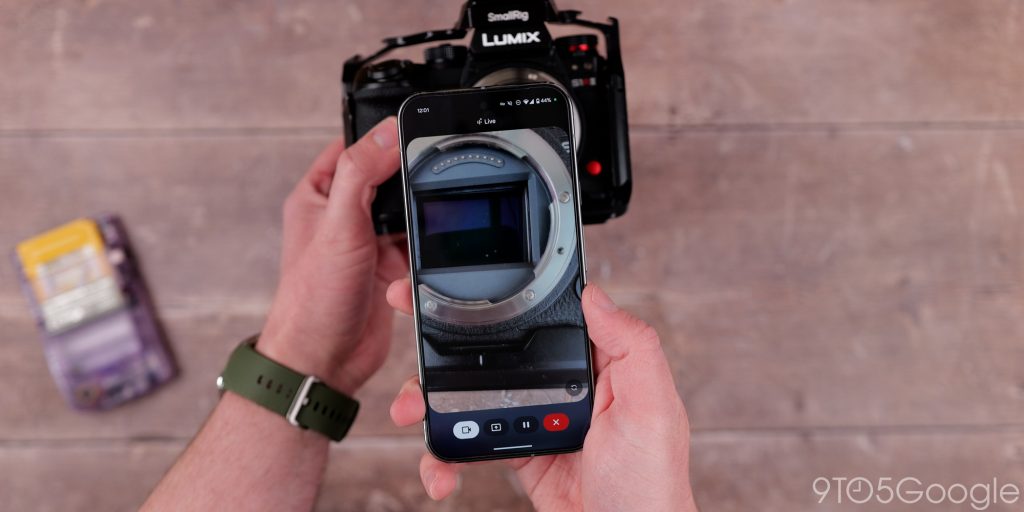
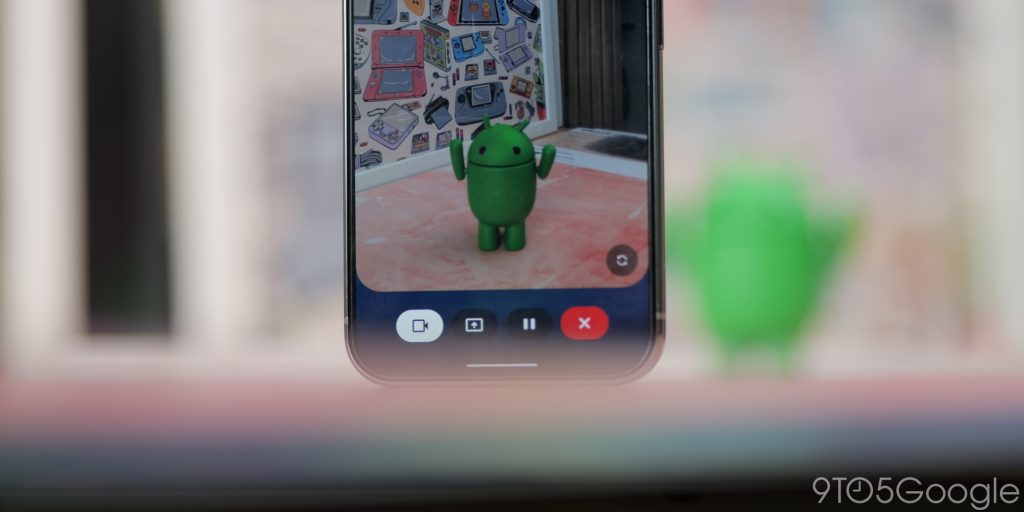
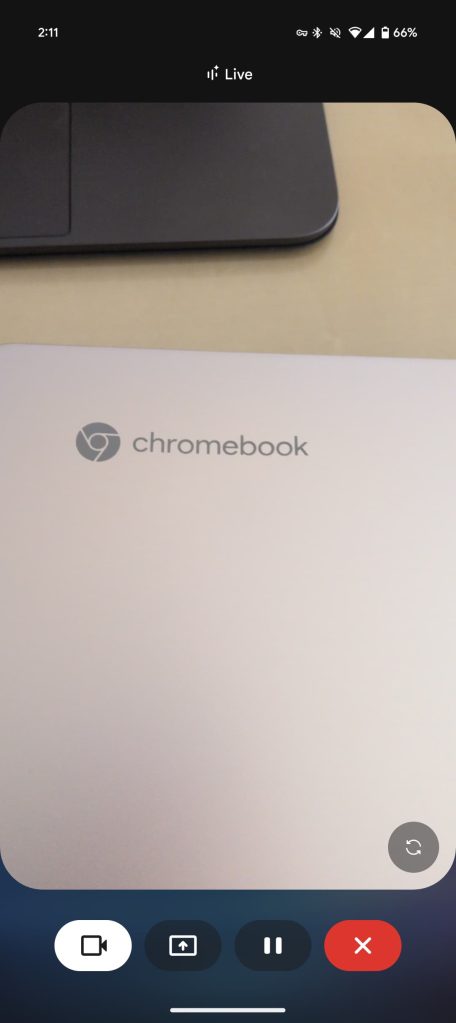
The initial start-up and introduction is very fast, but the viewfinder opens and is very easy to decipher. It somewhat mimics the Pixel camera UI, so it’s instantly familiar to someone who has used Google phones for a while. You don’t have to use the rear camera. There is a toggle to switch to the selfie camera if you want to put yourself or your background in the frame and ask questions or advice.

When using the Gemini Live Astra mode, I have found that focus in the camera is a little finicky, as lenses switching automatically can be annoying up close. It advises you to stay still or keep the subject as still as possible. I can attest to this, but despite some subjects not being in focus, Gemini is quick to determine what something is or produce information without too much difficulty.

Not being able to zoom in, even with dedicated telephoto lenses on your phone also feels shortsighted. If you want to point out something in the world, you’re going to have to get very close up, or you hope that Gemini can work out what you’re pointing at.

For simple or basic queries, it’s perfectly adequate. However, the best use cases are for deeper questions like help or advice on objects, areas, and locations rather than asking simple things you probably could search for yourself.

A prime example is getting the calorific date on food items or allergen information. I even tried some real-time translations, but while they seemed to be fairly accurate, Gemini Live does not give or show on-screen text. You only get audio cues and answers. Google Lens overlays the translated text, so it may be a better option for translating signs, text, and more.

At the moment, you have to wait until you close a session before you can “see” some of the text-based responses. So you do get a chat log of what was said, what Gemini responded and any actions you can take. This could be a little better implemented, but for now it’s fine. In tandem with other apps like Google Maps and various other services, you could probably use this as a visual learning aid or tutorial option.

I tested Gemini Live’s Astra-style video functions on the Pixel 9 Pro XL, and although it wasn’t always instant, it felt pretty smooth, and responses were almost always fast enough to feel fluid.

Screen sharing feels a little less “natural” than using a camera. Because you get no visual feedback, merely audio cues and information, it doesn’t feel integrated in the same way. Getting webpage summaries is about the extent of the feature’s usability or getting further information without leaving a page or screen. I’d wager this will change as we get more integrations. Think the ability to add things to shopping lists with URLs or flight information to your calendar when making travel plans. We can’t do any of that yet.

Accuracy and other considerations​

Gemini-Live-Share-screen-button.jpg


Like almost all AI platforms, Gemini is not a perfect system. In fact, it can get things wrong in lots of scenarios. Where it does well is with information recall.

I found that certain items caused issues where Gemini wasn’t able to give me accurate information. This is going to be fine for things you know about, and you can effectively interrupt and course-correct the wayward AI. The problem here is that hallucinations about things you might not know all that well could lead to problems.

For instance, I asked about a Gameboy game cartridge, and Gemini misidentified the cart and gave me wildly incorrect information about the title and gameplay. Making sure you have a clear view of something within the viewfinder helps to mitigate this. Just adjusting where I “filmed” instantly resolved the problem without intervention. You simply can’t trust the information blindly at this stage. Gemini is still prone to errors, and they range from minor to major in equal measure.

The world-facing camera…with caveats​

gemini live astra
gemini live astra


Android XR and the AR platform will rely heavily on Gemini as the means to interact with and get information about the world around us. Gemini Live utilizing Astra functions is the first step in realizing that end goal. Per the demos shown late last year, we might be a few years away from Google-made AR glasses, but this early introduction isn’t a bad way to kick things off.

Like any AI product, be careful putting 100% of your trust in the information spewed out. That said, this seems like a great start and a solid way to interact with the world around you or help you when you get stuck. It’ll improve over time and get better as more data points are introduced, so at least in theory, it’s the worst that Gemini Live video modes will ever be – which isn’t all that bad to begin with.

Sharing your screen is very limited at this stage, and while it is a nice secondary option, it is even more limited. If it can develop to play nicely with more of your other services, it’ll be a useful tool. Right now, it’s a parlor trick that does little more than regular Gemini Live.
 
Last edited:

limmk

High Supremacy Member
Joined
Jul 5, 2001
Messages
41,206
Reaction score
8,166


After previewing last month, the Google Photos app/Extension/integration is now rolling out to the Gemini app on Android.

This Google Photos app, or Extension, has two components. The first lets you find your backed up images and videos based on:

  • Your face groups or relationships you’ve saved in Photos
  • Location or date the photo was taken
  • Description of what’s in the photo
  • Your current conversation with the Gemini mobile app
Example prompts include, with both @google Photos and “my photos” triggering the integration:

  • Find my photos of Alex
  • Show my photos from last summer
  • Show me recent selfies
  • Show my photos from my most recent trip
  • Find my photos of landscapes
Gemini app Google Photos


The second aspect lets you find “ask for important details found in your photos,” which is similar to the standalone Ask Photos functionality in Google Photos:
  • @google Photos what themes have we had for Lena’s birthday parties?
  • what did we eat at the hotel in Stanly?
  • what were some of the things we ate in Mexico City?
  • what are the top 10 things we saw on our last trip?
  • what’s my driver’s license number?
Tapping an image or album result opens the Google Photos app, while you can tap “Show more” inline to view additional results.

To enable, go to the Gemini app > top-right corner profile menu > Apps > scroll to Media > Google Photos. It appears alongside Spotify, YouTube, and YouTube Music, while a small tweak today introduced a more detailed Google Workspace card that better explains what you can do with Gmail, Google Calendar, etc.

The Google Photos app is rolling out “gradually to a select group of invited users.” We’re seeing it just on Android today in the US.

Gemini app Google Photos
 

limmk

High Supremacy Member
Joined
Jul 5, 2001
Messages
41,206
Reaction score
8,166


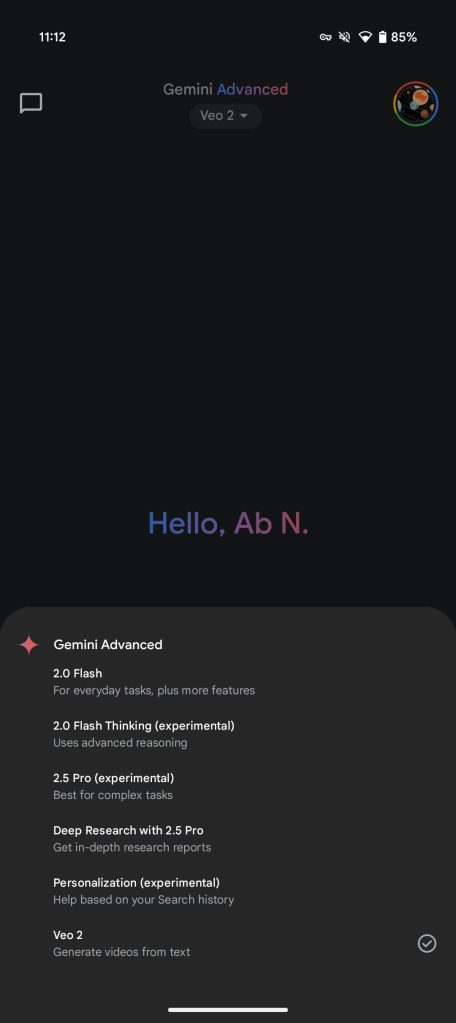
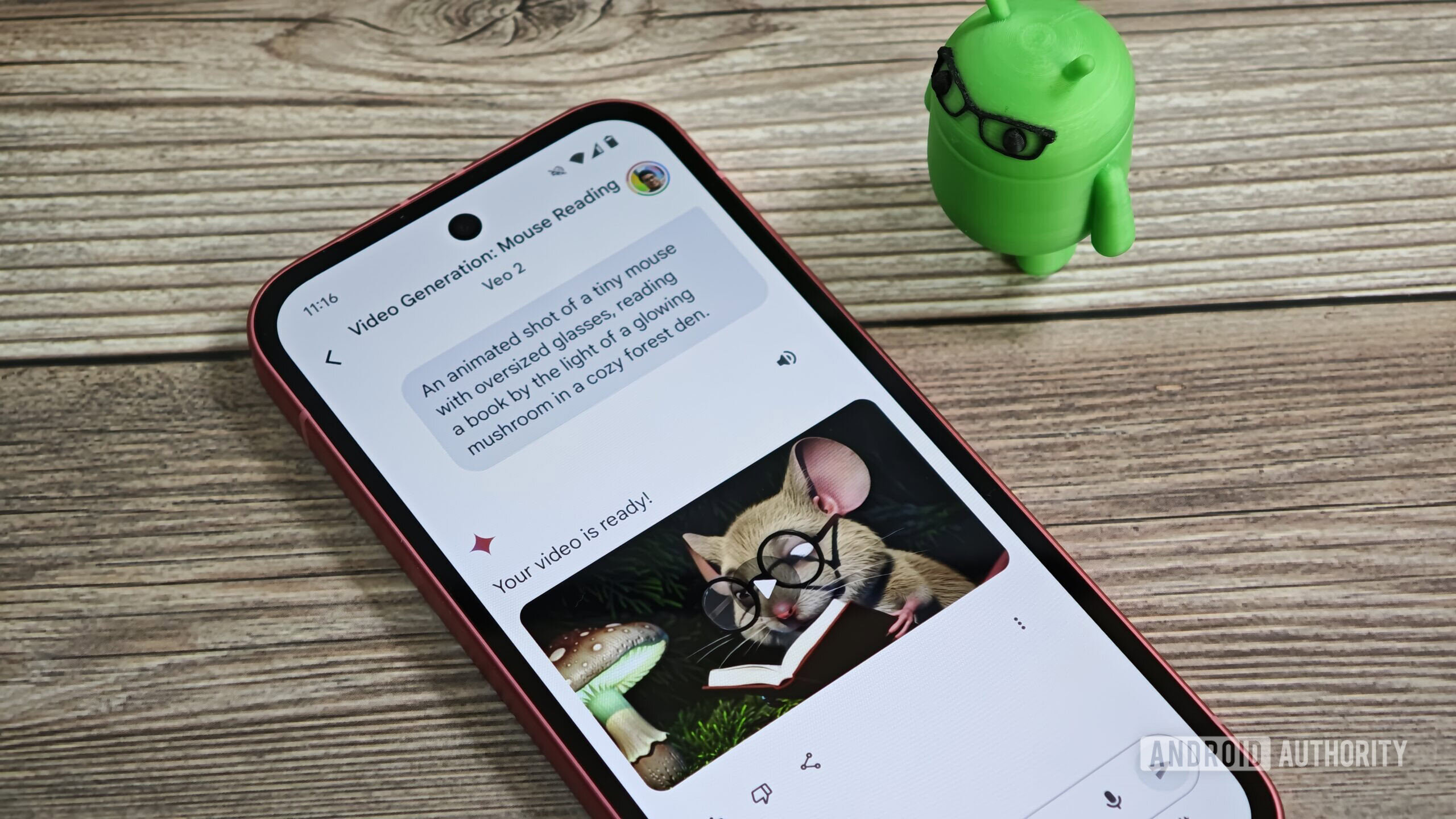
Following images and audio, Google is bringing video generation powered by its Veo 2 model to the Gemini app if you’re an Advanced subscriber.

Announced at the end of last year, Veo 2 touts “fluid character movement, lifelike scenes, and finer visual details across diverse subjects and styles,” as well as “cinematic realism,” thanks to an understanding of real-world physics and human motion.

Gemini-app-Veo-2-1.jpg

Gemini-app-Veo-2-2.jpg


In Gemini, Veo 2 can create eight-second video clips at 720p resolution. Specifically, you’ll get an MP4 download in a 16:9 landscape format. There’s also the ability to share via a g.co/gemini/share/ link. To enter your prompt, select Veo 2 from the model dropdown on the web and mobile apps.

Just describe the scene you want to create: “The more detailed your description, the more control you have over the final video.” It takes 1-2 minutes for the clip to generate.

This opens up a world of fun creative possibilities, letting your imagination go wild to picture unreal combinations, explore varied visual styles from realism to fantasy, or quickly narrate short visual ideas.

Some example prompts and outputs (that we generated) include:
  • “small puppy running through a garden filled with thick snow in the early morning sun”

  • “a kitten being introduced to the beach, specifically near the water, and then getting surprised as a wave crashes nearby”

  • “Aerial shot of a grassy cliff onto a sandy beach where waves crash against the shore, a prominent sea stack rises from the ocean near the beach, bathed in the warm, golden light of either sunrise or sunset, capturing the dramatic elevation change and the serene beauty of the Pacific coastline.”


On the safety front, each frame features a SynthID digital watermark.

Only available to Gemini Advanced subscribers ($19.99 per month), there is a “monthly limit” on how many videos you can generate, with Google notifying users when they’re close. It is rolling out globally — in all languages supported by Gemini — starting today and will be fully available in the coming weeks.

Meanwhile, Google One AI Premium subscribers now have access to Veo 2 generation in Whisk. Announced in December, this Google Labs experiment lets you “prompt with images” instead of text. What’s new today is the ability to “Whisk Animate” wherein the images you create can be turned “into vivid eight-second videos with Veo 2.”
 

limmk

High Supremacy Member
Joined
Jul 5, 2001
Messages
41,206
Reaction score
8,166

I tried Gemini's new AI video maker, and I'm amazed how far AI has come

We’ve come a long way since that viral, disturbing AI-generated video of Will Smith eating spaghetti

Veo 2 in Gemini on an Android phone


TL;DR
  • Google is rolling out an update to its Gemini chatbot that adds support for Veo 2, its text-to-video AI model.
  • Gemini Advanced subscribers can use Veo 2 to create short, 8 second video clips at 720p resolution.
  • We came out impressed at how Veo 2 performed, though it’s clear that a lot of work still needs to be done.
The rate of advancement in the field of AI has been remarkable. Today’s AI image generators can create incredibly high-quality images that can pass for real photos, a dramatic improvement from the blurry, low-resolution files of early models. While many predicted that it would take years for AI text-to-video generators to make the same leap, video creation models like Google’s Veo 2 demonstrate the rapid progress in this area. Access to Veo 2 has been limited thus far, but Google is now making the model available to the general public, allowing users with access to its Gemini chatbot to create short videos.

What is Veo 2?

Veo 2 is Google’s most advanced video generation model, capable of creating high-quality videos in a range of subjects and styles. According to Google, Veo 2 demonstrates an “improved understanding of real-world physics and the nuances of human movement and expression” and generates inaccurate details less frequently than other video generation models. To prevent misuse, all videos created by Veo 2 are marked with an invisible SynthID watermark that identifies them as AI-generated.
Screenshot of Veo 2 home page

Mishaal Rahman / Android Authority
Although Google announced Veo 2 last year, it hasn’t been widely available until now. The model was only available in early access through VideoFX, which required waitlist sign-ups. While YouTube’s Dream Screen feature uses Veo 2 to generate video clips, these clips cannot be used outside of the platform.
Now, more users can use Veo 2 to generate short video clips. Google says that video generation in Gemini is now available to Gemini Advanced subscribers on the web and mobile. The feature is available in all languages that Gemini supports and doesn’t require any additional software downloads or prior experience.

How do you use Veo 2 to create videos?

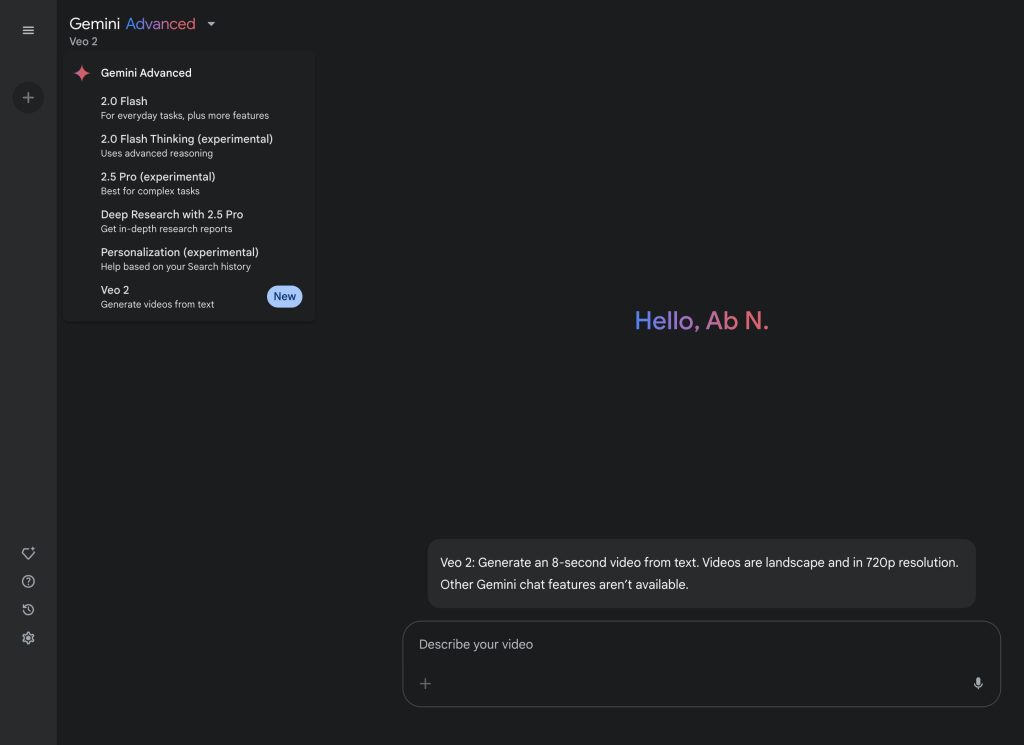
To access Veo 2 in Gemini, you need to have Gemini Advanced, which is available as part of the Google One AI Premium plan. You can then access Veo 2 by opening the Gemini app or website, expanding the model selector dropdown, and selecting the Veo 2 option.
Once selected, the following text will appear above the input box: “Veo 2: Generate an 8-second video from text. Videos are landscape and in 720p resolution. Other Gemini chat features aren’t available.” To create a video, enter your prompt in the input box using text or voice, hit the send button, and wait for Gemini to generate the video.

How to use Veo 2 in Gemini


Gemini will generate the video based on your prompt and respond with, “Video generation may take a few minutes; please check back later.” Since there are no notifications when the video is ready, you’ll need to remain on the page or check back. Gemini may reject prompts that violate its content policy, requiring you to reword and resubmit.

After the video is generated, you can download it by tapping the download button in the video’s top right corner. On mobile, you can also share the video with a contact or on social media via the share button. Gemini automatically assigns a short, often undescriptive title based on keywords from the prompt, so it’s recommended that you change the title if you intend to save the video.

Google states that there’s a monthly limit on video creation, but the company didn’t disclose the specific limit. However, Google says it will notify you when you are approaching this limit.

An alternative way to access Veo 2 is by using Whisk Animate, a feature that lets you turn images into short 8-second animations. Whisk Animate builds on top of Whisk, a model that helps you create images using text and image prompts. Whisk Animate is available today for Google One AI Premium subscribers globally.
I’ve been using Veo 2 through Gemini for the past few weeks, and in that time, I’ve generated a multitude of videos in a variety of different styles. Here are my thoughts on Google’s video generation model so far.

Videos made by Veo 2 look great but sometimes won’t make sense

I’ve been really impressed by the quality of videos that Veo 2 generates, especially when comparing them to videos generated by earlier models. The improvement in quality is especially evident when looking at how Veo 2 handles people and animals.

For example, I took the infamous “Will Smith eating spaghetti” video, which has sort of become an unofficial AI video benchmark, and recreated it through Veo 2. Well, I tried to recreate it, but Gemini wouldn’t allow me to generate a video of Will Smith, so I just asked it to make a video of a “man eating spaghetti.” Here’s the result:


Another impressive result was when I asked it to “create a video in the form of a car commercial showing off a brand new red SUV driving along the scenic Pacific Coast Highway during the day.” It nailed the angle that I was going for, and the car looks really good as well:


There’s no driver visible in the video, but since I asked it to make a car commercial, I gave it a pass.
Another great video I made came from a prompt where I asked it to “create a documentary style video in black and white of a Prussian soldier climbing out of a trench while holding a gun during World War 1.” While Veo 2 didn’t show the soldier actually climbing out of a trench, I was still blown away at how realistic the movements of the AI-generated soldier looked.


To test how well Veo 2 handles animals, I asked it to create a video of a duck drinking water from a small blue bucket. I love to watch ducks, so I was really impressed by how well the AI model simulated the movements of the duck’s tail and beak as it drank water.


The overall quality of any video generated by Veo 2 should generally impress, but sometimes, they just don’t make sense. For instance, I asked it to create a video of a man eating some chips while sitting on a coach, and while the person and background looked realistic, the action of him eating the chips was off. Instead of grabbing some chips from the top of the bag, chips seemed to materialize into his hand from the side.

 

limmk

High Supremacy Member
Joined
Jul 5, 2001
Messages
41,206
Reaction score
8,166
Another issue that I had with Veo 2 is that it often wouldn’t follow my exact instructions. When I asked it to create a video of soldiers getting off boats and rushing the beach of Normandy during World War 2, it didn’t show any soldiers actually getting off boats. Or when I asked it to create a video of Optimus Prime transforming in slow motion, it didn’t show the actual transformation. I was surprised that the latter request even went through, though, considering the Transformers franchise is copyrighted.

Here are all the prompts I used to generate these 20 videos:
  1. An animated video of a green Bot (the mascot of the Android operating system) frolicking through a field of flowers while eating an apple.
  2. Create a drone shot panning over the Sagrada Familia in Barcelona, Spain during the golden hour.
  3. A slo-mo video of a person popping a bottle of champagne in celebration of getting a promotion at work.
  4. A tourist recording a video of a Giraffe at a zoo using their Google Pixel smartphone, from the perspective of an outsider who can see both the tourist and the Giraffe.
  5. Create a video in the style of Japanese animation about a ninja jumping over an incoming police car at night.
  6. Create a drone-style shot of a red sports car driving along the scenic Pacific Coast Highway during the day.
  7. Create a video in the form of a car commercial showing off a brand new red SUV driving along the scenic Pacific Coast Highway during the day.
  8. Create a video of a bunch of board room execs laughing as a presenter shows a slide featuring the company’s stock going up.
  9. Create a documentary style video in black and white of a Prussian soldier climbing out of a trench while holding a gun during World War 1.
  10. Create a video showing soldiers getting off boats and rushing the beach of Normandy during World War 2. Make the video a bit blurry and add a lot of camera shake to simulate an action shot.
  11. A man eating spaghetti.
  12. A top-down video of a rocket as it leaves the atmosphere and enters space above the continental United States.
  13. A close-up of a cute orange hamster being given eye drops from a dropper. The eye drop solution is being dropped into the eyes of the hamster from above while the hamster is held in the hand of a veterinarian.
  14. A cel-shaded animation of a stray cat chasing a mouse down the alley of a bustling city during the day time.
  15. A father showing his son a flipbook animation of a walking cat.
  16. A video of a woman jumping out of a plane while wearing skydiving gear.
  17. A video of a samurai sheathing his sword as leaves from cherry blossom trees are falling, in the style of Japanese animation.
  18. A video of a duck drinking water from a small blue bucket.
  19. Make a video of Optimus Prime from Transformers transforming in slow motion.
  20. A video of a young man sitting on a couch eating a bag of potato chips.
Since videos generated by Veo 2 in Gemini are short and don’t have any sound, you’ll still need to do some manual work to make them YouTube-ready. If, however, you want to automate your entire video production pipeline, you can try Google’s Vertex AI Media Studio, which integrates several AI creation models, such as Veo 2 for video, Imagen 3 for images, Chirp for voice overs, and Lyria for background music. This platform lets you create polished videos from just a text prompt.


If you’re subscribed to Gemini Advanced, give Veo 2 a shot and send us some of the videos you’ve created!

// androidauthority
 

limmk

High Supremacy Member
Joined
Jul 5, 2001
Messages
41,206
Reaction score
8,166


Last week, Google started widely rolling out Gemini Live camera and screen sharing, and the Project Astra-powered capabilities will soon be free for all Android users.

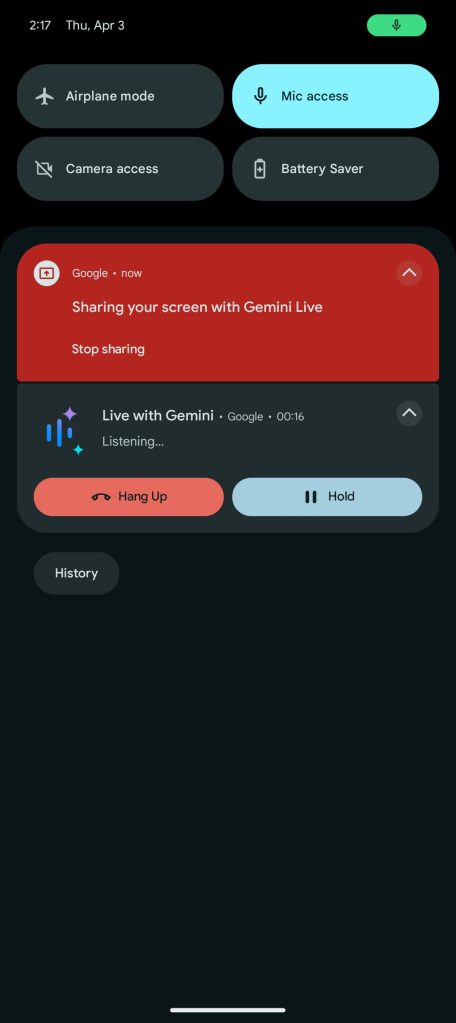
Gemini Live now lets you ask questions about what’s on your screen or camera. Screen sharing can be quickly initiated by launching the Gemini overlay and tapping the new “Share screen with Live” chip. After confirming, you’ll see a count next to the time in your status bar. Google has since rolled out the new phone call-style notification for Live.

You can scroll a webpage, while talking to Gemini Live. You’ll feel a subtle vibration before Gemini Live starts responding. Pull down your notification shade at any time to “Stop sharing.”

Gemini-Live-Astra-screen-1.jpg
Gemini-Live-Astra-screen-4.jpg
Gemini Live Astra Android


To launch the camera, open the fullscreen Gemini Live for the new button at the left (screen sharing can also be initiated from here). A viewfinder then appears, with a button in the bottom-right corner letting you switch to the front-facing lens.

Gemini says: “For better results, capture objects with steady movements.” The display must be active for Gemini Live to capture video.


Camera and screen sharing joins how you can talk to Gemini Live about an image, PDF, or YouTube video.

Gemini Live’s Astra-powered visual sharing was first announced at I/O 2024 last May. It started rolling out in March, with wide availability for Gemini Advanced coming last week.

The company announced today and confirmed to 9to5Google that a subscription will no longer be required, and that it’s rolling out to “all” Android users. This free Gemini Live camera will be fully available “over the coming weeks.”

Google quickly moving to make this available for free users follows Gemini 2.5 Pro (experimental) last month.
 

limmk

High Supremacy Member
Joined
Jul 5, 2001
Messages
41,206
Reaction score
8,166


Google is rolling out a redesign of the Gemini web app’s side panel with some nice quality-of-life improvements.

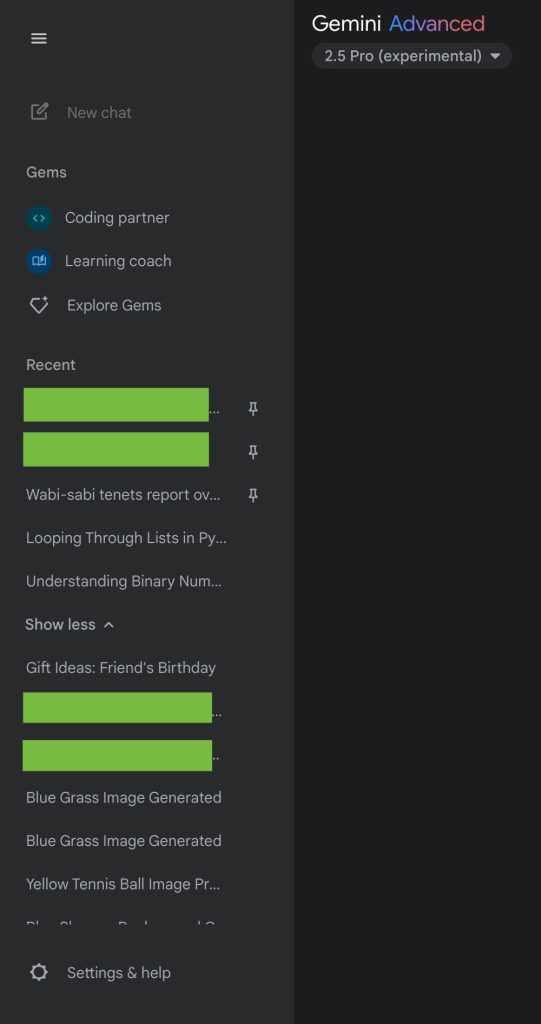
Starting at the top, Google has removed the pill around the “New chat” button so it’s now flat, while the ‘plus’ has been replaced by a more descriptive icon.

Meanwhile, “Gems” is now the next item in the side panel, with Gemini showing your two most recent ones and a link to the Explore page.

Old vs. new

Gemini-side-panel-old-a.jpg
Gemini side panel redesign


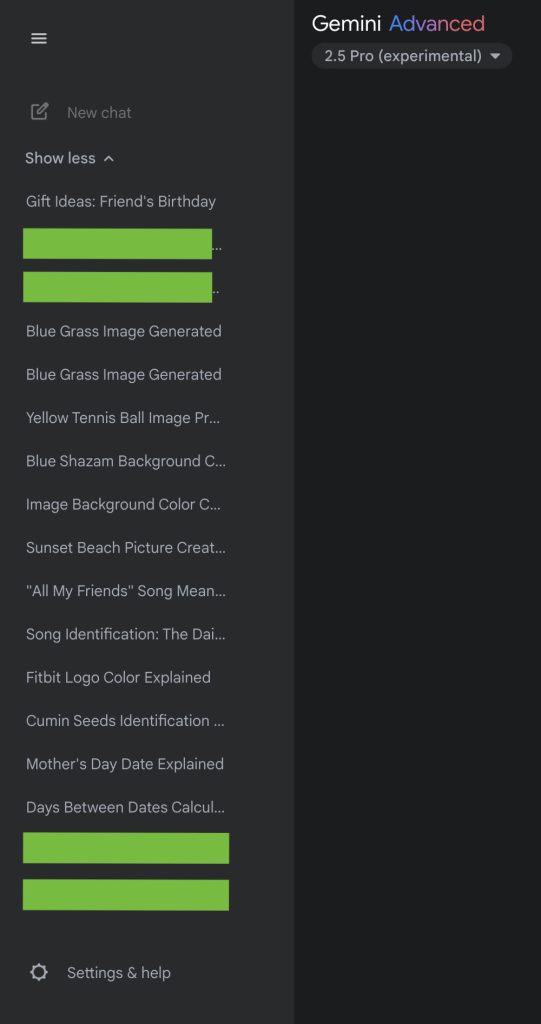
Then there’s “Recent” with your five last chats and pins. Notably, after tapping “Show more,” you can keep on scrolling instead of having to keep clicking for additional conversations. This is much more convenient than before.

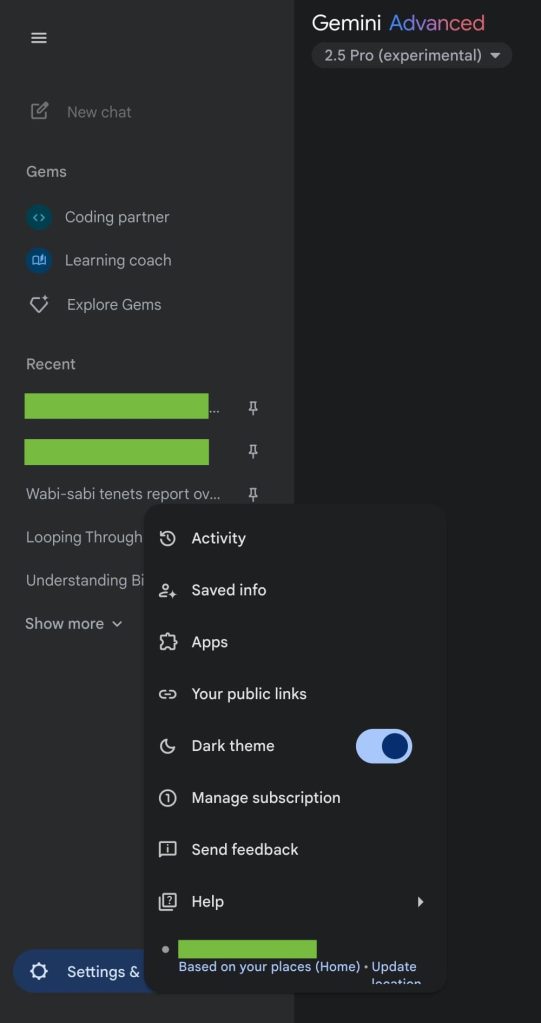
Finally, Google has consolidated everything else into a “Settings & more” menu that’s much simpler than the previous column of four icons, especially when minimized. This includes: Activity, Saved info, Apps, Your public links, Dark theme, Manage subscription, Send feedback, Help, and current location. This updated side panel also appears on mobile web.

Gemini’s side panel redesign has been rolling out in recent days and is now seeing wider availability.

Gemini side panel redesign
 

limmk

High Supremacy Member
Joined
Jul 5, 2001
Messages
41,206
Reaction score
8,166


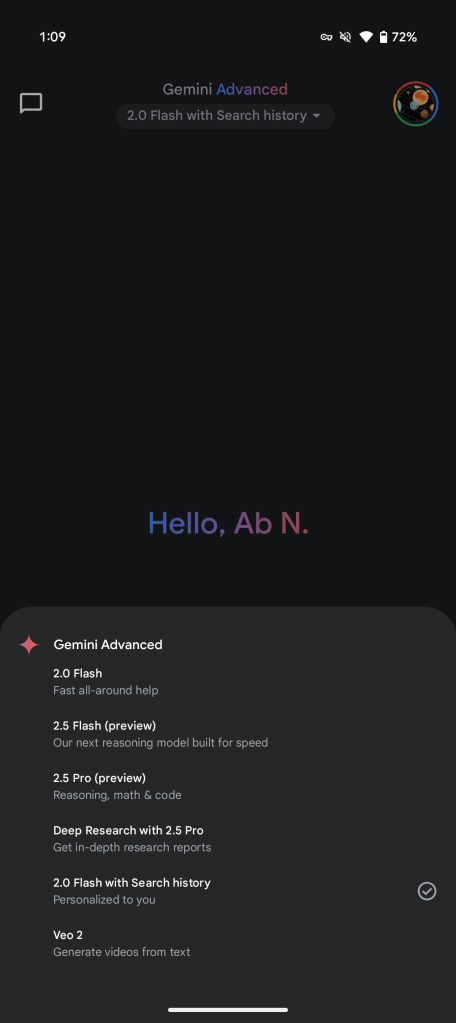
The Gemini developments continue this week with 2.5 Flash and 2.5 Pro going from “experimental” to “preview” status in the app.

Google today updated the Gemini app model picker on Android, iOS, and the web for free and Advanced users:
  • 2.0 Flash: Fast all-around help
  • 2.5 Flash (preview): Our next reasoning model built for speed
  • 2.5 Pro (preview): Reasoning, math & code
  • Deep Research with 2.5 Pro: Get in-depth research reports
  • 2.0 Flash with Search history: Personalized to you
  • Veo 2: Generate videos from text
For comparison, the previous list (with what stayed the same excluded) is below:
  • 2.0 Flash: For everyday tasks, plus more features
  • 2.5 Flash (experimental): Uses advanced reasoning
  • 2.5 Pro (experimental): Best for complex tasks
  • Personalization (experimental): Help based on your Search history
Gemini-app-Veo-2-2.jpg
Gemini 2.5 preview


Google updated the 2.0 Flash description, while the new one for 2.5 Flash helps better distinguish them. Meanwhile, the one for 2.5 Pro makes clear its use cases. When 2.5 Pro was updated earlier this week, the Gemini app did not signal the change. Meanwhile, in entering preview, the Gemini 2.5 model family is closer to launch. Google tells us that these are just name changes.

Finally, the Personalization model announced in March is now called “2.0 Flash with Search history” with the experimental label dropped. Hopefully, that will coincide with broader availability.
 

limmk

High Supremacy Member
Joined
Jul 5, 2001
Messages
41,206
Reaction score
8,166


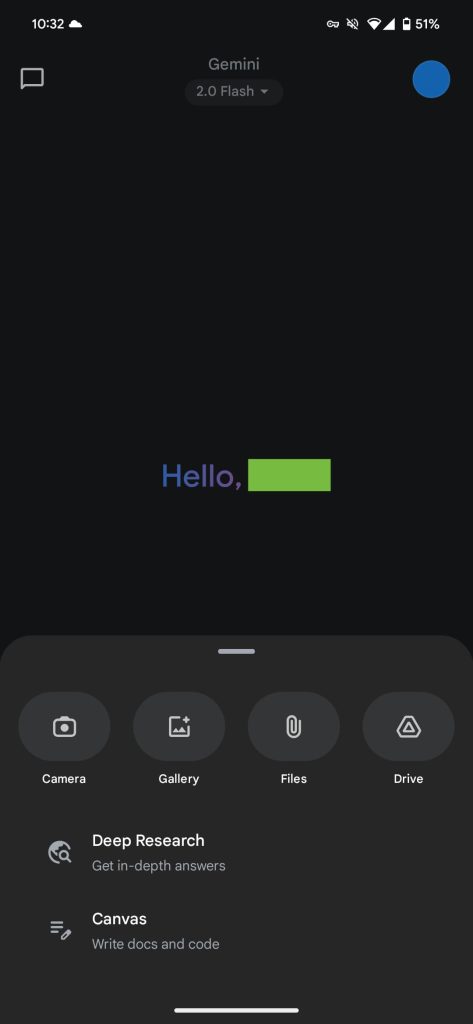
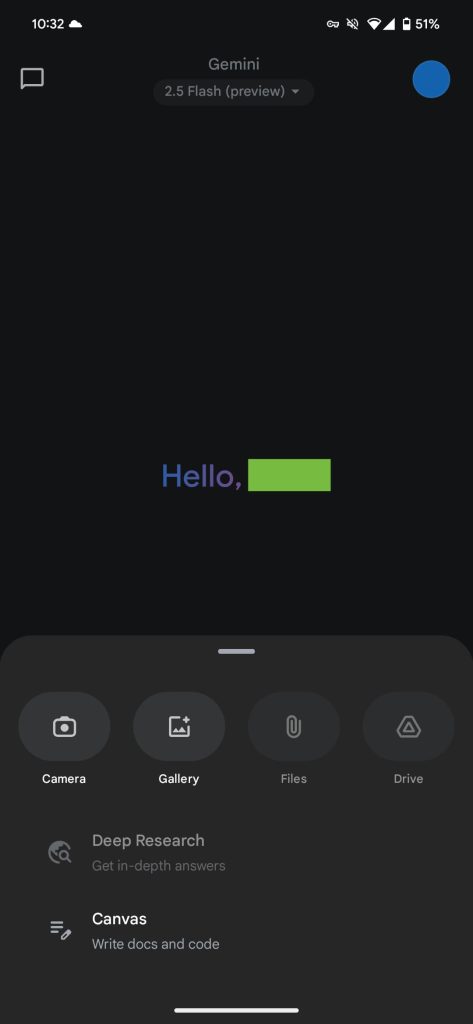
Over the past day or so, free Gemini app users have lost the ability to upload files when using Gemini 2.5 Flash (preview).

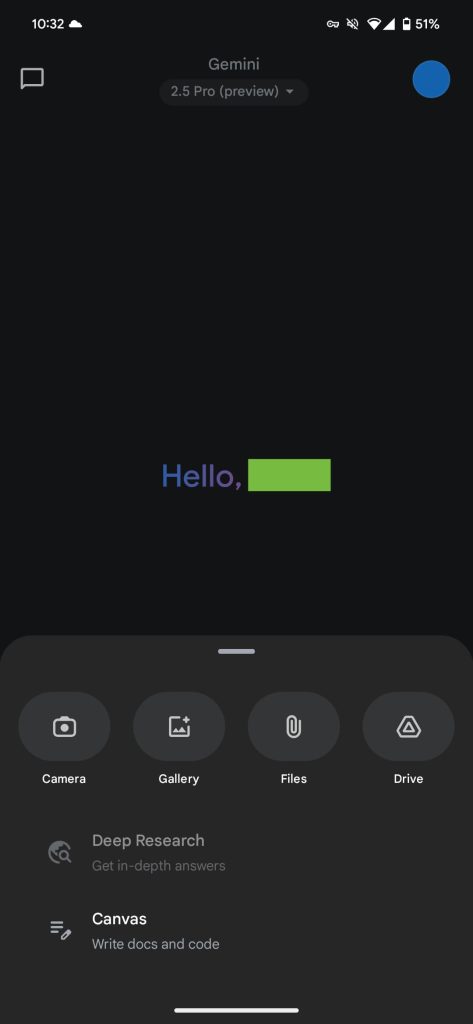
On Android and iOS, opening the ‘plus’ menu reveals how Files and Drive are grayed out. Meanwhile, the website just shows the image upload button. As such, you can’t analyze documents, Talk Live with, or generate Audio Overviews, which expanded to 45+ languages this week.

2.0 Flash and 2.5 Pro (preview) still allow for file upload, with the latter being the closest alternative. However, free users face usage limitations. File upload in 2.5 Flash remains available for paid Advanced users today.

File uploads not being available in Gemini 2.5 Flash should just be a bug that hopefully gets resolved earlier than Monday.

L-R: 2.0 Flash, 2.5 Flash, 2.5 Pro

free-Gemini-2.0-Flash-plus-menu.jpg
Gemini 2.5 Flash file

free-Gemini-2.5-Pro-plus-menu.jpg
 
Important Forum Advisory Note
This forum is moderated by volunteer moderators who will react only to members' feedback on posts. Moderators are not employees or representatives of HWZ Forums. Forum members and moderators are responsible for their own posts. Please refer to our Community Guidelines and Standards and Terms and Conditions for more information.
Top