- Joined
- Jul 5, 2001
- Messages
- 46,233
- Reaction score
- 8,629
Speed up on-device animations
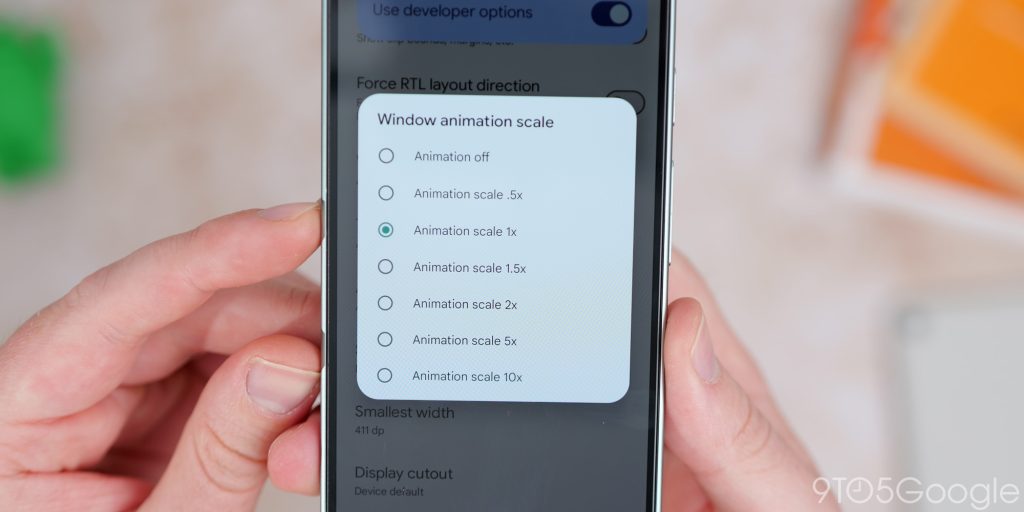
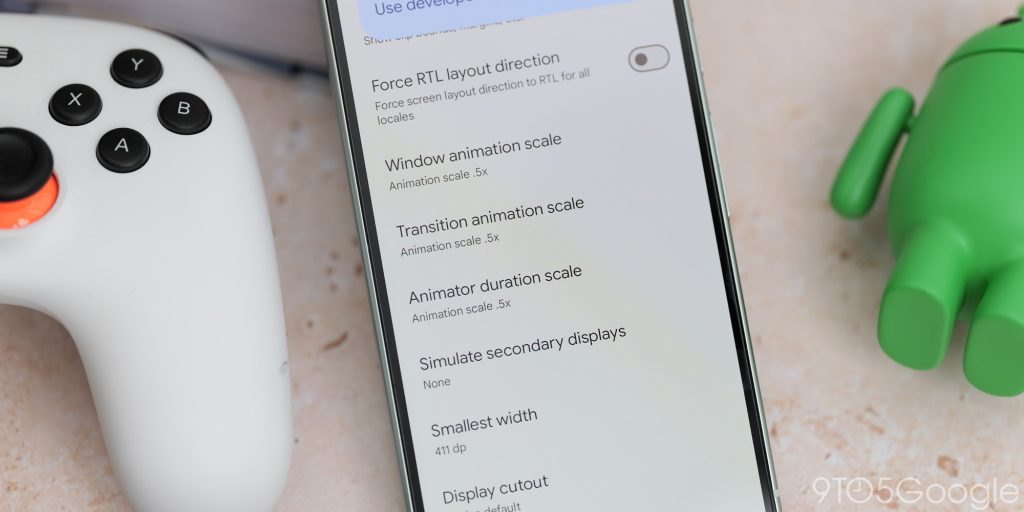
Android gets a lot of undeserved criticism for the quality and consistency of animations and perceived smoothness. In recent years, things have improved dramatically. Thanks to the enhanced developer options mode, you can tweak your phone’s animations though if they are too slow or not slow enough for your liking.
If you want to tweak animation speed, head to Settings > System > Developer options. From here, there are three options that you can toggle to improve speed. “Window animation scale,” “Transition animation scale,” and “Animator duration scale” can be tweaked to suit your own personal preferences. It’s worth noting that .5x speed means faster, so smaller numbers mean even faster animations.
Wi-Fi scan throttling
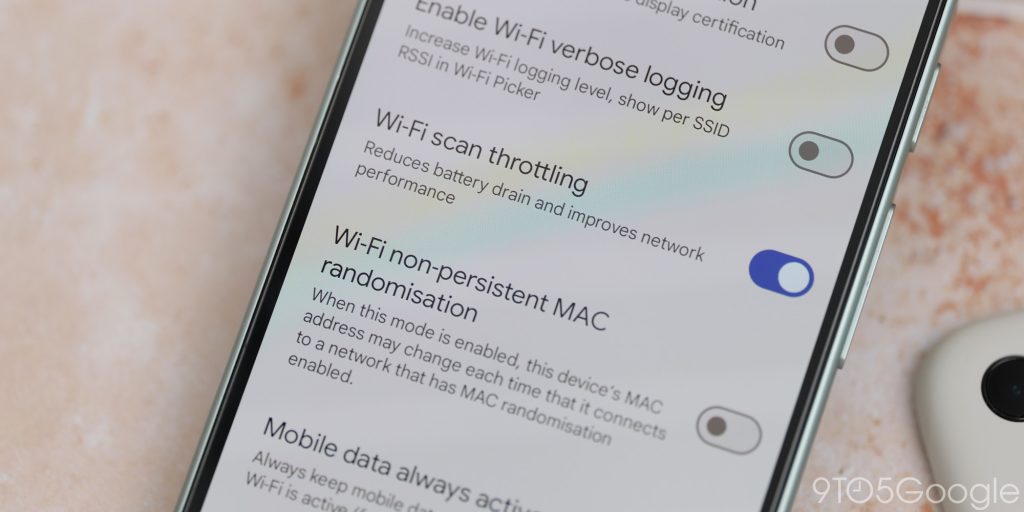
Battery life is one of the biggest complaints of any smartphone and taking steps to potentially increase it is always worthwhile — so long functionality isn’t impaired. One such function that might be worthwhile disabling is “Wi-Fi scanning.” However, you can still keep this enabled for quick Wi-Fi switching but restrict how often the scanning process takes place.
Wi-Fi scan throttling limits background apps from scanning for Wi-Fi to once every 30 minutes. Without being activated, this can be as much as once every 15 seconds. In our opinion, this is a good middle ground if you don’t want to disable Wi-Fi scanning entirely.
To enable this, head to Settings > System > Developer options > Wi-Fi scan throttling.
Force dark mode
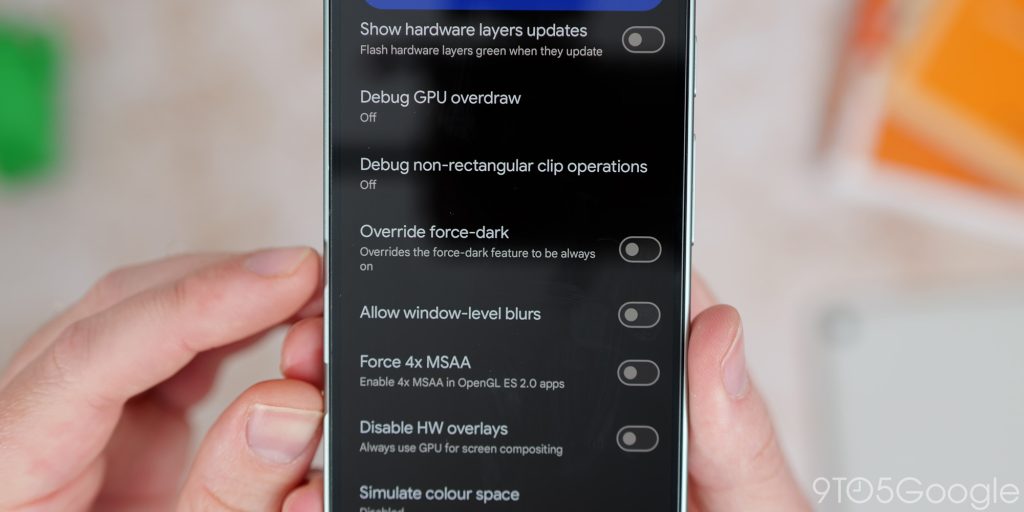
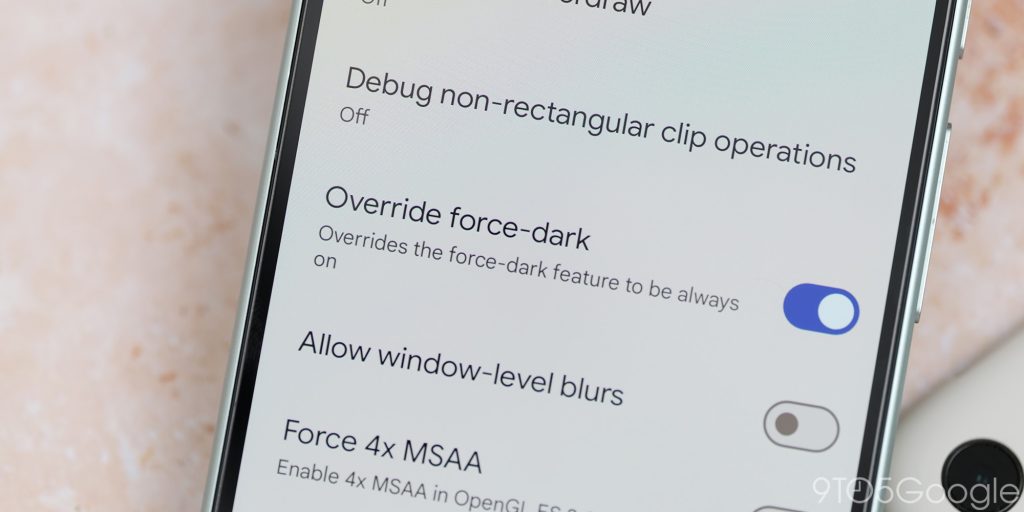
A dedicated dark theme or dark mode has been one of the best additions to Android in recent years. It still isn’t perfect, though, because even after a few years, not all apps play nicely. Thanks to a toggle found within Developer options, you can force a dark theme even for unsupported Android apps and certain system sections.
As you would expect, this can be buggy. Certain UI portions can become obscured or hard to decipher as a result of using this option. We would say use this functionality with caution as it can make some apps difficult to use properly.
If you want to enable a dark theme everywhere, head to Settings > System > Developer options > Override force-dark.
Always enable/disable mobile data
Even when your phone is constantly connected to Wi-Fi, mobile data will be active for quick switching between networks. This is great if you are moving between networks on a regular basis, but for most people, this can affect battery longevity.To disable or enable this function, head to Settings > System > Developer options > Mobile data always active > Toggle on/off. With this function disabled, it’s worth noting that when turning off or disconnecting from Wi-Fi, it’ll take a couple of seconds before mobile data is available, but we think this is a worthwhile compromise.
Monitor and manage running services
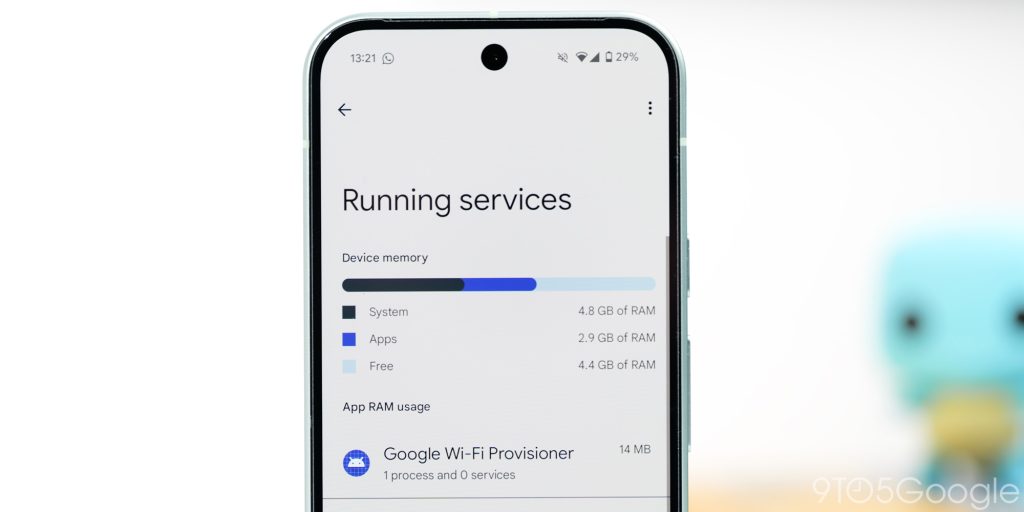
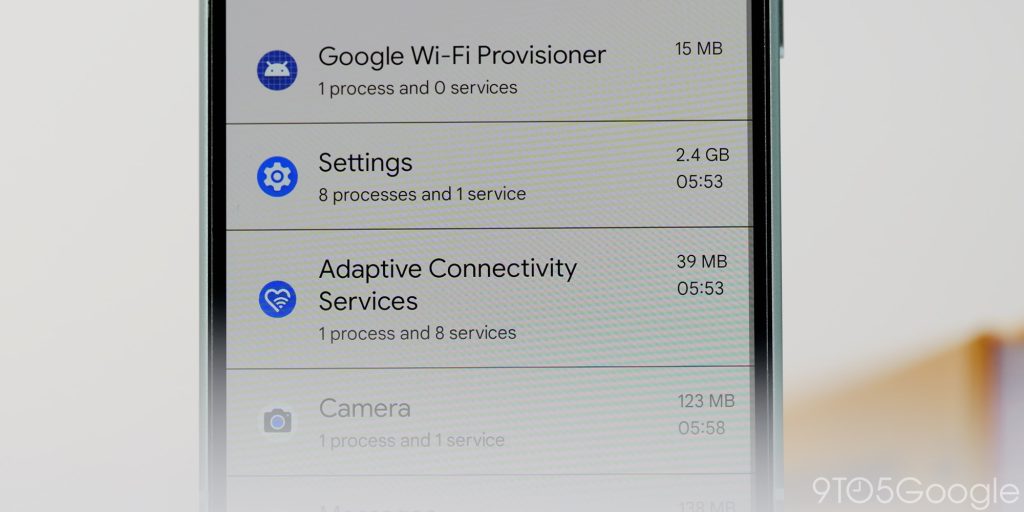
Within Developer options, you can manage and monitor any ongoing processes running on your Android phone including cached apps. If your phone is running strangely or you just want to get an idea of what is sapping at device memory, then this dashboard is a useful place to visit to get a better idea of what is going on.
You’re able to stop any processes or applications from this page, too, if you wish. Head to Settings > System > Developer options > Running services to get an idea of the current state of your Android phone.